
Planet Networking & Communication DTR-100D Manual de usuario

USB 2.0 Digital TV Receiver (DVB-T)
DTR-100D
User’s Manual

Copyright
Copyright©2008 by PLANET Technology Corp. All rights reserved. No part of
this publication may be reproduced, transmitted, transcribed, stored in a retrieval
system, or translated into any language or computer language, in any form or by any
means, electronic, mechanical, magnetic, optical, chemical, manual or otherwise,
without the prior written permission of PLANET.
PLANET makes no representations or warranties, either expressed or implied, with
respect to the contents hereof and specifically disclaims any warranties,
merchantability or fitness for any particular purpose. Any software described in this
manual is sold or licensed "as is". Should the programs prove defective following
their purchase, the buyer (and not this company, its distributor, or its dealer) assumes
the entire cost of all necessary servicing, repair, and any incidental or consequential
damages resulting from any defect in the software. Further, this company reserves
the right to revise this publication and to make changes from time to time in the
contents hereof without obligation to notify any person of such revision or changes.
All brand and product names mentioned in this manual are trademarks and/or
registered trademarks of their respective holders.
CE mark Warning
The is a class A device, In a domestic environment, this product may cause radio
interference, in which case the user may be required to take adequate measures.
WEEE
To avoid the potential effects on the environment and human health as a
result of the presence of hazardous substances in electrical and electronic
equipment, end users of electrical and electronic equipment should
nderstand the meaning of the crossed-out wheeled bin symbol. Do not
dispose of WEEE as unsorted municipal waste and have to collect such
WEEE separately.
u
Safety
This equipment is designed with the utmost care for the safety of those who install
and use it. However, special attention must be paid to the dangers of electric shock
and static electricity when working with electrical equipment. All guidelines of this
2

and of the computer manufacture must therefore be allowed at all times to ensure the
safe use of the equipment.
Revision
User’s Manual for DTR-100D
Model: DTR-100D
Rev: 1.0 (April 2008)
Part No. 2081-K10030-000
3

Table of Contents
Chapter 1 Introduction...................................................................................................6
1.1 Feature...............................................................................................................6
1.2 Package Contents ..............................................................................................7
1.3 Physical Details.................................................................................................7
Chapter 2 Hardware Installation....................................................................................9
2.1 System Requirement .........................................................................................9
2.2 Hardware Installation........................................................................................9
2.2.1 Install Windows Media Player 9 ...........................................................11
2.2.2 Install Microsoft DirectX 9....................................................................15
2.2.3 Install ArcSoft TotalMedia Software ....................................................18
2.2.4 Install DTR-100D’s driver.....................................................................22
Chapter 3 User Interface..............................................................................................27
3.1 Launch TotalMedia Monitor...........................................................................27
3.2 Main Monitor ..................................................................................................28
3.2.1 TV..........................................................................................................31
3.2.1.1 Search TV channels .....................................................................31
3.2.1.2 Channel Preview..........................................................................35
3.2.1.3 Full Screen...................................................................................37
3.2.1.4 Favorite Channel List...................................................................38
3.2.1.5 EPG..............................................................................................39
3.2.1.6 Channel........................................................................................41
3.2.1.7 Recorded TV................................................................................42
3.2.1.8 Scheduling....................................................................................43
3.2.1.9 TV Settings..................................................................................46
3.2.2 Picture....................................................................................................54
3.2.3 Music.....................................................................................................59
3.2.3.1 My Playlists .................................................................................61
3.2.3.2 Ripping Music CDs......................................................................65
3.2.4 Video .....................................................................................................67
3.2.4.1 Playing Movies – Previewing, Renaming, and Deleting.............68
3.2.4.2 Capturing Video...........................................................................68
4

3.2.5 Setup......................................................................................................69
3.2.5.1 General.........................................................................................70
3.2.5.2 TV................................................................................................74
3.2.5.3 Video............................................................................................75
3.2.5.4 Pictures.........................................................................................76
3.2.5.5 Music............................................................................................77
5
EC Declaration of Conformity ...................................................................................79

Chapter 1 Introduction
Planet DTR-100D is DVB-T Digital TV receiver that offers a complete and cost
effective solution for Digital TV broadcasting.
Planet DTR-100D connects Digital TV with your computer/notebook, DTR-100D not
only allows you to watch Free-To-Air digital terrestrial television channels with no
subscription to pay but also can record real time digital TV programs directly to the
hard disk in your computer/notebook.
With its fascinating features, DTR-100D provides Multi-Channel preview, Real-Time
digital video recording (DVR), image capturing, and Schedule Recording allows you
not miss out any favorite TV programs. In addition, it incorporates a MPEG-2 software
decoder which delivers a picture quality of HDTV standard and enables a high quality
playback of the recordings. DTR-100D also can deliver Electronic Program Guide
(EPG) which offers you more information about the TV programs. You can pause
while watching TV program and continue from where you left with Time-Shifting
feature, and will never miss a scene.
The supplied Remote Controller gives you easy access to the key functions of the
DVB-T receiver, so you don‘t always have to be seated next to your computer.
With the pocket-sized digital TV receiver connecting with a computer/notebook, you
can watch digital TV shows anywhere and anytime and turn your computer/notebook
into a personal mobile TV entertainment system.
1.1 Feature
Compliant with DVB-T Standard (ETS 300 744)
Compliant with USB 2.0
Supports Real Time Digital Video Recording (MPEG-2 compression)
Supports HDTV quality (Requires P4 3.0GHz or higher CPU, 512MB RAM or
above)
Supports Schedule Recording
6
Supports Time-Shifting(Requires P4 2.0GHz or higher CPU)
Supports EPG (Where available)
Supports Teletext (Where available)
Supports Snap Shot in JPEG format
Supports Multi-Channel preview
Supports channel auto scan
Supports portable receiver
Supports Subtitle
Multiple language (English, German, French, Italian, Dutch, Spanish, Portuguese,
Traditional Chinese and Simplified Chinese)
Software Upgradeable
1.2 Package Contents
1. DTR-100D USB 2.0 Digital TV Receiver
2. Installation CD (Include User Manual, Quick Installation Guide, Utility and Driver)
3. Remote Controller
4. DVB-T TV Antenna
1.3 Physical Details
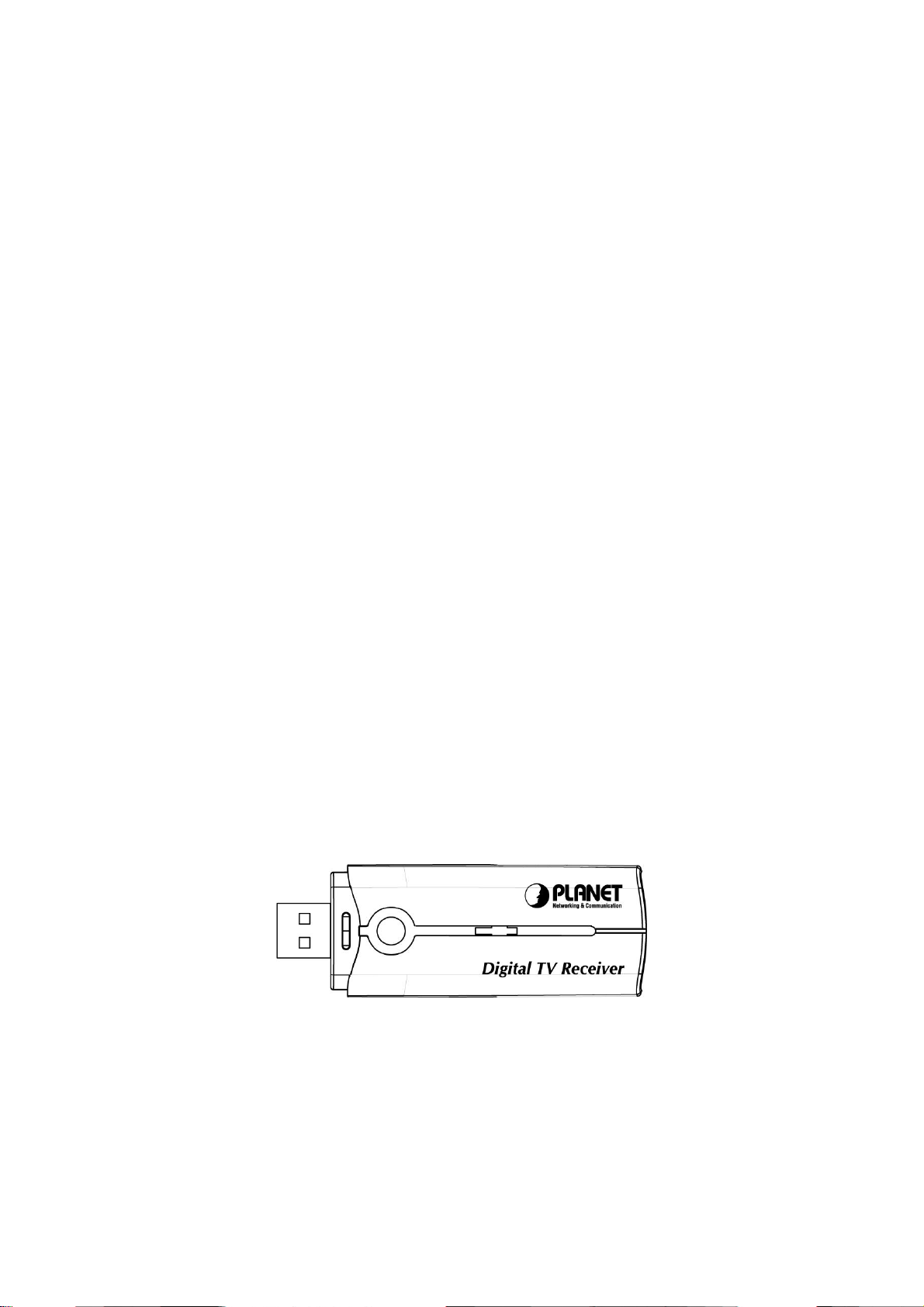
Outlook
DTR-100D USB 2.0 Digital TV Receiver
7
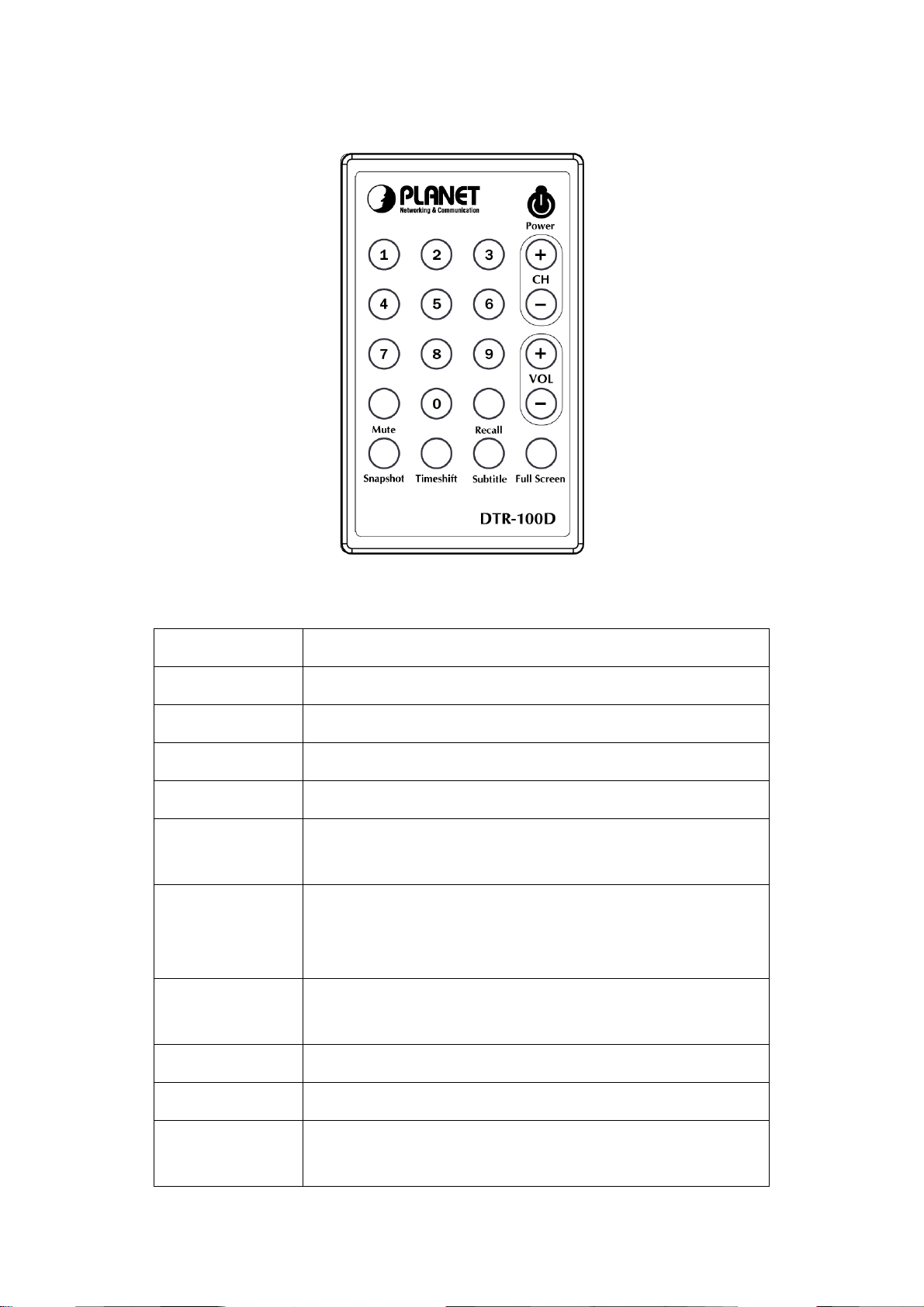
Remote Controller
Button Definition
Button Description
Power Turn on or off digital TV receiver.
CH(+,-) Click + or - button to adjust the channel.
VOL(+,-) Click + or - button to adjust the volume of sound.
Full Screen To switch into full screen mode.
Recall Click the “Recall” to go back the last channel you just
selected.
Subtitle
This only available with the local TV provider which also
support this feature. Click this button, and you can view the
extra text on the channel screen.
Timeshift With this button, you can pause while watching TV program
and continue from where you left.
Mute To switch volume to mute mode.
Snapshot To capture the channel screen you are just watching.
Keyboard 0-9 You can directly to press the number to view the channel you
like to watch.
8

Chapter 2 Hardware Installation
This chapter offers information about installing your router. If you are not familiar with
the hardware or software parameters presented here, please consult your service
provider for the values needed.
2.1 System Requirement
Pentium 4 compatible processor 1.2GHz or higher (2.0GHz recommended)
Minimum 256MB RAM or above (512MB recommended)
VGA card with minimum 32MB memory
AC97 compatible sound card
HD space at least 1 GB free for installation
Microsoft DirectX 9 or above
Windows 2000 or above
Windows Media Player 9 or above
2.2 Hardware Installation
This chapter explains how to install DTR-100D with your computer or notebook.
1. Connecting USB Port
Connect USB connector of the DTR-100D to the USB port on your computer or
notebook.
2. Connecting Terrestrial Antenna
Connect the supplied DVB-T antenna to the VHF/UHF port on the backside of the
DTR-100D.
9

3. Install Device Driver & Utility
(1) After installing the DTR-100D into your computer or notebook, the system will find
a new hardware device as the below figure “Found New Hardware Wizard” will appear.
Please click “Cancel” to exit the Wizard.
(2) Please insert the supplied CD into your CD drive, and then install the utility and
driver. There are three utilities in the supplied CD: Windows Media Player 9,
10
Tabla de contenidos
Otros manuales de Receptor de TV de Planet Networking & Communication


