
Pivot OMNI 97 Manual de usuario

16.
User Guide
OMNI 97
For iPad 9.7”, iPad Pro 9.7” and iPad Air 2
Better Connection. Better Protection.
[ Issued 09.07.2017. Version R1 ]
ADVANCE RELEASE! (Product coming F/W 2017)

1.
OMNI 97 | User Guide
For iPad 9.7”, iPad Pro 9.7” and iPad Air 2
For optimal performance and maximum satisfaction with your PIVOT case, please follow
this set of simple recommendations to ensure proper deployment and superior device
protection.
WARNING: Your PIVOT case is designed to hold your device firmly to protect against
accelerated impacts. Once installed, your device will be held securely on all sides. It is not
intended to come out easily. When you get a PIVOT case, it means you’re getting the
best. PIVOT products maximize protection and minimize the need to remove the device
from your PIVOT case.
If you need to remove your device, please refer to this document or visit PIVOT online for
instructions to avoid unnecessary damage to your device and PIVOT case.
Read Before Use
Thermal Control
Tough Protection
Air Cushion Lightweight
Keyboard Compatible Stylus Support
A-Z
[ Issued 09.07.2017. Version R1 ]

2.
The PIVOT OMNI 97 is a multi-generational device solution. With the use of the PIVOT Universal
Spacer, the OMNI 97 fits the Apple™iPad 9.7”, iPad Pro 9.7” and the Air 2. Features such as
camera, audio jack openings and button access have been shifted to accommodate the various
locations of these features across the dierent devices. Use the Universal Spacer insert in the
following device configurations:
Use Universal Spacer:
iPad Pro 9.7”
iPad Air 2
Remove Universal Spacer:
iPad 9.7”
The Universal Spacer fits perfectly into place to fill the dierence between device dimensions,
while all three devices retain full button functionality and operation.
Device Compatibility
OMNI 97 CASE OVERVIEW:
Universal Spacer
Did You Know?
Not all OMNI 97 compatible devices share the same
features or locations of buttons, speakers and
cameras. For this reason, the access openings in
the OMNI 97 case are designed to accommodate
the features of all three device types.

3.
Align device camera and buttons with the
corresponding access points in the case body and
press the corners of the device into the case in the
order shown. The device will snap securely into the
case’s perimeter seal.
Installing Device
Beginning with the bottom edge near the charging
port, press firmly using your thumbs to disengage
the case seal. Continue carefully pressing around the
edges of the case to release the device in the order
shown. Do not attempt to pry or force the device
from the case.
1. Start at the bottom and move left
2. Continue around the top edge
3. Release the right edge to remove device
Removing Device
!WARNING!
Do not use excessive force or
tools of any kind during install or
removal of device. Doing so may
cause damage or personal injury.
!Pro Tip!
Open the ID window and write
your info on the ID card before
installing the device.
2
1
3
4
1
2
3
Top
Bottom
Left
Right

4.
Keyboard Compatible
To convert for use with the Apple™Smart Keyboard,
simply remove the protective side edge to reveal the Smart
Connector. Using your thumb and forefinger, begin
disengaging the clips by gripping the side edge firmly and
rocking with mild force until the clip gently unlocks. Start
with one end and continue releasing the clips as you move
across the full length. Do not use excessive force or
attempt to rip the parts apart.
A-Z
Stylus Support
The Apple™Pencil and similarly sized
stylus wands snap firmly into the
integrated stylus channel.
Please follow the orientation shown here
for the most secure grip. The pencil tip
cradle* is specifically designed for the
Apple Pencil to prevent leverage that may
result in accidental release from the stylus
channel.
!Pro Tip!
Store any removable parts in
a safe and memorable
location so they are available
if you need them in the future.

5.
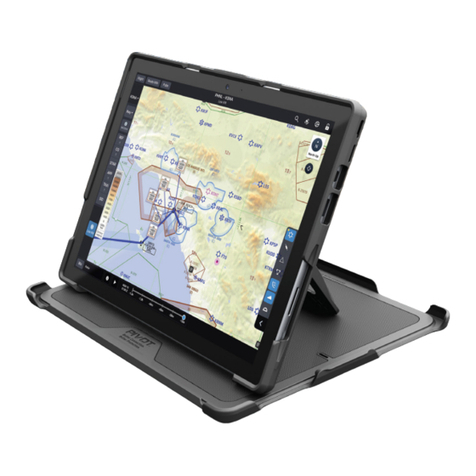
PIVOT FOLIO COVER GUIDE
(Kickstand Hinge)
(Viewing Slots)
(Mounting Plate)
1
Pivot Case Folio (PCF)
Includes the main Folio
Cover with Viewing Slots,
Kickstand Hinge and the
folio Mounting Plate.
Folio Cover
Assembly:
Align the folio cover with the back of the Pivot case as shown. Ensure the folio’s mounting plate
is placed flat against the back of the case with the three slots directed towards the clip. Slide the
folio into the mounting channel and secure with the clip.
Removal:
Disengage the folio cover from the Pivot mounting channel by pressing the clip on the back of the
case, which will release the folio. With the clip pressed, gently pull the folio cover out of the
mounting channel. Store the folio in a safe and memorable location.

6.
Use your folio cover for convenient viewing in four dierent
angles. Open the folio cover and fold into the position show.
Engage the flanges on the edge of the case with the viewing slots
for superior stability.
Kickstand Hinge
The folio cover includes an I.D. labeling area
ready for use with standard adhesive labels.
Download the label template from the
manufacturer’s website and create your I.D.
label using ink jet or laser printers.
Recommended: Avery Template 5167
Folio I.D. Label
Label Area
1/2” x 1 3/4”

7.
The OMNI 97 Folio Cover is easy and
intuitive to use. Simply follow the
instructions below when opening and
closing your cover.
Using The Folio Cover
1. Release the folio latch at the front
right edge
2. Open the cover
3. For hand-held viewing, fold the cover
back as illustrated, just like a book
!Pro Tip!
Continuously rotate the cover
around until the magnets engage
with the back of the case.
!Pro Tip!
The Folio Cover includes magnets to
activate the auto-sleep/wake
feature of the iPad. Manage this
feature in the device settings menu.
An added convenience feature of the
OMNI 97 Folio Cover is the magnetic
assist when in hand-held viewing
mode. Magnets react to help hold
the cover in a comfortable position
while the user is holding it.
Open the Folio Cover like a book to
feel the magnets engage. This is the
correct and intended position of the
folio when in hand-held viewing
mode. Any other position is incorrect
and could result in damage to the
cover.
Magnetic Folio Cover

8.
The Folio Cover is designed to protect
the device during transit and provide
convenience features when in viewing
mode. It is very durable if used as
intended. However, the folio can be
damaged if misused and put under
repeated stress.
Do not fold the Folio Cover beyond the
intended angles indicated by the
viewing slots on the inside of the cover
or fold incorrectly when in hand-held
mode. Doing so may result in damage
to the magnetic convenience features.
Incorrect Use
!
!
!WARNING!
Do not use excessive force when
using the Folio Cover. Do not bend the
cover backwards over the Pivot Clip. The
Folio Cover is not intended to bend this way.
This type of misuse can cause damage and is
not covered under warranty.

9.
MOUNTING SOLUTION GUIDE
Your PIVOT case is designed to work with a wide variety of patented
PIVOT Mounting Solutions. Prior to connecting the PIVOT case to
the mount, confirm the mount is in the correct location and is fully
secure. Adjust the mount to the desired orientation and tension for
your device type. Position the mounting plate to promote a parallel
orientation to the case during the install. Follow the steps listed
below for secure mount connection every time:
1. Raise the PIVOT case ABOVE the mounting plate to ensure all
corners of the mounting plate are below the widest opening of the
mounting channel on the case body.
2. Next, lower the case body onto the mounting plate. You will feel the
mounting plate being guided into the case’s mounting channel.
3. The connection is complete when you hear the audible “CLICK” of the clip and
mounting plate engaging. It is not necessary to depress the clip during install as it is
designed to lock onto the mounting plate when properly inserted.
(Depress the PIVOT Clip and reverse this process to unmount the case.)
Universal Mounts
Did You Know?
PIVOT Mounting Solutions
are interchangeable. Each
PIVOT Mounting Solution
case will always connect
securely with every PIVOT
Mount.
Tabla de contenidos
Otros manuales de Accesorios para tabletas de Pivot


Manuales populares de Accesorios para tabletas de otras marcas


Bretford
Bretford PowerRack 10 Manual de usuario

Brenthaven
Brenthaven EDGE 360 Manual de usuario

Fujitsu
Fujitsu Stylistic 3400 Manual de usuario

Heckler Design
Heckler Design WindFall STAND Manual de usuario

Kensington
Kensington KeyFolio SecureBack Manual de usuario

Xplore
Xplore Companion Keyboard Manual de usuario

Logitech
Logitech Ultrathin Manual de usuario

Infinite Peripherals
Infinite Peripherals INFINEA X MINI Manual de usuario

Trust
Trust Executive Folio Stand Manual de usuario

Manhattan
Manhattan 406017 Manual de usuario

Logitech
Logitech SLIM COMBO Manual de usuario

Logitech
Logitech AnyAngle iC1051 Manual de usuario