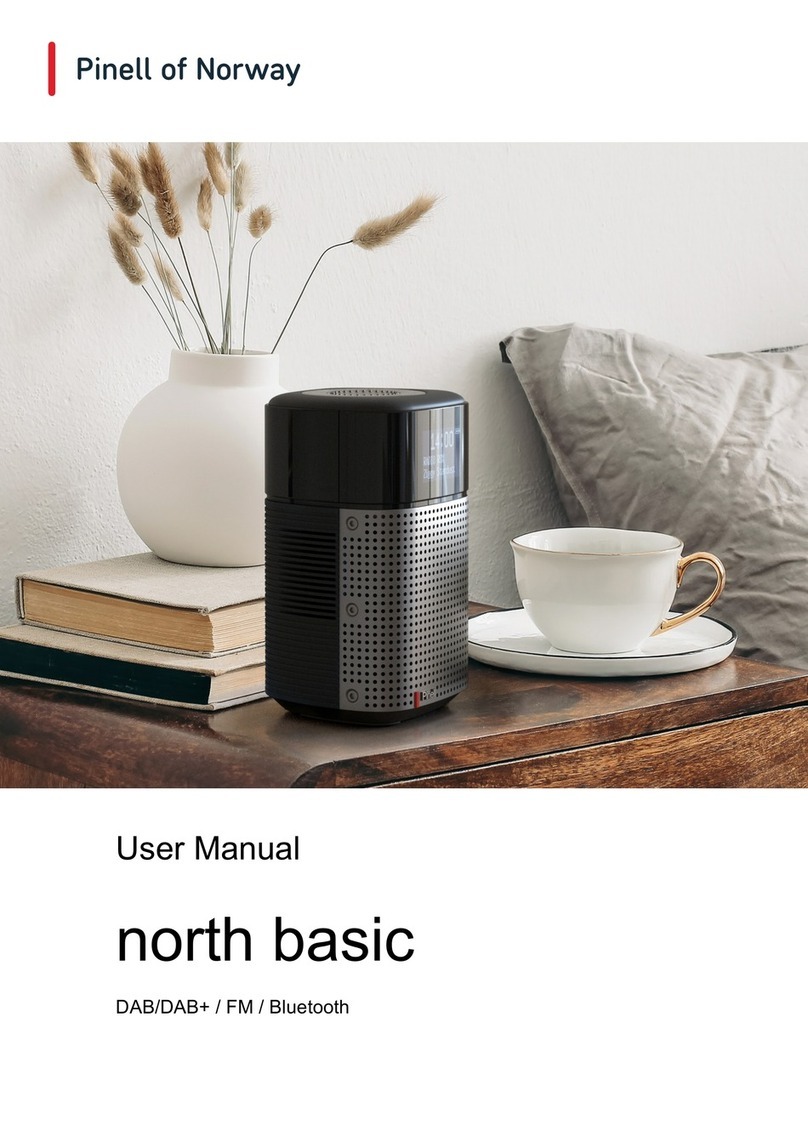
Pinell SUPERSOUND 101 Manual de usuario

User Manual
SUPERSOUND 101
DAB/DAB+ / FM / Internet Radio / Podcasts / Bluetooth

2
Safety instructions
Please store this instruction manual for future reference.
WARNING: To reduce the risk of fire or electric shock, do not expose this apparatus to rain or
moisture. The apparatus shall not be exposed to dripping or splashing and that objects filled with
liquids, such as vases, shall not be placed on apparatus.
WARNING: The direct plug-in adapter is used as disconnect device, the disconnect device shall
remain readily operable.
• This lightning flash with arrowhead symbol within an equilateral triangle is intended to alert
the user to the presence of non-insulated “dangerous voltage” within the product's enclosure that
may be of sufficient magnitude to constitute a risk of electric shock.
WARNING: To reduce the risk of electric shock, do not remove cover (or back) as there are no
user-serviceable parts inside. Refer servicing to qualified personnel.
• The exclamation point within an equilateral triangle is intended to alert the user to the presence
of important operating and maintenance instructions in the literature accompanying the
appliance.
• No naked flame sources, such as lighted candles, should not be placed on the apparatus.
• Do not use this product near water or moisture.
• Clean only with a dry cloth.
• Unplug this product from the wall outlet before cleaning.
• Place the unit on a solid surface.
• Do not put it in a closed bookcase or a cabinet that may keep air from flowing through its
ventilation openings.
• Do not install near any heat sources, such as radiators, heat registers, stoves or other
appliances that produce heat.
• Protect the power cord from being walked on or pinched, particularly at plugs and the point
where they exit from the product.
• Servicing is required when the product has been damaged. Do not attempt to service this
product yourself. Opening or removing covers may expose you to dangerous voltages or other
hazards. Please contact the manufacturer to be referred to an authorized service center near
you.
• To p re ve nt ri s k of fi r e or el ect ri c s ho ck, a vo i d ove r loa di ng wa ll ou tle ts , e xt ens io n c or ds , o r
integral convenience receptacles.
• Do not let objects or liquids enter the product.
• Use proper power sources. Plug the product into a proper power source, as described in the
operating instructions or as marked on the product.

3
Table of Contents
Safety instructions .......................................................................................................................... 2
Tab l e of Co nt en ts ............................................................................................................................ 3
Features ................................................................................................................................. 4
Carton contents ...................................................................................................................... 4
Controls, connectors and display .................................................................................................... 5
Main controls .......................................................................................................................... 5
Connectors ............................................................................................................................. 6
Getting started ................................................................................................................................ 7
Setup Wizard .......................................................................................................................... 7
Other settings ....................................................................................................................... 10
Internet radio mode ....................................................................................................................... 11
Country ................................................................................................................................. 11
Search .................................................................................................................................. 12
Location ................................................................................................................................ 12
Popular ................................................................................................................................. 12
Discover ............................................................................................................................... 12
Now playing information ....................................................................................................... 13
Podcast mode ............................................................................................................................... 14
Podcast menu ...................................................................................................................... 14
Last Listened ........................................................................................................................ 14
Podcast List .......................................................................................................................... 14
DAB radio mode ........................................................................................................................... 15
Scan for stations .................................................................................................................. 15
Selecting stations ................................................................................................................. 15
Now playing information ....................................................................................................... 15
Settings ................................................................................................................................ 16
FM radio mode .............................................................................................................................. 17
Selecting stations ................................................................................................................. 17
Now playing information ....................................................................................................... 17
Scan settings ........................................................................................................................ 17
Audio settings ....................................................................................................................... 17
Bluetooth mode ............................................................................................................................. 18
Alarms and sleep .......................................................................................................................... 18
Alarms .................................................................................................................................. 18
Sleep .................................................................................................................................... 19
Software upgrades and factory reset ............................................................................................ 20
Software upgrade ................................................................................................................. 20
Factory reset ........................................................................................................................ 20
Troubleshooting and error messages ........................................................................................... 21
Error messages .................................................................................................................... 21
Troubleshooting ................................................................................................................... 22
Tec hni ca l s pe ci fic ations: ............................................................................................................... 23
Tec hni ca l D at a - supplied Power Supply: ..................................................................................... 23

4
Features
This manual describes how to use the Supersound 101, an advanced but easy-
to-use Wi-Fi connected audio system with the following modes:
Internet Radio with access to over 20,000 stations by Wi-Fi streaming ‘Listen
again’ broadcasts and podcasts
Podcasts from a wide range of broadcasters
DAB/DAB+ digital radio with a wide choice of channels and digital quality sound
broadcast free-to-air.
FM with RDS (Radio Data System)
Bluetooth - streaming music and control from Smart device.
Carton contents
Carefully remove your radio from the packaging. You can keep the packaging for
later use:
• 1x Supersound 101 unit
• 1x DC5V USB charging cable and power adapter

5
Controls, connectors and display
Main controls
1 PRESET - Long press button 1, 2, 3+ to preset and save your favorite
stations. You can save up to 20 stations by long press 3+ and rotate
SELECT to choose the position. The short press to store.
Short press 1, 2, 3+ to select the favorite station to play or Preset recall.
2
9
- Previous: Press to select the previous track in Bluetooth and Internet
radio mode.
3
:
- Next: Press to select the next track in Bluetooth and internet radio mode.
4 MENU: press MENU to show the menu for the current mode. Press again to
show now playing screen.
5 BACK - Press to return to the previous screen.
6 u;- Press to select Play/Pause under BT mode.
7 SELECT/ SNOOZE/POWER/VOLUME:
a. Power - Turn on or back to standby mode (showing clock and date),
cancel sleep, or cancel alarm function.
b. VOLUME - Rotate to adjust the volume up or down during playback.
c. MUTE - Press to mute the music when playing.

6
d. SELECT - Rotate to scroll through a menu or station list. Press to select
the chosen option. Press and hold to auto scan DAB/FM stations.
e. SNOOZE - Press to snooze a set time when alarm sounding.
8 INFO - View more information about the station or track playing. Press again
to cycle through further information screens then return to the normal playing
screen.
FULL SIDESHOW: Press and hold INFO button to switch DAB normal
playing screen image to full screen slide show image.
9 SOURCE - Press this button, rotate and press SELECT to select the desired
mode (Internet radio, Podcasts, DAB, FM and Bluetooth).
Connectors
10 DC power in (5V)
11 Headphones out
12 Battery compartment

7
Getting started
Supersound 101 is easy to use. To play DAB or FM radio, all you need is a
power source (batteries or 100-240V mains supply). For Internet radio and
Podcasts, you also need a broadband Internet connection.
Setup Wizard
When Supersound 101 is started for the first time, it runs through a setup wizard
to configure settings for date/time and network.
To change these settings later, select MENU > System settings > and select
the required settings option(s).
To run the setup wizard again, select MENU > System settings > Setup
wizard.
The Network settings can be reset later manually running the Network wizard,
select MENU > System settings > Network > Network wizard.
Note: If power is removed while the wizard is in progress, the wizard will run
again next time Supersound 101 is started.
12/24 hour display
To change between 12 and 24 hour display, select Time/Date > Set format and
then select your preference.
Set Time/Date
The date and time are displayed as dd-mm-yyyy and hh:mm with the first value,
dd, active (flashing).
Adjust each value by turning Select control. As each value is set by pressing the
Select control, the next value becomes active ready for adjustment.
Auto-update
Auto-update works with data sent over DAB, FM or network. The clock is only
updated when in a corresponding mode, so it is best to select a mode you use
regularly.
DAB and FM use time signals broadcast with radio transmissions.

8
Network uses a time signal sent from the Internet radio portal when in any
network-connected mode.
1. Select Update from DAB, Update from FM, Update from Network or No
update.
2. If you are updating from the network, set your time zone.
3. If your country uses daylight saving, the automatically updated time from the
network may be wrong by one hour. When daylight savings are in effect
(during the winter), turn on the Daylight savings option to rectify this.
Note that if you are updating the time from DAB or FM, the Daylight savings
option has no effect on the clock’s time.
Supersound 101 will auto-update from the selected Mode when time information
is available.
Network
Supersound 101 is compatible with all common network protocols and encryption
methods, including Wi-Fi Protected Setup (WPS).
To connect Supersound 101 to your network, you need a Wi-Fi wireless router,
together with password key if set. Select WLAN region/country >Wi-Fi network
(SSID), and then select a network from the list.
If the network is open (non-encrypted), Supersound 101 connects and no further
details are required; see Completion below.
Standard encrypted network
To enter the network’s key (password), use the SELECT control to highlight the
next relevant character and press to select each character in turn. As each
character is selected, the key is built up near the top of the display.
The three options – Backspace, OK and Cancel are included in the election loop.
These can be accessed just using the SELECT control, or, a short cut is
available, pressing INFO, which moves the selection highlight to the Back Space
option.

9
WPS setup
WPS encrypted networks are identified by ‘[WPS]’ at the start of the Network
name, and have two methods of connection. Select one and follow the prompts.
When using the network wizard an additional option to Skip WPS is available.
Select one and follow the prompts:
• Push Button >
Supersound 101 prompts you to press the connect button on the router. Then
press the SELECT control.
• Pin > (code number)
Supersound 101 generates an 8-digit code number which you enter into the
wireless router, access point.
• Skip WPS >
Enter key as for a standard encrypted network, above. For more information on
setting up a WPS encrypted network, see your WPS router’s instructions.
On completion
Supersound 101 connects to the selected network.
If connecting fails, Supersound 101 returns to a previous screen to try again. To
exit the process, press BACK.

10
Other settings
Equaliser
Several preset EQ modes are available; also a user-defined setting (My EQ).
To choose an EQ setting, select MENU > System settings > Equaliser.
You can then choose from a variety of preset modes and My EQ.
The last option ‘My EQ profile setup’ allows you to define your own settings for
the ‘My EQ’ option, with custom bass, and treble settings.
Network
Supersound 101 remembers the last four wireless networks it has connected to,
and automatically tries to connect to whichever one of them it can find. You can
see the list of registered networks through MENU > System settings > Network
> Network profile > From here you can delete unwanted networks by turning
and pressing SELECT then confirming delete Yes.
There are also other options for viewing and manually altering network settings
from MENU > System settings > Network > (for example setting up a wired
network).
Users experienced with networking may find these options useful for diagnosing
and fixing network problems.
Language
The default language is English. To change, select MENU > System settings >
Language > then select your language.
Tabla de contenidos
Otros manuales de Radio de Pinell

Pinell
Pinell North Manual de usuario

Pinell
Pinell SUPERSOUND 201 Manual de usuario

Pinell
Pinell Explorer Manual de usuario

Pinell
Pinell SUPERSOUND 202 Manual de usuario

Pinell
Pinell SUPERSOUND 201W Manual de usuario

Pinell
Pinell Supersound 301 Manual de usuario

Pinell
Pinell SUPERSOUND 701 Manual de usuario

Pinell
Pinell Go radio Manual de usuario

Pinell
Pinell North Manual de usuario

Pinell
Pinell SUPERSOUND MICRO Manual de usuario