
Phistek P150TR Instrucciones de instalación y funcionamiento

1
U
Us
se
er
r
M
Ma
an
nu
ua
al
l
/
/
I
In
ns
st
ta
al
ll
la
at
ti
io
on
n
G
Gu
ui
id
de
e
M
Mo
od
de
el
l
N
No
o.
.
P
P1
15
50
0T
TR
R
Warning! This monitor is equipped with Mini USB port, signals and power is obtained from standard
USB 2.0 or USB 3.0 port. Do not e pose this unit in the rain or moisture environment to damage the
monitor.
PRECAUTIONS
Do not use the monitor near water.
Do not place the monitor on an unstable cart, stand, or table. If the monitor falls, it can injure a
person and cause serious damage to the appliance. Use only a cart or stand recommended by the
manufacturer or sold with the monitor. If you mount the monitor on a wall or shelf, use a mounting
kit approved by the manufacturer and follows the kit instructions.
The monitor should be operated with an USB cable with Mini USB B type connector on monitor end
and standard USB A type connector on the other end to PC or USB signal source.
Normally it is packed with monitor.
Never spill liquids on the monitor.
Do not attempt to service the monitor yourself; opening or removing covers can damage to the
monitor or panel. Please refer all servicing to qualified service personnel.
For Wall mount adaptor, wall socket shall be installed near the equipment and shall be easily
accessible.

2
Index:
I. Introduction --------------------------------------------------------------------------------------------------- 3
Features--------------------------------------------------------------------------------------------------------- 3
Unpack the monitor------------------------------------------------------------------------------------------ 3
Check Accessories--------------------------------------------------------------------------------------------- 3
II. Installation----------------------------------------------------------------------------------------------------- 4-1
Installing the DisplayLink USB Graphics Software----------------------------------------------------- 4-5
Install EETI Touch Driver (For Touch Screen) ----------------------------------------------------------- 6~9
Control buttons/Connector--------------------------------------------------------------------------------- 10
Rear side connection ----------------------------------------------------------------------------------------- 10
III. Power supply -------------------------------------------------------------------------------------------------- 11
IV. USB Hub -------------------------------------------------------------------------------------------------------- 11
V. For your safety------------------------------------------------------------------------------------------------ 11
VI. Support timing chart----------------------------------------------------------------------------------------- 11
VII. Resistive Touch Panel -------------------- ------------------------------------------------------------------- 11
VIII. Mechanical dimension-------------------------------------------------------------------------------------- 12
IX. EMC Warning Statement ---------------------------------------------------------------------------------- 12
X. Product General Specification---------------------------------------------------------------------------- 13

3
I. Introduction:
P150TR is a color TFT LCD monitor, with compact and ecological design.
P150TR is an USB input Monitor with EETI controlled resistive touch screen and USB Hub
Features
-15 inch diagonal screen with native display resolution 1024 * 768.
-5 wires resistive touch panel (only touch screen models, (only P150TR)
-USB 2.0 Hub
-Fully Glossy surface throughout monitor’s appearance.
-No ventilation hole design.
-Cable management down routing through the mounting stand
-Light weight, only 2650 g physically.
Unpack the monitor
-Put the monitor on a clean surface; make sure the bo in upright position.
-Remove packing materials from inside of bo .
Check accessory
Please make sure the entire accessory is included:
AC-DC Power
Adaptor
USB cable User Guide & Driver CD
4
II. Installation:
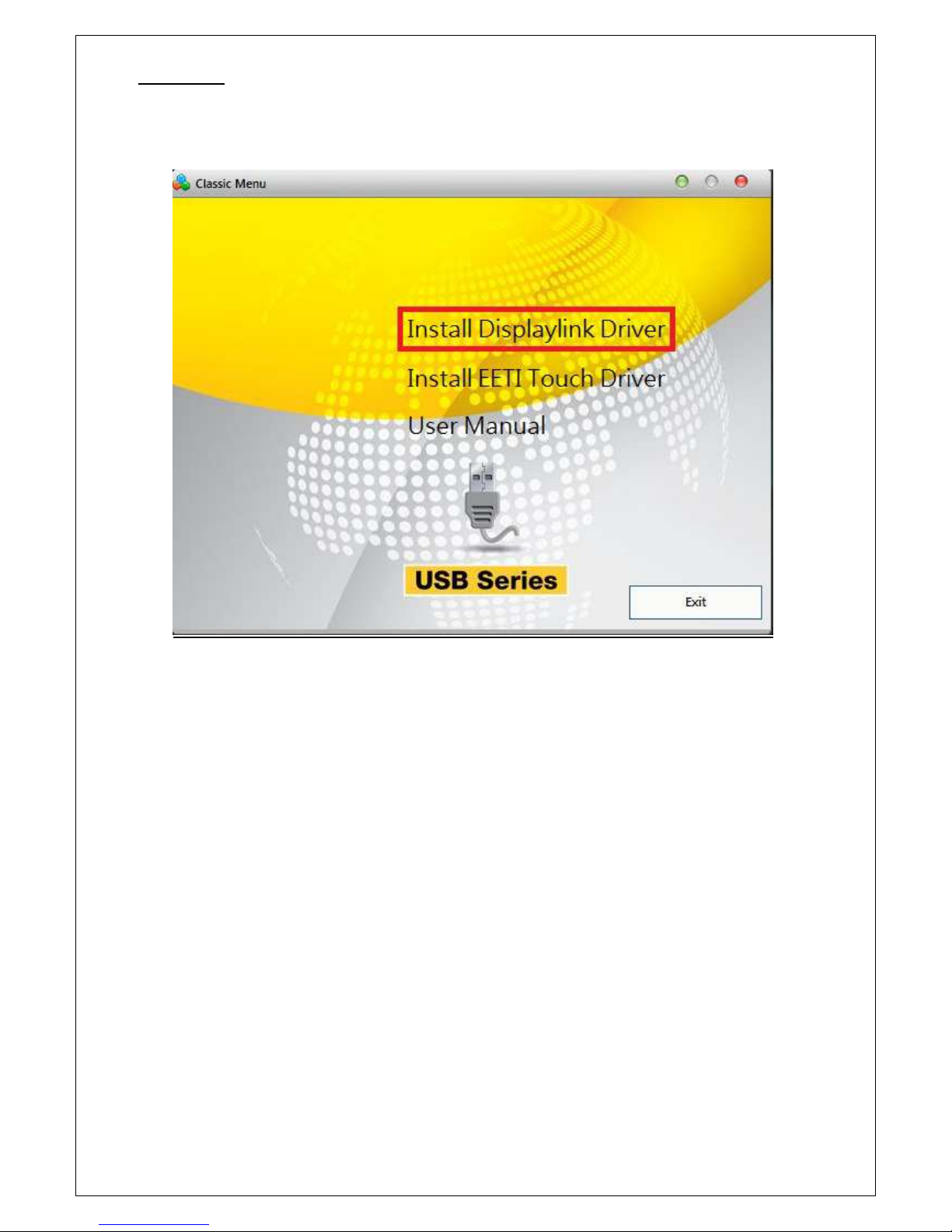
Installing the DisplayLink USB Graphics Software (for Windows OS)
Install Displaylink Driver: Insert CD, Double click CD, the Installation menu shown as below.

5
Click Installation The Displaylink software end user Licence agreement shown as below:
Click I Accept, the Displaylink Core Software installs
Displaylink USB Graphic software installation will complete without notification.
Note 1: On some computers you may need to reboot before you can use your Displaylink enabled
device
Note 2: For operating system other than Windows, please visit DisplayLink website:
http://www.displaylink.com/support/downloads.php

6
Install EETI Touch Driver (For Touch screen)
Screen display as below, please click Ne t.

7
Select the set up type, don’t tick the bo if PS2 interface is not required,
Click “Ne t>
.
RS232 interface driver installed is default, please click Ne t>

8
You can select to do Touch screen calibration after system boot up or not
Default setting is” None”
Select to use Multi-Monitor system, then press Ne t>

9
Choose destination location, default folder location shown as below.
Press Ne t>
As Figure shown below, please press Ne t> to complete installation

10
①
④
③
②
Control Buttons/Connectors
Rear side connection:
①: DC12V input
②: USB input from Host PC, Mini USB B type
③: Downstream port, USB A type
④: Downstream port, Mini USB B type
Power
ON/OFF
After USB driver is installed, connect monitor to PC via USB cable.
Press power key to turn on /turn off the display
Blue LED indicate power on
Up Press this key will increase screen brightness
Down Press this key will decrease screen brightness
Tabla de contenidos
Otros manuales de Monitor de Phistek


