
PC-EFTPOS CBA i5100 Manual de usuario

PC-EFTPOS-CBA i5100 Guide Page 1 03/07/2008
PC-EFTPOS
Reference Guide
Version 2.05
July 2008

PC-EFTPOS-CBA i5100 Guide Page 2 03/07/2008
Revision Record
Version
Date
Author
Document
Preparation
Revisions
2.02
April 08
Clinton Dean
Clinton Dean
Document Update
2.03
May 08
Richard Bolt
Richard Bolt
Updated pt 2 of Initial I5100
PINpad Setup section
2.04
June 08
Richard Bolt
Richard Bolt
Document update
2.05
July 08
Richard Bolt
Richard Bolt
CBA TMS phone update
Copyright ©PC-EFTPOS Pty Ltd, 2008. This document contains information
proprietary to PC-EFTPOS Pty Ltd. Any reproduction, disclosure or
unauthorised use of this material is expressly prohibited except as may be
authorised by PC-EFTPOS Pty Ltd in writing.
1/9a Ponderosa Parade
Warriewood NSW 2102
Australia
Phone +61 2 9998 9800
Fax +61 2 9986 0530
www.pceftpos.com

PC-EFTPOS-CBA i5100 Guide Page 3 03/07/2008
Table of Contents
PC-EFTPOS Contact Details.............................................................................................................................4
CBA Contact Details..........................................................................................................................................4
1. Terminal Functionality Supported by CBA...................................................................................................5
2. Introduction....................................................................................................................................................6
3. PC-EFTPOS Hardware Installation...............................................................................................................7
4. Initial I5100 PINpad Setup ..........................................................................................................................10
5. PC-EFTPOS Software Installation ..............................................................................................................11
6. CBA TMS....................................................................................................................................................12
7. PC-EFTPOS Software Overview.................................................................................................................13
8. Basic Functions............................................................................................................................................14
8.1 Converting a PINpad from PC-EFTPOS Mode to Standalone Mode............................................14
8.2 Converting an Existing PINpad from Standalone Mode to PC-EFTPOS Mode...........................14
8.3 Using the Internal Modem on the PINpad.....................................................................................15
8.4 Using the Internal Printer on the PINpad.......................................................................................15
8.5 Card Read Test on PINpad ............................................................................................................16
8.6 Turn PINpad lock On/Off..............................................................................................................16
8.7 Memory Reset the PINpad.............................................................................................................17
8.8 Initiate transactions through POS or through PINpad ...................................................................17
9. Full Function Key Menu..............................................................................................................................18
10. System timeouts and Error Codes..............................................................................................................19
10.1 System timeouts...........................................................................................................................19
10.2 Bank Generated Response Codes ................................................................................................20
10.3 TMS Response Codes..................................................................................................................22
10.4 Argent Error Codes......................................................................................................................24
10.5 CLNP Error Codes.......................................................................................................................25
11. Settlement Receipts and Options...............................................................................................................26
12. Receipt Layouts .........................................................................................................................................27
13. Common Installation Errors.......................................................................................................................29
14. Who to Contact for Help............................................................................................................................33

PC-EFTPOS-CBA i5100 Guide Page 4 03/07/2008
PC-EFTPOS Contact Details
PC-EFTPOS office hours are Monday to Friday, 8:30am to 5:30pm EST.
PC-EFTPOS Reception: Phone (02) 9998 9800
PC-EFTPOS Website: http://www.pceftpos.com/
Software Release Website: http://www.pceftpos.com.au/files/releasecd/
Support Website: http://support.pceftpos.com/
General Enquiries Email: [email protected]
CBA Contact Details
CBA help Desk Number: 1800 022 966 (password for updating TMS is “Integrated”)
o24 hour 7 days
oTo report all terminal faults or failures
Merchant Enquiries: 1800 230 177
oMon 9am to 5pm
oGeneral Merchant enquiries, EFTPOS transaction errors, reconciliation errors
Authorisations 1800 813 700
oAll over the floor limit manual debit card transactions
oCall 132 636 for all over floor limit credit card transactions
Charge Cards
oAmex 1300 363 614
oDiners 1800 331 112
oJCB 1800 200 250

PC-EFTPOS-CBA i5100 Guide Page 5 03/07/2008
1. Terminal Functionality Supported by CBA
1.1 Using PC-EFTPOS with a POS
When PC-EFTPOS is configured to be used with a POS, all the EFTPOS functionality is initiated through
the POS. Consult your POS vendor on the operation of EFTPOS through your POS.
When configured in Standalone Mode the pinpad acts as a fully functional standalone pinpad.
1.2 CBA i5100 Specific Details
CBA Help Desk Number: 1800 022 966 (password “Integrated”)
The terminal requires both a Terminal ID and Merchant ID to be entered.
The Terminal ID (CAT ID) is 8 digits long and the Merchant ID (CAIC ID) is 15 digits long.
CBA refers to the Merchant ID as the CAICID
Dial-up system uses TPDU headers. NII is not required.
The terminal is required to perform a TMS download before logging on.
Functionality
EFTPOS Functionality:
Purchase
Cash Out
Refund
MOTO processing
Pre-Authorisation
Completion
Tipping
Training Mode
Balance Enquiry
Voucher Entry
Electronic Fallback (EFB)
EMV processing
Settlement Options
Settlement
Pre-Settlement
Last Settlement
Sub-Totals
Summary Totals
Shift Totals
Hardware Options:
I5100 Terminal with printer and modem
I5100 Terminal without printer and without modem

PC-EFTPOS-CBA i5100 Guide Page 6 03/07/2008
2. Introduction
2.1 Before you start
Before you begin the installation of your i5100, you should ensure you have the following;
An i5100 EFTPOS terminal which contains the correct bank software,
A P66 modem if the site is using a dial-up service (only required if the site is installing more than
one EFTPOS terminal),
The latest PC-EFTPOS installation CD, (alternatively, latest software can be downloaded from our
website –www.pceftpos.com.au/files/releasecd )
Terminal and Merchant ID’s (per lane) supplied by the bank,
If the site is using an Argent Line instead of a P66 modem, then a POS-AME (also known as an
Argent Terminal ID or Tran$end ID) supplied by the bank or Telstra is also required.
2.2 Bank Terminology
Terminal ID : This is the number that uniquely identified each EFTPOS terminal.
The CBA will also refers to this as the CAT ID and is 8 digits long
Merchant ID : This number uniquely identifies each merchant
The CBA will also refer to this as the CAIC ID and is 15 digits long
It will start with the digits “3110000xxxxxxxx”
POS AME : This number is unique to each Argent leased line. This number is often called a
Tran$end ID, a Telstra ID, or an Argent ID. The number can be anywhere from 6 to 10 digits in
length.
The bank will issue details for each terminal at the site as well as the connection to the bank. The following
outlines the details the CBA bank will issue:
Bank
Merchant
ID
Terminal ID
Dial-up
POS-AME
Argent POS-
AME
Help Desk
Number
CBA
1800022966

PC-EFTPOS-CBA i5100 Guide Page 7 03/07/2008
3. PC-EFTPOS Hardware Installation
3.1 i5100 EFTPOS Terminal
Supplied Equipment with terminal:
i5100 EFTPOS Pinpad terminal
Power pack and power cable
Y Powered Curly Cable (contains the power cable and dial-up phone
cable connections)
POS connector cable (RS232 data cable)
(Identified by label “Ingenico CAB-0117-01”)
Installation Steps -
1. Power the terminal. Connect the supplied power pack to the wall socket.
2. Connect the power adaptor to the round DC power socket on the back of the terminal (connection A).
3. Connect the supplied POS connector cable (RS232 data cable) to the COM port on the PC (normally COM 1)
4. Connect the other end of the RS232 data cable to the RS232-1 connector on the back of the terminal
(connection C).
5. If the terminal is using the terminal’s internal modem, plug the phone cable in to the phone connector on the
back of the terminal (connection B) and to your phone line socket on the wall.
PC-EFTPOS-CBA i5100 Guide Page 8 03/07/2008
3.2 Dial-Up Modem
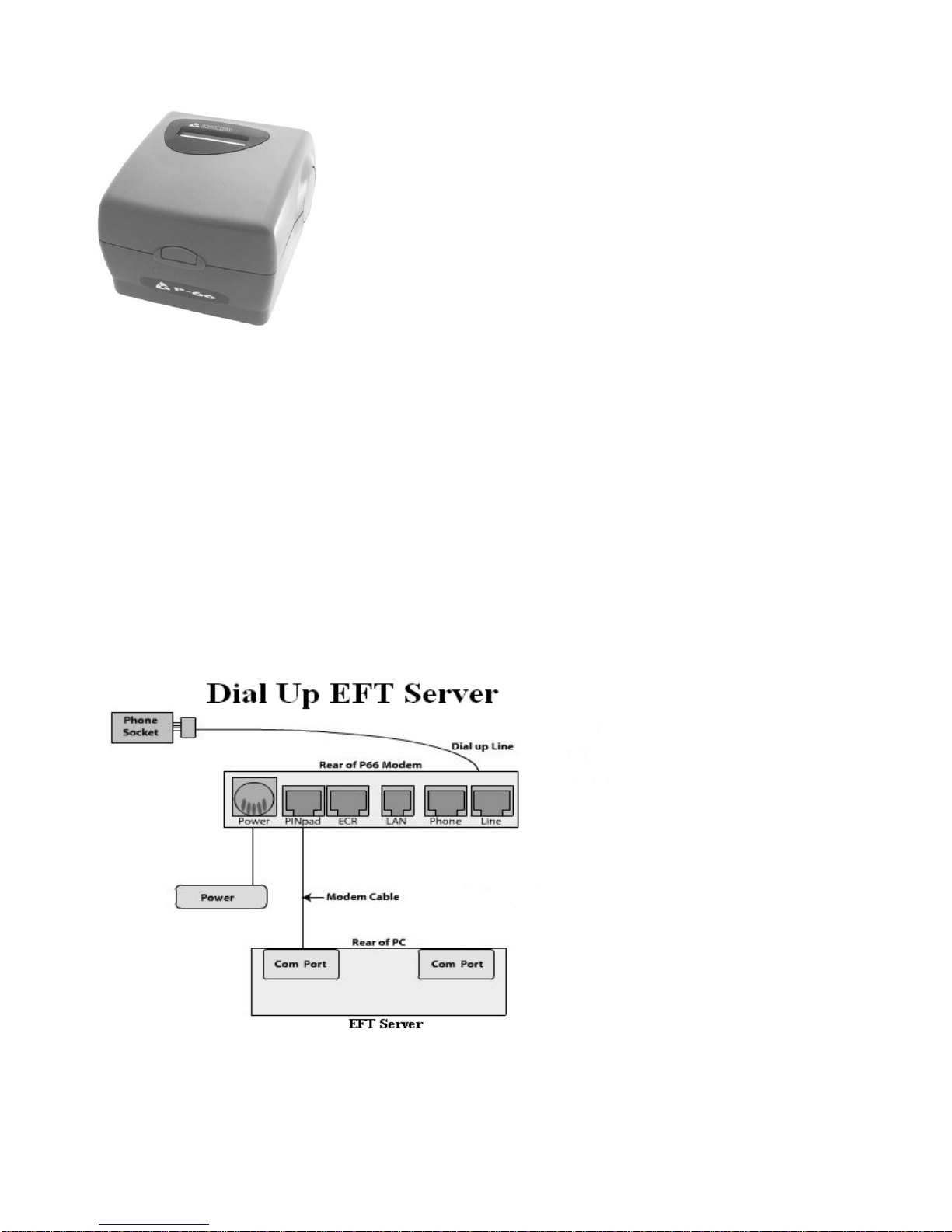
One P66 Modem is required for any store that requires dial-up
connectivity to the bank. The P66 modem utilizes a purpose built
EFTPOS modem to connect with the banking network.
The modem can be shared between any number of EFTPOS
terminals within a network.
There should only be one P66 modem within any single store.
Equipment supplied with P66 Modem
P66 modem
Power supply and power cord
PC connector cable (DB9 to RJ12)
Dial-up phone cable and connector
Installation Steps:
1. Plug the power supply into a power point and the P66 Modem DIN connector,
2. Connect the phone cable to the “Line” connector on the P66 and to the phone line wall socket,
3. Connect the POS cable to the PC COM port and to the “Pinpad” connector on the P66 modem.
(Make sure you are using the P66 load cable and not the EFTPOS pinpad cable labelled “Ingenico CAB-0117-01”)

PC-EFTPOS-CBA i5100 Guide Page 9 03/07/2008
3.3 Argent installation
Telstra use an ATA. Optus supply an MTA.
PC-EFTPOS connects to both devices the same way.
An Argent installation is normally defined as an AABP 9600bps system.
This type of Argent installation does not require a P66 modem from Ingenico.
Telstra will supply the Argent Terminal Adaptor to be used in the installation
The connection from ATA to PC is via a standard 25-pin to 9-pin RS232 modem cable. This is
generally not supplied by Telstra and will need to be purchased separately.
See back-plate of ATA for correct connection of RS232 cable.
You will need your “POSAME” or “Argent Terminal ID” when installing the Telstra ATA. You can
get this number from Telstra or your bank.
Required Equipment:
Argent ATA from Telstra
Installation of ISDB service from Telstra
Standard RS232 modem cable
Installation Steps:
1. Connect the Argent terminal Adaptor to the ISDN service.
2. Connect the RS232 modem cable from the COM port on the POS to the V24 port on the Argent
ATA.
3. The ATA should go to a steady dot after a short while. This indicates that the ISDN is connected.
Argent Enhanced Terminal Adaptor Back-plate
RS232 cable
connects to here

PC-EFTPOS-CBA i5100 Guide Page 10 03/07/2008
4. Initial I5100 PINpad Setup
The CBA i5100 is a combined standalone\integrated PINpad. It is usually delivered in “standalone mode”.
Before you install the software, the PINpad needs to be switched to “PC-EFTPOS mode” so that the PC-
EFTPOS software can communicate with it.
Switch the PINpad to “PC-EFTPOS Mode”
Is the PINpad screen blank?
oIf YES, this is already in PC-EFTPOS mode.
Proceed to the software installation section
oIf NO then check to see if the pinpad displays the hidden menu
1. TERMINAL CONFIG
2. APPLICATION CONFIG
3. STATS & PARAMETERS
If not, then you will need to enable it. Press [Func] and then [9] and type in your
hidden password*
*To obtain your hidden password, please call either CBA or PC-EFTPOS and have
the last 6 digits of the terminals serial number with you.
oOnce you are in the hidden menu, press
[1] Terminal Config.,
[3] PC-EFTPOS Mode,
[CHQ] On.
(On some terminals the [CHQ] button will be the Top Left Yellow button).
oThe PINpad will reset and display a blank screen.
Proceed to the software installation section
Tabla de contenidos
Otros manuales de Terminal de pago de PC-EFTPOS


Manuales populares de Terminal de pago de otras marcas


Ingenico
Ingenico iWL250B Manual de usuario

Optimum
Optimum M4230 Manual de usuario

Triton
Triton RL5000 Manual de usuario

Ingenico group
Ingenico group Lane/8000 Manual de usuario

Gilbarco
Gilbarco FlexPay IV CRIND Manual de instalación y operación

Infinite Peripherals
Infinite Peripherals Infinea Tab Lite Manual de usuario


