PayEx iPP350 Manual de usuario

Side 2av 20
Table of contents
1CHANGE LOG............................................................................................................... 3
2INTRODUCTION ........................................................................................................... 4
3CONTENT ...................................................................................................................... 5
3.1 Content in the package..............................................................................................5
3.2 Payment terminal iPP350 ..........................................................................................6
3.3Keyboard....................................................................................................................7
4INSTALLATION.............................................................................................................. 7
4.1 Connect cable .............................................................................................................7
4.2 Attach the safety screws (Optional) .........................................................................8
5GENERAL FEATURES..................................................................................................... 9
5.1 Different card payments ............................................................................................9
5.1.1 Chip card......................................................................................................................... 9
5.1.2 Contactless...................................................................................................................... 9
5.1.3 Magstripe card............................................................................................................... 9
6USAGE OF PAYMENT TERMINAL............................................................................... 10
6.1 Choose of Meny in Display .....................................................................................10
6.2 Purchase....................................................................................................................10
6.3 Reversal.....................................................................................................................12
6.4 Refund .......................................................................................................................13
6.5 Error Situations .........................................................................................................14
7PAYEX WEB REPORTS................................................................................................. 15
8CONFIGURATIONS .................................................................................................... 15
8.1 Change Security Code .............................................................................................15
8.1.1 New Operator Code....................................................................................................15
8.1.2 New Administrator Code ............................................................................................16
8.2 Update of PayEx Terminal Software or Configuration.........................................16
9CLEANING .................................................................................................................. 18
9.1 Cleaning of Chip Reader .........................................................................................18
9.2 Cleaning of Magstripe Reader................................................................................18
9.3 Cleaning of payment terminal ................................................................................18
10 RECYCLING.............................................................................................................. 19
11 CONTACT INFORMATION...................................................................................... 20

Side 3av 20
1 Change Log
Date
Change
Logged by
2016-02-25
Creating document
MR
© PayEx Group. All rights reserved. This interface manual is Copyright© 2020 by PayEx. This
document is the property of PayEx and the information contained herein is confidential. The
compositions and contents herein are not to be copied, reproduced, printed, published, posted,
displayed, incorporated, stored in or scanned into a retrieval system or database, transmitted,
broadcast, bartered or sold, in whole or in part without the prior express written permission of the
sole author, who is, unless otherwise denoted, PayEx. Unauthorized duplication is strictly prohibited
and is an infringement of National and International Copyright laws. Although the best efforts were
made to ensure that the information in the manual is complete and correct, PayEx makes no
warranty of any kind with regard to this material, including but not limited to the implied warranties
of marketability and fitness for a particular purpose. Information in this manual is subject to change
without notice. PayEx shall not be liable for errors contained herein or for incidental or consequential
damages in connection with the furnishing, performance, or use of this interface manual.

Side 4av 20
2Introduction
We congratulate you to choosing PayEx as a deliverer of your payment solution. We are
confident that you will be satisfied with your new payment terminal iPP350 and that it will bring
efficiency and prosperity to your company for a long time forward.
Read this user manual thoroughly and have it close to hands to maximize your terminal value.
3rd Party Support will help you with any questions you might have for your POS System,
Terminal, transactions etc. You are welcome to call or send an e-mail to us:
Opening Hours
Week Days: 08.00 - 23.30
Weekends: 08.00 - 19.00
Deviation can occur
Phone Number
+46
If you are calling from outside your country add +46 prior to our phone number
E-Mail
kundsupport@xxx.se
Address
xxx
Sincerely
PayEx POS
Team
Warning!
This symbol indicates a warning or an important message.
Tip!
This symbol represents a tip or advisement from PayEx.

Side 5av 20
3Content
3.1 Content in the package
Verify that your delivery from PayEx includes the following:
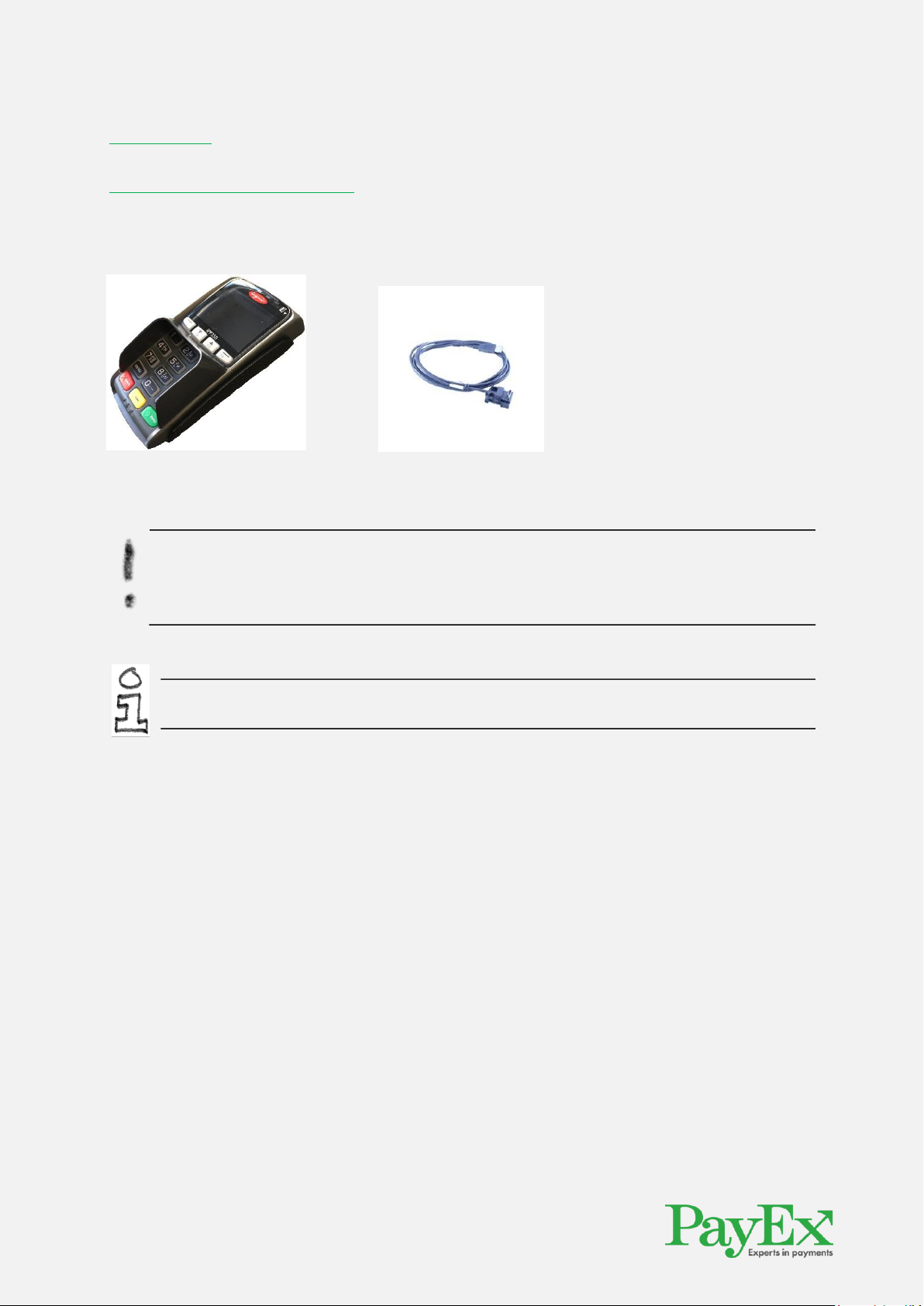
Payment terminal iPP350 USB Communications cable
Warning! The communications cable that is delivered together with the terminal is
specially designed for the Ingenico iPP350 PayEx terminal. Do not use any other
communication cables that are not provided by PayEx. Usage of 3rd Party communication
cables with the same characters can damage your payment terminal.
Tip! Save the package. The package has to be used when the terminal is transported.

Side 6av 20
3.2 Payment terminal iPP350
Weight
310g
Dimensions (L x W x H)
164,5 x 76 x 53,5mm
Power
In:100-240V/50-60Hz/150mA
Ut: 5V/1000mA
External connection
µUSB AB serial connection

Side 7av 20
3.3 Keyboard
4Installation
Follow these installations steps to connect your iPP350 payment terminal to your cash register.
4.1 Connect cable
1) Connect the communications cable on the backside of the payment terminal and put
down the safety barrier.

Side 8av 20
4.2 Attach the safety screws (Optional)
2) Attach the safety screws to the head of the communications cable so that it is attached to
the payment terminal.
The screws that will be used needs to use the M2.5x8.
PS!Screws are not part of the delivery from PayEx.
Warning! Chip card needs to be in the payment terminal during the whole transaction. A
message will appear on the display when you can remove the card.
Warning! Chip card needs to be in the payment terminal during the whole transaction. A
message will appear on the display when you can remove the card.

Side 9av 20
5General features
5.1 Different card payments
Payment terminal iPP350 is able to handle magstripe, chip and contactless cards.
5.1.1Chip card
Press in the chip card horizontally with the metal chip up in the card reader in the payment
terminal.
Follow the instructions on the payment terminal.
PS!! If a payment card has Chip then the Chip has to be used.
5.1.2Contactless
Contactless cards are added on the display of the terminal when the Contactless logo is
visible.
Follow the instructions on the payment terminal.
5.1.3Magstripe card
Magstripe cards are read when you swipe the magstripe track on the payment terminals right
side. The card is either swiped from up to down or down to up and the card is best processed if
it is used with the same consistent speed but not too slow.

Side 10 av 20
6Usage of payment terminal
Payment terminal iPP350 is delivered with a ready to use payment.
All the transactions are started from ECR as this is an integrated terminal.
This chapter will describe all the operations that needs to be performed to being able to for
example perform a transaction.
6.1 Choose of Meny in Display
When there are multiple choices in the display you can scroll to the desired option with the
navigations buttons or press the assigned number next to the choice.
6.2 Purchase
A purchase is started from ECR, after this a set of messages will be displayed on the terminal
which will inform the card owner what needs to be done and the results.
Customer dialogue will display the below steps
Card holder is asked to insert the chip, put the Contactless or
swipe their magstripe card.
The cards brand will be displayed.
Payment terminal is processing the card data and performs
verforms an authentisity check of the card.
PURCHASE
Insert card
25.00 SEK
Abort
PURCHASE
VISA
Purchase
PLEASE WAIT...
Tabla de contenidos
Otros manuales de Terminal de pago de PayEx
Manuales populares de Terminal de pago de otras marcas

Ingenico
Ingenico iWL250B Manual de usuario

Optimum
Optimum M4230 Manual de usuario

Triton
Triton RL5000 Manual de usuario

Ingenico group
Ingenico group Lane/8000 Manual de usuario

Gilbarco
Gilbarco FlexPay IV CRIND Manual de instalación y operación

Infinite Peripherals
Infinite Peripherals Infinea Tab Lite Manual de usuario