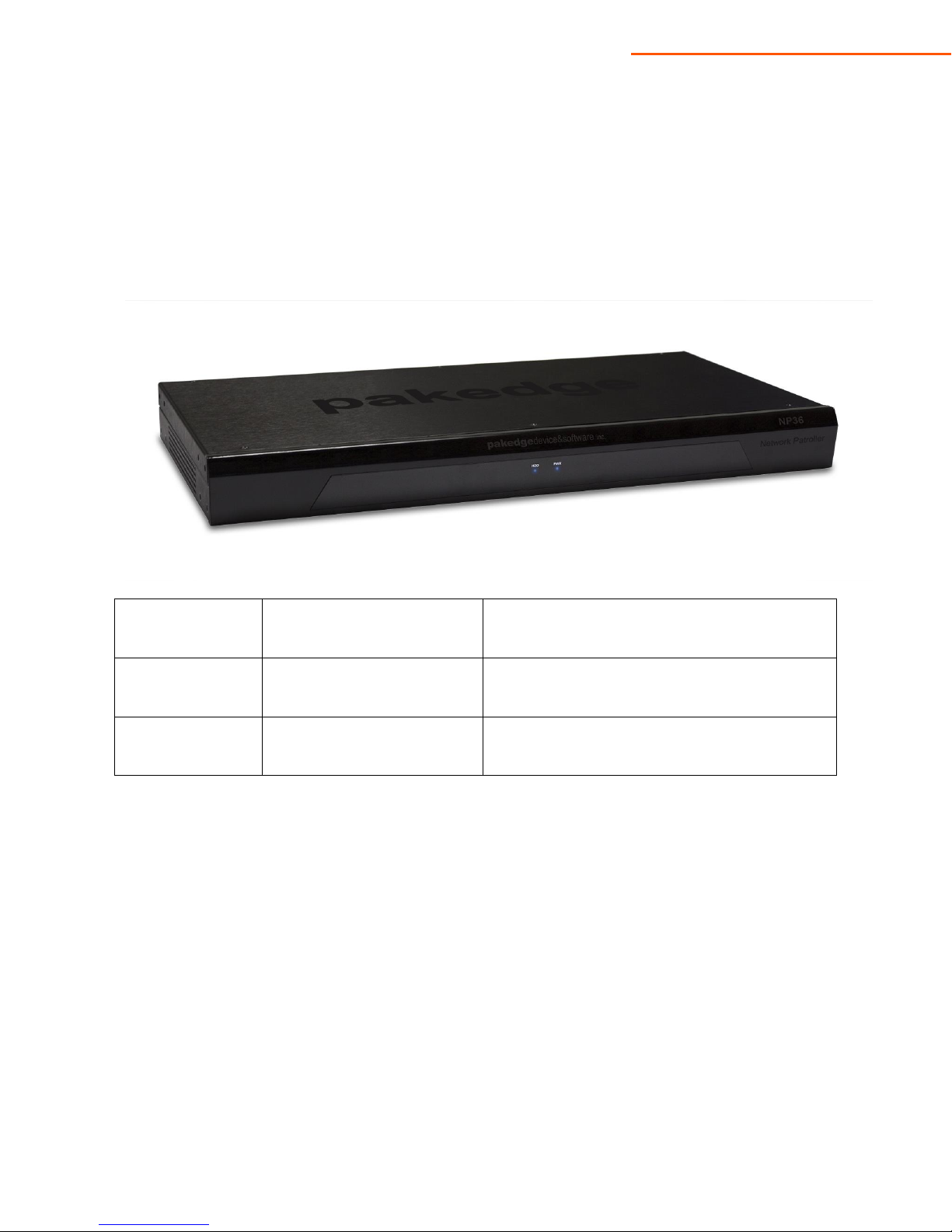
Pakedge Device & Software NP36 Manual de usuario

pakedgedevice&software inc
NP36
BakPak Cloud Management System
User Manual V. 1.2

NP36 User Manual V. 1.2
2
Contents
Quick Patroller Overview ..............................................................................................................................................................4
Overview (Continued) ....................................................................................................................................................................5
Package Contents ............................................................................................................................................................................6
Preparing to Install the Patroller................................................................................................................................................6
Installation......................................................................................................................................................................................7
First Time BakPak Users.............................................................................................................................................................. 10
Registering Your Patroller ......................................................................................................................................................... 12
Accessing MyBakPak ................................................................................................................................................................... 14
Editing User Information............................................................................................................................................................ 14
Profiles............................................................................................................................................................................................... 17
Removing a Profile .................................................................................................................................................................. 19
Scan for Devices and Device Priority................................................................................................................................ 20
Creating a Network Map....................................................................................................................................................... 24
Scanning Across VLANs......................................................................................................................................................... 30
Device Information .................................................................................................................................................................. 32
Lava Tunnel................................................................................................................................................................................. 33
Device Portal .............................................................................................................................................................................. 40
Virtualization................................................................................................................................................................................... 41
Group Management................................................................................................................................................................ 41
Firmware Management.......................................................................................................................................................... 42
Configuration Management ................................................................................................................................................ 43
Power Control............................................................................................................................................................................ 45
Troubleshooting and Reporting ............................................................................................................................................. 49
Alert Settings ............................................................................................................................................................................. 49

NP36 User Manual V. 1.2
3
Logging ........................................................................................................................................................................................ 51
Troubleshooting and Self-Healing .................................................................................................................................... 52
Device Priorities ........................................................................................................................................................................ 54
Patroller ............................................................................................................................................................................................ 54
Bakpak DDNS ................................................................................................................................................................................. 55
Administration ............................................................................................................................................................................... 55
Permissions................................................................................................................................................................................. 57
Account Settings ...................................................................................................................................................................... 60
Subscription Management (More information will be available under this section once subscription
management goes live October 1st) ................................................................................................................................. 61
Contact Us ....................................................................................................................................................................................... 62
Limited Warranty........................................................................................................................................................................... 63

NP36 User Manual V. 1.2
4
Quick Patroller Overview
The NP36 Network Patroller lets you view diagnostics, check uptime and downtime, manage network
devices, and perform reboots remotely. These features save you both time and money that would
otherwise be spent on service calls.
The front panel of the NP36 displays a pair of blue LEDs. See Table 1 below for more information.
Label
Function
Description
HDD
hard drive activity
When lit, hard drive is in use
PWR
power indicator light
When lit, indicates that the unit has power
Table 1: LED Explanation

NP36 User Manual V. 1.2
5
Overview (continued)
The rear panel is where the physical cabling (power, Ethernet, console) is located. Table 2 describes each
port and its function.
Name
Description
AC Connector
110~260V AC
Power Switch
powers the NP36 on or off
USB 1 / 2
optional
LAN
MDI/MDIX RJ45 interface for connection to the LAN
HDMI
HDMI display for maintenance
Console
local management, speed 115200bps, RJ45 interface
Table 2: NP36 Rear Panel Port Description

NP36 User Manual V. 1.2
6
Package Contents
NP36
Power cable
Mounting brackets
Quick start guide
Console cable
Preparing to Install the Patroller
If you have installed a managed switch before, the process of installing the NP36 will seem very familiar.
Tools required:
Phillips screwdriver (if using rack-mount brackets).
PC or laptop with Ethernet interface and a web browser (an integrated DB-9 port or USB-to-Serial
adapter may be necessary if you would like to use the console interface).
Ethernet cable.

NP36 User Manual V. 1.2
7
Installation
1. Open the box and remove the unit.
2. If you are mounting the NP36 in a standard 19” A/V rack, attach the rack-mounting brackets to
the sides (rack-mounting brackets are included). If you are not rack-mounting, please ensure
that the NP36 is physically mounted near power and network connections (i.e. backbone switch
or firewall/router).
3. Connect power to the device and push the power switch on the rear panel. The PWR LED will
light up and the fans will start.
4. If you are using a Pakedge router that has an internal IP address of 192.168.1.99, you can
connect the NP36 to an available port on your router and proceed to the section titled First
Time BakPak Users. If your router is using an IP scheme of 192.168.1.X, but has an IP address
other than 192.168.1.99 then continue to step 5. If your router is using an IP scheme that is
different to 192.168.1.X, then skip to step 10.
5. Connect an Ethernet cable from the Patroller to your router.
6. Open a web browser (Mozilla Firefox is preferred). In the browser, enter the Patroller’s default IP
address of 192.168.1.237 into the address bar and press <ENTER>.
7. A web page will appear, prompting you for a username and password. Enter pakedge as the
username and pakedgep as the password. Then click Login to log into the web administration
portal.

NP36 User Manual V. 1.2
8
8. Click on LAN Settings.
9. In the Default Gateway field, enter the IP address of your router. Click Apply to finalize the
settings. You are now ready to create a Cloud Account and register your Patroller. Proceed to
the section titled First Time BakPak Users.
10. Connect an Ethernet cable from your computer to the Patroller directly.
11. Configure the PC with a static IP address of 192.168.1.10 and subnet mask of 255.255.255.0 and
then open any browser (Mozilla Firefox is preferred).

NP36 User Manual V. 1.2
9
12. In the browser, enter the Patroller’s default IP address of 192.168.1.237 into the address bar and
press <ENTER>.
13. A web page will appear prompting you for a username and password. Enter pakedge for the
username and pakedgep for the password. Then click Login to log into the web administration
portal.
14. Click on LAN Settings.

NP36 User Manual V. 1.2
10
15. Change the IP address of the patroller to match your network IP scheme. Click Apply to finalize
your settings.
16. Now you can connect the patroller to your router.
First Time BakPak Users
If you are new to BakPak, you need to create your Admin account to register your NP36 and create
accounts for your technicians. To do this, please follow the steps below. If you have already created an
Admin account, skip to Registering Your Patroller.
1. Contact our Sales department at:
Email: sales@pakedge.com
Phone: (650) 385-8702
You will need to have the email address that you wish to use ready.
2. Our Sales department will email you a dealer registration code. Once you have received this code,
go to mybakpak.com.
3. Click Create a Dealer Admin Account.
Otros manuales para NP36
1
Tabla de contenidos