Onn ONA19TB007 Manual de usuario

PRODUCT GUIDE
10.1” Tablet
with detachable keyboard
Ver.0.1 REV.01/28/2019
Model: ONA19TB007

32
Introduction
Featuring a fast and responsive quad core processor, this tablet is perfect for accomplishing
everyday tasks, streaming music and movies, taking photos, checking emails, and engaging
with social media.
The tablet offers 16GB of internal storage, Bluetooth connectivity, Micro SD slot for up to
128GB of additional storage,on-the-go productivity services, and a utility app.
The following information will help you get the most out of your tablet.
What You Should Know to Ensure Best Performance:
· Charge the battery completely before first use.
· While updates download in the background, tablet performance can be affected until
completed.
· Close unused applications. Open apps that run in the background will affect overall
performance.
· Battery Consumption: Play times on a fully charged battery wi
· Suggest customer use tablet screen protector and tablet case to protect the tablets .
ll vary depending on your
display settings, apps that remain open, and internet use (ie: streaming video content).
Important Safety Instructions
1.Read these instructions-All the safety and operating instructions should be read before this product is
operated.
2.Keep these instructions-The safety and operating instructions should be retained for future reference.
3.Heed all warnings-All warning on the appliance and in the operating instructions should be adhered to.
4.Follow all instructions-All operating and use instructions should be followed.
5.Do not use this apparatus near water-The appliance should not be used near water or moisture-for
example,in a wet basement or near a swimmingpool,and the like.
6.Clean only with dry cloth.
7.Do not block any ventilation openings.Install in accordance with the manufacturer's instructions.
8.Do not install near any heat sources such as radiators,heat registers,stoves,or other apparatus
(including amplifiers) that produce heat.
9.Do not defeat the safety purpose of the polarized or grounding plug.Apolarized plug has two blades
with one wider than the other.A grounding plug has tow blades and a third grounding prong.The wide
blade or the third prong is provided for your safety.If the provided plug does not fit into your outlet.
Consult an electrician for replacement of the obsolete outlet.
10.Protect the power cord from being walked on or pinched particularly at the plugs,convenience
receptacles,and at the point where they exit from the apparatus.
11.Only use attachments/accessories specified by the manufacturer.
12.Use only with the cart,stand,tripod,bracket,or table specified by the manufacturer,or sold with the
apparatus.When a cart or rack is used.Use caution when moving the cart/apparatus combination to
avoid injury from tip-over.
Thank you for purchasing the Android 9 Pie tablet with Google Play.
TM TM

4 5
Use the devices where the ambient temperature is between 0° and 35° C (32° to 95° F). Low- or
high-temperature conditions might cause the device to change its behavior to regulate its
temperature.Using Android device in very cold conditions outside of its operating range might
temporarily shorten battery life and could cause the device to turn off. Battery life will return to
normal when you bring the device back to higher ambient temperatures. Using an the devices
in very hot conditions can permanently shorten battery life.
Important Safety Instructions Important Safety Instructions
13.Unplug the apparatus during lightning storms or when unused for
long periods of time.
14.Refer all servicing to qualified personnel.Servicing is required when
the apparatus has been damaged in anyway,such as power supply
cord or plug is damaged,liquid has been spilled or objects have
fallen into the apparatus has been exposed to moisture,does not
operate normally,or has been dropped.
15.CAUTION:These servicing instructions are for use by qualified service personnel only.To
reduce the risk of electric shock,do not perform any servicing other than that contained in
the operating instructions unless you are qualified to do so.
16.Do not install this equipment in a confined or building-in space such as a book case or similar
unit.And remain a well ventilation conditions at open site.The ventliation should not be
impeded by covering the ventilation openings with items such as newspaper,table-cloths,
curtains etc.
17.WARNING:Only use attachments/accessories specified or provided by the manufacturer(such
as the exclusive supply adapter,battery etc).
18.WARNING:The mains plug is used as disconnect device,the disconnect device shall remain
readily operable.
20.-This lighting flash with arrowhead symbol with in an equliateral triangleis intended to alert the
user to the presence of non-insulated”dangerous voltage” within the product’s enclo sure that
may be of sufficient magnitude to constitute a risk of electric shock.
-Warning:To reduce the risk of electric shock,do not remove cover(or back)as there are no
user-serviceable parts inside.Refer servicing to qualified personnel.
-The exciamation point within an equilateral triangle is intended to alert the user to the presence
of important operating and maintenance instructions in the literature a accompanying the
appliance.
21.WARNING:Please refer the information on exterior bottom enclosure for electrical and safety
information before installing or operating the apparatus.
19.WARNING:To reduce the risk of fire or electric,do not expose this apparatus to rain or moisture.
The apparatus shall not be exposed to dripping or splashing and that objects filled with liquids.
Such as vases,shall not be placed on apparatus.
ATTENTION:RISQUE DE CHOC ELECTRIQUE-NEPAS OUVRIR

In The Box
76
10.1 tablet keyboard
User Manual
Charger
size:61*41*24mm
Input:100-240V~50/60Hz,0.3A
Output:5.0V 2.0AMircro USB cable
5
6
7
88
9
21 3 4
1.
Camera (Front)
2.
Camera (Rear)
3.
4.
Micro USB
5.
6. TF Card Slot
Volume Control
8.
9 .
Speakers
7.
Reset
Power On/Off
Earphones
10
10 . Pogo Pin

Working with keyboard
The keyboard unfolds easily to support the tablet and
provide a familiar typing experience. Use the keyboard
to type into note taking applications, websites, and
search bars. Enjoy the freedom of a tablet with the
responsive and familiar feel of a physical keyboard.
8 9
When you are finished using the tablet, fold the
keyboard up for a thin portable device that you
can take anywhere.

Starting Your Tablet
1. Press and hold the Power button for 3 seconds.
(If your tablet does not turn on, or instructs you to “Connect
your charger”, connect the AC adapter and charge the unit.)
2. At the Start-up screen, slide your finger up to unlock.
3.
Once you’ve arrived at the Home screen, you can begin using your tablet.
1110
Home Screen At-a-Glance
1.
2.
3.
4.
5.
Search Box
Status Bar
Home screen
Go Back
6. Recents Used
Walmart App Suite
4 5 63
2
1

12 13
Using the Cameras
Tap on the Camera Icon
1. Switch Cameras (Front/Rear)
2. Normal Mode
3. Recent Photo
4. Take Photo
1
3 4
2
Tablet Updates
To ensure the tablet runs smoothly, it is recommended to perform
periodic system software updates, especially during initial set up of
the tablet. You may receive notifications (on the Lock screen) from
time to time that software updates are available.
Tap the notification to be directed to the update.
Other options to access updates:
1. From the Home screen tap on Settings > System
> About Tablet > Wireless Update.
NOTE: To perform an update, you must be connected to WiFi.

Touching and Typing
Type goes in field
Need Information
Type goes in field
Need Information
Type goes in field
Need Information
Type goes in field
Need Information
Type goes in field
Need Information
Need Information
To select an item on the screen, simply tap
it once with your fingertip. Some items may
require you to “double-tap”.
To type in to an text field (i .e., when
inputting your name , or a web address),
tap the text field. The on-screen keyboard
will appear, and allow you to type the
information you wish to enter.
Touch and Hold: Keep your
finger on an on-screen item
until it glows or activates an
alternate menu.
Drag: Move an App or object by
touching and holding the image,
then sliding it to the destination.
Slide: When there are extra
“screens” to the side, slide one
or more fingers from one side
to another.
1514
Google Play Updates
The first time you sign on to Google
Play Store, updates will automatically
start downloading on to the tablet.
The download icon will appear in
the status bar at the top left of
sc reen. Installing a new application while
multiple apps are downloading will reduce
tablet speed and performance. After
all downloads and updates have been
installed, the tablet will resume normal
operating performance.
To view the progress of downloads
working in the background, slide your
finger down from the top edge of the
screen.

Connecting to the Internet
In order to connect to the internet, you will need the following:
· A wireless router or an access point with a broadband internet connection.
· The name of your network (SSID), as well as the password or other credentials,
if your network is secure.
The wireless router must support WiFi 802.11a/b/g/n connections.
Go to SETTINGS > Network & internet > WiFi
Tap on WiFi to activate wireless connectivity. The Tablet
will scan for available WiFi networks within range. Secured
networks will require a password. Once you have successfully
entered your information the tablet will remember your
settings.
or WiFi
Available
Here +Network Name/SSID
Password
Wireless Router
Connecting Bluetooth
Your Tablet is compatible with Bluetooth capable devices. Once your tablet searches
and finds the Bluetooth device, follow on-screen instructions to initiate the pairing of the
device with the Tablet. Add or “pair” a Bluetooth compatible device with your Tablet as
follows:
1) Turn on the compatible Bluetooth device and make it discoverable.
2) Open the Settings > Connected devices.
3) Tap on Pair new device view available devices.
BLUETOOTH
16 17

Important Safety Instructions
We would like you to have a safe and enjoyable experience.
Please read the following instructions and notices before using your tablet.
· Warning: This product may contain a chemical known to the State of California to cause cancer, birth defects, or
other reproductive harm.
· Avoid using the tablet in extremely hot, cold, dusty, damp or wet environments.
· The tablet is not moisture/water-resistant. Avoid using the tablet around sources of water.
· Avoid dropping or forcibly placing the tablet onto a hard surface. This may damage the screen or internal
electronic components and void the warranty.
· Do not use alcohol, thinner or benzene to clean the surface of the tablet. Use only cleaning products designed
for computer tablet devices.
· Do not use the tablet while walking or driving.
· Excessive use of earphones at high volume may lead to hearing impairment. Limit earphone usage, and adjust
the volume to a moderate level when doing so.
· The images in this guide may vary slightly from the actual product.
· Charge the tablet battery under any of the following circumstances:
1. The battery level icon indicates low power, by showing a drained, red battery icon.
2. The tablet powers-off automatically, and continues to do so even after restarting.
3. On-screen keys do not work.
· Do not suddenly disconnect the tablet when formatting, uploading or downloading data. This can lead to
program errors (e.g., system or screen “freezing”.)
· Static discharge is normal and can occur in an electronic device Although not life threatening, it may corrupt
files or damage memory and its content.
· Dismantling the tablet will void the manufacturer’s warranty.
· The tablet functions, hardware, software, and warranty information may be improved or modified by the
manufacturer or their respective owners, and is subject to change without notice.
18 19
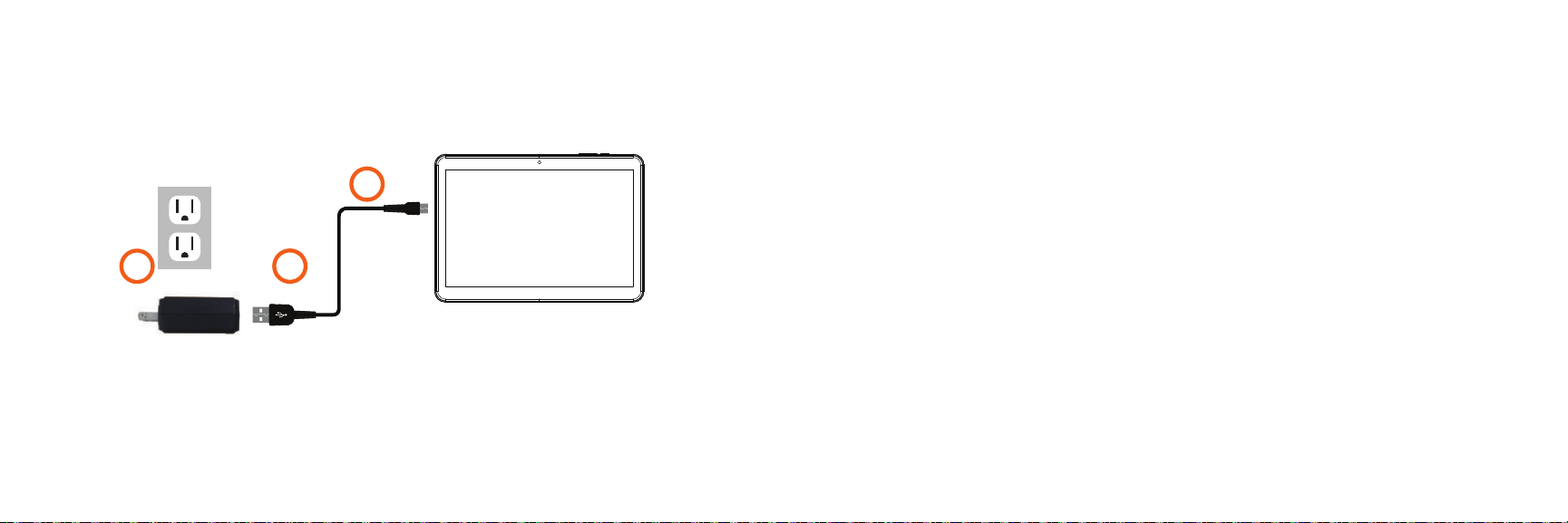
It is recommended to fully charge the tablet before first use. To charge the
tablet, plug the 1) USB cable into the AC adapter, and 2) attach the other end to
the Micro-USB input on the tablet. 3) Plug the AC adapter in to a wall outlet.
When the tablet is ON and charging, the battery icon will pulsate.
A complete battery charge may take up to 2.5 hours. It is normal for the tablet
to get warm while charging, playing high in tensity games, or streaming video.
Battery life will vary depending on usage.
1
2
3
Charging Your Tablet
Note: Leave tablet in well ventilated area while charging.
Otros manuales para ONA19TB007
1
Tabla de contenidos
Otros manuales de Tableta de Onn