One Audio ONEbox.micro Hoja de especificaciones

1
Quick setup and operation guide
for
ONEbox.micro
ONEbox.mini
ONEbox.cube
Version 1.3
May 2019

2
ONEbox quick guide
Key operation
Front panel key operation when ONEbox is in standby mode :
Hold right key can change input connection, press again will switch to next input. Press left key to confirm and
make connection. If your speakers are turned on, you will hear voice guidance.
Hold left key can activate add speaker, you will hear voice guidance if your have front speaker connected.
Long hold middle (both left and right key), your ONEbox will put to power off mode and your speakers will be
turned off accordingly.
Front panel key operation when ONEbox is in play mode :
Press left key to decrease [-] volume, press right key to increase [+] volume
Press middle (both left and right key) to mute audio (blue LED blinking), press any key again to unmute
Long hold middle (both left and right), ONEbox will go back to standby mode
When ONEbox is power off :
Press any key will wake up the ONEbox, WiFi connection will be resumed in ~60s (red LED blinking)
Rear panel (from left to right) :
LFE analogue output on RCA jack, connect to your active subwoofer
Tips : local LFE output default setting is off, remember to enable local LFE output in speaker setup page
Micro USB port for standard USB audio and 5V power supply to your ONEbox
Tips : use high current 2A USB cable to get stable operation
Optical input for DTS/Dolby/LPCM digital audio input, connect to Blu-Ray player or TV digital audio output
USB A-female for USB host port, plug-in a (4~32GB) USB RAM with song files as a local music server, or you can
plug in a Bluetooth USB dongle to extend BT connection in your ONEbox
Tips for ONEbox placement to get better wireless connectivity :
-WiFi antenna is on the left, try to put near your WiFi router
-DECT antenna is on the right, that is wireless channel connected to speakers
-Don’t put ONEbox on metal surface, metal surface will absorb radiation and get poor in wireless
-Use high current micro USB cable for ONEbox powering, sometime WiFi will be lost due to poor power quality

3
Connect your smartphone to ONEbox
Smartphone direct WiFi connect to your ONEbox (AP mode)
Your ONEbox can work as WiFi base station (Access Point mode), your smartphone can connect to ONEbox directly
as a client, no router is needed.
If your smartphone connect to ONEbox directly, the smartphone will loss data service or no internet access.
2. ONEbox is starting up, red LED is blinking.
Wait ~80s for ONEbox to get ready.
3. ONEbox is a WiFi access point (AP mode).
Connect your phone to ONEbox’s WiFi
ONEbox**** (**** is 4-digit serial number)
192.168.101.1
WiFi name:
ONEbox****
1. Connect USB adaptor to micro USB port
Use high current 2A USB cable to get stable operation
4. Open a browser (Chrome, Safari or any browser),
your ONEbox is at 192.168.101.1.
Enter 192.168.101.1 (no http://), you can get into
ONEbox control page.
Tips : You can bookmark the link or Add to Home
screen for fast access
Now, you can get full access of ONEbox by your phone.
WiFi SSID : ONEbox****
Static IP address : 192.168.101.1

4
Setup ONEbox router connection
Smartphone access ONEbox via home router (Client mode)
3. Your ONEbox is setting up connection to your router. Your smartphone will lose connection with ONEbox’s WiFi.
Your smartphone might auto connect to your home router. Wait 10~20 second.
4. To check ONEbox router connection, re-connect your smartphone to WiFi network ONEbox**** go to setup page.
Your home router will assign ONEbox IP address. Copy the IP address and use it to locate your ONEbox in
your home router network.
5. Now, connect your smartphone to your home router, open a web browser and PASTE the assigned IP address to
access the mobile control homepage e.g. 192.168.x.x
Tips for iPhone : it has feature to locate ONEbox without memorize IP address, open a web browser and go to
http://ONEbox****.local (e.g. http://ONEbox1234.local)
Tips for Android : Install and open the APP “Pea Finder”, then choose “ Web Server on (home router) ”
1. Power up ONEbox.micro
1. Go to setting to connect your
ONEbox to your home router
2. Add your home router, either router 1 or
router 2, input your router password and
connect
WiFi name:
ONEbox****
192.168.101.1

5
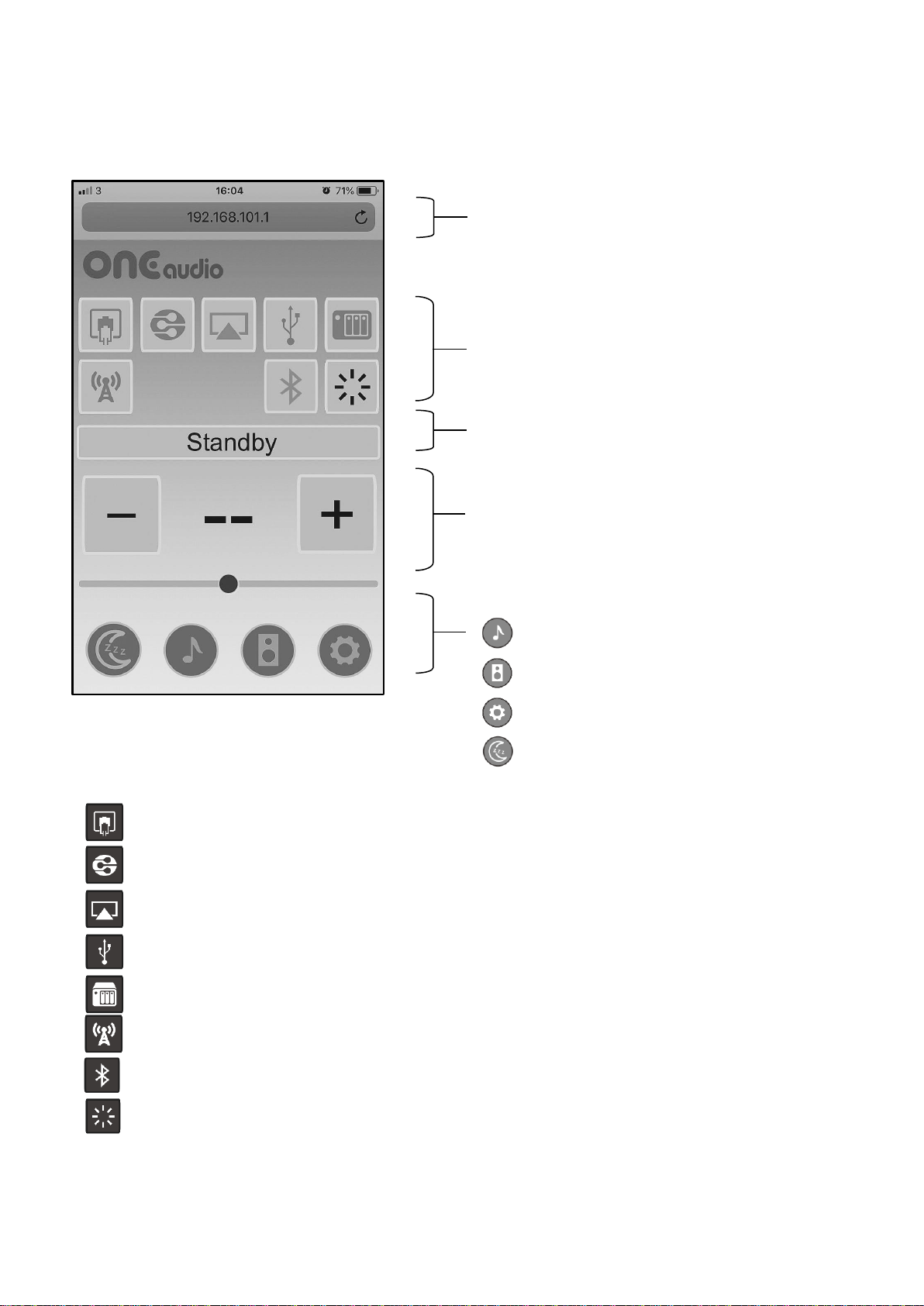
ONEbox web page control manual
Homepage
Audio inputs on top button :
Optical connect to TV, CD player or Blu-Ray player
DLNA WiFi file streaming, support WAV, MP3, FLAC
AirPlay iPhone/iPad WiFi audio streaming
USB Standard USB audio device (96/24, 48/16), connect to computer
Music server local mini music server, plug-in RAM ram (FAT32 format) of size 4~32GB
Internet radio online internet radio
Bluetooth Bluetooth audio, plug-in Bluetooth USB dongle
Auto input Smart input, automatically search active input and make connection
Tips : When you use notebook for web control, re-scale the browser window to smartphone type.
Select input
Master volume & Mute audio
Press [-] or [+] to change 1dB level, or touch and slide
volume bar to change volume
Touch the volume level will mute audio, the volume level in
red indicate audio is muted, touch again to release
Playing audio information
Touch and Go to control sub-page :
Sound setting of individual audio mode
Speaker setting
System setting
On/Off/Standby
Web page connection IP address
Direct WiFi : SSID = ONEbox****, IP = 192.168.101.1
Client mode : SSID = router, IP = assigned by router

6
Local music server
Plug-in a USB RAM to USB host port. USB ram size is 4~32GB with FAT32 format. Song files storage at root directory
or second layer sub-directory.
Touch button to refresh song list in the USB RAM
Internet Radio
Shuffle play
Single loop
Loop playback
Single play
Up/Down to display previous page or next page
Touch here to toggle play/pause
Touch icon to edit
internet radio URL link
On/Off the ONEbox
Go back to home page
Turn off speakers and go to sleep
(disable auto input)
Power off ONEbox and speakers,
WiFi connection break, press
ONEbox key can wakeup.

7
Sound setting sub-page
Individual audio mode sound setting, total 9 audio mode :
DLNA, AirPlay, Surround 5.1, optical LPCM (CD), TV 3.1, USB, music server, internet radio, Bluetooth
Individual audio mode sound setting : DLNA stereo mode
Treble level of all speakers
Subwoofer level of subwoofers
Select speaker sound character
Up-sampling interpolation (ONEbox stereo sound enhancer)
2.1 mode subwoofer bass effect
Increase sound clarity at low volume level
Individual audio mode sound setting : Surround 5.1 on optical
Treble level of all speakers
Subwoofer level of subwoofers
Surround LFE channel boost (2 times of singal level)
Surround sound profile (ONEbox surround sound enhancer
Increase sound clarity at low volume level
Surround more bass filling
Touch here to go back to home page

8
Tips :
Sound character - Speaker sound setting, change speaker DSP to reproduce different character of sound
Warm : Warm sound like tube amplifier behaviors
Natural : Balanced sound character, our recommendation
Clarity : High clarity sound, airy crisp sound
Comfort : For TV mode or YouTube video
Upsampling filter - Upsampling interpolation to HD sound, signal processing in ONEbox
Constant : Natural sound, suit for instrumental or classical music
Poly : Suit for dynamic music and pop song
Linear : General up-sampling, suit for all kind of music, our recommendation
Cubic : Sweet vocal sound
Sur sound profile - Enhancer surround sound to more 3D and lively
Loudness - Increase sound clarity at low volume, the lower of volume, the higher of clarity
Pseudo LFE - Stereo 2.1 mode LFE sound
Soft : Very low cut-off frequency, provide a soft layer of bass
Comfort : Well-balanced bass
Strong : Aggressively added bass, for pop music
Bass filling - Surround 5.1 play, use subwoofer to compensate satellite speaker poor frequency response
Auto : Automatic add mid-low bass according to speaker model
Low : Apply low level bass filling
High : Apply high level bass filling
Remark : Auto bass filling only use in ONEmicro and ONEmini speaker
Treble level - Treble level of speakers tweeter, applied to all speakers (not effect on ONEmicro)
Subwoofer level - Subwoofer sound level, applied to all subwoofers
Individual audio mode sound setting : AirPlay stereo mode
Play buffer size
Longer buffer can reduce audio glitch, but create longer delay
AirPlay up-sampling sound enhancer

9
Factory default is off, turn
to Normal or Boost (+6dB)
gain)
Speaker setting sub-page
Local is ONEbox’s LFE analogy output on RCA port
Speakers in the system
Lighted speaker icon indicate speaker is ON
Dimmed speaker icon indicate speaker is OFF
Touch icon to get more speaker inforamtion
Speaker model and battery level
Stereo mode, 3 zones speaker pair play ON/OFF
Paralleled subwoofer, select individual ON/OFF
TV mode, switch 3.1 center ON/OFF, or center speaker only
Touch button to add new speakers
Add new speaker into the system / Test speakers
Speaker group tweeter level
Speaker group volume (center speaker)
Sub-page of speaker setting, center speaker group info
To set speaker group left to right balance, please
operated at speaker manual by speaker key operation.

10
Set the rear speaker
1. Set listening area (time delay for rear speaker : Small 0.6m, Medium 1.6m, Large 3.3m, Open 10m)
2. 3D effect (ONEmicro as rear speaker)
3. Pseudo center : switch rear speaker to play center channel in TV3.1 mode (switch 4.1 mode to TV 3.1 mode)
Tips :
Subwoofer delay time is depend on distance between main speaker and subwoofer, 5mS is subwoofer placement
shorter then main speaker by 0.5m, 10mS is shorter by 2.1m, 0mS is longer by 1.6m.
Set listen area size
Switch rear speaker to play center channel in TV 3.1 mode
Subwoofer group volume
Subwoofer delay time (default 5mS)
Subwoofer phase (default normal)
Subwoofer cut-off frequency (default bypass)
ONEbox LFE output is tuned for subwoofer, not
recommend to change the setting)
Otros manuales para ONEbox.micro
1
Este manual sirve para los siguientes modelos
2
Tabla de contenidos