
Nvix Unicorn MV-5000R Manual de usuario

1
Unicorn Information System
#Table of contents
3912) Troubleshooting
3211) Menu summary
31- Playlist
097) Hard disk insertion
086) Remote Control
075) Front and Rear Panel
064) Specifications
053) Features
021) Important information
2) Safety & Precautions
26- Driver installation for Windows 98SE 25-FirmwareSetup 24- Setup/Various 23- Audio/Video Setup
10) MVIX Setup Menu
22- Connection to Computer 21- Connection to Optical output 21- Connection to Coaxial output
9) Installation and Connection
16- Making partition and formatting the HDDs under Windows 2000/XP 12- Making partition and Formatting the HDDs under Windows 98SE/ME
8) Hard disk formatting and partition
04- Limitations and Usage Precautions 03- Do’s and Don’ts
27- Video Files Playback 26- Driver installation for Windows ME/XP/2000
20- Connection to 2CH(RCA) of normal TV 20- Connection to Component output 19- Connection to S-Video output 19- Connection with ordinary (Composite) TV output
30- All Files Playback 29- Photo Files Playback 28- Audio Files Playback
2
Unicorn Information System
1Important Information
Congratulations for having bought this product. We are sure that you will be entirely satisfied
with this multi-media player. Please take some time to read thoroughly this manual of
Instruction so that you can use the unit to its best possibilities. Keep carefully this instruction
manual and refer to it any time when you will need it.
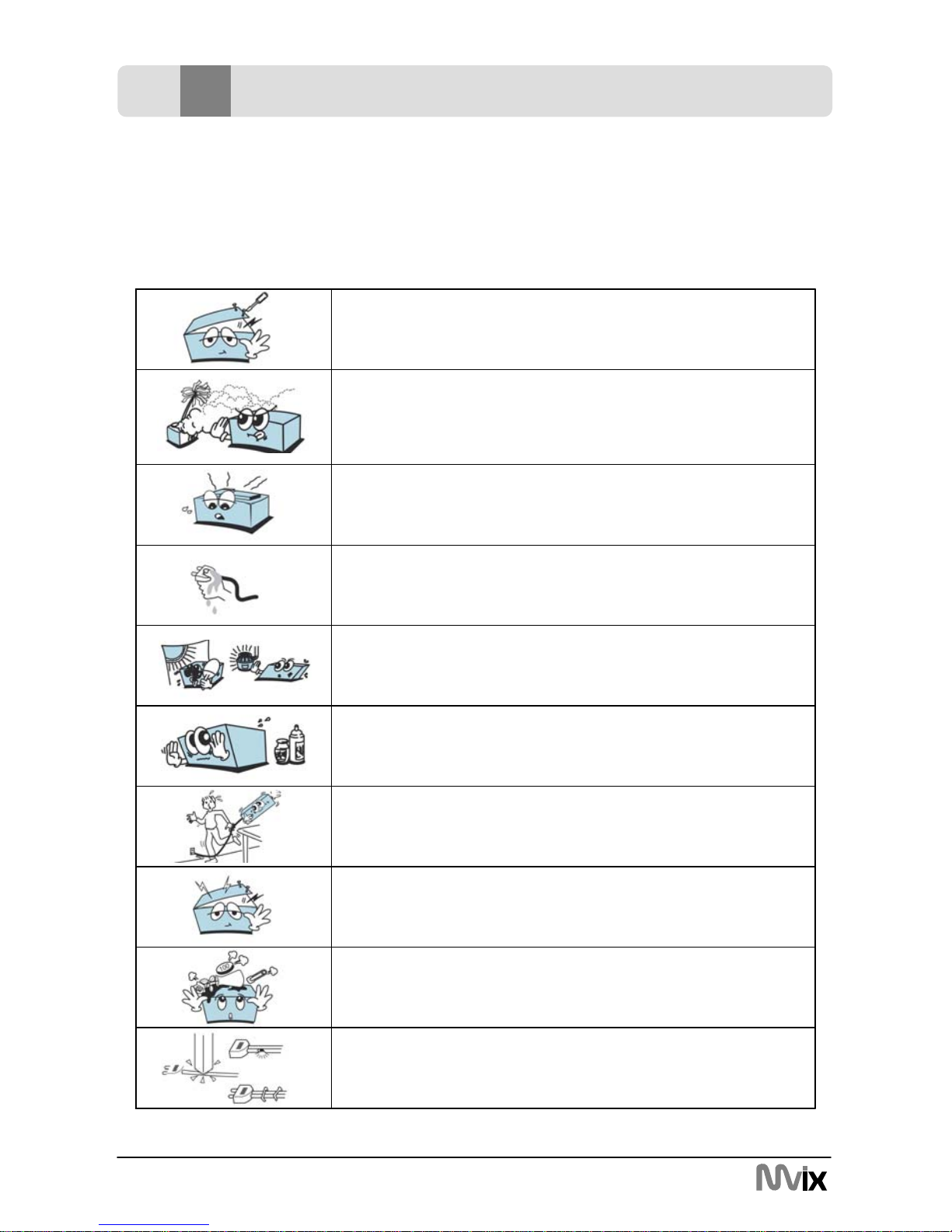
Do not let any liquid or foreign substance be inserted inside
the unit that could result in a short circuit with fire or
electrocution hazards.
In case of a faulty operation, do not attempt to repair the unit
yourself. Opening the unit have you exposed to electrocution
hazards. Please refer to a qualified person.
Do not use this unit near any heating source, especially hot air
vents, stove or any other appliance producing heat. Do not
Expose this unit to temperatures lower than 5℃or higher
than35℃
Do not use this unit near a humid area as a bath, sink,
swimming pool or a flowerpot.
Do not handle the supply cable if you have wet hands. Do not
use a damaged power cable.
Do not place your unit in front of a light projector or near a
heating source.
Do not cut, deteriorate, or place any heavy object on the
power cable that could result in a short circuit with fire or
electrocution hazards.
During the installation of the hard drive, please assure yourself
to unload the unit of any electrostatic charge.
Do not drop the unit or let it be subjected to impacts that could
seriously damage your unit or the hard drive.
Do not use any substance containing alcohol, gasoline,
detergent or any other flammable products to clean the
surface of the unit.
□Important Information
3
Unicorn Information System
Do’s
◈Visit mvixusa.com for additional product information & for troubleshooting.
◈When cleaning the Mvix product, disconnect the power and then wipe the unit with a
soft piece of dry cloth. Do not use any chemicals or sprays for cleaning.
◈Do read all safety information and follow all instructions in this user manual.
◈When connecting or disconnecting AV cables, disconnect the power first.
◈Protect the power cord from being walked on or pinched, particularly at plugs, or at the
point where they exit from the player.
◈Do not defeat the safety purpose of the polarized or grounding-type plug. A polarized
plug has two blades with one wider than the other. The wide blade is provided for your
safety. If the provided plug does not fit into your outlet, consult an electrician for
replacement of the obsolete outlet.
◈Unplug the player during lightning storms or when unused for long periods of time.
Don’ts
◈Do not mix batteries (old and new or carbon and alkaline, etc.) in the Mvix Remote
Control. Remove batteries when the unit is not used for a long time.
◈Do not touch the power plug with wet hands or use defective power cables & electric
outlets. Doing so might result in electric shock or fire. Only use attachments
accessories specified by the manufacturer.
◈Don’t drop the MVIX unit. This might cause irreversible damage to the unit and the
Hard Drive.
◈Don’t attempt disassembling or remodeling the unit.
◈Don’t block the vents. Free airflow should be maintained around the unit.
◈Don’t expose your MVIX unit to water, oil, dust or magnetic materials.
◈Don’t expose your MVIX unit to heat sources or high temperatures.
2Safety & Precautions
▣Do’s and Don’ts

4
Unicorn Information System
2Safety & Precautions
▣Limitations and Usage Precautions
Please read the following Limitations and Usage Precautions before using your
Mvix player.
◈While Mvix players support dozens of file formats and codec, they are not intended to
work with every codec-variation. Mvix players provide limited support to standardized
versions of codec as stated in the Technical Specifications of this manual.
◈Turn off your Mvix player when connecting or disconnecting USB devices. Failure to do
so may result in malfunction and/or loss of data on your USB device.
◈We strongly recommend backing-up your data or media files stored on the Mvix-HDD.
Power surge, HDD-failure, accidental deletions are common causes of data loss. Place
your Mvix player away from magnetic sources.
◈Mvix supports 3.5” Hard Disk Drives only. Kindly ensure that the jumper setting on your
Hard-disk Drive (HDD) is set to MASTER or SINGLE before installing it in the Mvix
Player. Some HDDs (depending on the manufacturer) may work with the SLAVE or
CABLE SELECT (CS) jumper combination. If your PC fails to recognize Mvix as an
external storage device, try changing the setting to SLAVE or CS. Do not forget to
format and partition your HDD after installing it in the Mvix player. “Primary Partition” is
recommended when creating two or more partitions within a single Hard Disk Drive.
◈When connected to the computer through the USB cable the Mvix player works like an
external USB storage device (During this operation, there is no video/audio playback).
To resume playback mode, disconnect the USB cable connected to your PC and turn
on the Mvix player.
◈The supplied cables and accessories are recommended for customized best
performance of the Mvix Media Player. Using any other (after-market) cables or
accessories may not provide best performance
◈In order to unplug your Mvix Media Player, press the STOP button before removing
cables or turning off the power.
◈Do NOT open the unit and service or modify the basic assembly. Do NOT modify the
firmware of the Mvix unit. Improper or unauthorized repair will VOID your warranty
coverage.
5
Unicorn Information System
3Features
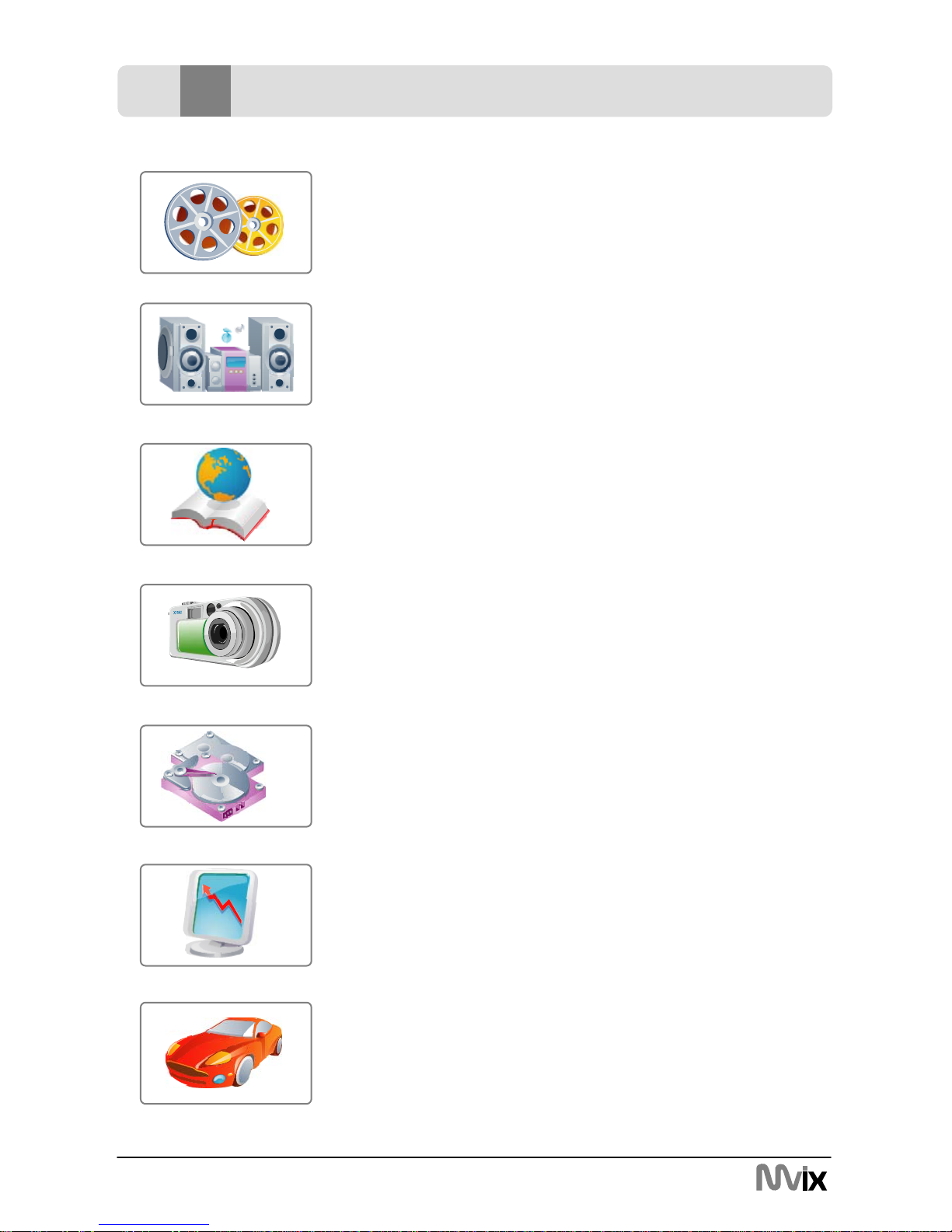
Enjoy your Movie and Video Files on TV !
Supports a variety of digital video files like DivX® 3/4/5, Xvid,
MPEG1, MPEG2, MPEG4, DVD(IFO, VOB), VCD(DAT). Ideally
suited for backing up all your DVD movies on a hard-Disk for
easy access.
Digital Music Box
A perfect companion for the music junkies. Play variety of audio
files like MP3, OGG, WMA etc. Advanced in-built Jukebox
supports customized playlists and music shuffle/repeat functions.
Multilanguage Subtitles
Supports multi-language .SMI, .SRT, .SUB subtitle files
(for use with DivX®, XviD, AVI video and movie files)
Digital Photo Album
Now enjoy your vacation photos with the family. Store and
Playback all your digital photos. Enjoy customized Slideshows with
background Music.
Portable HDD Storage
Quite simply, an ideal mass-storage device for all your backup and
digital storage needs.
(Note: HDD-Hard Disk Drive NOT INCLUDED)
Easy Firmware Upgrading
A Simple and Efficient firmware upgrade process. (Download:
www.eunicorn.co.kr, www.mvix.co.kr or www.mvixusa.com).
Firmware Upgrades provide continuous support to new codecs
and formats.
Car Media Center (Optional)
Mvix can also be used in a car with its optional car pack.
The Car Pack bundle contains Car Power Adapter, Ext IR
Extender, Compact Remote Control and Audio Cable
6
Unicorn Information System
4Specifications
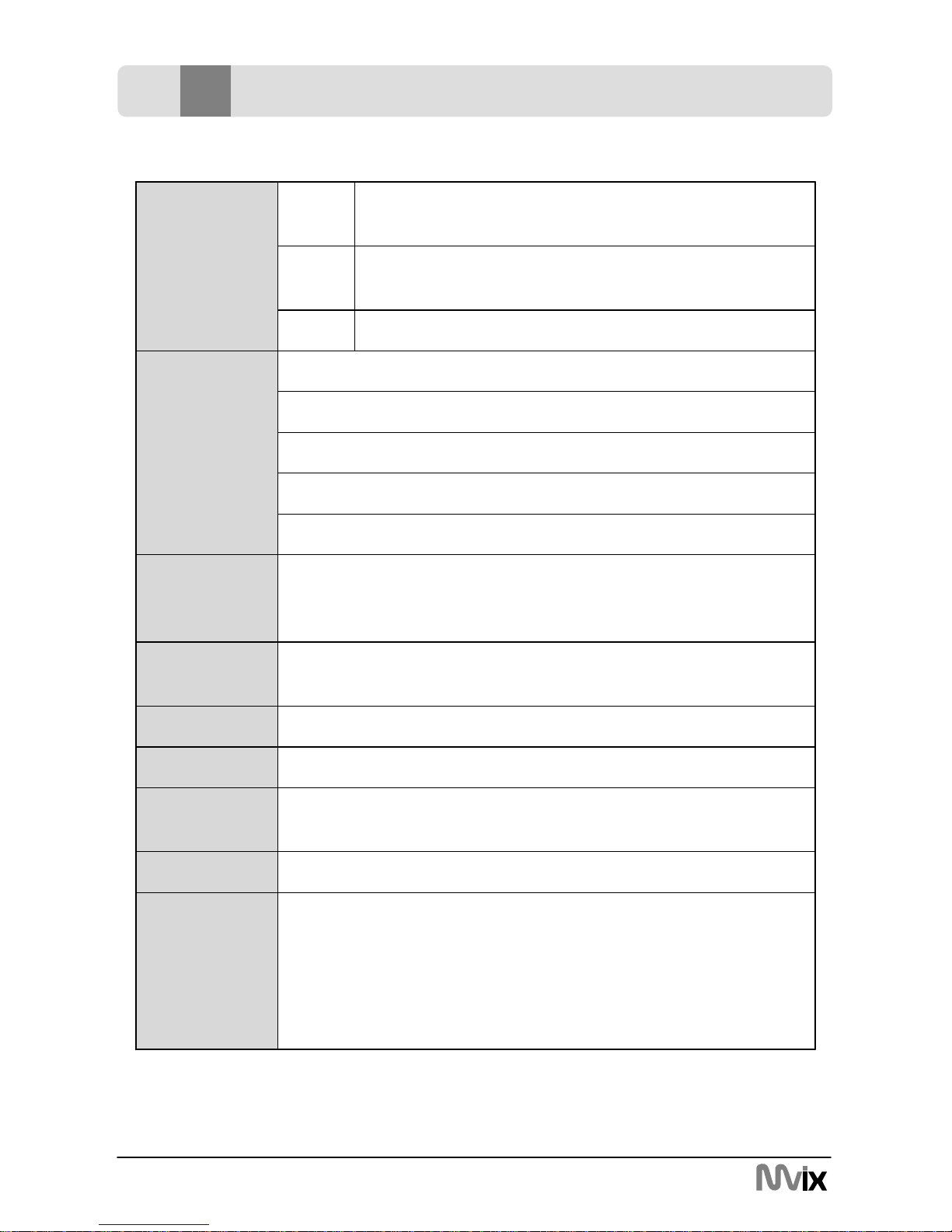
5.71 x 6.3 x 2.05 (inches) or 145 x 160 x 52 (mm)Dimensions
MVIX Media Player
AC Power Adapter
RCA 2-CH, AV Cables,
USB Cable (for PC),
Manual,
Driver CD
Retail Kit
Includes
Various languages 'smi, sub, srt' file
Supported
Languages
External 12V/2.5A DC adapter
Power
FAT32, NTFS
Partition Type
Windows 98SE, ME, 2000, XP or later
Operating
System
Full Featured IR-Remote control
Buttons : Power, Play, Stop, Cancel, Up, Down, Left, Right
LCD panel (128X64)
User Interface
IR-Ext
Audio : RCA L//R, Coaxial, Optical
Composite Video : RCA and S-Video
Component Video : RCA Y, Pr, Pb
USB 2.0
Input & Output
JPEGPhoto
AC3, MP2, MP3, DTS pass through, Ogg, WMA, MPGA,
MPA
Audio
MPEG1/2, Div3.11, Div4.0, Div5.0, Divx, Xvid, DVD
(IFO, VOB), VCD(DAT), M2V
Video
Supported File
Formats
7
Unicorn Information System
5Front and Rear Panel
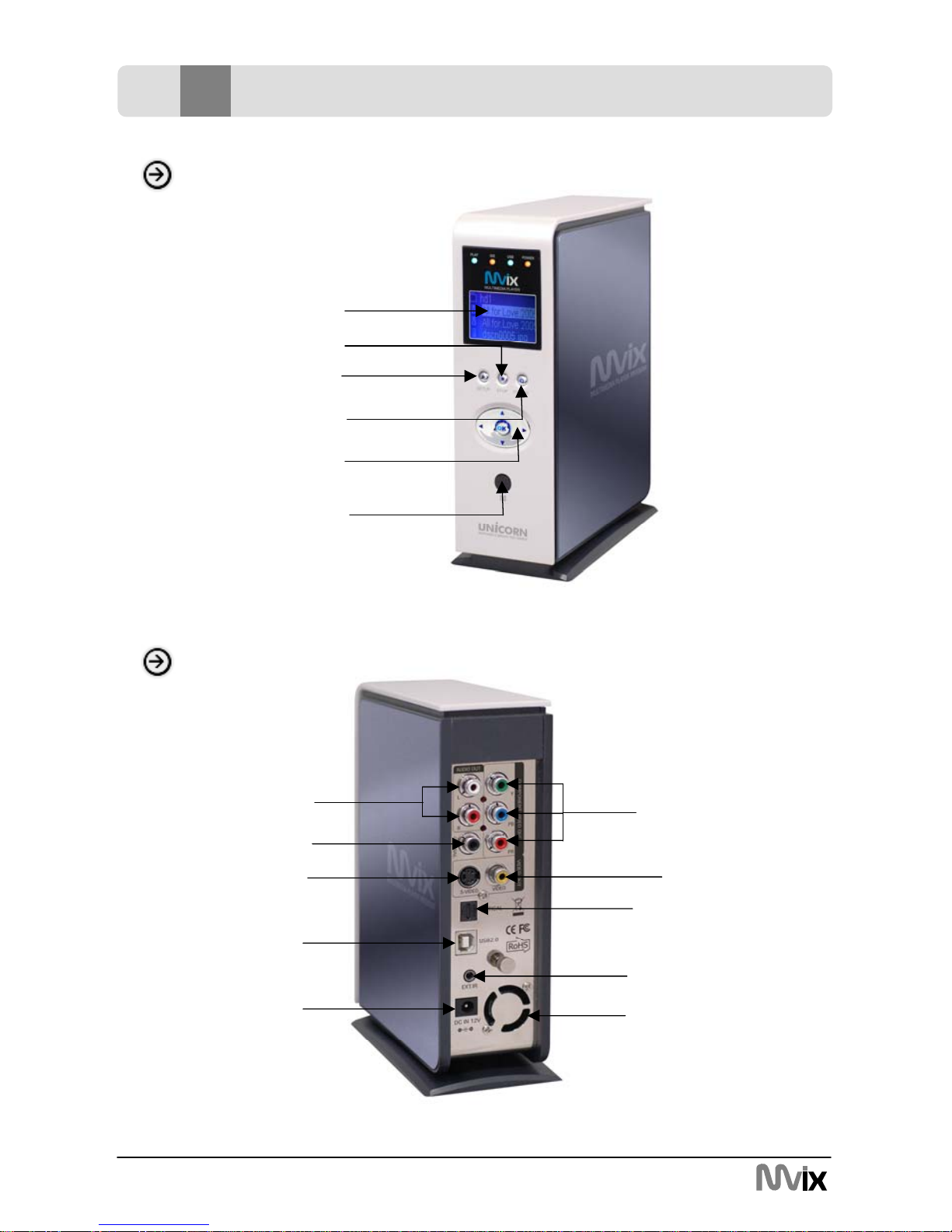
LCD
STOP
SETUP
ON/OFF
IN BROWSER
Audio out
Front Panel
Rear Panel
Coaxial
S-Video
USB2.0
Slave
Power Fan
Ext.IR
Component out
Optical
Video out
8
Unicorn Information System
6Remote Control
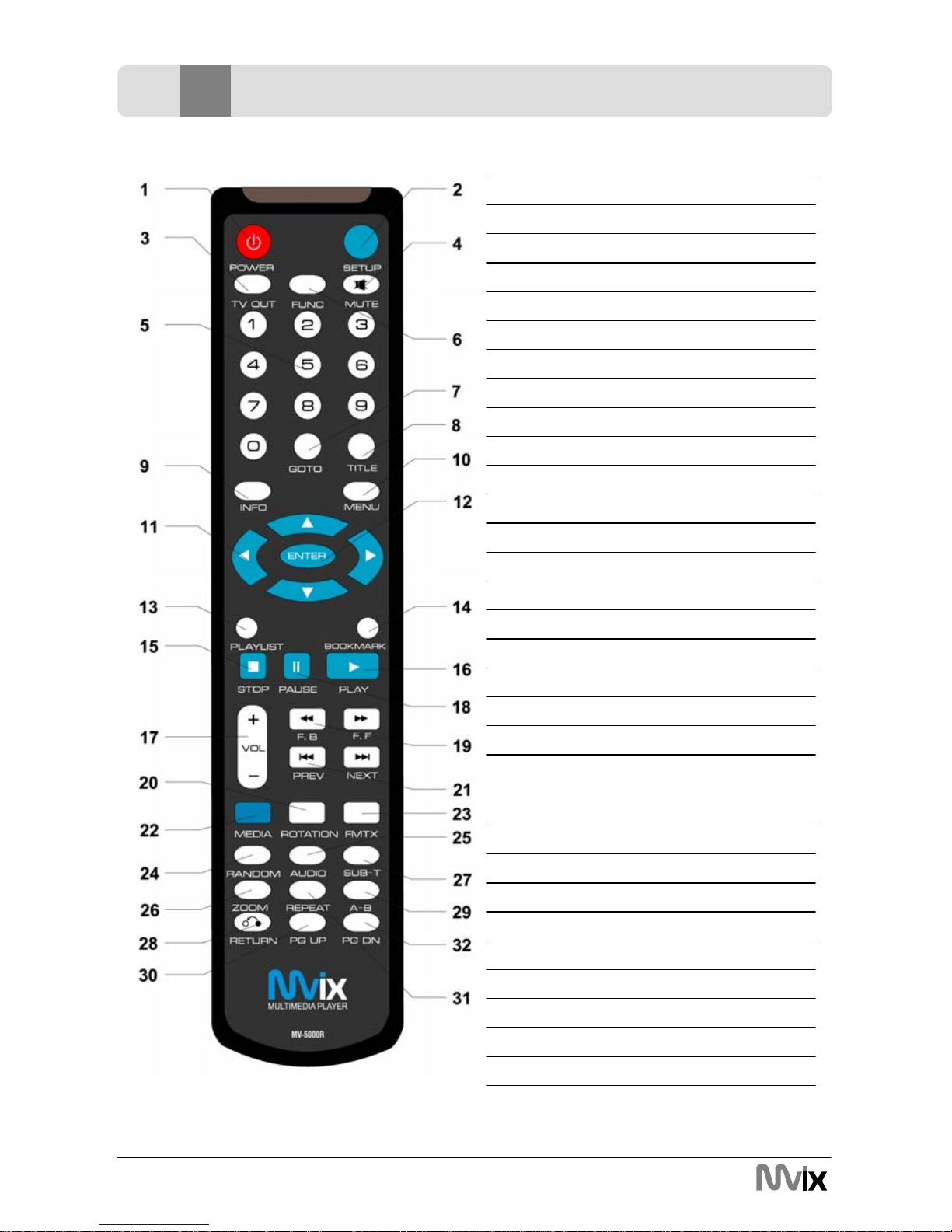
17. Volume -/+
16. Play
15. Stop
14. Bookmark
13. Play Lists
12. ENTER to confirm the selection
11. Navigation – Arrow Keys
10. Menu for DVD
9. Show the info for file playing
8. Title for DVD
7. Goto
6. Function Key
5. Number Keys
24. Random
23. Restricted Key
22. MEDIA switch from
MIXED→VIDEO →AUDIO →PHOTO →
MIXED
21. Skip backward and forward
20. Rotation to rotate the picture
19. Fast Forward / Reverse
18. Pause
4. Mute
28. RETURN to the last folder
27. SUB-T select the subtitles
26. Zoom
25. AUDIO select the audio track
30. Page Up
29. A-B setup repeat segment
31. Repeat
32. Page Down
3. Change the VIDEO OUT mode
2. Setup
1.Power
9
Unicorn Information System
7Hard disk insertion
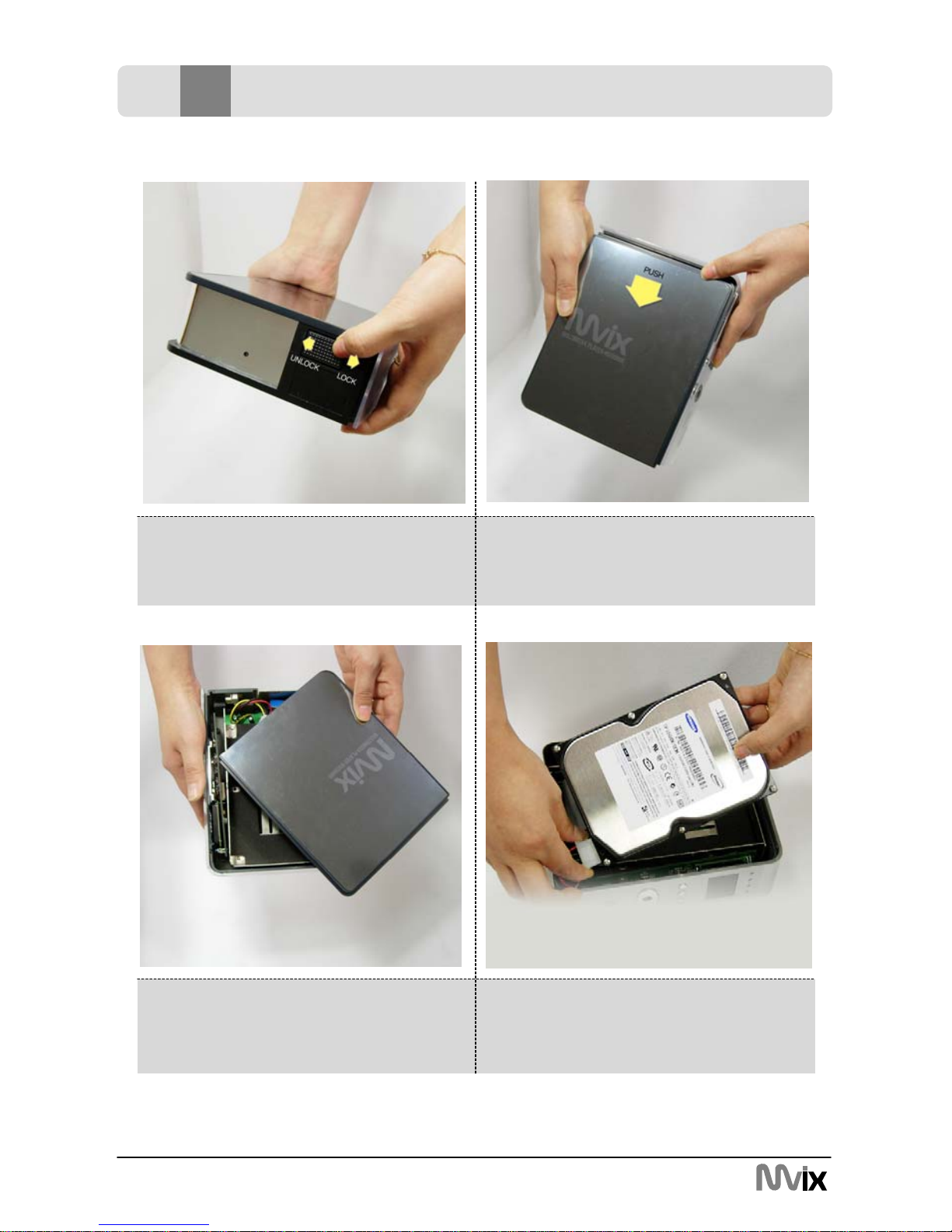
4. Connect the 4-pin power cable using
the white plug. Take note of the shape of
the power cable plug. The plug can only
be inserted in one direction.
3. Open the top-cover.
2. Once unlocked, slide the top-cover as
shown above.
1. Slide the lock toward the “UNLOCK”
direction
Tabla de contenidos
Idiomas:


