
Nuqleo Quantum7 Manual de usuario


NUQLEO - QUANTUM TABLET
2
I Introduction
I.A. Package contents
I.B. Safe handling of the product
I.C. Battery instructions
I.D. Disposal information
Chapter 1 – Basic setup
1.1 Charging your tablet
1.2 Switching your tablet on/off
Chapter - 2 Getting started
2.1 Home screen
2.2 Managing icons and several screens
Chapter 3 - Main applications
3.1 Internet access
3.2 Web browser
3.3 Email
Chapter 4 - Data transfer modes
4.1 Connection to a PC
4.2 Micro-SD card
Chapter 5 - Productivity applications
5.1 File manager
5.2 Search
5.3. Manage downloads
5.4. Clock
5.5. Calendar
Chapter 6 - Entertainment applications
6.1. Sound recorder
6.2. Music player
6.3 Camera
6.4 Camera and camcorder settings
6.5 Social applications
Chapter 7 - Settings
7.1Wireless and networks
7.2 Device settings
7.3Personal settings
7.4 System settings
7.5 About Tablet
Chapter 8 – Security
Chapter 9 – Back up and reset
Appendix 1 - Specications
Appendix 2 -Trouble shooting checklist
Appendix 3 - FCC statement

NUQLEO - QUANTUM TABLET
3
Thank you for purchasing the Nuqleo Quantum Tablet. This manual guide will show you how
to set up your device and use its functions. Once your tablet is up and running, you can visit
www.Nuqleo.com to nd out more about all the great features your new device has.
Note: If any of the listed items is missing, mismatched, damaged or broken, contact your
local dealer immediately for replacement.
Nuqleo Quantum 7 Tablet with rechargeable lithium-ion battery
AC charger/USB sync data cable
Micro USB male to USB female adapter
Earphones
Protective sleeve
Start up guide
Never expose your tablet to direct sunlight or excessive heat. Avoid leaving the product
inside a car with the windows closed.
Keep your tablet in a dry place. Never expose this product to rain or water.
Do not use or store your tablet in dusty, dirty areas.
Do not use harsh chemicals, soaps or detergents to clean your tablet.
Do not modify, disassemble, open, drop, crush, or puncture this product.
Never disconnect your tablet while a download or upload is in progress.
Switch off the device in restricted areas or where the use of electronic devices is prohibited.
To protect your hearing, make sure the volume level is not set too high when plugging the
headphones.
Use only the battery and battery charger specied by the manufacturer.
The battery has a limited service life so it will need replacing when it no longer holds enough
charge.
Dispose of old batteries at directed places.
Do not throw batteries into a re.
Do not force the battery when installing it.
If the battery overheats or changes color while charging it or storing it, stop using it.
Do not expose batteries to high temperatures.
Do not charge the battery for more than 24 hours.
Electrical and electronic products as well as batteries must not be discarded as regular
household waste. As part of the company’s eco-friendly approach, we encourage you to
recycle and follow all applicable local waste regulations to dispose of your used devices
properly. Never dispose of batteries in a re.
I.A Package contents
I. Introduction
I.B Safe handling of the product
I.C. Battery instructions
I.D Disposal information
•
•
•
•
•
•
•
•
•
•
•
•
•
•
•
•
•
•
•
•
•
•
NUQLEO - QUANTUM TABLET
4
Chapter 1 - Basic setup
Chapter - 2 Getting started
You must fully charge the battery prior to using the tablet for the rst time. Firmly insert the
micro-USB end of the supplied charger into the I/O port on the tablet, and the other end to
a standard AC wall outlet or to an available USB port on your computer.
The new battery needs to be initially charged for at least 5 hours and for 3 hours or so
thereafter.
Let the battery drain completely, before recharging it to full capacity for a second time. From
then on, allow the battery to charge until the icon on the screen becomes solid green.
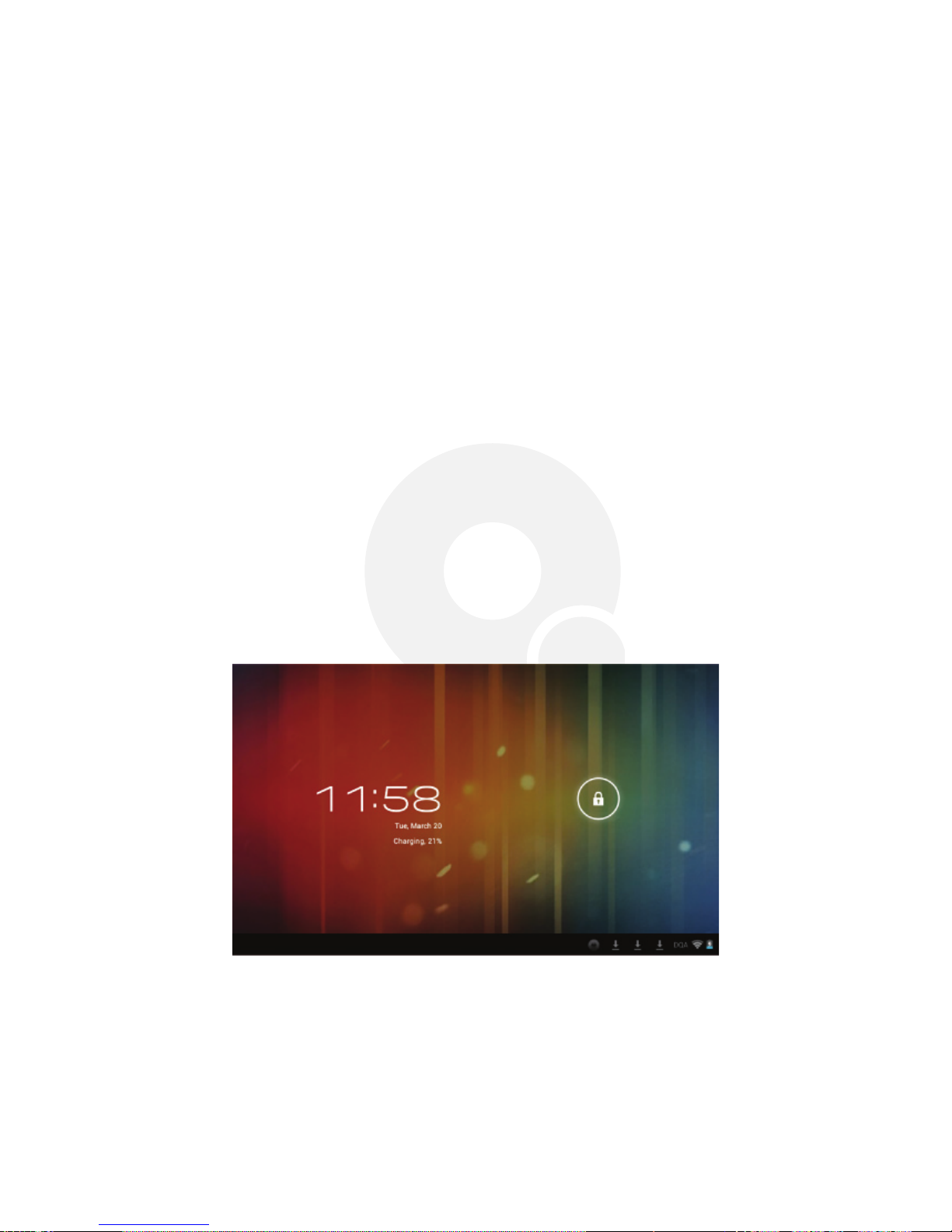
As soon as you power-on your tablet, you will see the Locked interface.
Slide your nger to the right to access the Home screen. This screen provides quick access to
the things you need most, and key information concerning the current status of your tablet.
The home screen contains a System bar, located in the bottom left corner of the display, which
includes six default navigation buttons. You can access them by touching the screen:
To switch on the tablet, press and hold the Power button for several seconds.
The welcome screen will appear.
To switch off the tablet, press and hold down the Power button again. When the “Power
off” options menu comes up, select OK. The device will shut off completely.
Note: make sure to follow the on-screen prompts for the initial setup of the tablet.
1.1 Charging your tablet
2.1 Home screen
1.2 Switching your tablet on/off
•
•
•
•
•

NUQLEO - QUANTUM TABLET
5
In addition the user can choose between two home screen visualization modes:
Desktop and Application view.
A. In Desktop view, six default shortcuts will be displayed, which you can later customize
based on your own particular needs and lifestyle. These default shortcuts are:
B. The Application view allows access to all the application available in your device. To open
the main All Apps screen, touch the icon on any Home screen.
Note: on the locked screen the most recent application icons will be displayed when accessing
the system from either visualization mode.
2.2 Managing icons and different screens
In order to see the different screens, slide your nger to the left or to the right. You may
customize the home screen or any of the other screens by moving icons to another location.
Just tap on the icon, drag it and drop it at the location where you want to place it.
Icon Name
Back Opens the previous screen you were working in
Opens the Home screen
Opens a list of thumbnail images of apps recently used
Tap on this icon if you want to decrease the volume level
Tap on this icon if you want to increase the volume level
Opens the options menu for frequently used applications
Home
Recent apps
Volume down
Volume up
Shortcut
Description

NUQLEO - QUANTUM TABLET
6
Chapter 3 - Main applications
You can now congure an internet connection in no time using your new tablet.
1. First, go to Settings and tap on Wi-Fi ON/OFF switch in order to enable the wireless
conguration on the tablet.
2. Choose your wireless access point, and proceed to enter to enter your credentials.
3. Finally, select the Connect option on this menu to activate your access to the internet.
3. The user can then congure all related navigation settings based on his/her individual preferences.
1. Select the Email application icon from the apps menu.
2. You will be prompted to enter your full email address and password.
3. Once you are done, tap the Next button and the system will automatically search for the
incoming and outgoing server settings. If unable to congure automatically, you have the option
to manually set these parameters.
4. The Account settings menu will be displayed, allowing you to set certain emails parameters.
When done, select Next to nish the setup.
5. If setup is successful, you will have instant access to all your emails using your wireless connection.
6. If you also want to set up a Gmail account, look for the icon in the applications menu.
The browser allows you to enjoy a seamless surng experience using your new tablet.
1. Once you have successfully established an internet connection, you just need to tap
on the Browser icon on the apps screen or the shortcut icon on a Home screen
to launch this application.
2. At this stage, the following window will be displayed.
3.3 Email
Now you can stay in touch with friends, family and business associates via email wherever
you are. The conguration process is quick and easy.
3.1 Internet access
3.2 Web browser

NUQLEO - QUANTUM TABLET
7
Chapter 4 - Data transfer modes
Chapter 5 - Productivity applications
1. Insert the micro-USB end of the cable into the port located on the side of the tablet and
the standard USB end into the corresponding port of your computer.
2. Once the device is detected, the Turn on USB storage button will pop up on the lower
right section of your screen, in order to enable the connection to the PC. Tap on this button
to continue. The Android icon will turn orange.
3. On your computer, the tablet will be displayed as a hard drive.
4. Now, you are able to copy, delete or share les between your computer and the tablet
Important note: to safely disconnect your tablet from the computer, you must touch the
Turn off USB storage button on the tablet screen.
1. Insert the micro-SD card into the slot located on the side of the tablet.
2. Open the File manager application on your tablet. The SD-card tab will become illuminated,
and you will be able to visualize the folders and les stored in the external memory attached
to the device.
In addition to creating, deleting or sharing les, the le manager allows you to keep all your
data properly organized and conveniently stored in your memory.
1. Select the File manager icon on your main screen.
2. After opening the le browser interface, users will be able to copy, paste or delete les
stored in the local memory, SD card, or USB external storage device.
You can transfer data to and from your tablet PC using the micro-USB connection or the
micro-SD card slot.
4.1 Connection to a PC
4.2 Micro-SD card
5.1 File manager

NUQLEO - QUANTUM TABLET
8
Select the icon to open Google search in order to nd content matching the key words
you entered.
The les, apps or other items that the user downloads are saved in the tablet´s internal storage.
1. In order to see those items, select the icon from the All Apps screen.
2. From the download directory of your tablet, select the item you want to view, reopen
or delete.
Select the icon on the applications menu to open the clock interface. It allows the user to
enable or disable the alarm, set up the time, select the alert tone (Ringtone option), and other
related functions of this feature.
Keep track of your meetings, appointments, places you want to visit, or schedules that you need
to follow.
1. It is required to have a network connection active the rst time you use this application, in
order to be able to congure it using an existing Google Account, or by creating a new account.
2. Once you have an email account set up, you need to select the icon on the application
screen to open this feature.
3. Click on the day, week, month or agenda tab to view, add or delete an event.
5.2 Search
5.3. Manage downloads
5.4. Clock
5.5. Calendar

NUQLEO - QUANTUM TABLET
9
Chapter 6 - Entertainment applications
1. Select the icon to enter the sound recorder interface
2. Next, tap on the icon to start recording.
3. When you are nished recording, tap on the icon to stop.
4. A dialog box will popup. Click on Done if you want to save your recording, or Discard if you
prefer to permanently delete that le.
5. Click on the icon to listen to the recording you just saved or go to Applications view, tap
the File manager icon to see the recordings. To perform other le operations, tap and
hold your nger on the recording; a menu will pop and you will be able to delete, rename, copy,
move or email your le.
1. Select the icon to enter the music player interface.
2. Three different sorting schemes will be displayed at this stage: by Artists, Albums and
Songs.
3. The user can also choose Playlists to replay his/her customized tracks, or tap on the Now
playing tab to either access the music or movie currently being played or to resume playback
after being stopped or paused.
4. Tap the icon to enable or disable the random playback mode.
5. Tap the icon to switch between continuous repeat mode or single song playback.
This interface provides an integrated camera, camcorder, and gallery experience.
1. Select the icon to enter the camera interface.
2. Then touch the proper icon to toggle between still and video capture modes.
6.1. Sound recorder
6.2. Music player
6.3 Camera

NUQLEO - QUANTUM TABLET
10
Chapter 7 - Settings
3. Tap the blue button in the center to take a snapshot or the red one to start recording.
4. After capturing a snapshot or recording a video, your le will appear above the blue button.
Tap the image once to choose options such as see your media le in the gallery send it by
email, post it on Facebook or in Twitter.
5. To delete your media le, just tap on the center of the image followed by the Garbage
icon on the upper right corner of the screen.
6. To view les, you can tap on the media application icon for instant visualization of your
recorded les, or go to your le manager and retrieve your images from the default location
of the camera folder.
Both the still mode and the video capture mode have additional settings.
Still and video capture modes: slide the dot towards the plus (+) sign to zoom in or towards
the minus (-) sign to zoom out. You may also tap the menu icon next to the minus sign to open
options such as White balance, Exposure, Store location and Time lapse interval, only for
video capture mode.
Your tablet comes with other popular and exciting social applications such as Facebook and
Twitter. In order to access to them, you should set your own username password.
The icon gives you access to a host of customizable features that each user can congure
based on his/her own individual preferences. The most frequently used features will be explained
below. Please refer to the manual in our website for a complete description of all settings.
Wi-Fi: turn on Wi-Fi so you can see a list of available wireless networks to connect to.
Data usage: measure the data used in a certain period of time.
Airplane mode: enable or disable this mode if you are in an area where no electronic devices
are allowed.
VPN (Virtual Private Network): connect to a VPN to access resources inside a secure local
network, from outside that network. To select this option, you should rst choose a lock screen
PIN or password.
Portable hotspot: congure a portable Wi-Fi spot in order to share your tablet’s network data
connections.
Wi-Fi direct: see a list of available networks to set up a peer-to-peer connectivity.
Mobile network: tap to enable access to data access, roaming data, use of 2G networks to
save battery or to select network operators.
6.4 Camera and camcorder settings
6.5 Social network applications
7.1 Wireless and networks
•
•
•
•
•
•
•
Tabla de contenidos
Otros manuales de Tableta de Nuqleo


