Novatron NTD38 Manual de usuario

English
User’s Manual


CONTENTS
1 Introduction ············································································· 4
Multimedia Functions····················································································· 4
Input/Output Functions··················································································· 5
Kinds of format to be supported····································································· 6
TV Out set-up and change·········································································· 7
LCD-Display Information············································································ 8
Precautions··································································································· 9
How to handle and other precautions························································· 10
Name of each point – Top & Front································································ 11
Name of each point – Rear side····································································· 12
Contents in package······················································································ 13
Accessories available at shops······································································ 14
2 Preparation to use ····································································· 15
Procedure···································································································· 15
Kinds of HDD to be installed········································································· 15
HDD Installation····························································································· 16
Connecting with PC······················································································· 17
To create folder and to copy files···································································· 18
Disconnecting from PC··············································································· 19
Connecting to TV with Composite(AV) cable················································ 20
Connecting with Component cable or HDMI connector································· 21
Connecting with Optical or Coaxial connector··············································· 22
Connecting to Network··················································································· 23
3 Remote Controller & SET-UP Menu········································· 24
Structure of Remote Controller······································································ 24
Booting Message & Main Menu····································································· 25
Review of each Icon on Main Menu······························································· 26
SETUP Menu and How to set up···································································· 27

VIDEO setting change················································································ 28
AUDIO setting change················································································ 29
ETC(Other) settings······················································································ 30
NETWORK setting························································································ 31
WIRELESS (Auto setting)··········································································· 32
WIRELESS (Manual setting) ······································································· 34
WIRELESS (AD-HOC setting)······································································ 37
LAN Sharing setting(PC) ············································································ 39
Network configuration under window 2000·················································· 40
IP Address Setup: Ethernet Network using a direct connection·············· 45
4 MULTIMEDIA FILE PLAYBACK ·············································· 47
How to use JUKEBOX CREATOR(BGM ON) ·············································· 47
Enjoying movie file···················································································· 48
Creating DVD Library and Enjoying it··························································· 55
Enjoying Music Library··············································································· 57
Enjoying Photo Library··············································································· 58
External USB devices connection································································· 59
5 Firmware update ······································································ 60
6 HDD Partition and Formatting ·················································· 61
Under Window 98SE/ME environment··························································· 61
Under Window 2000/XP environment···························································· 65
A Troubleshooting ······································································· 69
B SPECIFICATION·········································································· 73

- 4 -
Introduction
Multimedia Functions
To playback a recorded digital HD file
As this device supports up to 1920 x 1080 progressive scan, you can enjoy playing back
a pre-recorded HDTV program by a digital TV set-top box or person digital video
contents taken by a HD camcorder with fantastic displaying quality.
To support various video formats
This device supports various latest video formats such as a pre-recorded HD file(tp, ts),
WMV9, WMV9 HD, MPEG1/2, MPG, MPEG4(DivX, Xvid), etc.
DVD JUKE BOX Function
As this device supports ISO file and IFO file, you can store DVD titles in it and playback
those files just like DVD Player. You can store various DVD titles into this device and
manage them forever and easily.
Auto Playback, Bookmark and Section Repeat Functions
After one file playback is ended, the next file (different in file name only) is play-backed
automatically. If you mark a specific position of a movie during playback with
“BOOKMARK” button of remote controller, you can start from the marked position again.
The function of ‘Section Repeat’ lets you repeat a specific section. Section Repeat
function is useful for language study or enjoying sports moving pictures.
Music JUKE BOX Function
As this device supports various music files like MP3, Ogg Vorbis, WMA, M3U and PLS,
you can store these files in it and enjoy them with easy. And, in case that you make its
own playlist by using ‘JUKE BOX CREATOR’ function, you can enjoy music files
(playlisted) as background music(BGM function) with easy and convenient.
Digital Photo Album
You can enjoy photo with this device together with your family through big screen of TV
in your living room, as this device has ‘Photo Slide Show’ and ‘BGM(Background Music)’
functions.

- 5 -
Input/Output Functions
Digital Audio Output and 2CH Down Mix
This player can output digital audio signal (high quality audio sound signal like AC3,
DTS) So, you can enjoy high quality sound without any loss of sound. And, as this
device supports 2CH down mix, users who have 2CH speaker only also can enjoy multi
channel audio track..
High Quality HDMI Connector
As this device has HDMI connector which output high quality digital and audio signal,
you can enjoy high quality display and sound without any distortion.
Streaming through Wired/Wireless Network
Without the procedure to copy files from PC to this device through USB cable, you can
stream various media files in your PC to it and playback them back with TV directly
through its Network solution.
Installed Wireless LAN Module and Antenna
As this device has Wired LAN as well as Wireless LAN module which supports turbo
function, WEP security function and high sensitive 5dBi antenna, you can connect this
device easily with any wireless network environment.
HOST USB2.0 lets you connect with various external USB devices
As this device has two (2) USB2.0 HOST, you can attaché various external USB devices
such as external HDD, USB memory, digital camera, etc.
External Mass Storage
As this device works perfectly as an external USB mass-storage for your PC through
high speed USB2.0, you can store huge data in it and manage it with easy.

- 6 -
Kinds of format to be supported
Video MPEG1/2/4, XviD, DivX, WMV9, WMV9HD, H.264, HD File(.tp, .trp, .ts),
.MKV, .WMV, AVI, .ISO, .IFO, .VOB, .MPG, .ASF, .DAT
Subtitle SMI, .SUB, .SRT
Audio MP3, WMV, WMA, Ogg Vorbis, AC3, PCM, DTS
Picture JPEG, BMP, PNG, GIF
Needed minimum transferring rate
Format Wired, Wireless LAN USB2.O(HOST)
MPEG1/2 12Mbps 10Mbps
DivX, Xvid 1.5Mbps 1.5Mbps
WMV9 8Mbps 8Mbps
• Even though a video file format is corresponding to the above table, the video file may
not be played-back properly in case that the resolution and transferring rate of the
video file is over specific value.
• Although a video file format is corresponding to the above table, the video file may not
be played-back properly according to the speed(performance) of external USB devices
or the speed(performance) of the devices to compose a network environment.
• Even though video file format is one of the above classification, the file is not played if
the file is encoded with GMC or QPEL option.
• AVI(Audio Video Interleaved) is a container format. This means that it may contain
many different combinations of codec. So, even if this device supports most of AVI files,
but, there could be AVI files not played back properly by this device
• Subtitle is supported properly in case only that the file name of subtitle is exactly same
as that of the moving picture.
• The audio file encoded with copy protection technology is not played back properly.
• Even if this device can playback 2048 x 1352(JPEG), it may not work properly if the
JPEG size is over 1920 x 1080.

- 7 -
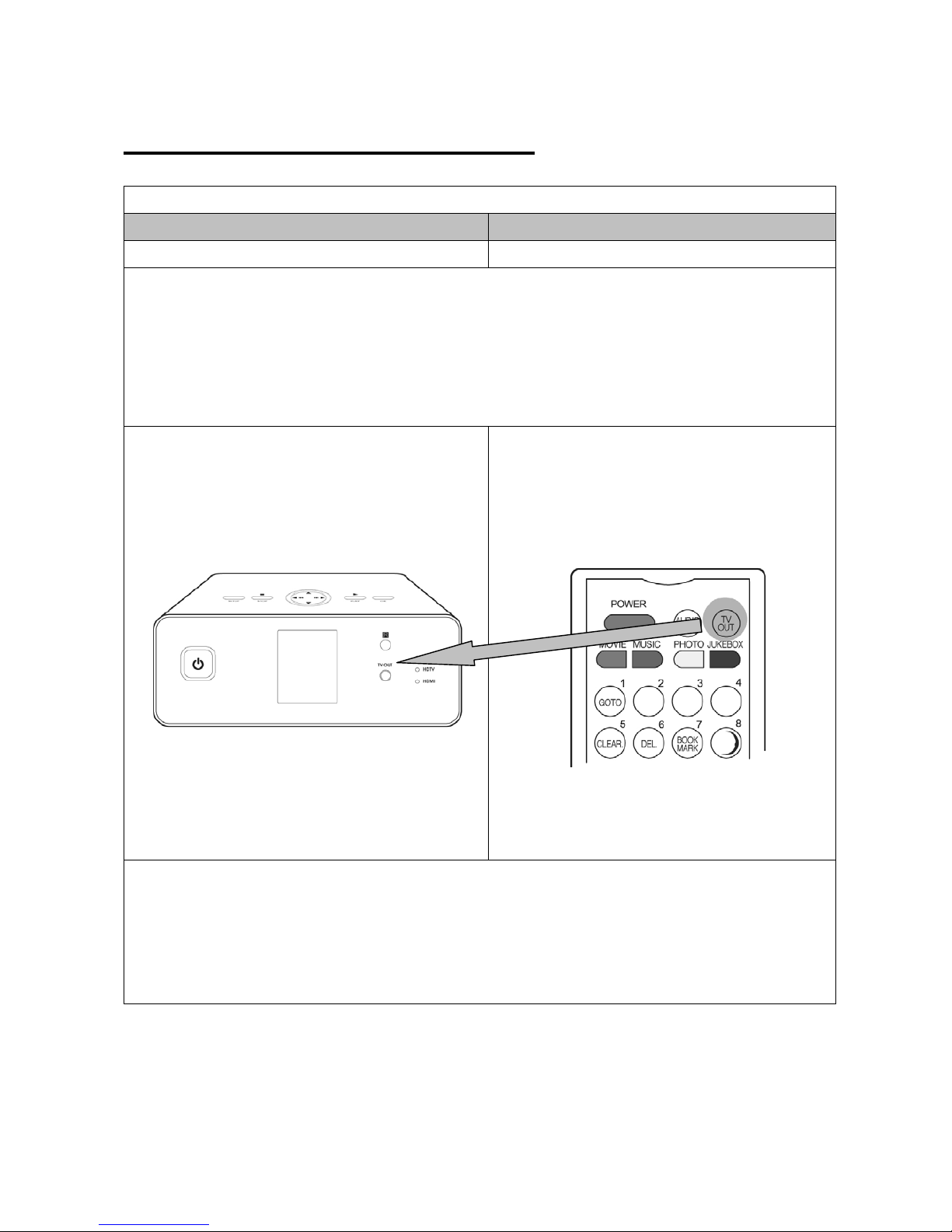
TV OUT set-up and change
TV Standard for each country
Korea, North America Europe and else
NTSC PAL
※TV out mode is originally set as PAL/Composite
※If you want to change TV out mode, you can use TV OUT button of remote controller or TV OUT button
of the front side of this device
※LED light of the front side of this device moves to corresponding position when you press TV OUT
button with 2~3sec time interval.
Front LED
TV OUT button for changing TV Out mode
Reference
※Each pressing TV OUT button : PAL(Composite)Î480p(Component)Î576p(Component)Î
480p HDMI Î576p HDMI.
You can change and select more subdivided TV out mode in SET UP menu※
In case of no dis※play on TV screen, try pressing TV OUT button several times to fit TV OUT mode

- 8 -
LCD-Display Information
This section allows you to playback the music file without connecting this device to
TV.
Main Menu
All the options of this screen may be chosen by
pressing the function button of remote controller and
please refer to “PART3 – Structure of Remote
Controller” on the usage of remote controller.
This option allows you to see the list of movie or picture
file but playback the selected file.
Sub Menu
Select each icon
Change the mode of music playback
Refresh
Create JUKEBOX
Playback JUKEBOX music subsequently
Stop played JUKEBOX music
Playback previous music from played one
In JUKEBOX
Playback next music from played one in
JUKEBOX
Exit the mode
Edit JUKEBOX
Delete the selected file

- 9 -
Precautions
Do not drop or give a shock. It may cause
serious damage to internal Hard Disk Drive.
Keep it away from high temperature, high
humidity, nearby magnetic filed and direct
sunlight.
Do not block a ventilation opening
Keep it unplugged during lightning storms or
when unused for long period time.
Do not try disassembling. It may cause an
electric shock, defect or unexpected problem.
For installing or changing HDD, you may open
the door on bottom side.
Do not touch the plug of the AC power cord
with wet hands
Este manual sirve para los siguientes modelos
1
Tabla de contenidos