Nortel AKM9600/8 Manual de usuario

User's Guide
Wireless Keyboard & Mouse
RF
AKM9600/8

EU Countries Not Intended for Use
Federal Communications Commission Radio(FCC) Statement
None
This equipment has been tested and found to comply with the limits for a Class B digital device,
pursuant to Part 15 of the FCC Rules. These limits are designed to provide reasonable
protection against harmful interference in a residential installation.This equipment generates,
uses, and can radiate radio frequency energy and if not installed and used in accordance with
the instruction manual may cause harmful interference to radio communications.However,
there's no guarantee that interference will not occur in a particular installation. If this equipment
does cause harmful interference to radio or television reception, which can be determined
by turning the equipment off and on, the user is encouraged to try to correct the interference
by one or more of the following measures:
Reorient or relocate the receiving antenna
Increase the separation between the equipment and receiver.
Connect the equipment into an outlet on a circuit
different form that to which the receiver is connected.
Consult the dealer or an experienced radio TV technician for help.
PREFACE
R & TTE Compliance Statement
Safety
EU Countries Intended for Use
This equipment complies with all the requirements of the DIRECTIVE 1999/5/EC OF
THE EUROPEAN PARLIAMENT AND THE COUNCIL OF 9 March 1999 on radio
equipment and telecommunication terminal equipment and the mutual recognition of
their conformity (R & TTE).
This equipment is designed with the utmost care for the safety of those who install and
use it.However, special attention must be paid to the dangers of electric shock and
static electricity when working with electrical equipment.All guidelines of this manual
and of the computer manufacturer must therefore be allowed at all times to ensure the
safe use of the equipment.
The ETSI version of this device is intended for home and office use in Austria, Belgium,
Denmark, Finland, France, Germany, Greece, Ireland, Italy, Luxembourg, The
Netherlands, Portugal, Spain, Sweden, and United Kingdom.

Table of Contents
INTRODUCTION
MAINBOARD AND MOUSE COMPONENTS
INSERTING BATTERIES
SETTING UP YOUR KEYBOARD & MOUSE
PACKAGE CONTENTS
SYSTEM REQUIREMENTS
FEATURES
WIRELESS RF KEYBOARD
WIRELESS RF MOUSE
RF RECEIVER
MOUSE
KEYBOARD
INSTALLING THE SOFTWARE
MOUSE
KEYBOARD
USING THE SOFTWARE
IWARE MOUSE
MULTIMEDIA KEYBOARD
TROUBLESHOOTING
A WORD ABOUT ERGONOMICS
1
2
2
2
3
4
4
5
7
7
9
10
11
13
15
16

Congratulations on your purchase of the
wireless RF Keyboard & Mouse, which
combines an innovative ergonomic design
with all the features and convenience of
wireless technology:
The wireless RF Keyboard has advanced
multimedia features that enable you to
play audio CDs, VCDS,DVDs, and MPEG
files. You can use the keyboard hot keys
to raise, lower and mute audio.
Other hot keys let you open your
default Web browser and refresh
Web pages, browse forward and
backwards,open a search page,
and send e-mail, the Windows
calculator and entering power savings mode.There are also extra 3 hotkeys for being
auto-defined your desirous window.
The bundled software further enhances your keyboard by supplying an onscreen
display(OSD) and onscreen menus to control audio and Web functions.
The Wireless RF Mouse has a scroll wheel/middle button that can be assigned
various functions such as Web page or word processing software scrolling,or
launching applications such as Windows Explorer.
After you have unpacked the Wireless RF Keyboard & Mouse, check the contents to
make sure the following items are included.
One Wireless RF Mouse
One Wireless RF Keyboard
One RF receiver
Two AAA batteries (for the mouse)
Two AA batteries (for the keyboard)
One CD combined driver with this quick guide together
Package Contents
Introduction
RF Receiver
Wireless RF Mouse
Wireless RF Keyboard
1

If any of the above items are missing or appear damaged, contact your dealer
immediately. Do not throw the shipping carton away in case you need ship your
Wireless RF Keyboard & Mouse.
To use the mouse software and the hot keys on your multimedia keyboard, you need
the following:
Windows XP/ME/2000/98/95/NT 4.0 or later
PS/2 mouse and keyboard ports
Sound Blaster compatible sound card (for CD/VCD/DVD, and MPEG operation)
CD-ROM drive (for software installation and CD/VCD operation)
DVD-ROM drive (for DVD operation)
Wireless radio frequency (RF) technology
Scroll wheel mouse enables scrolling in Web pages and text editors
Onscreen display (OSD) provides status information
Keyboard multimedia and web hot keys provide convenient access to often
used commands
Plug and Play compliant
Compatible with Windows XP/ME/2000/98/95/NT4.0
System Requirements
Features
Mainboard and Mouse Components
Wireless RF Keyboard
The following illustration shows the wireless RF Keyboard and hot keys:
2

Button Function Button Function
WWW
Suspend: enters the
computer into power saving
mode
World Wide Web: opens
your default Web browser
E-mail: launches the default
e-mail application
Volume Up: increases
audio volume
Volume Down: decreases
audio volume
Previous Track: searches
forwards through tracks
on a CD/DVD/VCD
=
My Favorite: opens the IE
favorites folder, or the
Netscape bookmarks folder
Search: opens a search
window in Netscape or
Windows IE
Mute: turns off the audio
output
Stop: stops playing a
CD/DVD/VCD
Play/Pause:plays or
pauses a CD/DVD/VCD
Next Track: searches
backward through tracks on
a CD/DVD/VCD
P1: define user's desired
window ,system taciturnity
is WORD.
P2:define user's desired
window, system taciturnity
is EXCEL.
P3: define user's desired
window, system taciturnity
is CALENDAR.
Wireless RF Mouse
The following illustration shows the RF mouse components:
Left button
Scroll wheel/middle button
Right button
3
open the
My Computer window
My Computer:
Calculator: open the
Calculator window

RF Receiver
PS/2 keyboard
connector(purple)
PS/2 mouse
connector (green)
Mouse/keyboard
connect button
The following illustration shows the RF receiver components:
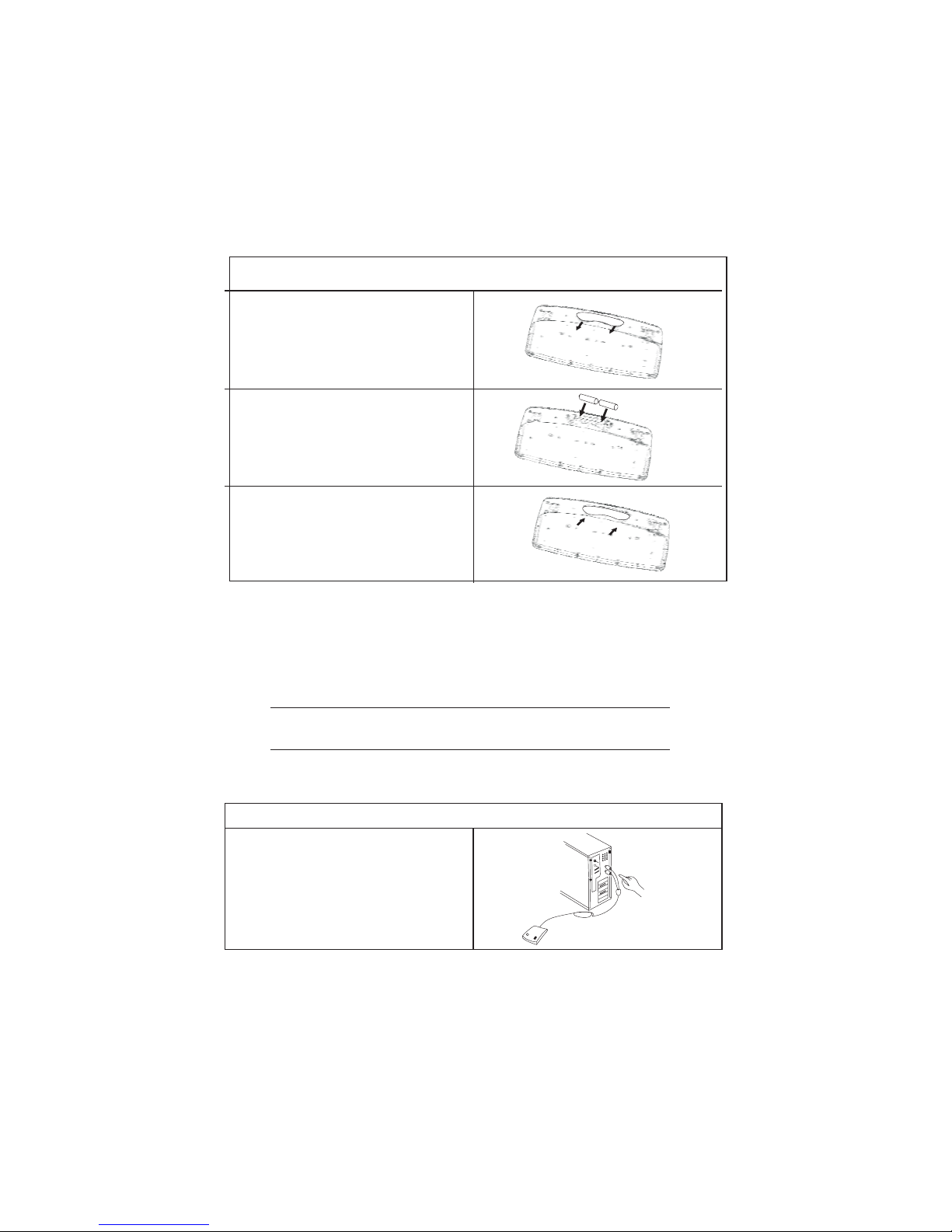
Inserting Batteries
The keyboard and mouse both require batteries to operate. The mouse uses two AAA
batteries and the keyboard uses two AA batteries. Refer to the following instructions
and illustrations for inserting the batteries:
Mouse
1.Turn the mouse over.
2. Open the battery compartment. Press
the edge( ) with your thumb and pull
up ( ).
A
B
3.Insert two AAA batteries into the
compartment. Ensure that you orient
the batteries according to the polarity
markings inside the battery
compartment.
4.Replace the battery compartment
cover. Insert the tab into the slot
( ) and flip the cover into place ( ).AB
Caps Lock indicator
B
A
-
+
+
-
AB
Slot
Tab
4

Keyboard
1.Turn the keyboard over.
2.Open the battery compartment. Slide
the cover in the direction of the arrows.
3.Insert two AA batteries into the
compartment. Ensure that you orient
the batteries according to the
polarity markings inside the battery
compartment.
4.Replace the battery compartment
cover.
YourRFkeyboard and mouse connect to the PS/2 keyboard and mouse ports on
your computer.
Setting up Your Keyboard and Mouse
Note! Insert the keyboard and mouse batteries before setting
up the keyboard and mouse. Refer to the previous section.
Refer to the following instructions and illustrations to connect the keyboard and
mouse to your PC:
1.Turn off your computer.
2.Plug the purple PS/2 connector on
theRFreceiver cableintothePS/2
keyboard port on your computer.
3.Plug the green PS/2 connector on
the RF receiver cable into the PS/2
mouse port on your computer.
5

B
8in(20cm)
5.Place the keyboard and the mouse
in the proper location for your
computer.
Note! Refer to the section on
ergonomics later in the quick
guide for more information on
setting up your workstation.
6.Turn on the computer.
7.Press the Receiver connect button a
(don't hold it down), then press the
Mouse connect switch within 3
seconds. Mouse ID will link in
success.Repeat to press the
Receiver connect button, then press
the Keyboard Connect switch withon
3 seconds,keyboard ID will link in
success.
4.Place the RF receiver in a good
location. Place the receiver at least
8 inches (20 cm) from
electrical devices such
as the computer or monitor.
Ensure that the mouse and keyboard are working. If they do not respond,pls.move the
mouse or press keystrokes. If not working yet,pls. keep intermission for 15 seconds
at least,then repeat Step 7 to ensure that a connection has been made.For any further
solution, pls.take refer to the Troubleshooting section at the end of this guide.
A
Receiver
connect button
Connect
switches
C
6

The RF mouse and multimedia keyboard come with software to enhance their functions.
The software is located on the bundled CD.
Insert the software CD into the CD-ROM drive. The auto-installation screen appears.
A menu provides you with the option of installing the mouse and keyboard.
Follow these instructions to install the keyboard and mouse sofware:
Mouse
Installing the Software
Note! Connect your Wireless RF Keyboard & Mouse before
installing the software. Refer to the previous section.
1.From the software CD installation
menu, click install Mouse. The iWare
mouse installation program starts.
Click .Next
2.Select "3 Button Wheel Mouse,"
and click .Next
3.Select "PS2 PORT"and click .Next
7
Tabla de contenidos