
Nitgen FRD Instrucciones de montaje

DC1-0011ARevD

Contents
Chapter1 BeforeYouBegin
Features
Typical Applications
System Requirements
Package Contents
Product Types
Chapter2 DriverInstallation
USB Driver Installation
Parallel Driver Installation
Chapter3
HowTo UseThe DeviceDiagnostic Tool
Running the Diagnostic Tool
Checking the System Status
Capturing Fingerprint Images
Adjusting the Brightness and Contrast
Others
Chapter4 Troubleshooting
ToContactUs
USB FRD Problems
Parallel FRD Problems
Driver installation without installshield wizard
Tel. 82-2-3415-1800
Fax. 82-2-3415-1601
URL : http://www.nitgen.com
6
6
7
8
10
5
13
23
31
14
19
24
25
26
28
30
32
34
35
Features and specifications are subject to change without notice. No part of this guide may be
copied or reproduced for any purpose without the prior written authorization from NITGEN.
NITGEN holds the copyright on the brands NITGEN
Any other brands are the registered trademarks of owners.
Copyright 2002~2004, NITGEN Co., Ltd.
All rights reserved.

Chapter 1
BeforeYouBegin
Features
Typical Applications
System Requirements
Package Contents
Product Types

Chapter 1 Before You Begin
7
TypicalApplications
SystemRequirements
Chapter 1 Before You Begin
6
The NITGEN FRD (Fingerprint Recognition Device) is a world class fingerprint device that
uses state-of-the-art technology, to facilitate biometric authentication of a user's fingerprint
using a combination of quality hardware and software that is convenient and easy to use.
The FRD is equipped with high-performance and compact NITGEN fingerprint recognition
module, which can transfer data to computers to reject any unauthorized user's access.
Sometypicalapplicationsforfingerprintauthenticationtechnologyare
asfollows:
NITGEN FRD will provide the most reliable authentication by identifying fingerprints with
exactness through its high-resolution fingerprint recognition technology that can be used to
replace existing password-based security systems. NITGEN FRD is the security device for the
next generation, where the security of personal data as well as corporate data is indispensable.
SystemrequirementsforFRDareasfollows;
USB Type
CD-ROM drive
USB port (If you are connecting the FRD Fingkey Mouse into a hub, you must use a self
powered USB hub)
16MB RAM
20MB available hard disk space
MS Windows 98 (Second Edition or later version) / ME / 2000 / XP
Parallel Type
CD-ROM drive
Parallel port (EPP, ECP, SPP - EPP mode recommended)
PS/2 port(Mouse port)
16MB RAM
20MB available hard disk space
MS Windows 95 / 98 / ME / NT4.0 / 2000 / XP
Features
Information Technology and Computer Network Security
Internet Business
Security for Banking and Financial System
Medical Information Systems
Further Security Field using Passwords

Chapter 1 Before You Begin
9
Chapter 1 Before You Begin
8
FRDKitsincludethefollowing;Pleasecheckthecontentsofyourpackage.
PackageContents
USB Type Fingerprint Recognition Fingkey Mouse (MFDU01)
USB Type Fingerprint Recognition Fingkey Hamster (HFDU01)
MFDU01 Installation CD Installation Guide
HFDU01 Installation CD Installation Guide
Parallel Type Fingerprint Recognition Fingkey Mouse (MFDP02)
Parallel Type Fingerprint Recognition Fingkey Hamster (HFDP02)
MFDP02 Installation CD Installation Guide
Installation CD Installation Guide
HFDP02

Chapter 1 Before You Begin
11
Chapter 1 Before You Begin
10
It is important to know the type of FRD you are installing prior to beginning the installation
process in order to ensure that the device is configured correctly on your system. If you are not
certain, please refer to the diagrams below or locate the model number on the bottom of the
fingerprint device.
After you have identified the type of FRD that you are installing, follow the installation guide
to install the drivers and use the FRD.
ProductTypes
1.
USB Type Fingerprint Recognition Fingkey Mouse (MFDU01)
USB Connector
Fingerprint
Recognition Fingkey Mouse
USB Connector
Fingerprint
Recognition Fingkey Hamster
2.
USB Type Fingerprint Recognition Fingkey Hamster (HFDU01)
3.
Parallel Type Fingerprint Recognition Fingkey Mouse (MFDP02)
Parallel Adapter
PS/2 Connector
Fingerprint
Recognition Fingkey Mouse
Parallel Adapter
PS/2 Connector
Fingerprint
Recognition Fingkey Hamster
PS/2 Connector
4.
Parallel Type Fingerprint Recognition Fingkey Hamster ( HFDP02)
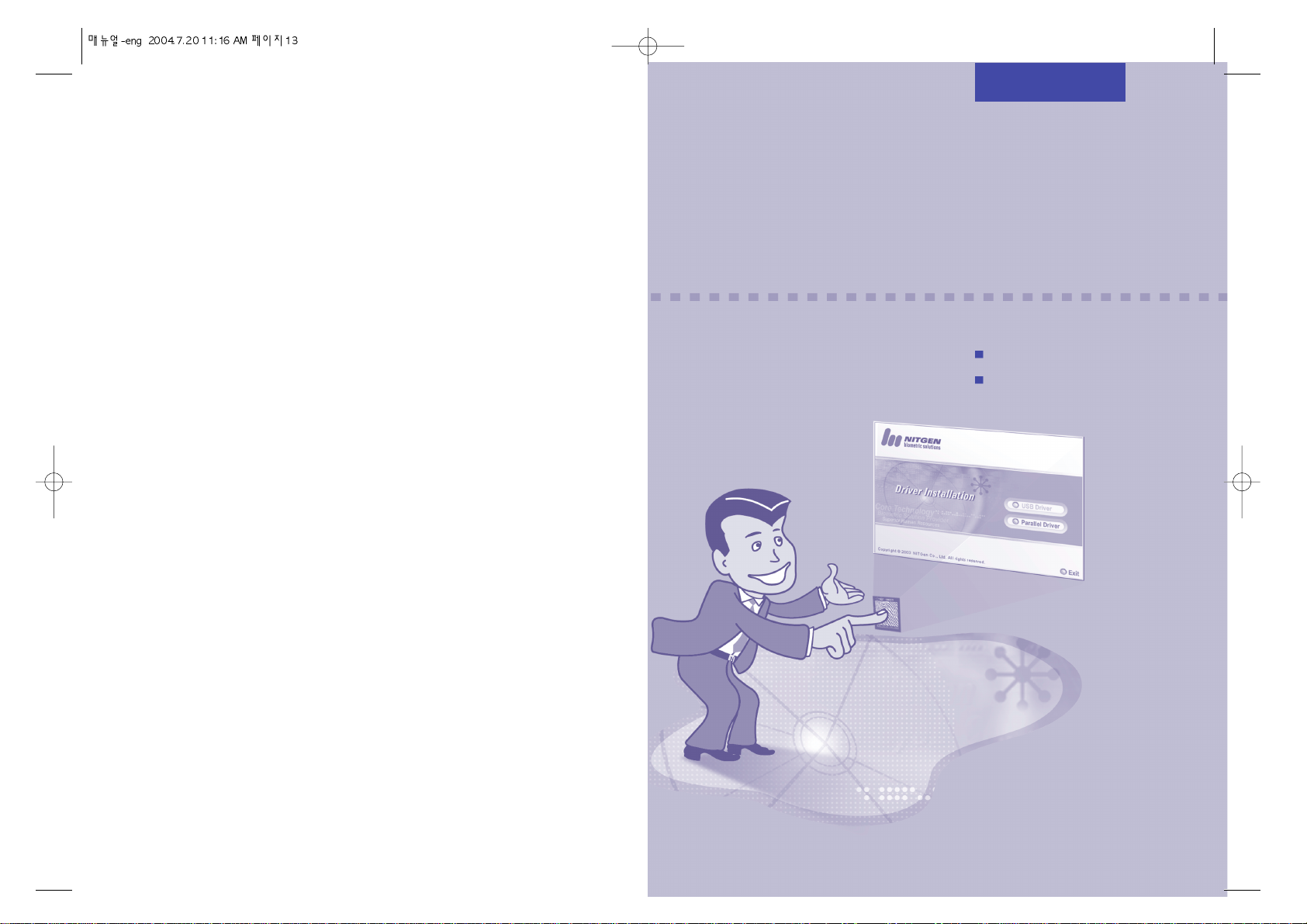
Chapter 2
DriverInstallation
USB Driver Installation
Parallel Driver Installation

Chapter 2 Driver Installation
15
Chapter 2 Driver Installation
14
USBDriverInstallation
1.
Prior to beginning the installation, please close all applications that are running.
2.
Do not plug in the USB FRD until after the drivers have been installed on your system.
3.
Insert the Installation CD in your CD-ROM drive. The installation program will start
automatically. Click 'USB Driver' to continue.
4.
Follow the instructions presented by the InstallShield Wizard during the driver installation
process..
5.
Select the device you are using and click "Next".
If you are installing the USB Fingkey Mouse in the Windows 98 environment, the
Windows 98 Installation CD will be required if there are no Human Interface Device
(HID) drivers installed on your system.
The USB FRD Fingkey Mouse will be enabled after the driver is installed, so it may be
necessary to install the driver using a PS/2 mouse or the <Tab> key on the keyboard.
These examples in this guide are based on selection of the USB Fingkey Mouse
(MFDU01) as an example.

Chapter 2 Driver Installation
17
Chapter 2 Driver Installation
16
6.
When driver installation is completed, it is necessary to check the device status to ensure
that it was installed correctly. You will be prompted to connect the USB FRD as shown in
the diagram below :
7.
Connect the FRD to the USB port, and wait a moment. You can also click
“Install later” to install it at a later time.
8.
The New Hardware Installation Wizard will automatically show you the process of
installing USB Composite, HID and FRD drivers. If you are installing a USB Fingkey
Hamster, only the FRD driver will be installed.
9.
When the device installation process is completed, a window will be displayed indicating
that “The installation was completed sucessfully.” Click the "Next" button.
USB Mouse
USB Port
MFDU01

Chapter 2 Driver Installation
19
Chapter 2 Driver Installation
18
10.
Check the 'Device Diagnostic Tool' check box and click "Finish". At this time the
installation process will be completed, and the hardware test utility will be run
automatically.
Refer to Chapter 3 'How to use the Device Diagnostic Tool' for more information on
using device diagnostic tool to ensure that the FRD is successfully installed.
ParallelDriverInstallation
1.
Turn off the computer.
2.
Connect the PS/2 Connector of the FRD into the PS/2 port of your computer.
3.
Connect the parallel adapter of the FRD to the parallel port(printer port) on your computer.
If you are using printer, connect the printer cable to the back of the parallel adapter of the
FRD.
ToconnectParallel typeFRD
If you are installing a parallel port FRD, you must connect the FRD to your computer
before powering up the computer.
Settheparallel porttoEPP,SPPor ECPmode,
When you restart your computer, enter the BIOS setup utility to configure the parallel
port. EPP mode is recommended. Refer to the computer documentation for specific
instructions about configuring your system. The FRD will not function correctly if the
EPP mode uses the base address of 0x3BC.
Parallel Mouse
Parallel Adapter
PS/2 Port
Parallel Port
MFDP02
Tabla de contenidos


