
NetComm Wireless NDD-0203-02 Manual de usuario


| FTTC G.Fast/VDSL Installation Assistant
2
Quick Start Guide
This quick start guide provides an introduction to the FTTC G.Fast/VDSL Installation
Assistant. The FTTC G.Fast/VDSL Installation Assistant is used to power an FTTC DPU
and allows technicians to congure and perform diagnostics on an FTTC DPU.

| FTTC G.Fast/VDSL Installation Assistant
3
NDD-0203-02 - FTTC G.Fast/VDSL Installation Assistant
1 x FTTC G.Fast/VDSL Installation Assistant (NDD-0203-02)
1 x Battery charger
(12 V DC)
1 x Battery pack (Li-ion,
10.4 Ah, removable)
1 x 12 V DC Charge lead
with cigarette lighter plug
Package contents
The NDD-0203-02 FTTC G.Fast/VDSL Installation Assistant package includes:
1 x Dual RJ11 lead
1 x 240 V AC to 15 V DC
adapter with IEC-C7 cable
1 x Magnetic wand 1 x Quick Start Guide
1 x Carry case
1 x Battery charger
mounting bracket

| FTTC G.Fast/VDSL Installation Assistant
4
Device overview
3
1
2
ITEM
1Power button
2LED indicators
3Output port (used with Dual RJ11 lead)
4Battery compartment cover
5Carry strap
4
5

| FTTC G.Fast/VDSL Installation Assistant
5
NDD-0203-02 - FTTC G.Fast/VDSL Installation Assistant
LED indicators
The LED indicators provide you with information about the power, connection and
remaining battery level of the device.
COLOUR STATE STATUS
Blue
Blinking one time
per second
Start up phase.
Blue
On Connected and power feed active
Red
Blinking one time
per second
Line fault – short circuit or overcurrent
Red
Blinking four
times per
second
Line fault – foreign voltage detected
Red
On Line fault – FTTC G.Fast/VDSL Installation Assistant
overheated
/
Blue / red
Blinking one
time per second,
alternating
colours
Line fault – off-hook telephone detected, nd and
disconnect telephone or other device connected to
your phone line
LED DESCRIPTION COLOUR FUNCTION
Power Status
Blue
Displays the power (ON/OFF) status of the Installation
Assistant.
Link Status /
Red / Blue
Displays the connection status between the FTTC
DPU and the Installation Assistant. Also displays fault
states. See the table below for further detail.
Battery Status / /
Red / Amber /
Green
Displays battery life status.
Link Status LED
The Link Status LED indicator is a bi-colour (red/blue) indicator which displays the status
of the power link with the FTTC DPU.
| FTTC G.Fast/VDSL Installation Assistant
6
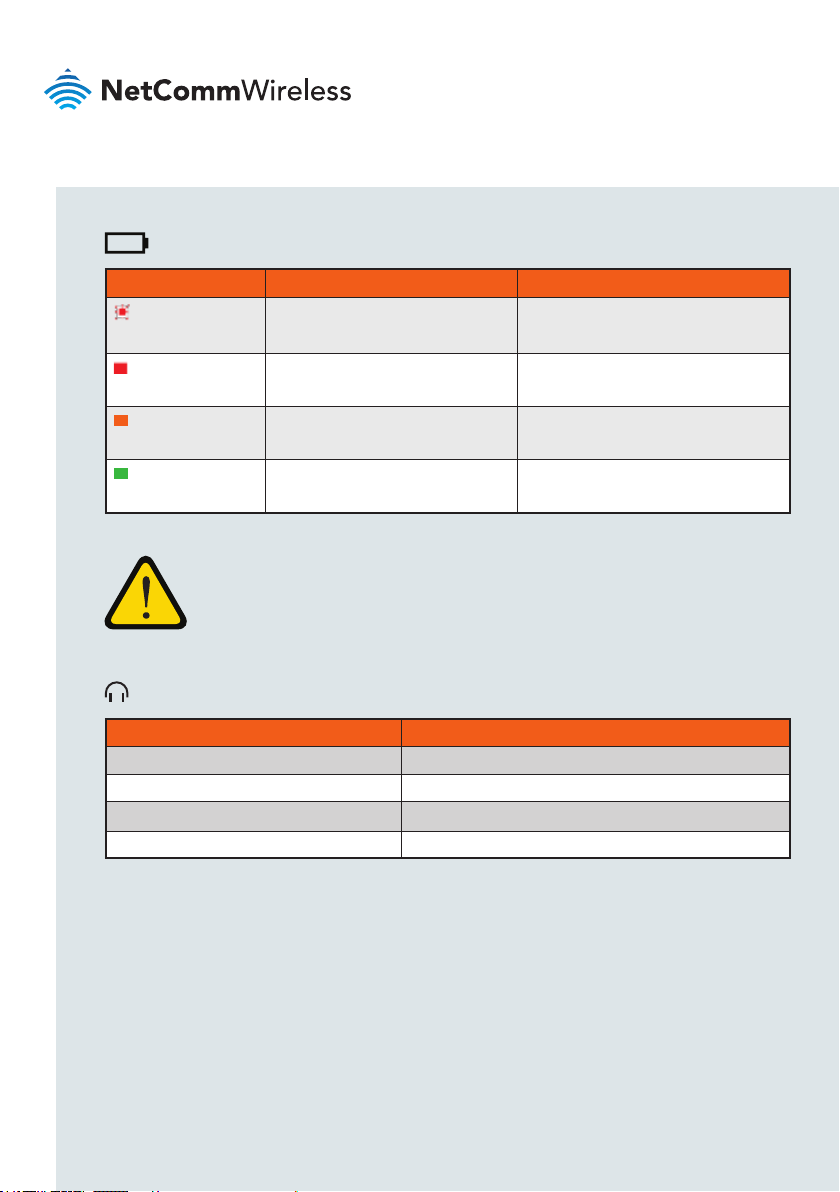
Battery Status LED
COLOUR STATE STATUS
Red
Blinking one time per second < 10%
Red
On 10 - 30%
Amber
On 30 - 60%
Green
On 60% - 100%
ALERT STATUS
Single short beep Power button push
Single short beep every 5 seconds Low battery (<10%)
Three short beeps Reverse power feed negotiation complete
Long beep (2 seconds) Line fault (e.g. Off-hook, foreign voltage, over current)
Audible Alerts
Note: We recommend that you do not begin an installation if the battery
charge level is below 10%.

| FTTC G.Fast/VDSL Installation Assistant
7
NDD-0203-02 - FTTC G.Fast/VDSL Installation Assistant
Getting started with the
Installation Assistant
1. Push the retaining clip up and then lift as shown in the image below to remove the
battery compartment cover.
2. Insert the battery pack into the battery compartment as shown below, taking care to
align it correctly, then replace the battery compartment cover.
3. Place the carry strap over your wrist. Adjust the strap by lifting the Velcro and
tightening it so that the unit is secure.

| FTTC G.Fast/VDSL Installation Assistant
8
4. Connect the round end of the dual RJ11 lead to the output port of the Installation
Assistant and turn the cable gland clockwise to lock it in place.
5. Connect the pre-wired line of the FTTC DPU to the black DPU port of the dual RJ11
lead.
6. For DSL diagnostics, connect a DSL test tool to the grey DSL port of the dual RJ11
lead.

| FTTC G.Fast/VDSL Installation Assistant
9
NDD-0203-02 - FTTC G.Fast/VDSL Installation Assistant
Note: The FTTC G.Fast/VDSL Installation Assistant has a maximum
operating distance of 50 metres, hence it is not intended for use inside a
customer’s premises.
If the power connection has not successfully negotiated within 15 minutes,
the FTTC G.Fast/VDSL Installation Assistant powers off automatically.
When packing up the FTTC G.Fast/VDSL Installation Assistant, carefully
place all items in the carry case so that the case can be closed easily. Do
not force the case shut.
7. Push the power button on the top panel of the Installation Assistant once. The unit
beeps once and the power LED lights up blue to indicate the Installation Assistant
has turned on. The DPU takes approximately 10 minutes to pre-charge.
Once connected and powering the DPU, the Installation Assistant beeps three
times and the Link Status LED turns solid blue to indicate that the reverse power
feed negotiation is complete. The FTTC DPU then begins bootup which takes
approximately 2 minutes.
When it has completed booting, you may begin diagnostics. When you have nished
performing diagnostics, press and hold the power button for 3 seconds to turn off
the Installation Assistant.

| FTTC G.Fast/VDSL Installation Assistant
10
Using the magnetic wand
The FTTC DPU features a magnetic service button which is used with the magnetic
wand to trigger the following functionality:
A short hold with the magnetic wand reactivates the LED indicators for 10 minutes
(1 to 10 seconds magnet proximity).
A medium hold with the magnetic wand reboots the FTTC DPU
(11 to 20 seconds magnet proximity).
A long hold with the magnetic wand restores factory default settings
(21 to 22 seconds magnet proximity).
ACTION SWITCH ACTIVATION
WINDOW TIME
LEDS FLASHING
MIN
(SECONDS)
MAX
(SECONDS)
FIBRE LINE 1 LINE 2 LINE 3 LINE 4
Reactivate LED
indicators 1 10
Reboot >10 20
Restore
Factory Default
settings
>20 22
To perform the above functions, place the magnetic wand on the magnetic service
button of the FTTC DPU’s panel.
Magnetic
service button
Tabla de contenidos


