Ness IDTeck FGR006 Manual de usuario

NESS Access Control
PRODUCT INSTALLATION GUIDE
CONTENTS
1. PRODUCT CATALOG
2. WIRING & INITIAL SETTING 1-14
3. INSTALLATION TIPS & CHECK POINT 15-19
4. SERIAL COMMUNICATION SETUP
20-26
5. LAN COMMUNICATION SETUP
27-35
6. DIAL-UP COMMUNICATION SETUP
36-42
7. DOOR LOCK INSTALLATION 43-55
8. POWER PACK CONNECTION 56
9. TROUBLE SHOOTING
9.1-9.19

Chapter 1
PRODUCT CATALOG

Chapter 2
WIRING & INITIAL SETTING

1
2.WIRING & INITIAL SETTING
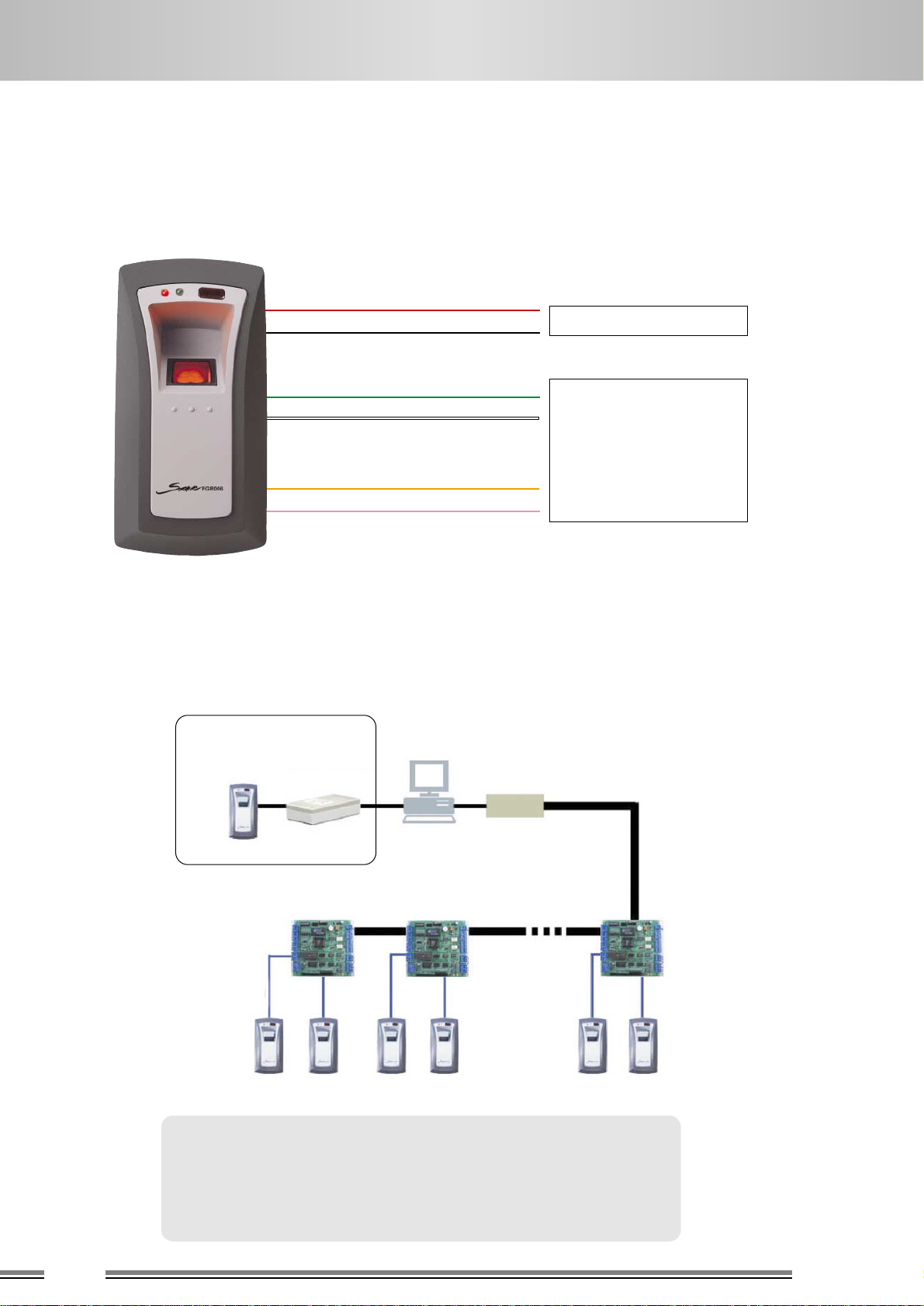
2-3. Ness - IDTeck FGR006
2-3-1. Star FGR006 Connection Diagram
Wiegand ABA Track II
Beep Control
LED Control
RX-
RX+
TX-485B
TX+485A
TXD
RS422RS485RS232
CLS
CLK
DATA
+12V DC
GND GND
Tamper SW
Input
DATA-1
DATA-0
+12V DC
GND
FINGER Error
Input
RXD
a. Caution
a. The first card presented after initialization will be registered as master card.
b. The unit shall be changed from reader mode to register mode with master card.
b. Intentional initialization (In case master card or ID is lost)
a. Unit will be initialized when all dip switch move down.
b. Unit can be initialized from S/W.
c. User Registration/Deletion
a. Change the unit to master mode with Master card.
b. Present user card which will be registered
c. If presented card has been registered already, user will be deleted instead of registration.
d. If the card is not registered, the unit requires fingerprint data.
e. Change the unit to reader mode with Master card.
- Registration Mode : Red light (upper right)
- Velification Mode : Power LED (upper left)
Blue
Brown
Yellow
Gray
Orange
White
Green
Red
Black
Purple
ON
Off
12345678
DIP S/W

NESS - IDTEck PRODUCT INSTALLATION GUIDE
IDTECK
2
2-4 NESS - FGR006SRB
2-4-1 FGR006SRB System Diagram
PRG2000B KIT
Red Wire (+12V)
Black Wire (GND)
Green Wire (Wiegand Data-0)
Registration Terminal RS422/232
Serial Converter
CNP-200A
ADD.00 ADD.01 ADD.31
RS422RS422
26bit Wiegand
White Wire (Wiegand Data-1)
Orange Wire (Fingerprint Error)
Purple Wire (Tamper)
DC12V Power Supply
Access Control Panel
(26-bit Wiegand)
iTDC
iCON100
Consisting of PRG2000B Kit
- PRG2000B
- FGR006SRB REG (RS232)
- Application S/W CD
- Power adapter : DC12V, 500mA
- Communication cable
- Software manual
- Table holder
- Smart card : 5ea
FGR006REG
FGR006SRB

3
Ness - IDTECK
2.W IRING & INITIAL SETTING
a. Host PC (Spec : Pentium IV 1.7GHz, RAM 256M)
b. PRG2000B Kit
c. Controller (iCON100 or iTDC)
d. Application Software
- STARWATCH Dual Pro, STARWATCH iTDC Pro, STARWATCH Dual Pro 2, STARWATCH iTDC Pro 2
a. System configuration for using FGR006SRB
Step 1. Register Fingerprint
- Register fingerprint using FGR006SRB REG
Step 2. Receiver Fingerprint Data
- Send registered fingerprint data to PRG2000B
Step 3. Program Smart card
- Program Encrypted fingerprint data and I.D to Smart card
Step 1
Step 2
Step 3
Click “Set port” as shown below and select the port
which is connected to the encorder.
Click “Receive Fingerprint Data”
b. Communication setting of PRG2000B Kit
c. Register Fingerprint

NESS - IDTEck PRODUCT INSTALLATION GUIDE
Ness - IDTECK
4
2-6-1. Ness 505R Connection Diagram
2-6. Ness 505R
Exit
Button
GND
Door
Contact
GND
Input
GND
GND
+12V
D0
D1
GND
TTL
NO
COM(+12V)
NC
RXD
TXD
GND
TX+
TX-
RX+
RX-
+12V
GND
BLack
Red
Green
White
±
220V
+
9Pin 25Pin
32
23
57
Exit Button
Door Status
Pir, Fire, Tamper
Sensor, etc..
Exit Reader
Chime Bell
Door Lock
Siren & Light
RS-232 PC
RS-422
DC12V Power Supply
Orange Wire
Black Wire
Orange Wire White Stripe
Blue Wire
Brown Wire
Yellow Wire
Red Wire White Stripe
Black Wire White Stripe
Green Wire
Black Wire
Black Wire
Black Wire
Red Wire
Pink Wire
Cyan Wire
Purple Wire
White Wire
Purple Wire White Stripe
Gray Wire
Red Wire
Black Wire
Black Wire
Black Wire
Yellow Wire Red Stripe
NO
COM(+12V)
NC
GND
(Fail Secure)
(Fail Safe)
+
+
+
White Wire Red Stripe
Gray Wire Red Stripe
Blue Wire White Stripe
NO
COM(+12V)
NC
GND
Black Wire
GND
+
GND

5
Ness - IDTECK
2.W IRING & INITIAL SETTING
2-6-2. Ness 505R initial setting
STAR 505R [F1]
MM/DD HH:MM:SS
Start Display Enter into
Setup Mode
Enter
Default Master No
(00000000) MODE SELECTION
RF ONly
MODE SELECTION
RF ONly
Display for Mode Selection
ENT MODE SELECTION
->RF ONly
COMM ID SETTING
Display for Set Address
ENT COMM ADDRESS
00
ID REGISTRATION
ID[_ _ _ _ _ _]
PW _ _ _ _ TS_ _ RD_
ID Registed
Display for ID Registration
Display for finishing
Display for ID Delete
ENT
PIN Only
RF Only
RF + P/W
Scanning...
xxxxxxxx
PW_ _ _ _TS_ _RD_
ID DELETE ENT Enter Card No.
-> _ _ _ _ _ _ _ _
4 or 6 key : Left / Right move
2 or 8 key : Up / Down move
ENT : OK or Enter
ESC : Cancel or deactivate
RF Only : Card
RF + P/W : Card + P/W
Press Ent under COMM ADDRESS status and enter
address No(00 ~ 31)
RF Only, RF + P/W MODE :
Register Card & P/W
PIN Only : Register PIN (4 ~ 6digit)
Present card or enter 4~6 or 8 digit No. which
user wants to delete to delete ID.
PIN only mode : 4~6 digit No.
RF only, RF + P/W mode : 8 digit No.
RF Only, RF + P/W: Card Reading
PIN Only: Register PIN (4 ~ 6digit)
TS: Set Time Schedule (DEFAULT:00)
~ Set accessible time
RD: Set Reader mode(DEFAULT:3)
1 ~ Use only main device
2 ~ Use only exit reader
3 ~ Use both reader
a. SET MODE SELECTION (Select mode with 4 or 6 Key)
b. SET ADDRESS (Select mode with 4 or 6 Key, Enter Address from Numeric Key)
c. CARD REGISTRATION (Enter F3)
d. DELETE CARD (Enter F3, Search with 4 or 6)
e. Hardware Initialization. (In case master card or ID is lost)
1. Please check if the back-up battery DIP switches are on the
backside of the device as the picture. If not, please set them on. 2. Connect three wires of pink, cyan and black color and
turn the power on
3. A message of “system initialization” is to be shown in LCD
4. Press “1” to choose “Yes” then “ system initialization
completed” message is to show in the LCD
5. Disconnect those three wires and wire them as normal
connection diagram as before
SETTING A DIP SWITCH
Before After
ON ON
12 12

NO
COM(+12V)
NC
GND
(Fail Secure)
(Fail Safe)
+
+
White Wire Red Stripe
Gray Wire Red Stripe
Blue Wire White Stripe
NO
COM(+12V)
NC
GND
Black Wire
NESS - IDTEck PRODUCT INSTALLATION GUIDE
IDTECK
6
2-7-1. Ness FINGER007 Connection Diagram
2-7. Ness - IDTeck FINGER007
Exit
Button
GND
Door
Contact
GND
Input
GND
GND
+12V
D0
D1
GND
TTL
NO
COM(+12V)
NC
RXD
TXD
GND
TX+
TX-
RX+
RX-
+12V
GND
BLack
Orange Wire White Stripe
Red Wire White Stripe
Black Wire White Stripe
Green Wire
Red
Green
White
±
220V
+
9Pin 25Pin
32
23
57
Black Wire
Red Wire
Pink Wire
Cyan Wire
Purple Wire
White Wire
Purple Wire White Stripe
Black Wire
Black Wire
Black Wire Exit Button
Door Status
Pir, Fire, Tamper
Sensor, etc..
Exit Reader
Chime Bell
Door Lock
Siren & Light
RS-232 PC
RS-422
DC12V Power Supply
Red Wire
Black Wire
Gray Wire
Yellow Wire
Brown Wire
Blue Wire
Black Wire
Yellow Wire Red Stripe
Black Wire
Orange Wire
Black Wire GND
GND
+

7
Ness - IDTECK
2.W IRING & INITIAL SETTING
2-7-2. Ness FINGER007 Initial Setting
FINGER_007 [F1]
MM/DD HH:MM:SS
Start Display Enter into
Setup Mode
Enter
Master No
(Default : 00000000)
Enter Master
P/W
(Default : 3141)
MODE SELECTION
RF + FINGER(P/W)
MODE SELECTION
RF + FINGER(P/W)
Display for Mode Selection
ENT MODE SELECTION
->RF + FINGER(P/W)
COMM ID SETTING
Display for Mode Selection
ENT COMM ADDRESS
00
ID REGISTRATION
Put ID CARD
Scanning ...
Key InPut ID
->_ _ _ _ _ _ _ _
To Register FP
Put Your FP On ...
Display for ID Registration
Display for Finger registration Display for finishing
ENT
1
2
Enter
Finger 2
times
CARD & Key Use
1-Card, 2-Key
CARD & Key Use
1-Card, 2-Key
12345678
PW0000TS00RD3FP1
ID Registed
ID DELETE ENT Enter Card No.
-> _ _ _ _ _ _ _ _
4 or 6 key : Left / Right MOVE
2 or 8 key : Up / Down MOVE
ENT : OK or Enter
ESC : Cancel or deactivate
RF Only : Card
RF + FINGER(P/W) : Card + Finger(P/W)
RF + P/W + FINGER : Card + P/W + Finger
Press Ent under COMM ADDRESS status and enter
address No(00 ~ 31)
1 - Card : Register card & fingerprint
2 - Key : Register PIN(4~8 digit) & fingerprint
Caution : Present finger on scan window closely and
press softly to make sure that the fingerprint is
positioned correctly
Present card or enter 4~8 digit No. intended to
delete (In case of 4 digit No. Enter ‘0000’ before
the No to make it 8 digit No.)
Ent 1:Present Card, Ent 2 :Enter PIN(4~8 digit)
PW:Enter P/W
~ Will be used under P/W mode
TS: Set Time Schedule
~ Set accessible time
RD: Set Reader mode
1 ~ Use only main device
2 ~ Use only exit reader
3 ~ Use both reader
FP: Use/Not use Fingerprint
(1:Use, 0:Not use)
a. SET MODE SELECTION (Select mode with 4 or 6 Key)
b. SET ADDRESS (Select mode with 4 or 6 Key, Enter Address from Numeric Key)
c. CARD & FINGER REGISTRATION (F3 KEY)
d. DELETE CARD & FINGERPRINT (Enter F3, Search with 4 or 6)
Display for ID delete
e. Hardware Initialization. (In case master card or ID is lost)
1. Please check if the back-up battery dip switches are on the
backside of the device as the picture. If not, please set them on. 2. Connect three wires of pink, cyan and black color and
turn the power on
3. A message of “system initialization” is to be shown in LCD
4. Press “1” to choose “Yes” and enter desault master P/W
(3141) then “system initialization completed” message is to
show in the LCD
5. Disconnect those three wires and wire them as normal
connection diagram as before
SETTING A DIP SWITCH
Before After
OFF ON
1212
Este manual sirve para los siguientes modelos
7
Tabla de contenidos
Otros manuales de Controladores de acceso IP de Ness

Ness
Ness HIKVISION DS-K2600 Series Manual de usuario

Ness
Ness DS-K2601 Manual de usuario

Ness
Ness VIRDI AC-1000RF Manual de usuario

Ness
Ness ID Teck 505R Manual de usuario

Ness
Ness M1KAM Manual de usuario
Ness
Ness IDTECK iCON100 Manual de usuario

Ness
Ness 101-091 Manual de instrucciones

Ness
Ness 101-090 Manual de usuario