
MUO Amazon Fire Manual de usuario

Copyright ©2017 MakeUseOf. All Rights Reserved ®.

Your Unofficial
Amazon Fire
Tablet Manual
Written by Christian Cawley
Published August 2017.
Read the original article here: http://www.makeuseof.com/tag/your-unofficial-kindle-fire-
manual/
This ebook is the intellectual property of MakeUseOf. It must only be published in its original
form. Using parts or republishing altered parts of this ebook is prohibited without permission
from MakeUseOf.com.!
Copyright ©2017 MakeUseOf. All Rights Reserved ®.

Table of contents
1. Introduction: What is the Amazon Fire? 5
1.1 Combining Amazon’s Media Service with a Tablet 6
1.2 Differences Between the Amazon Fire and Kindle 7
2. Setting Up the Amazon Fire 8
2.1 Managing Your Account 8
3. The Amazon Fire User Interface 9
3.1 Menus, Icons and Gestures 10
3.2 Using Search 11
3.3!Using the Keyboard 11
3.4 Copy and Paste Tools 12
4. Installing and Launching Apps 13
4.1 Installing New Apps from the Amazon App Store 14
4.2 Other Resources for Installing Apps 14
4.3 Launching & Uninstalling Apps 15
4.4 Suggested Apps for the Amazon Fire 16
5. Music, Video and Books on Amazon Prime 17
5.1 Sync Media to the Amazon Fire 17
5.2 What Is Amazon Prime? 18
5.3 Buying Movies, TV Shows, Music, and Books with the Amazon Fire 19
5.4 Buy and Watch Videos 19
5.5 Video Sync and Settings 20
5.6 Finding Music for Your Amazon Fire 22
5.7 Playing and Managing Audible Audiobooks 23
5.8 A Focus on Reading 25
5.9 Finding Free Titles to Read 26
6. Accessing the Web on Your Amazon Fire 27
6.1 The Silk Browser 27
6.1.1 The Sub-Menu 28
6.2 Configuring the Silk Browser 29
7. Parental Controls on the Amazon Fire 29
8. Amazon Fire Settings & Connectivity 30
8.1 The Amazon Fire Menu Bar 31
8.2 Battery Management 32
8.3 Configuring Wireless Networking on the Amazon Fire 33
8.3.1 Advanced Networking Options 33
8.4 Display Settings 34
Copyright ©2017 MakeUseOf. All Rights Reserved ®.

9. Amazon Fire Security 35
9.1 The Lock Screen Password 35
9.2 Credential Storage 36
9.3 Changing the Device Owner and Resetting Your Amazon Fire 36
9.3.1 Resetting for Security 37
9.5 Updating the Amazon Fire Operating System 37
9.6 Is Your Amazon Fire Lost or Stolen? 38
10. Troubleshooting the Amazon Fire 38
10.1 Restart the Device! 38
10.2 Tracing and Dealing with Problem Apps and Games 39
10.3 Dealing with Synchronization Issues 40
10.4 I’ve Lost My Password! 40
Get Reading! 41
Copyright ©2017 MakeUseOf. All Rights Reserved ®.
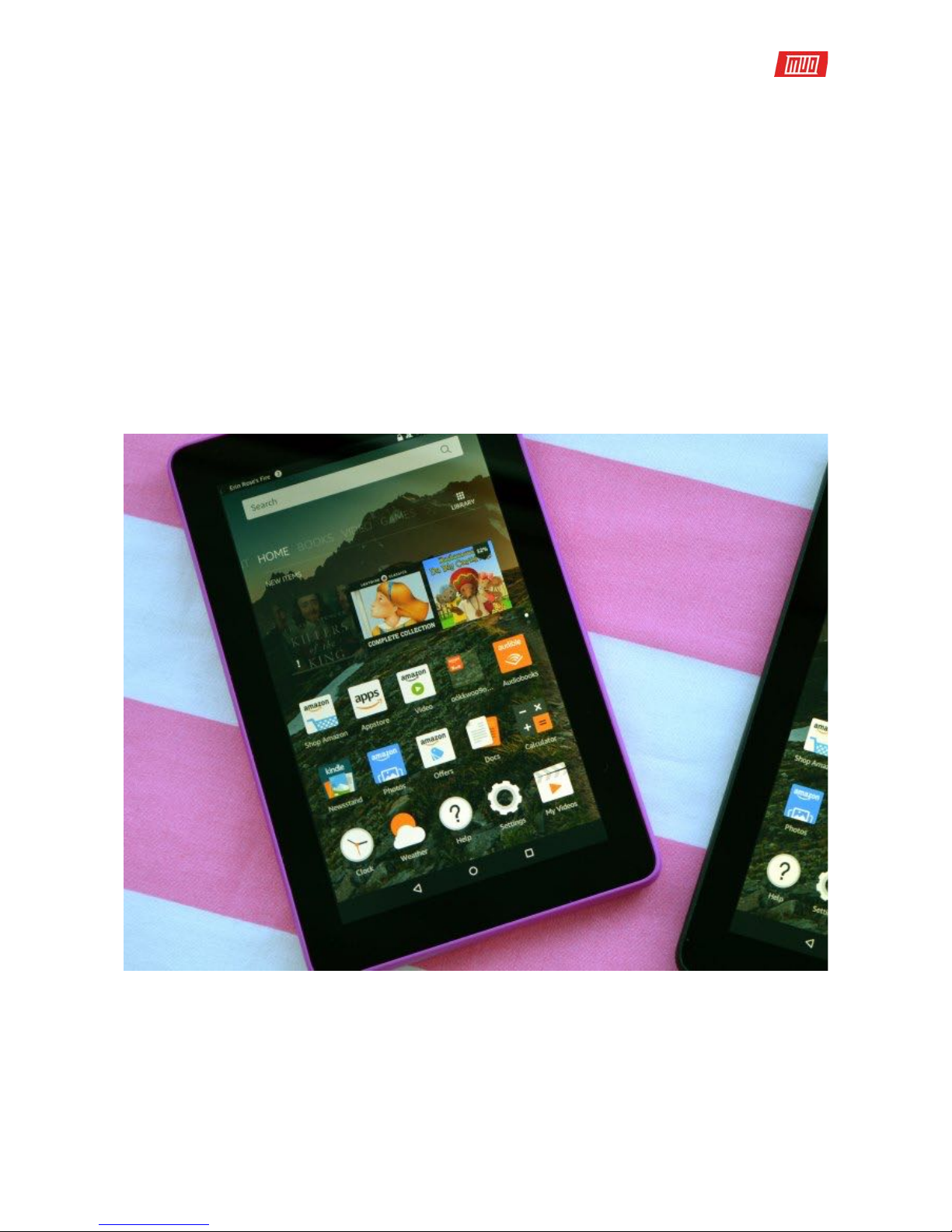
Own an Amazon Fire tablet, but not sure what it can and can’t do? This manual outlines how to
do just about anything with Amazon’s combination tablet and e-reader.
The Amazon Fire is a great alternative to standard tablets and offers a gateway to the vast
Amazon marketplace of eBooks, videos, music, comics, audiobooks, and physical items. Its
small size and flexibility makes it the top choice in a market where competitor devices such as
the iPad Mini and various Android 7 inch tablets are also available.
1. Introduction: What is the Amazon Fire?
The Amazon Fire is Amazon’s centerpiece consumer hardware. It’s a range of quality tablets
that can be used to read books, enjoy videos and, browse the web. Over the years, 6-inch and 10-
inch varieties have been released. At the time of writing, the current devices are the Amazon
Fire 7, and Fire HD 8. The Fire HD 6 and HD 10 tablets can still be purchased in some regions.
While the specific features of each differ, these tablets have specifications that make them
ideal for everything from reading (and some light work) to media consumption and gaming.
With at least 8 GB of storage (as much as 16 GB on the Fire 7, with a choice of 16 GB or 32 GB on
the HD 8), your Amazon Fire can store music, podcasts, video clips and other data. A minimum 1
GB of RAM (1.5 GB on the HD 8) enables the tablet to run perfectly with the quad-core, 1.3 GHz
processor.
Copyright ©2017 MakeUseOf. All Rights Reserved ®.

A 1280×800 multi-touch Gorilla Glass display displays 189 ppi (pixels per inch) and a choice of
16 million colors. Graphics are provided by a PowerVR G6200 chip (Fire 7) or a Mali T720 MP2/3
(HD 8).
The Amazon Fire offers a 3.5 mm headphone socket, although a built-in speaker is also
available. You’ll also find a micro-USB 2.0 type-B connector, along with wireless connectivity
(802.11b/g/n). Note that there are no mobile internet variants. Bluetooth 4.0+ LE is available,
which is good, as Bluetooth is becoming increasingly important. The Fire also includes some
sensors: light (HD 8 only), accelerometer, and gyroscope. There’s also front (0.3 megapixel) and
back (2 MP) cameras.
1.1 Combining Amazon’s Media Service with a Tablet
For all intents and purposes, the Amazon Fire is an Android tablet. The difference comes from
the marketplace ecosystem. On Android, you’re mostly tied to Google Play. On the Amazon Fire,
it’s the digital services of Amazon. As such, the Amazon Fire requires an Amazon account,
rather than a Google account.
Using Android as a starting point for the Amazon Fire tablets means that various Android apps
and games can be downloaded from the Amazon App Store, along with video and audio
media. Amazon Prime members get the benefit of movies, TV shows and music as part of their
subscription, which can all be enjoyed with the Fire tablet. This versatility makes the tablet a
good choice of TV catchup device, just as it is a good choice for an eBook reader.
Of course, this is nothing new. Many of us have the Kindle mobile app that does essentially the
same thing. But with the Amazon Fire, you have your library of books and other media
presented to you front and center.
Copyright ©2017 MakeUseOf. All Rights Reserved ®.

1.2 Dierences Between the Amazon Fire and Kindle
The Amazon Fire tablets are not Kindle e-readers. So how does the Amazon Fire really differ from
a standard Kindle device?
Well, the standard Kindle eBook readers lack the high specification of the Amazon Fire. They’re
not optimized for playing music and video, they don’t have as much storage space or a fast
processor and they don’t have all the color displays.
On the other hand, standard Kindle readers are small, light and can easily slip into a pocket.
With millions of fans, the Kindle is a popular eBook reader, recognizable by its striking graphite
frame.
What really sets the traditional Kindle and Amazon Fire tablets apart, however, is the
differences between the displays.
A traditional Kindle e-reader uses E-Ink, a proprietary electronic ink solution that looks like
paper. It can display books on a screen without the use of a backlight. If you’re familiar with LCD
display, you might have noticed that these can produce negative effects such as headaches.
With no backlight, E-Ink devices don’t have this issue, allowing the user to enjoy hours of
comfortable reading.
Copyright ©2017 MakeUseOf. All Rights Reserved ®.

2. Setting Up the Amazon Fire
When you first receive your Amazon Fire from Amazon, your details are already present,
courtesy of the online retailer. They really want you to use the device to access their services,
after all!
If, however, you have bought the device as a gift you can easily remove the already-present
details. Drag down the notification area to access the Quick Settings menu. Here, tap Settings >
My Account and then the Deregister button. This removes the credentials of the person that
purchased the tablet. New details can now be inputted using your existing Amazon account. If
you’re new to Amazon, you can sign up via the tablet.
When creating an account, you will need to provide various pieces of personal information and
an email address. Make sure you create a strong password, too. Note also that Amazon will
require you to associate a credit or debit card with the account. This is so you can purchase
books, video and music to enjoy on the Amazon Fire.
Of course, to get this far, you should have already connected to a local wireless network. We’ll
look at the various options for this later in the guide (7.4 Configuring Wireless Networking on the
Amazon Fire). Getting online is straightforward, activated via Settings > Wireless > Wi-Fi and
switching Wi-Fi to On.
2.1 Managing Your Account
It’s easy to set up, add, or register an account for use with an Amazon Fire tablet. However, more
detailed account management isn’t possible without logging into your local Amazon website.
You can do this via the tablet browser, or on your desktop.
Copyright ©2017 MakeUseOf. All Rights Reserved ®.

Here, click Your Account, then find Manage Your Content and Devices from the drop-down
menu. From here, you will be taken to a page listing all eBooks associated with your account.
You’ll see three tabs: Your Content, Your Devices, and Settings. Use this last option to add and
remove payment cards to and from your Amazon account.
Meanwhile, use Your Content to manage what is in your library, and Your Devices to discard old
hardware. (This might include devices attached to a Kindle e-reader app on Android.)
3. The Amazon Fire User Interface
The default user interface on the Amazon Fire is very different than most Android systems.
Fire OS 5 is based on Android. But instead of the familiar styling of the Android user interface,
you’ll find an environment that can be scrolled and swiped. Here, books and apps are listed,
along with games, movies, and even audiobooks. In short, if you can buy and enjoy via
Amazon’s digital delivery service, you’ll find it here.
You’ll also find a more traditional app drawer-style interface via the Library button (contextual,
and dependent on the main view’s current display) while new content can be purchased via
the Storebutton (represented by a shopping cart).
Meanwhile, everything is also available — in traditional icon form — via the Home screen.
Copyright ©2017 MakeUseOf. All Rights Reserved ®.

3.1 Menus, Icons and Gestures
Fire OS has enough similarities with standard Android that make it easy to get started with an
Amazon Fire.
For instance, a Home button is almost ubiquitous (along with the Back and Overview buttons),
across the bottom of the screen, as per the most recent versions of Android. Similarly,
the Settings menu can be opened via the Quick Settings drop down menu. Opening this will
enable you to toggle the rotation lock, adjust volume, brightness and connect to Wi-Fi, as well
as syncing books with Amazon and providing access to a whole host of additional advanced
settings.
Using the Amazon Fire on a day-to-day basis, however, you will find the Home button and the
Back button are the most regularly used.
Like any touch-sensitive device, a number of gestures enable you to interact with your Amazon
Fire. First and foremost is the basic tap, the tablet version of a left-mouse click on a computer.
Following this is the tap-and-hold which offers a context menu of additional options in some
scenarios. The swipe will enable you to browse your device contents while the pinch-to-zoom
gesture uses the forefinger and thumb and is used to zoom in and out of images and web
pages.
Across the top of the device is a narrow bar, displaying your name, the time and information
such as wireless connectivity and battery life. Dragging this bar down reveals the Notification
Area, where you will find information about apps, new emails, etc. Often these notifications can
be tapped to take you to the appropriate app. When you’re done checking the notifications, tap
the Clear All button.
Wake your Amazon Fire from sleep mode with the power button on the lower edge of the device.
You can also use this button to restart the tablet.
Copyright ©2017 MakeUseOf. All Rights Reserved ®.
Tabla de contenidos


