
Multi-COM 4 PLUS Guía del usuario

MULTICOM 4 PLUS
INSTALLER MANUAL
V1.5
bit.ly/multicom
Free Install Tool
Download the
TechTools App for
smart phones.

2 3Wiring Diagram
Contents
Wiring Diagram ����������������������������������������������������������� 3
Features ����������������������������������������������������������������������� 4
Product Features .................................................. 4
Technical Features ................................................ 5
ComWatch Feature ............................................. 6
Quick Start Guide ������������������������������������������������������� 8
Hardware Diagram �������������������������������������������������� 18
Hardware Diagram Descriptions ���������������������������� 20
Panel Programming Methods ��������������������������������� 26
Multicom TechTools Application ....................... 26
DTMF using Phone Handset/Butt ....................... 30
Programming Options ���������������������������������������������� 32
Event Descriptions ���������������������������������������������������� 40
Event Default Table ............................................ 40
Fault Outputs ....................................................... 40
Multicom Format Template ������������������������������������� 42
Limited Warranty Statement ������������������������������������ 48
Copyright Notice & Disclaimers ������������������������������ 52
+12V
GND
ZONE 1
COM
ZONE 2
R 2 NO
R 1 NO
R COM
TAMPER
PSTN PANEL
RELAY
COM
+12V
GND
INPUT
INPUT
COM
TAMPER
PSTN
ZONE 1
3K3
EOLR
EOLR
ZONE 2
ZONE 4
ZONE 3
6K8
3K3
6K8
Alarm Panel Phone Line
Multicom 4 Plus
PSTN (MODE3)
IMPORTANT!
Alarm Panel must be
able to supply >300mA
to MC4P. If not, use a
MCPS12 power supply
(available separately).
Optional
Wiring Diagram

4 5Features Features
Features
Product Features
• 4 paths of communications - Dual Carrier
• GPRS x 2
• Contact ID via GSM x 2
• Contact ID via PSTN
• PFP (Poll fail protocol via GSM) x 2
• 3 Paths for programming options
• TechTools App
• PSTN (Attach standard hand set and
program via DTMF tones)
• GPRS
• PSTN Line failure detection based on
time and line voltage threshold (both
programmable)
• PSTN switch over time programmable
(300mS default)
• Power fault detection
• Programmable alarm path priority.
• 4 Zone inputs (EOLR), each zone can be
disabled or enabled.
• The alarm panel attached can be routed
either via MC4P as priority (GPRS Priority), or,
Direct to PSTN (If PSTN is available, the alarm
can communicate directly via PSTN).
• Dedicated local tamper input
• Fault reports for GSM, PSTN, GPRS, Power
Fault, Zones and Tamper. Each group of
alarm events can be mapped to either/or
Relay output and Contact ID
• Programmable Test report time
• Programmable Contact ID client code,
Primary monitoring station number and
• Programmable Relay outputs (Timed and
latched functions via SMS, GPRS)
• Full RSU (Remote Software Update) via
GPRS.
• ComWatch allows the Multicom to monitor,
detect and report failure to communicate
alarm messages via PSTN/GSM/GPRS even if
voltage is present Ref Option 5, 12 and 37.
Technical Features
• Freescale 80Mips 32 bit processor
• Multithreaded Real Time Operating system
for seamless real time path recovery and
system resource management
• Telit GE864 Quad band GPRS modem
• 2 RJ12 connections for phone line in / out
with Mode 3 and Isolation relays built in
• All alarm communication paths have priority
assignment for alarm event communication

6 7Features Features
ComWatch Feature (Patent Pending)
The Multicom does more than just monitor the
PSTN line voltage or GSM network connection to
detect and report a fault. The Multicom monitors
the actual alarm delivery and CMS Receiver kiss
off to ensure the communication was successful
and the PSTN path is validating alarm messages
correctly.
ComWatch has the advantage of detecting
the following faults that cause Contact ID alarm
delivery failures and delivers them via:
• Line voltage being present but not
connecting to the monitoring centre
• Dialling the CMS number(s) but getting
engaged / congestion
• Phone bill on premise not paid: voltage
and dial tone is present but outbound calls
blocked
• Network interconnection faults or
terminating number errors
• 13XX call baring
• CMS Receiver Failures

8 9Quick Start Guide Quick Start Guide
Quick Start Guide
The following gives an overview of the basic
installation steps. For programming options and
methods see the proceeding sections of this manual.
1� Mount the Panel
Fix the included Velcro strip to the back of
the Multicom 4 Plus to mount or place the
box in the desired location. Choose one of
the following mounting options:
OPTION 1
Mounting or
placement outside
the alarm panel
housing requires
the antenna to be
installed directly to
the 4 Plus
OPTION 2
Mounting or
placement inside the
existing alarm panel
housing requires the
be attached and the
included antenna to
be mounted to the
top of the panel
Drill Bit Size - 7mm
Note: If the 4 Plus is being installed in a
poor signal area, please consider using
a high-gain antenna available from
Suretek�
10 11Quick Start Guide Quick Start Guide
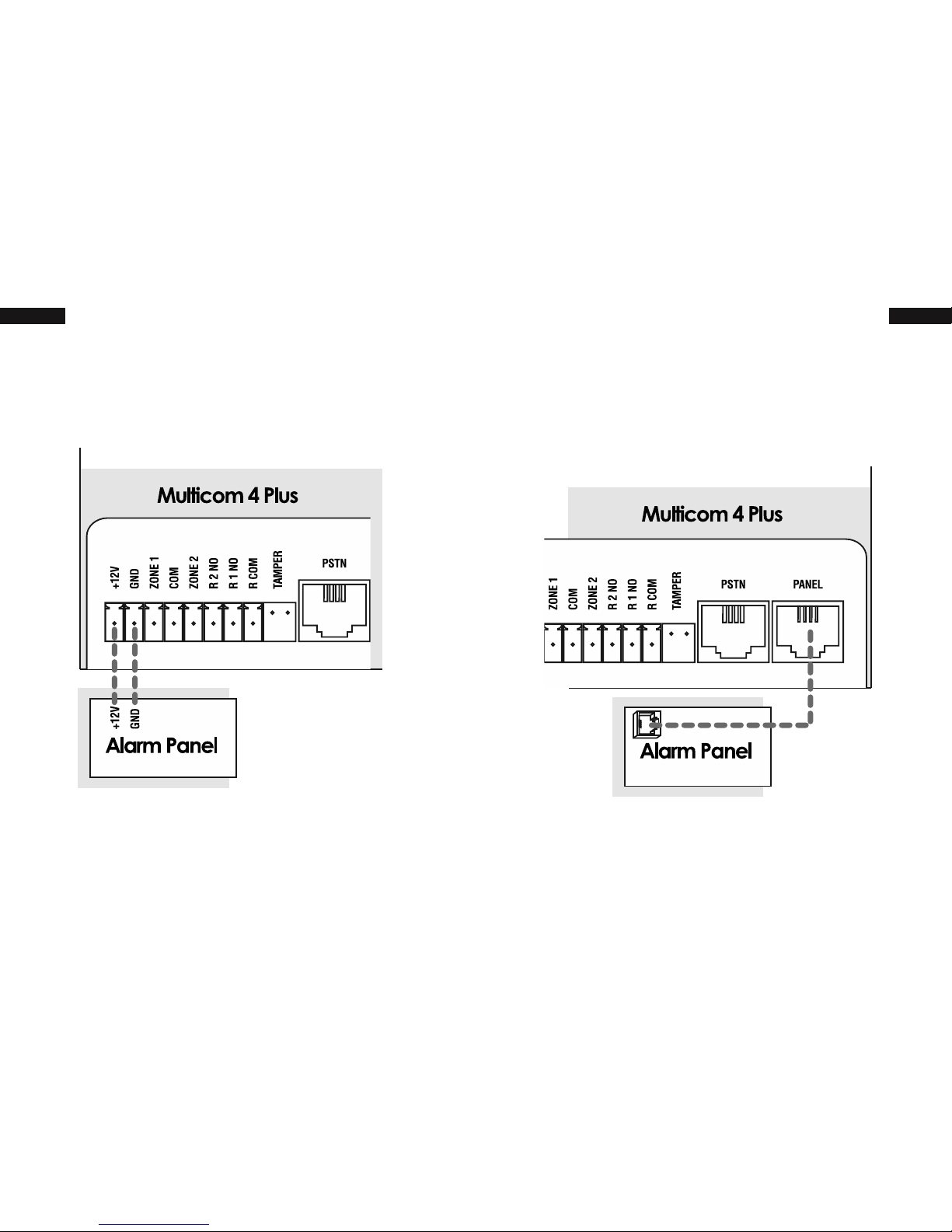
3� Connect to Panel
Connect the “PANEL” connection on the 4
Plus to the “PSTN” connection on the alarm
panel using a 4-wire RJ12 cable.
2� Connect to Power
Connect the 12V+ and GND pins to the 12V
auxiliary output on the alarm panel.
If there is no 12V auxiliary power on the
alarm panel greater than 300mA, connect
to a MCPS12 power supply (available
(>300mA).

12 13Quick Start Guide Quick Start Guide
If not using Zone 2 it is required to seal off
the zone with a 3K3 EOLR�
Note: Steps 4 & 5 are required to meet
Class 4 of the Australian Standard�
5� Interconnect Multicom Relay Output
Input/COM: To notify the alarm panel of MC4P
communication failure, ensure that one of the
MC4P relays is programmed to “COMM’s fail
event” (Relay 1 is programmed to this by default).
Connect the Multicom’s relay output to
one of the Alarm Panel’s Zone Inputs. It is
recommended that the zone on the alarm panel
be a 24 hour audible input. See Option 38.
4� Interconnect Alarm Panel Relay Output
Relay/COM:
of communication failure to the control room,
program one of the alarm panel’s relay outputs
to trigger immediately on PSTN/COMM fail.
Connect the alarm panel’s relay output to one
of the Multicom’s Zone Inputs then ensure that
the zone is enabled. See Option 30.
3K3

14 15Quick Start Guide Quick Start Guide
The second Multicom relay (R2 NO) can be
control other devices such as gates (open &
close) etc. This may be used to arm/disarm
from Multicom smartphone apps. See Option
38.
7� Panel Arm/Disarm or Output Control
(Recommended Option)
6� Connect to the PSTN (Optional)
If PSTN will be used as a communication
path, connect the PSTN socket to a
standard PSTN phone outlet. Mode 3 is
supported.
Note: If you are NOT using PSTN, PSTN fault
detection must be disabled� The operator
will do this during activation or you may
set it using Programming Option 39�

16 17Quick Start Guide Quick Start Guide
8� Test Signal Strength & Device
Power up the 4 Plus. The logo LED’s will act
as a GSM/GPRS signal strength indicator
for the network (Active SIM only in Dual SIM
devices). The GSM, GPRS, COMMS and
POWER LED’s should turn solid green once
connected.
For Dual SIM devices, you
must call the Activations
Centre to check the signal
strength on the Inactive SIM.
The signal levels are reported
to the Activations Centre
once upon power up.
Power cycle to conduct a new network survey�
The survey may take up to 60 seconds�
If signal strength is less than 2 bars
(>95dB), you must relocate the device
or install a high-gain antenna� If
one of the SIMs can not meet signal
requirements, the SIM may be disabled
9� Activate the Device
To enable your Multicom 4 Plus on the
network call the Activations Centre. For
commissioning via phone please have the
required information ready.
• Australia - 1300 603 704
• International - +61 2 8787 9872
Panel ID (0650XXXXX)

18 19Hardware Diagram Hardware Diagram
Hardware Diagram
Refer to the next section, “Hardware Diagram
Descriptions“, for descriptions of each component
shown in this diagram.
> 300mA
4
(See Wiring Diagram)
Tabla de contenidos
Otros manuales de Teléfono móvil de Multi-COM


