
Mobile Crossing WayPoint 100 Manual de usuario

MobileCrossing
WayPoint
Pocket PC
Reference Guide

Preface
COPYRIGHT
© 2004 Mobile Crossing - All rights reserved.
Disclaimer: Mobile Crossing shall not be liable for an technical or editorial errors or omissions
contained herein; or for incidental or consequential damages resulting from furnishing this material,
or the performance or use of this product.
Mobile Crossing reserves the right to change product specifications without notice. Information in
this document ma change without notice.
No part of this document ma be copied, reproduced, or transmitted b an means, for an purpose
without prior written permission from Mobile Crossing
First Edition: Ma 2004
TRADEMARKS
Pocket PC, Outlook, ActiveS nc, Windows 98, Windows 2000, Windows XP are trademarks of
Microsoft Corporation. XScale is a trademark of Intel Corporation. MediaQ is a trademark of Nvidia,
Inc. iPAQ is a trademark of Hewlett Packard. CompactFlash is a trademark on SanDisk
Corporation. SD and Secure Digital are trademarks. MMC is a trademark of Infineon Technologies.
Bluetooth is a trademark of Bluetooth SIG, Inc. FIC is a trademark of First International Computer.
All other trademarks are the propert of their respective owners. Compan / product names ma be
trademarks or registered trademarks of their respective holders and are used here for identification
purposes onl .
PARTNERSHIPS
Mobile Crossing has an engineering and manufacturing partnership with First International
Computer.
1

USING THIS GUIDE
This User’s Reference Guide provides a brief explanation of the product, including hardware and
software features. It focuses on the Pocket PC operating s stem and applications that are shipped
as part of that OS. It is designed to provide a basic understanding of our new Wa Point PDA,
enabling ou to get started quickl . For information on the Wa Point applications please reference
the Wa Point Users Guide.
To ensure that ou can use the product safel and correctl , please read this manual carefull
before ou start using our Wa Point PDA. For future reference, keep this User’s Guide hand at
all times.
WHERE TO FIND ADDITIONAL INFORMATION
You can find up-to-date information on Windows-powered devices from Microsoft on the Internet at:
http://www.microsoft.com/mobile/pocketpc.
You can find additional product and support information at the following website:
http://www.mobilecrossing.com
or contact:
Mobile Crossing
1230 Oakmead Parkwa , Suite 304
Sunn vale, CA 94085
(408) 738-8816
(800) 605-8198
Fax (408) 738-8806
email: support@mobilecrossing.com
2

CONTENTS
PREFACE 1
COPYRIGHT
TRADEMARKS
PARTNERSHIPS
USING THIS GUIDE
WHERE TO FIND ADDITIONAL INFORMATION
CONTENTS
1. INTRODUCTION
1
1
1
2
2
3
5
1.1 WELCOME 5
1.2 FEATURE LIST 5
1.3 QUICK START GUIDE 6
2. EXPLORING YOUR WAYPOINT PDA 8
2.1 BASIC OPERATION 8
2.2 OPERATION 10
2.3 ENTERING DATA 11
2. FINDING AND ORGANIZING INFORMATION 15
3 THE PDA APPLICATIONS 18
3.1 ORGANIZING YOUR SCHEDULE
3.2 MAINTAINING YOUR CONTACTS LIST
3.3 TASK LIST
3. TAKING NOTES
3.5 PLAYING AUDIO AND VIDEO
3.6 INTERNET, EMAIL AND MESSAGES
3.7 PRODUCTIVITY SOFTWARE
3.8 PICTURES
4. CONNECTING
18
20
22
23
2
26
33
37
39
.1 CONNECTING TO A PC 39
.2 SYNCHRONIZING WITH A PC 2
.3 CONNECTING TO THE INTERNET OR YOUR NETWORK
5. CONFIGURING AND OPTIMIZING YOUR WAYPOINT PDA 50
3

5.1 MANAGING POWER 50
5.2 MANAGING MEMORY 52
5.3 REMOVING PROGRAMS 53
5. CONFIGURING THE MENUS 5
5.5 CONFIGURING THE BUTTONS 55
5.6 ADJUSTING SETTINGS 56
4

1. Introduction
1.1 WELCOME
Congratulations on purchasing our new Wa point PDA (Personal Digital Assistant). You now have
the convenience and flexibilit of a portable navigation tool and full-featured personal digital
assistant, enabling ou to automaticall route to places of interest, addresses or locations in our
contact list. In addition ou can use PIM (Personal Information Manager) functions to keep track of
information wherever ou go. Powered b Microsoft® Pocket PC 2003 Premium Edition, our
Wa Point PDA offers a host of functions designed to make our life easier.
This manual covers onl the Pocket PC 2003 portion of the Wa Point PDA. For information on the
hardware features and specific navigation features of ou Wa Point PDA please consult the
Wa Point Users Guide.
1. FEATURE LIST
The Microsoft Pocket PC 2003 Premium Edition includes several applications be ond just the OS
itself. There are Personal Information Manager (PIM) tools, productivit tools, games, multimedia
tools, and utilities. These include
•Contacts – PIM address book
•Tasks Manager – PIM hand for a shopping list or to do list
•Notes – PIM includes text, voice recorder, and sketching abilit
•Calendar – PIM schedule manager
•Pocket Word – Productivit software word processor
•Pocket Excel – Productivit software spread sheet program
•Microsoft Reader – ebook reader
•Pocket Internet Explorer – Web browser, html file reader
•MSN Messenger – Chat room software
•Inbox – Productivit software email reader
•File Explorer – Utilit
•Active S nc – Utilit
•Calculator – Utilit
•Clock – Utilit
•Help – Utilit
5

•Find - Utilit
•Securit – Utilit includes Owner Information, Password control
•Toda Screen – PIM Utilit
•Terminal Services Client - Utilit
•Pictures – picture viewer
•Windows Media – Sound and Video pla er
•Jawbreaker – Game
•Solitaire – Game
These programs are discussed in this reference manual.
1.3 QUICK START GUIDE
When ou turn on our Wa Point PDA for the first time each da , or after 4 hours of inactivit , ou
will see the Toda screen.
Tap to switch to a program
Tap to change volume or mute all sounds
Tap to view notification messages
Tap to change date and time
Tap to set owner information
Your da at a glance
Tap to create a new item Tap to view connection status
The Toda Screen
6

A glance at the Toda screen provides ou with a summar of all the important information for the
da . This includes, the time and date, a summar of the owner information, upcoming
appointments, unread messages and tasks waiting to be done.
Tap the date to change the date and time settings, or tap an of the other items to open them.
In the navigation bar at the top of the screen, ou can tap the start button to change the
device settings and launch an of the applications stored on our Wa Point PDA. You can also
view an notification messages or change the speaker volume.
In the command bar at the bottom of the screen, ou can create a new appointment, contact, email
message, Excel workbook, note, task, or Word document. The icon on the right hand side of the
command bar shows the status of the connection between our Wa Point PDA and host PC during
s nchronization.
For more information on the Toda screen, as well as using the navigation and command bars, see
2.1.1 “The Operating S stem”.
7

2. Exploring Your Wa Point PDA
.1 BASIC OPERATION
Your Wa Point PDA is designed for eas operation, enabling ou to convenientl enter and access
data wherever ou are.
.1.1 The Operating System
Your Wa Point PDA uses the Microsoft Pocket PC 2003 Premium Edition operating s stem. This
makes navigating on our Wa Point PDA similar to using Microsoft Windows on our desktop or
notebook PC. You will find man familiar features, such as the start menu, pop-up menus and
toolbars.
.1.1.1 The Navigation Bar
Note that the word navigation in this book is used often to refer to the bar shown below and should
not be confused with navigation in the sense of mapping software. Mapping software is covered in
the Wa Point Users Guide. The term navigation as used here is maintained in this manual to
provide compatibilit with external documentation that the user ma encounter.
The navigation bar is found at the top of the screen. It displa s the start button , the name of
the active program, the speaker volume icon and the time.
• Tap the speaker volume icon to change the volume level or to mute the Wa Point
PDA (see 2.2.1 “Using the St lus”).
•The can be used to leave the application.
• Tap the start menu to displa the list of programs, and then select a program from
the list (see 2.2.1 “Using the St lus”).
The navigation bar also displa s notification icons. The following table shows some of the icons ou
ma see.
If more notification icons need to be displa ed than there is room to displa them, the Notification
icon, , will displa . Tap the icon to view all notification icons.
8
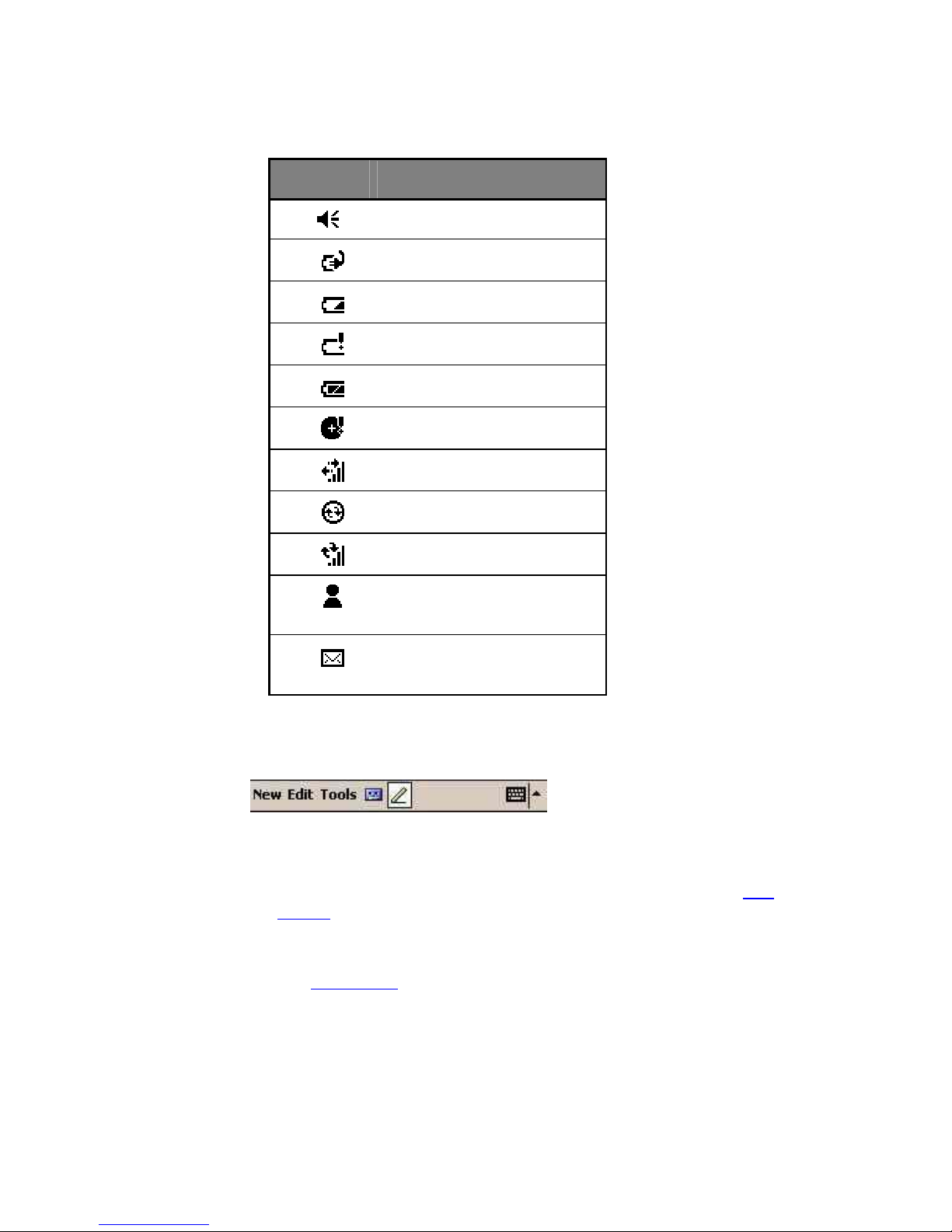
Icon Meaning
Turns all sounds on and off
Main batter is charging
Main batter is low
Main batter is ver low
Main batter is full
Backup-batter low
Connection is active
S nchronization is beginning or ending
S nchronization is occurring
Notification that one or more instant
messages were received
Notification that one or more e-mail
messages were received
.1.1. The Command Bar
The command bar is found at the bottom of the screen. It displa s menu names and available
buttons, as well as the input panel button. These controls allow ou to perform tasks in programs.
• Tap a menu name to see its pop-up list, and then select an action on the list (see 2.2.1 “Using
the St lus”).
• Tap a button to perform an action. Tap and hold the st lus on a button to see the name of a
button, and then drag the st lus off the button to prevent the action from being performed (see
2.2.1 “Using the St lus”).
.1.1.3 Launching and Switching Between Programs
Use the start menu or the home menu application to launch programs.
Use the task switcher or the start menu to move between programs that are alread running.
9
Otros manuales para WayPoint 100
3
Este manual sirve para los siguientes modelos
2
Otros manuales de Portátil de Mobile Crossing


