MISUMI IP-001E Instrucciones de instalación y funcionamiento

Device manual of MISUMI Video Server Page 1 of 29
IP-001E
MISUMI Video Server Products Series
User Manual &
Installation Guide
Version: 1.0
Date: May 13, 2005

Device manual of MISUMI Video Server Page 2 of 29
Table of Contents
TABLE OF CONTENTS..........................................................................................................................2
WHAT IS MISUMI VIDEO SERVER?...................................................................................................3
PRODUCT FEATURES............................................................................................................................3
2. PHYSICAL CONNECTIONS..............................................................................................................4
3. INSTALLATION..................................................................................................................................4
CONNECT VIDEO SERVER TO NETWORK.............................................................................................6
CONNECT POWER SUPPLY...................................................................................................................6
HOW TO RESET ....................................................................................................................................6
STARTYOUR FIRST TIME NETWORK MONITORING .............................................................................7
HOW TO VISIT THE BUILT-IN WEB........................................................................................................8
ABOUT THE USER INTERFACE OF VIDEO SERVER ..............................................................................9
HOW TO CHECK THE FIRMWARE VERSION..........................................................................................9
HOW TO CHANGE THE CONFIGURATIONS..........................................................................................10
HOW TO CHANGE USER LOGO ..........................................................................................................12
HOW TO DISABLEAND ENABLE USER LOGO ......................................................................................15
USER MANAGEMENT.........................................................................................................................16
LOG....................................................................................................................................................17
NETWORK ..........................................................................................................................................18
VIDEO.................................................................................................................................................19
EVENT ................................................................................................................................................20
4. PRODUCT SPECIFICATIONS .........................................................................................................23
MODELS .............................................................................................................................................23
SPECIFICATIONS:...............................................................................................................................23
5. APPENDIX ........................................................................................................................................25
DICTATION .........................................................................................................................................25
USE CGI COMMAND TO SETUP GPIO AND EVENTS .........................................................................27
How to configure GPIO Process? ...............................................................................................27
How to Configure Event Process ................................................................................................27
SCENARIO: USE DI TO TRIGGER EVENT AND SEND IMAGES THROUGH MAILAND FTP..................28
Turn FTP Service on the server ..................................................................................................28
Enable DI status to “ON”............................................................................................................28
Turn On FTP and Email..............................................................................................................29
Setup Event status........................................................................................................................29
Check DI type status....................................................................................................................29
Check Event Status ......................................................................................................................29
Click on DI and you can check your mail box and FTP services.............................................29

Device manual of MISUMI Video Server Page 3 of 29
1. Product Overview
What is MISUMI Video Server?
MISUMI Video Server is designed for intranet & internet use. Users can view image
or change configurations via built-in web server. The two-layer user-validation
prevents any illegal user to monitor or change configuration once user validation is
enabled
Product Features
MISUMI IP Cameras CPU: 32 Bits RISC Processor. 16Mb Flash, 64Mb SDRAM
Linux OS
TCP/IP network remote Video transmission system
High performance JPEG/MJPEG compression
Built-in Web sever
Built-in DHCP Client
Built-in Motion Detection
Frame Rate Control
Administrator / User level password protection
Snapshots
On-line firmware upgrade
Frame Rate: NTSC: 30 frame/sec

Device manual of MISUMI Video Server Page 4 of 29
2. Physical Connections
DC 5V Etherent
SidePanelConnections Front Panel Connections
IP-001E
3. Installation
Connect Power Supply DC 5V
Ensure your power adapter specification
matchs your power system (ex 110V or 220V)
Connect the adapter to the outlet.
Once the power status is OK.the
LED in red located at the rear panel
of Video Server should light-up.
Connect power jack
Prepare a PC to link your network with Ethernet
Connect camera

Device manual of MISUMI Video Server Page 5 of 29
Network connectivity check
Please check your network connectivity before you start install the product.
Confirm the link status of your LAN is OK. You may try use the following way to
check the network.
Assuming you are under Microsoft Windows 2000 desktop, Click on Start button,
Programs, Accessories, Command Prompt,Then there will be a blank window
appear to wait command input. Please key in the following command to test the
network status.
C:\>ping 192.168.1.1 [Enter]
*Note: the target IP address given above may be correct in common scenarios, if
your network is not configured by IP segment 192.168.1.x, please change the IP
Address to a valid address in your local network. Any difficulties please contact
your network administrator for assistance.
If your network status is OK, the result of above command should like following
Pinging 192.168.1.1 with 32 bytes of data:
Reply from 192.168.1.1 bytes=32 time=10ms TTL=64
…
If you have confirmed your network connectivity is OK, Please proceed to next part
of installation guide, otherwise, contact your network administrator to recover the
problem.

Device manual of MISUMI Video Server Page 6 of 29
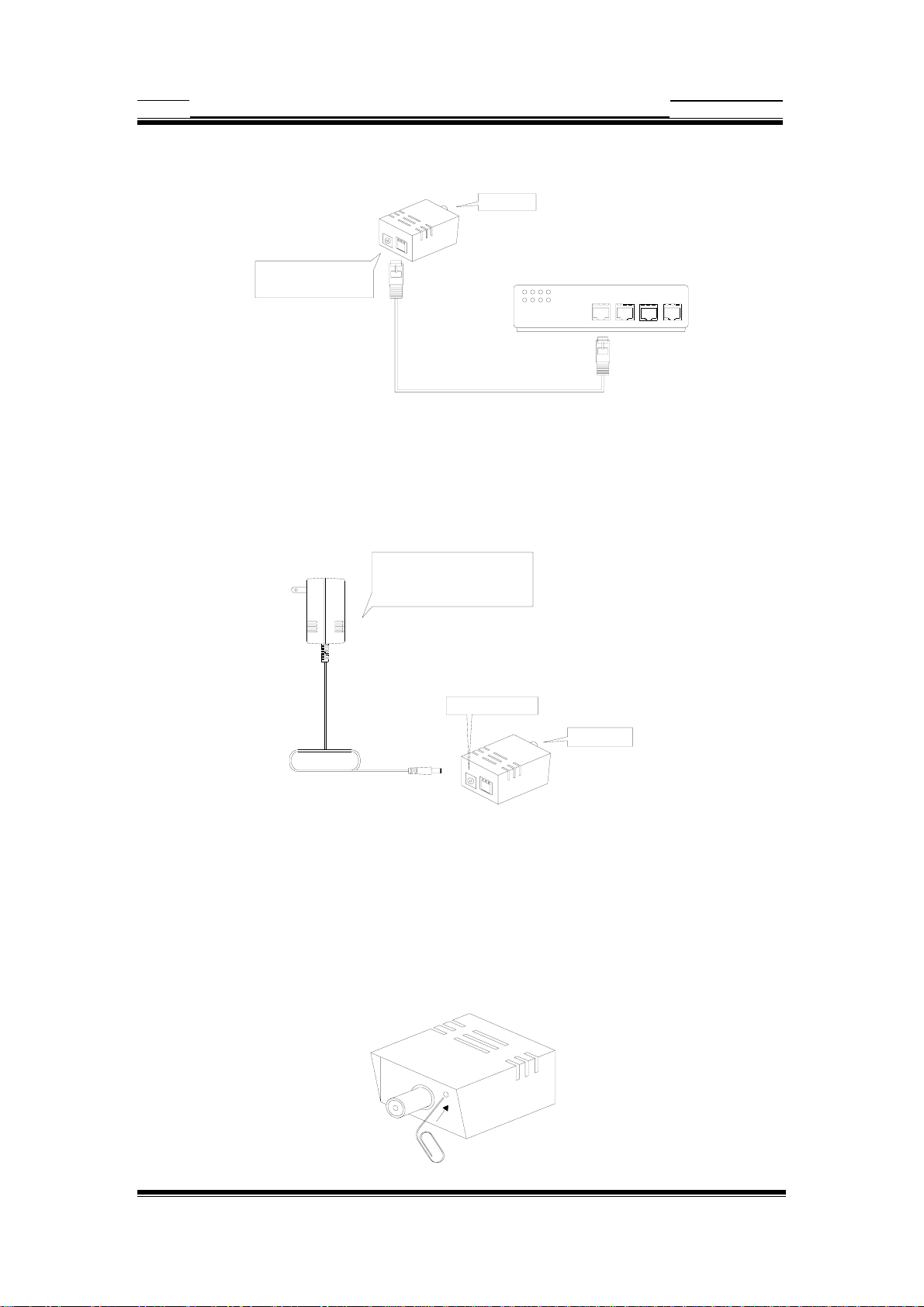
Connect Video Server to network
Connect camera
Once the power status is OK.the
LED in red located at the rear panel
of Video Server should light-up.
Connect Video Server to your hub/switch by using a normal RJ45 cable, plug the
RJ45 cable into the Ethernet connector locate at the rear panel of the Video Server,
another side connect to your hub/switch.
Connect Power Supply
Connect power jack
Connect Power Supply DC 5V
Ensure your power adapter specification
matchs your power system (ex 110V or 220V)
Connect the adapter to the outlet.
Connect camera
Connect the Video Server and power source with the adapter provided, plug the
power adapter into the DC 5V Connector. Once the power status is OK, the LED in
red located at the rear panel of Video Server should light-up.
How to reset
Load Video Server Default Settings
reset

Device manual of MISUMI Video Server Page 7 of 29
Start your first time network monitoring
Run the “IPLocator” utility, the newly connected Video Server will be listed in the
application window. Please remember its’ IP address.
Open an Internet Explorer Window input the following address into the address
textbox:
http://[Video Server IP Address provided by IPLocator]
After you press on the enter key, the main working interface and video picked by
the camera should appear after a short period. The installation steps are completed.
You may now start your first network monitoring experience.
Note: when you first time enter the working interface, the browser may ask whether
to install a COMWebSurv component, which is used to communicate with our Video
Server product, PLEASE CHOOSE YES to install, otherwise the monitoring function
may not work.

Device manual of MISUMI Video Server Page 8 of 29
How to visit the built-in web
Launch your Internet Explorer (I.E. 6.0 or above) first, then type the Video Server’s url. (i.e.
http://192.168.1.100). The user validation is disabled as default, no login is necessary. The
user is same as the system administrator(Default : root/pass).
For the first time user visits the Video Server, the ActiveX(ATLWebSurvCOM) will be
downloaded to the [Downloaded Program File]. Be sure to click the button [Yes] as below.
Notes: Call your system administrator if you have not enough privilege to download the
ActiveX. (i.e. Users should be the administrator to download the ActiveX for Windows 2000/XP
operation system)
You can find the ActiveX ATLWebSurvCOM will be downloaded to the [Downloaded
Program File] folder. The above dialog will pop automatically once new ActiveX is
available(i.e. after firmware upgrade)

Device manual of MISUMI Video Server Page 9 of 29
About the User Interface of Video Server
The upper window is for company logo display (i.e. This is a generic version. The
company logo leaves blank). The left side of the window is the control panel. The
right window is for image display. (Please switch to full screen mode when the
resolution is set to VGA mode)
How to check the firmware version
Click the WebCam icon and you will read the firmware version

Device manual of MISUMI Video Server Page 10 of 29
How to change the configurations
The system administrator: root is the one who has the privilege to change system
configuration if user validation is enabled. The following window will appear when
you click [Options] icon in the control panel (left side of the window). The follow is
the description & field definition.
[System]:
Server Info: Server Model and Firmware Version
Device Name: the name of hardware device.
Video Mode: Video Mode (NTSC or PAL)
Time Zone: Time Zone Setting
Display Option
Show Camera Name: Show Camera Name on Display
Show Date Time: Show Date Time on display
Traffic Control: Bandwidth Setting
Others
Load default configuration: Load the factory default.
Reboot: Reboot the hardware remotely.
Firmware Upgrade : Upload & upgrade the Video Server firmware.
Tabla de contenidos
Otros manuales de Servidor de MISUMI