Outline
Introduction ......................................................................................................................................................................2
Overview ...........................................................................................................................................................................5
Product Description.......................................................................................................................................................5
Product Features ...........................................................................................................................................................5
Adapter Specification....................................................................................................................................................6
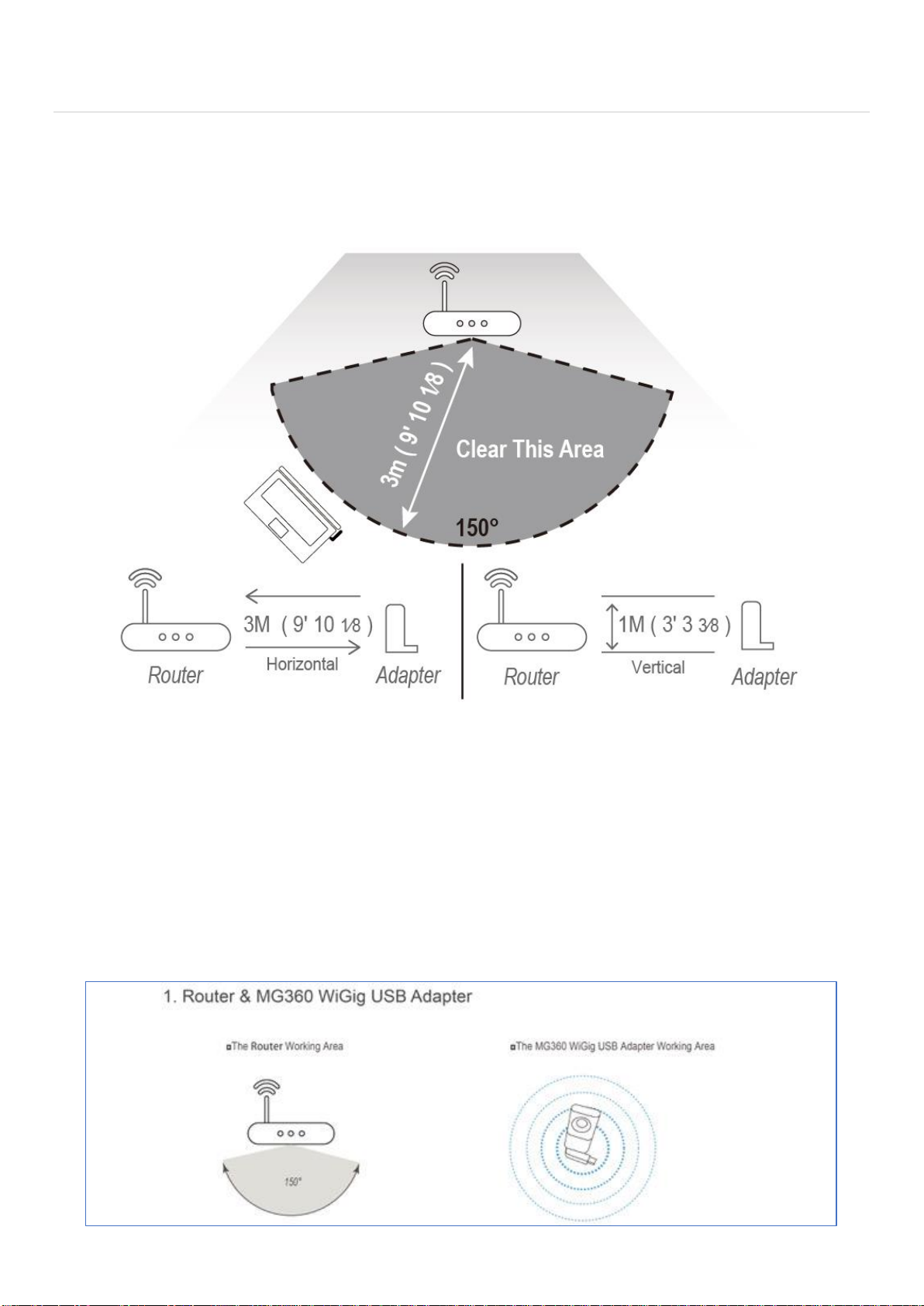
Effective Area ................................................................................................................................................................7
Special notification for Netgear x10 R9000 ..................................................................................................................8
Chapter 1 - Driver Installation...........................................................................................................................................9
Step 1 –Plug MG360 into Your Laptop .........................................................................................................................9
Step 2 - Start to install.................................................................................................................................................10
Step 3 -Install Peraso Driver........................................................................................................................................11
Step 4 -Installation Complete......................................................................................................................................12
Chapter 2 –User Manual................................................................................................................................................13
MG360 Connect to the router .....................................................................................................................................13
Federal Communication Commission Interference Statement..................................................................15
Appendix: Light Signals ...............................................................................................................................................16
In USB 3.0 Port.........................................................................................................................................................16
In USB 2.0 Port.........................................................................................................................................................16
Appendix2: Safety Information ...................................................................................................................................17
Appendix 3: Frequently Asked Question .....................................................................................................................18
Question: Where can I position the router?...........................................................................................................18
Question: How can I connect to others Wi-Fi with MG360? ..................................................................................18
Question: How could I do when It shows "No Wi-Fi networks found" as below?.................................................19
Question: What it means it shows without Wi-Fi icon at "Network & Internet settings" panel as below after I
insert MG360 device? .............................................................................................................................................19
Question: How do I check the installation of the MG360 driver? ..........................................................................20
Question: How to Uninstall Our Driver?.................................................................................................................22
Question: How to set the router for 60GHz WiGig works ......................................................................................24
Trouble shooting.............................................................................................................................................................28
Check LED of the dongle ....................................................................................................................................28