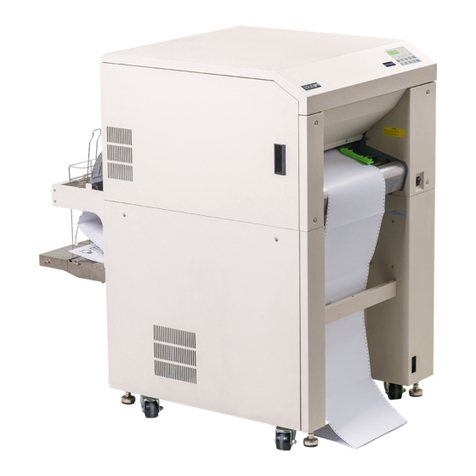
Microplex SOLID F40 Manual de usuario

________________________________________________________________________________
________________________________________________________________________________
SOLID F40
Operator’s Manual
Edition 1.1

2
_______________________________________________________________________________________________
_______________________________________________________________________________________________

Table of Contents 3
_______________________________________________________________________________________________
_______________________________________________________________________________________________
MICROPLEX Operator’s Manual SOLID F40 Edition 1.1
Table of Contents
Chapter Page
1. Introduction 7
1.1. General Description 7
1.2. Conventions 9
1.3. CE — Conformity 10
1.4. General Safety Instructions 11
2. Installation 13
2.1. Check List 13
2.2. Printer Installation 14
2.3. Printer Components 16
3. Handling of Consumables 18
3.1. Loading Paper 18
3.2. Replacing the Toner Cartridge 24
3.3. Replacing the Waste Toner Bottle 28
4. Operation and Menu Structure 31
4.1. Attaching the Printer to a Network/Computer 31
4.2. Printer Power on 31
4.3. Control Panel View 32
4.4. Function of the Control Panel Elements 33
4.5. Configuration via the Control Panel 36
4.6. Menu Structure 38
4.7. Syntax of Diagrams 42

4 Table of Contents
_______________________________________________________________________________________________
_______________________________________________________________________________________________
MICROPLEX Operator’s Manual SOLID F40 Edition 1.1
Chapter Page
5. Panel Functions 43
5.1. Printing the Status Sheet 43
5.2. Printing the Font List 45
5.3. Choosing Print Resolution 46
5.4. Hexdump Mode Activation 48
5.5. Normal Print Mode Activation (incl. FORM FEED) 49
5.6. Clearing the Input Buffer (Cancel Job) 50
5.7. Printing the Menu Page 51
5.8. Generating Test Prints (Sliding Pattern) 52
5.9. Page Length Adjustment 54
5.10. Selecting the Number of Printpages per Page Format (Two-Up Mode) 56
5.11. Paper Width Adjusting (Format Width) 58
5.12. Print Direction Selection 59
5.13. Data Interface Configuration 60
5.14. Emulation Selection 61
5.15. Display Language Selection 63
5.16. Transparent Code Adjustment 64
5.17. Selection of Memory Distribution (Input Buffer) 65
5.18. Setting to Factory Default 66
5.19. Font Selection 67
5.20. Text Orientation Selection 70
5.21. Symbol Code Selection 71
5.22. Configuration of Text Margins 72
5.23. Image Shifting to the X-Direction 73
5.24. Image Shifting to the Y-Direction 75
5.25. Lines per Inch Setting (Line Spacing) 77
5.26. Number of Characters per Inch Setting (Character Spacing) 78
5.27. Print Density Setting 79
5.28. Configuration of Network Parameters (IP Address, e.g.) 80

Table of Contents 5
_______________________________________________________________________________________________
_______________________________________________________________________________________________
MICROPLEX Operator’s Manual SOLID F40 Edition 1.1
Chapter Page
6. Printer Cleaning 83
6.1. Cleaning the Elements behind the Front Cover 84
6.2. Cleaning the Transport Unit 87
6.3. Cleaning the Paper Feed Unit 90
6.4. Cleaning the Paper Near End Sensor 91
6.5. Cleaning the Power Stacker 92
7. Operator Maintenance 93
7.1. Charger Cleaning 93
7.1.1. Main Charger Cleaning 94
7.1.2. Pre-Charger Cleaning 97
7.1.3. Transfer-/Separator Charger Cleaning 99
7.2. Developer Unit Cleaning 101
7.3. Developer Unit Refurbish, Developer Powder Exchange 106
7.4. Main Charger Replacing 113
7.5. Pre-Charger Replacing 114
7.6. Transfer-/Separator Charger Replacing 115
7.7. Photoreceptor Drum Exchange 117
8. Troubleshooting 127
8.1. Reduced Print Quality 128
8.2. Error Messages 129
8.2.1. Error Codes 131
8.3. Paper Jam 133
8.3.1. Paper Jam inside the Tractor 133
8.3.2. Paper Jam inside the Print System 134
8.3.3. Paper Jam within the Power Stacker 139
8.4. Print Repetition after an Error 140

6 Table of Contents
_______________________________________________________________________________________________
_______________________________________________________________________________________________
MICROPLEX Operator’s Manual SOLID F40 Edition 1.1
Chapter Page
9. Measures for Transport and Shipping (Repacking) 141
10. Specifications 143
11. Index 147

Introduction 7
_______________________________________________________________________________________________
_______________________________________________________________________________________________
MICROPLEX Operator’s Manual SOLID F40 Edition 1.1
1. Introduction
1.1. General Description
The print system SOLID F40 works on an electrophotographical base
employing an LED array as exposure unit. The maximum resolution of
600 dots per inch is corresponding to about 24 pixels per mm.
The print speed is up to 40 A4 pages (landscape) per minute.
Exclusively continuous media with sprocket holes can be used for the
tractor guiding. The maximum material width is 16 inches, the
printable width is 14.6 inches. A stacker is included in the standard
device.
The non-contact Xenon flash fusing system in combination with the
straight paper flow enables you to use the most different paper types
and label materials with a weight from 60 to 204 g/m². Even
demanding media like plastic, PVC etc. can be used.
Consequently there is a multitude of scopes for this print system. It is
suitable for high-speed printing with excellent print quality using
different types of materials.
The high functionality of the MICROPLEX controller specially qualifies
the SOLID F40 also for form printing.
The printer is capable of using most of the page description
languages used in the industrial field and also the business standards
known in connection with laser printers can be used.
The capabilities featured include the MICROPLEX page description
language IDOL. Using this language, complex tasks such as the
creation of forms can be carried out by simple software commands
(see separate IDOL manual).
Data can be sent from almost any software platform, because printer
drivers are already available for this.

8 Introduction
_______________________________________________________________________________________________
_______________________________________________________________________________________________
MICROPLEX Operator’s Manual SOLID F40 Edition 1.1
The MICROPLEX printer controller has its integrated website, this allows
a printer configuration via Ethernet. See Networking Features of
MICROPLEX Printers for more information.
Consequently there is a multitude of scopes for this print system. It is
suitable for high-speed printing with excellent print quality using different
types of materials.
Printing Basics
The MICROPLEX printer controller enables the connection of this print
system to EDP systems whereby several interfaces, emulations and fonts
are available.
The digital information (e.g. a text file) is transferred from the computer
into the printer memory. The printer’s electronic component (the
controller) combined with the page description language, defines the
letters, numbers, graphics, etc. into bit patterns and posts them into the
controller’s frame store.
In this way, a “pattern“ of the future print page (generated by dots) is
created.
The electronically controlled LED (Light Emitting Diode Array) plots the
dot pattern in rows onto the light-sensitive surface of a rotating pre-
charged drum. Toner is caused to adhere to the electrostatic latent
image formed on the drum surface. This image consisting of toner
particles is electrically transferred onto the paper, that is guided past the
drum.
When transported further, the toner particles, which are affected by the
Xenon flash fusing, are combined resistantly with the paper. The drum is
discharged and cleaned.

Introduction 9
_______________________________________________________________________________________________
_______________________________________________________________________________________________
MICROPLEX Operator’s Manual SOLID F40 Edition 1.1
1.2. Conventions
!
ONLINE
blue colored text
[ Menu Level 1 ]
The following conventions should help you to find information
and to understand instructions more easily:
This symbol refers to a possible source of danger. Disregarding
the information identified by this symbol could result in injuries,
a reduction of printer functionality, or damage to the printer or
other objects.
This symbol indicates important hints and suggestions on using
the printer. Disregarding the hints might cause problems with
the printer or within the environments.
This symbol shows a control panel key. Such symbols will be
used in this manual whenever keys have to be pressed in order
to activate certain functions.
Link to another chapter or a different document. By clicking the
blue colored text you'll enter the concerning chapter or
document.
This symbol represents messages shown in the display (panel).
This symbol is used to show a shining LED (light emitting diode).
The SOLID F40 printer panel is provided with several LEDs.
The real shape of the LEDs differs from the shape of this symbol
(compare figure in section 4.3).
This symbol will be used in this manual to show a non-shining
LED.

10 Introduction
_______________________________________________________________________________________________
_______________________________________________________________________________________________
MICROPLEX Operator’s Manual SOLID F40 Edition 1.1
1.3. CE — Conformity
Tabla de contenidos
Otros manuales de Impresora de Microplex

Microplex
Microplex LOGIJET TC8 Manual de usuario

Microplex
Microplex SOLID T8 Manual de usuario

Microplex
Microplex logiJET TM4 Manual de usuario

Microplex
Microplex F36C Manual de usuario

Microplex
Microplex SOLID F44 Manual de usuario

Microplex
Microplex PP 404 Manual de usuario

Microplex
Microplex LOGIJET TC8 Manual de usuario

Microplex
Microplex SOLID 166E Manual de usuario

Microplex
Microplex SOLID 60E-2 Manual de usuario

Microplex
Microplex PP 803 Manual de usuario