Meridian MSR + Manual de usuario

MERIDIAN SYSTEM REMOTE (MSR+)
USER GUIDE
G Series MSR 1 7/7/03, 3:16:20 pm

ii
Preface Preface
About this guide
This guide consists of the following chapters:
Introduction provides a general overview of the MSR+ and
explains how to install the batteries.
Using the MSR+ describes how to use the MSR+ to control your
Meridian equipment and other products.
Programming your MSR+ describes how to program the MSR+
to control other products.
Changing the source keycaps describes how to change the
MSR+ source keycaps to suit your other equipment.
Troubleshooting provides suggested solutions to problems that
may occur when using the MSR+.
Boothroyd|Stuart Meridian, Meridian, and MSR+ are registered
trademarks of Meridian Audio Ltd.
This guide was produced by Human-Computer Interface Ltd,
http://www.interface.co.uk/
Sales and service in the UK
Meridian Audio Ltd
Stonehill
Stukeley Meadows
Cambridgeshire
PE29 6EX
England
Tel +44 (0)1480 445678 Fax +44 (0)1480 445686
Sales and service in the USA
Meridian America Inc
3800 Camp Creek Parkway
Building 2400
Suite 122
Atlanta
GA 30331
Tel +1 (404) 344 7111 Fax +1 (404) 346 7111
World Wide Web http://www.meridian-audio.com/
Copyright © 2003 Meridian Audio Ltd
Part no: MSR+/1
G Series MSR ii 7/7/03, 3:16:23 pm

Introduction
1
About the MSR+
The MSR+ is an advanced remote control that provides a
comprehensive range of commands to allow you to control every
product in your Meridian system straight out of the box. You can
also program it to control your other equipment.
The MSR+ provides a total of 51 keys to give access to all the
most frequently used commands of your Meridian products, and
a Function (or shift) key for additional less frequently needed
operations.
Interchangeable Meridian source keys
For easy selection of sources the MSR+ provides 12 source keys
corresponding to the sources provided by the Meridian digital
surround controllers, preamplifiers, and integrated amplifiers.
The MSR+ is provided with a selection of alternative keycaps
for the source keys which you can use to match the particular
combination of units in your system. For example, if you own a
DVDR, you can change the keycaps to provide a DVDR key.
Control your other equipment
The MSR+ is pre-programmed to mimic the remote controls for
many popular audio and video products from other manufacturers,
and you can configure it to control up to nine other products
simply by entering the appropriate device code on the numeric
keypad. A complete list of the supported products is given at the
back of this manual.
Learning commands
Even if you own a product that is not supported by the device
library built in to the MSR+, it includes a learning mode which
allows it to learn up to 120 commands from other remote controls
and assign them to a key on the MSR+.
Backlight
For convenience the MSR+ keypad is backlit, so you can use it even
in low-light conditions. The backlight automatically turns on as
soon as you press a key in low light conditions.
The MSR+ will have a battery life of over six months under normal
conditions; slightly less if you use the backlight frequently.
Introduction
G Series MSR 1 7/7/03, 3:16:23 pm

2
Introduction
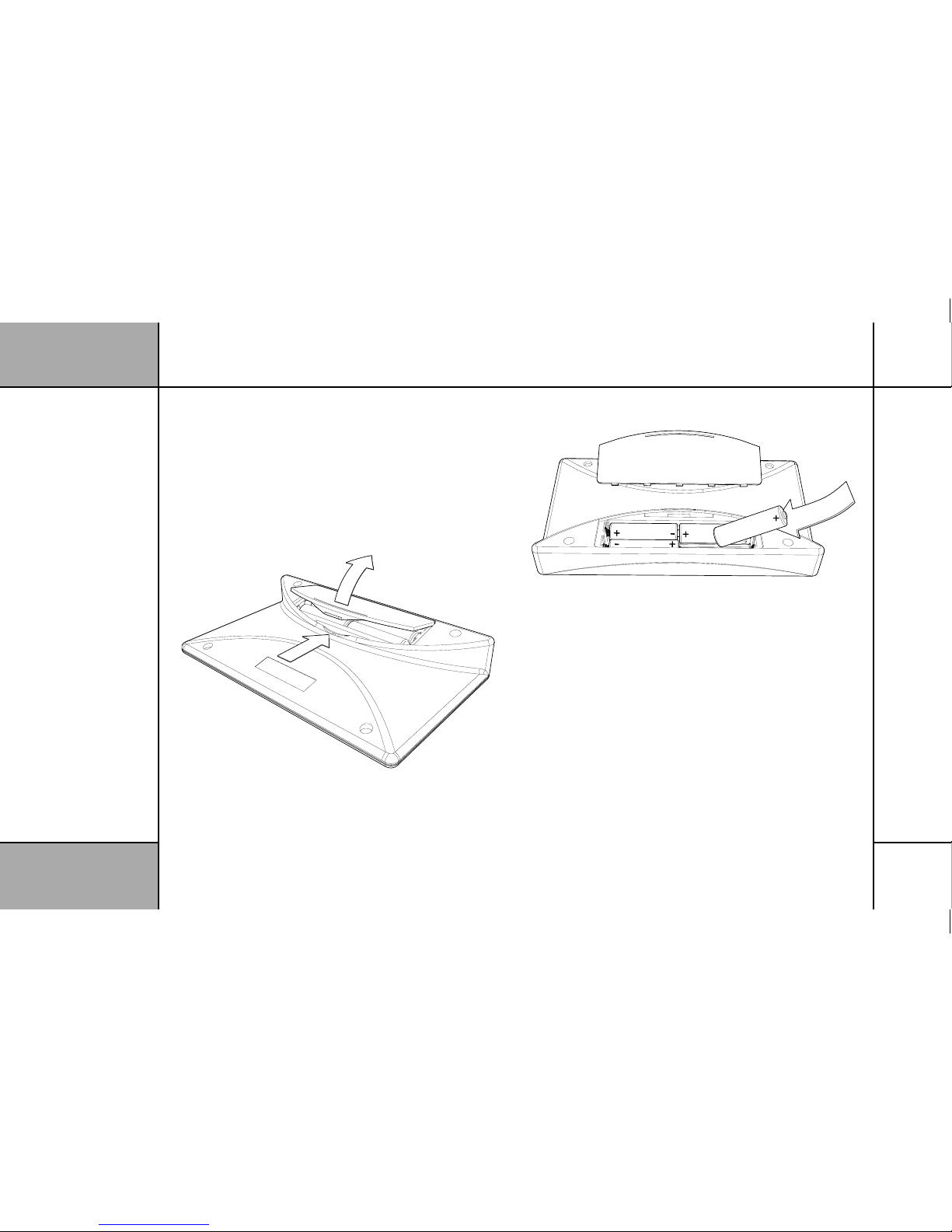
The MSR+ is supplied with four AA batteries, and these need to be
installed before you can use it.
Note: Dispose of used batteries thoughtfully.
•Press the tab and remove the battery cover on the back of the
MSR+:
•Make sure you observe the polarity of the batteries and the
polarity marks + and – inside the battery compartment.
•Insert the four AA batteries accordingly:
•Push the battery cover back into place.
Low battery indicator
The indicator normally lights up when you press a key. If it flashes
twice after releasing a key, this indicates that the battery is low.
Always replace all four batteries at the same time. Do not mix old
and new batteries.
Replace the batteries as soon as possible after the low battery
indicator appears, and after removing the old batteries replace the
new batteries within two minutes, or you risk losing any codes you
have programmed.
Installing the batteries
G Series MSR 2 7/7/03, 3:16:24 pm

Using
3
Using the MSR+
Using the MSR+ to control your Meridian equipment
The following diagram gives a summary of the MSR+ commands used for controlling Meridian products:
1
OpenOpen
AudioAudio
CD
1
4
7
FunctionFunction
RADIO
2
5
8
0
DVD
3
6
9
AUX DISC
Return
RecordRecord
TAPE
Enter
TV
Menu
SetupSetup
CABLE SAT VCR1
Store
SubtitleRepeat
Clear
DSP
Display Mute
VCR2 GAME OFF
PowerPower
BandBand AngleAngle OSDOSD
Top Me n u
##
PagePage
SlowSlow
PhasePhase
PagePage
A-BA-B
Top Menu
For controlling a
DVD player
Record/Band/
Angle/OSD
For controlling
DVD and other
sources
Store/Clear
For programming
tuner, CD player or
DSP presets
Display
Changes the
front-panel display
Indicator
Flashes when you
send a command -
includes sensor for
backlight
Volume keys/Mute
Change the
volume
OFF
Switches Meridian
equipment to
standby
Source keys
Select a source
Menu keys
For navigating
DVD menus or
editing DSP
parameters
Transport keys
For controlling a CD
player, DVD player,
or tuner
Function
Hold down to
select a secondary
function, shown in
blue on some keys
Number keys
For controlling a
CD player, DVD
player, or tuner
§2 Using 3 15/7/03, 11:04:13 am

4
Using
The MSR+ provides 12 source keys to allow you to select one of
the sources in your system.
To select a source
•Press the appropriate source key.
The indicator will flash once to indicate that the command has
been sent.
Your Meridian controller will select that source. In addition, the
MSR+ keys will change so that they control that source.
To use your MSR+ to control a source without selecting the source
on your Meridian system:
•Hold down Function and press the source key.
For example, to change the TV channel while listening to a CD
press Function TV, and then use the numeric keys to select the
channel.
To use the function options
The function options are shown in blue on each key.
•Hold down Function, in the lower left corner of the remote.
•Press the key corresponding to the function you want to select.
To control your other equipment
The nine source keys: AUX, DISC, TAPE, TV, CABLE, SAT, VCR1,
VCR2, and GAME can be programmed to control other equipment
in your system as described in
Programming your MSR+
, page 5.
The CD, RADIO, and DVD source keys are dedicated to controlling
Meridian products and cannot be changed.
The volume keys, Mute, and OFF also always control Meridian
products. To use these commands with other equipment hold down
Function with them.
To illuminate the MSR+ in low light conditions
•Press any key. Use Function to avoid sending a command.
The backlight will stay on for about five seconds.
Controlling sources
G Series MSR 4 7/7/03, 3:16:26 pm

Introduction
For convenience the MSR+ provides three alternative programming
options to allow you to control ‘other products’; ie products from
other manufacturers:
•You can look up the manufacturer of the product you want to
control in the back of this manual, and specify the remote control
you want to mimic by entering a four digit device code on the
numeric keypad.
•You can specify the type of product you want to control, and then
search through the available remote controls until you find the
appropriate one that controls your product.
•You can learn each of the commands for the product from the
product’s own remote control.
Learning is the most flexible method but also the most time-
consuming. We recommend you start with one of the first two
procedures and then use learning to supplement them with any
other commands you want to add.
Dedicated (punch through) Meridian keys
Some keys on the MSR+ are dedicated to controlling your Meridian
system and cannot be reprogrammed for your other products:
Key Description
OFF Turns the Meridian system off.
Volume A, V, and Mute Control the Meridian system volume.
DSP Changes the preset on Meridian
surround controllers.
Function Menu A, V, <,
>, Function Store, and
Function Clear
Control the DSP menus on Meridian
surround controllers.
Function Display Changes the display of the Meridian
system.
You can program Function OFF, the Function volume keys,
the menu keys, Store, Clear, and Display to control your other
equipment.
Note: There is no danger of damaging your MSR+ by using these
procedures. A reset function is provided which will return your
MSR+ to the factory settings; see
Resetting the MSR
+, page 10.
Programming
5
Programming your MSR+
G Series MSR 5 7/7/03, 3:16:26 pm

6
Programming Programming options
Specifying a device code
The simplest way to set up the MSR+ to control another product
is to enter the appropriate device code for the product. A complete
list of device codes for each of the supported products is given at
the back of this manual.
Entering a device code erases any learnt commands for that source
key.
To specify a device code
•Press the source key you want to use for the product; for
example, TAPE.
•Hold down 0and Mute simultaneously for two seconds until the
indicator flashes twice and stays lit.
•Enter the appropriate device code on the numeric keypad.
For example, if your tape deck is a Revox enter 0664.
If you entered a valid device code the indicator will turn off and
your MSR+ is ready to control the other product. If you entered an
incorrect code, or pressed an invalid key, the indicator will flash six
times and programming is abandoned.
For some products more than one device code is listed. Try each
of the alternative device codes in turn until you find the one that
controls your product.
To reset the source key to control Meridian products enter the
device code 8888.
Auto-programming
This procedure lets you step through the library of remote controls
in the MSR+ until you find the one that switches your product to
standby. This is likely to be the correct one for your product.
To auto-program
•Make sure your other product is switched on and out of standby.
•Press the source key you want to use for the product; for example
TV.
•Hold down 0and Mute simultaneously until the indicator flashes
twice and then stays lit.
G Series MSR 6 7/7/03, 3:16:27 pm

Programming
7
•Enter one of the following codes using the numeric keypad to
indicate the type of product you want to control.
The indicator should flash once each time you press a key, and then
flash twice and stay off when you have entered the code correctly:
Product type Code Product type Code
TV 1000 SAT/CABLE 6000
VCR 2000 LD 7000
TAPE/MD/CD-R 4000 DVD 8000
CD 5000 GAME 9000
For example, for a TV enter 1000.
•Point the MSR+ at the product you want to control, hold down
Function, and press OFF.
Each time you press Function OFF the MSR+ will step to the next
device in the library and send the corresponding Power off code to
the other product.
•As soon as the other product turns off, indicating that this is the
correct device, press the same source key again (eg TV) to store the
currently selected device.
•To step back through the device library if you overshoot press
Mute on the MSR+.
The indicator will flash twice to indicate that the operation has
succeeded, and the MSR+ is now ready to control your other
product.
Problems when programming automatically
If you reach the end of the device library without finding one that
switches off your product the indicator will flash six times.
•Press the source key again to resume the search from the beginning.
If the other product does not turn off, your product may not be
supported by the device library. In this case you will need to
program the MSR+ using your product’s own remote control as
described in
Learning commands
, page 8.
Note: When stepping through the device library, you can use
the keys other than Function OFF on the MSR+ to test other
commands in the currently selected device.
G Series MSR 7 7/7/03, 3:16:27 pm

8
Programming
Learning commands
The third and most flexible way of programming the MSR+ is to
learn from your product’s own remote control. This allows you to
control products not supported by the device library, and gives you
the flexibility to assign any command to a chosen key.
The MSR+ can learn up to 120 commands. If you try to program
more than this the indicator will flash six times and the MSR+ exits
from learning mode.
You can also use learning to add commands additional to those
provided by the device library. Select the device code first, then
learn the additional commands.
Note: You cannot program the dedicated Meridian keys; see
Dedicated (punch through) Meridian keys
, page 5. Also, you cannot
learn commands if the battery level is low. In these cases the
indicator will flash six times when you try to enter the learning
code.
To learn commands
•Press the source key you want to use for the product; for
example, TV.
•Hold down 0and Mute simultaneously for two seconds until the
indicator flashes twice and stays lit.
•Enter the learning code 0000 on the numeric keypad.
The indicator will flash twice and go off. The MSR+ is then ready to
learn commands.
•Aim the product’s remote control at the front of the MSR+, at a
distance of 5 to 8cm (2 to 3"):
5-8cm
(2-3")
G Series MSR 8 7/7/03, 3:16:28 pm
Otros manuales para MSR +
1
Tabla de contenidos
Otros manuales de Mando a distancia de Meridian