Martian Notifier Manual de usuario

Martian Notifier iOS User
Manual
Congratulations on the purchase of your new Martian Notifier smartwatch!
Our goal at Martian Watches is to deliver an outstanding product to make
smartphone use more convenient and Life on Earth simply better. Enjoy!
MANUAL MENU
• Getting Started
• Setting The Time
• Turn Your Watch ON
• Turn Your Watch OFF
• Buttons, Light and Display
• Checking Watch Battery Level
• Charging The Watch
• Pairing Your Watch To Your iOS Device
• Un-Pairing Your Watch
• Range/Disconnected and Re-Connecting
• Status Bar
• Using Watch Functions and Features
• Receiving Incoming Notifications
• Watch Menu
• Triggering Phone Voice Commands
• Using The Martian Notifier App
• Additional Materials
• Safety and Regulatory
GETTING STARTED
Make sure these items are in the box:
• Martian Notifier Smart Watch
• Martian USB 9MM connector Micro USB Cable
• Quick Connect Guide
TOP
SETTING THE TIME
The watch crown (knob on right side of watch) is “out” to save battery during
shipping. Rotate it to set the time, then push it in until you hear a click.
TOP
TURNING YOUR WATCH ON

Press and hold Bottom Left Button for 2 seconds. If the watch does not turn
on after removal from the box, it will need to be charged to at least 50%
before pairing.
TOP
TURNING YOUR WATCH OFF
Press and hold Bottom Left Button for 2 seconds.
TOP
BUTTONS, LIGHTS AND DISPLAY
There are Two Buttons on your watch; top left and bottom left. The watch
crown, on the right, is used only to set the time and is not a button. The
watch glass also functions as a button for some features.
1. Top Button
Launches voice commands on your phone or tablet (and dismisses them on
iOS), toggles status changes in Martian Menu, and scrolls notification history
forward.
2. Bottom Button
Turns watch on and off, accesses status bar, scrolls through Martian Menu,
and scrolls notification history backward.
3. LED Light Indicator
Notifies users of events. Green: Incoming call and battery fully charged.
Red: Low battery or charging. Blue: Incoming notification.

4. OLED Display
Shows incoming caller ID, text ID, and notifications. Displays battery level
and other information.
5. Watch Glass
Tap the glass to dismiss incoming notifications, dismiss notification history,
and recall last notification for up to 5 minutes after it was received. Note:
You can tap glass to recall a notification multiple times during the 5 minute
time frame.
TOP
USING BUTTON PRESSES
There are two types of button presses: a quick-press and a long-press. Each
performs a different function.
— When the word “press” is used, it means to quick-press, or fully depress
the button for a fraction of a second and be careful to not hold it down.
— When “long press” is used, you should fully depress and hold the button
for one second.
TOP
CHECKING WATCH BATTERY LEVEL
With the watch turned on, press the bottom left button once to view the
Watch Status Display. The battery icon is in the far left of the display. If the
white part of the icon is less than 50%, your watch should be charged more
fully before pairing.
TOP
CHARGING THE WATCH
Martian Notifier requires the special Micro USB cable included in the
package* (see note below).

The charging cable can be plugged into your computer’s USB port (or a
power outlet via a USB
wall adapter, sold separately).
The LED light will show solid red when the watch is receiving power.
The LED light will show solid green when the watch is fully charged.
Full charge is reached in approximately 2-3 hours from a power outlet,
3-4 hours when charging from a computer.
Battery Life – Your Martian Notifier allows 4-5 days of use per charge. The
time piece will run
for approximately 2 years on its separate battery, allowing Martian to be
useful as a regular watch
evenif your electronics battery is fully depleted.
* Note: The metal micro-USB end connector on the Martian Notifier charging
cable is longer than those on most micro-USB cables. Shorter connectors will
likely not work with your Martian Notifier. However, this cable can be used for
most other devices that use a micro USB connector for charging purposes.
TOP
PAIRING YOUR WATCH TO YOUR iOS
DEVICE
On your Martian Notifier watch:
Turn on your watch (long-press the bottom button). (Before pairing, your
watch battery should be charged to at least 50%.)
On your iPhone or Device:
• Turn “ON” Bluetooth – go to Settings > Bluetooth > Toggle On
• Download the FREE Martian Notifier App for your device (Go to the App
Store; search for “martian watch”; Download the ORANGE “Martian Notifier”

App to your device).
!
!
!
!
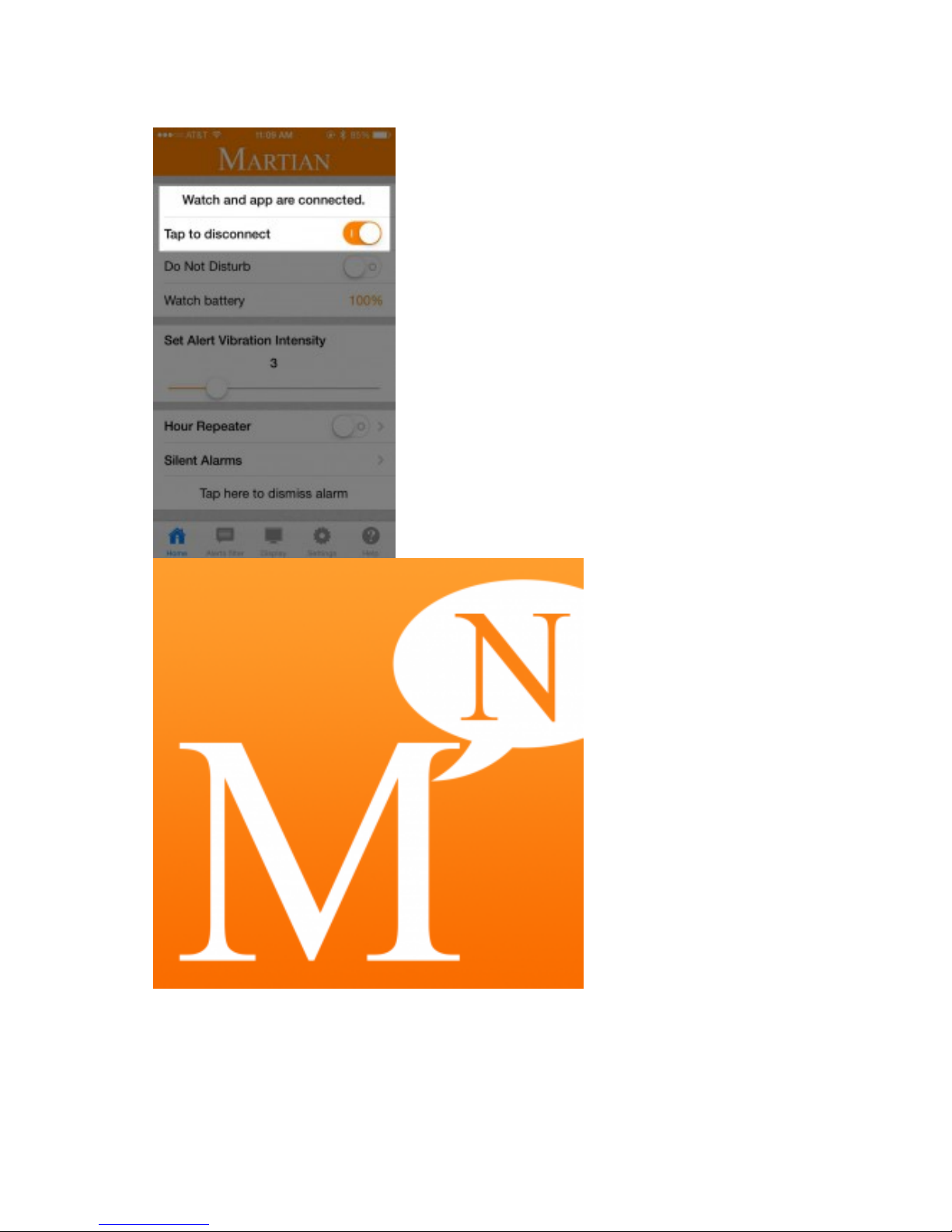
• Open the Martian Notifier App and go to the Home tab. Turn the “Tap to

connect”!toggle button to “ON”.
• After a moment, a 6-digit number will appear on your watch. Type the
number into the!screen that pops up on your device and tap “Pair”.
• If pairing is successful, “Paired to Smart” will appear on the watch’s OLED
display, and!“Watch and app are connected” will show on the App as seen
in the image on the right.
!
!
Note: If pairing is not successful, turn watch off and back on, turn your
device’s Bluetooth off and back on, then start again at item 3 above.
TOP
UN-PAIRING MARTIAN NOTIFIER
Your Martian Notifier can only be paired with one device at a time.
Once paired, if you wish to use your watch with a different device, you need
to un-pair it from the current device before pairing with the next device.
• Go to Settings/Bluetooth/Martian Notifier/“Forget Device”
TOP
RANGE/DISCONNECTED & RE-
CONNECTING
The “connected” range of the Martian Notifier to your device is approximately
30 feet/10 meters but the distance may vary depending on your location,

obstacles, etc. You will likely improve your range if there are no solid objects
between your watch and phone.
You can use the “Martian Leash” option to be notified that you have left the
cell phone’s range. See “Leash” in the Watch Menu section for more
information.
TOP
STATUS BAR
Pressing the bottom button once initiates the Status Bar display sequence
on the OLED display, giving you information on four successive screens.
The first screen shows World Clock digital time, as set in the Martian App.
The second screen shows battery level and confirms Bluetooth connection. It
will also the show the Martian Leash-connected icon and the Do Not Disturb
(DND) moon icon, if either is turned on.
The third screen shows the current day and date.
The fourth screen shows the Local Weather.
Icons that may appear include:
TOP

USING WATCH FUNCTIONS AND
FEATURES
This section explains the use of the primary features of your Martian Notifier.
These include:
• Getting Incoming Notifications
• Using Watch Menu
• Triggering Voice Commands on your Phone
• Using the Martian Notifier App
TOP
RECEIVING INCOMING NOTIFICATIONS
When you receive a notification, the watch vibrates with a specific pattern
and the OLED display shows an icon representing the type of alert.!You will
also see the sender’s name, the message subject, and sometimes the
message content. The LED light will flash green if it is an incoming call.
Otherwise it will flash blue for an incoming notification. To reject an incoming
notification, press the bottom button or just tap the watch glass firmly.
Note: If you receive a notification and want to ask Siri to read the text, first
tap the watch glass to dismiss the text. Then press the top button to initiate
Siri on your device’s speakerphone.
To set up notifications on your device:
• Go to your device’s Settings/Notification Center.
• Tap on an App from which you want to receive notifications on your
Martian.
• Choose “banners” or “alerts”.
• Choose “Show in Notification Center”.
• Choose “Show on Lock Screen”.
• Tap “Back” and repeat these steps on all Apps from which you want to
receive notifications.
To set up Email Notifications:
• When setting up email notifications in Mail, choose “Include 5 Unread
Items”.
• To receive emails, you must use the “push” or “fetch” setting on your iOS
device.
— On your device, go to Settings/Mail, Contacts, Calendars/Fetch New
Data.
— Turn “Push” to “ON”.
— Tap on each email from which you want to receive notifications and if it
allows “push”, choose it for instant notifications.
— If there isn’t a “push” option or to increase battery life, choose “Fetch”.
Then return to the previous screen and scroll down to “Fetch”. Choose how

often you want to have emails fetched.
!
Notes:
• Character Limit On – For all notifications, if “character limit” is turned on in
the Martian Notifier App > Settings
tab, it limits all messages to 40 characters. This feature can be found in the
image!on the right.
• Character Limit Off – If “character limit” is turned off, you will receive up to
100 characters (including icons
and symbols).
• Timeliness – The immediacy with which you will receive notifications is
dependent upon when the iOS device
forwards them.!You should see messages on your watch at about the same
time they are displayed as an alert or
banner on your phone.
• Send Your Heart – SMS messages with photos or emoticons will show the
sender’s name or phone number but
not the photo or emoticons, other than a “heart” emoticon, which does come
through.
(See “Martian Notifier App” section to set up notification filters and vibration
patterns.)
!
View Notification History
See the Most Recent Message – You can recall your most recent message
by tapping firmly on the watch glass within five minutes of when it was

received. This could be a notification but it could also be a message such
as “out of range” or “connected”.
See Recent Notification History – To view the most recent 1 to 32
notifications you received*, press both buttons on the left side of the watch
simultaneously. The most recent notification will be displayed first. Then
press the bottom button to scroll backward or top button to scroll
forward. A small number will appear on the display just before the
notification, telling you where that notification is in the timeline.
* Note: The number of messages shown depends on the length of the
messages.
To exit the History menu at any time, tap the watch glass; or wait and the
watch will automatically exit after the last notification reviewed is displayed
twice.
TOP
WATCH MENU
The Watch Menu allows you to activate or change the settings of several
features on your watch. Menu items are: Light, DND, Camera Mode, Find
Phone, and Setup.
!
Within the Setup sub-menu are:
Language, Date Format, Wireless Leash, LED, and Android.
To access the Watch Menu, press the bottom button twice. This will show
the first entry on the menu, which is
the “Light” icon.
— To change the item’s status, or activate it, press the top button when the
item is displayed. For example, if the
display reads “Light”, pressing the top button will toggle it on and pressing
again will toggle it off.
— Press the bottom button again to navigate to any menu item you wish to
change.
— To exit the Menu, use the bottom button to scroll to “Exit”, then tap the
top button; or the watch will automatically
exit!after 3 seconds.
— Choosing “Setup” brings up a sub-menu that works just like the primary
menu. After entering Setup, use the bottom
button to scroll to the item you wish to change. When the item of interest is
displayed, use the top button to toggle to
the option you would like. You may then press the bottom button, which will
save your selection and move on to the
next menu item, or the watch will automatically!save your changes and exit
after 3 seconds.
Light: You can turn on the Notifier’s LED light as a convenience feature. The
Otros manuales para Notifier
2
Tabla de contenidos
Otros manuales de Mirar de Martian

Martian
Martian Victory Instrucciones de montaje

Martian
Martian mVoice G2 Instrucciones de montaje

Martian
Martian Notifier Instrucciones de montaje

Martian
Martian MVC 2015 Instrucciones de montaje

Martian
Martian Notifier Instrucciones de montaje

Martian
Martian mVoice Manual de usuario

Martian
Martian Envoy Manual de usuario