Maretron MBB100 Manual de usuario

Revision 1.0 Page i
®®
MBB100
Black Box
Vessel Monitoring and Control
User’s Manual
Revision 1.0
Copyright © 2011 Maretron, LLP All Rights Reserved
Maretron, LLP
9014 N. 23rd Ave #10
Phoenix, AZ 85021-7850
http://www.maretron.com
Maretron Manual Part #: M003003

MBB100 User’s Manual
Page ii Revision 1.0
Revision History
Rev. Description
1.0 Original document.

Revision 1.0 Page iii
®®
Table of Contents
1General..........................................................................................................................................1
1.1Introduction ........................................................................................................................1
1.2Firmware Revision .............................................................................................................2
1.3MBB100 Features ..............................................................................................................2
1.4Quick Install........................................................................................................................2
2Installation......................................................................................................................................3
2.1Unpacking the Box.............................................................................................................3
2.2Choosing a Mounting Location...........................................................................................3
2.3Mounting the MBB100........................................................................................................3
2.4Connecting the MBB100 ....................................................................................................4
2.4.1RS-232 Connection.......................................................................................................5
2.4.2VGA Connection...........................................................................................................6
2.4.3LAN Connection............................................................................................................6
2.4.4USB Device Connection ...............................................................................................7
2.4.5Power Connection.........................................................................................................7
2.4.6Power Sequencing........................................................................................................8
2.5Configuring the MBB100....................................................................................................8
2.5.1Manually Entering LAN Connection Information...........................................................9
2.5.2Entering N2KServer®or IPG100 Connection Information...........................................11
3Operating the MBB100 ................................................................................................................14
3.1Turning the MBB100 On...................................................................................................14
3.2Turning the MBB100 Off...................................................................................................14
3.3Using the MBB100 ...........................................................................................................14
4Maintenance................................................................................................................................15
5Troubleshooting...........................................................................................................................16
6Technical Specifications ..............................................................................................................17
7Technical Support........................................................................................................................18
8Maretron (2 Year) Limited Warranty ............................................................................................19

MBB100 User’s Manual
Page iv Revision 1.0
Table of Figures
Figure 1 – MBB100 Network Diagram ..................................................................................................1
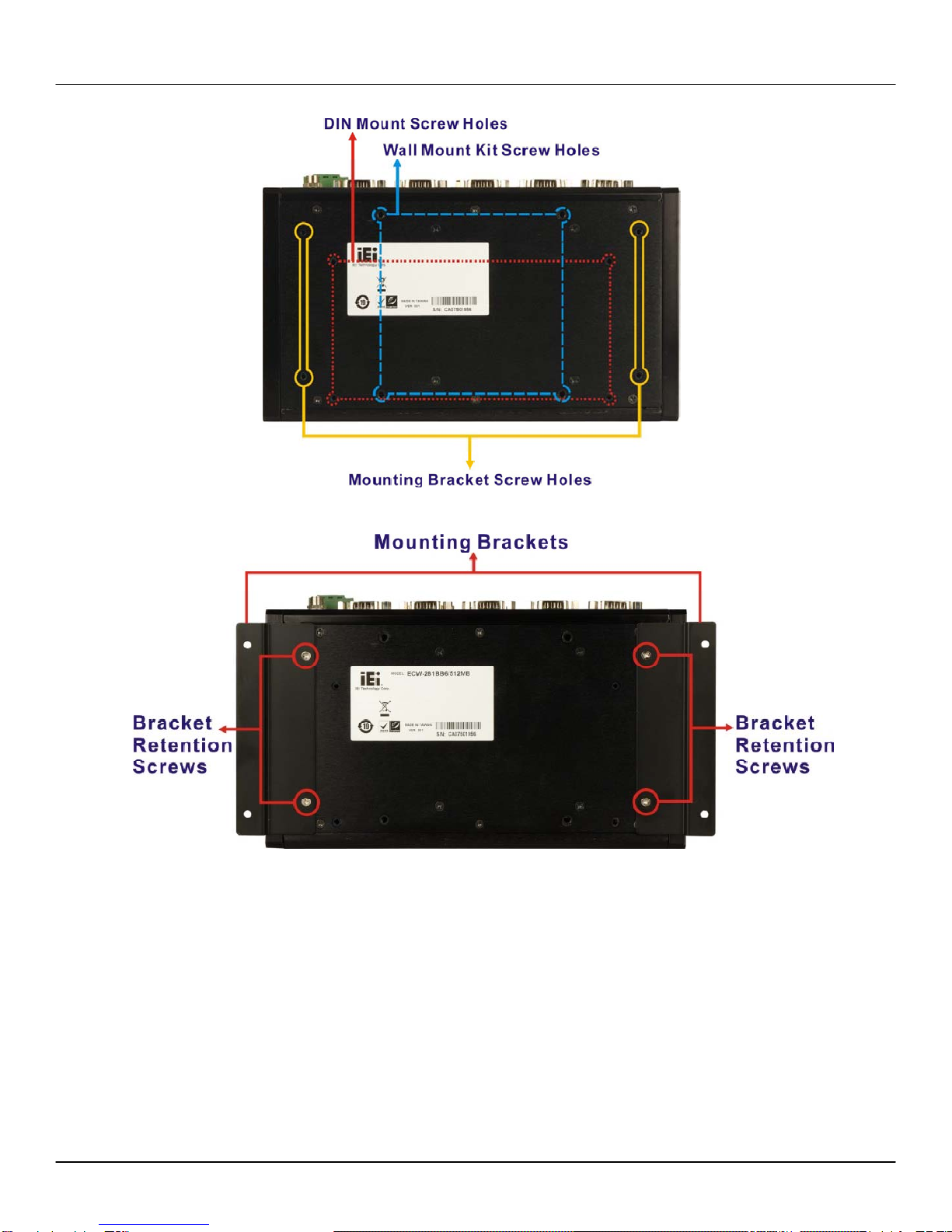
Figure 2 - Mounting Bracket Screw Hole Locations..............................................................................4
Figure 3 - Mounting Brackets Attached to MBB100..............................................................................4
Figure 4 - MBB100 Rear Panel Connections........................................................................................5
Figure 5 – MBB100 Front Panel............................................................................................................5
Figure 6 – LAN Connection...................................................................................................................6
Figure 7 – USB Device Connection ......................................................................................................7
Figure 8 - MBB100 Power Terminal Block............................................................................................7
Figure 9 – MBB100 Startup Screen......................................................................................................8
Figure 10 – N2KView®Window with Tabs Displayed............................................................................9
Figure 11 – Configuration Dialog ........................................................................................................10
Figure 12 – N2KView®Window with Tabs Displayed..........................................................................11
Figure 13 – Connections Settings Dialog............................................................................................12

®®
1 General
1.1 Introduction
Congratulations on your purchase of the Maretron MBB100 Black Box for Vessel Monitoring and
Control. Maretron has designed and built your black box to the highest standards for years of
dependable and accurate service.
The Maretron Black Box (MBB100) is a dedicated processing unit that comes preloaded with
Maretron’s N2KView®vessel monitoring and control software (N2KView®hardware license key sold
separately). Unlike a PC that allows any software to be loaded, the MBB100 runs only N2KView®
software making it extremely stable and dedicated to monitoring and controlling your vessel.
The MBB100 is ruggedized for marine use and includes a solid state disk drive to withstand the
pounding associated with waves. And since the MBB100 dissipates less than 20 watts, there is no
need for internal cooling fans that are noisy and wear out causing electronics to overheat and fail.
The MBB100 connects to a monitor through a VGA connector and associated touch screen through a
USB or serial port connection. Alternatives to controlling the N2KView®software through a touch
screen include keyboards, mice, or track balls connected through USB. The MBB100 has an Ethernet
port for communicating with an NMEA 2000®network (see Figure 1) through Maretron’s Internet
Protocol Gateway (IPG100). Alternatively, the MBB100 can network through Ethernet to a PC running
N2KServer®. Although the MBB100 comes pre-installed with the N2KView®software, a separately
purchased N2KView hardware license key plugged into the IPG100 (or PC) is required (see IPG100
User’s Manual for more details). The Ethernet port is also used for connecting Internet Protocol (IP)
cameras for viewing within the N2KView®software.
Figure 1 – MBB100 Network Diagram
Revision 1.0 Page 1

MBB100 User’s Manual
Page 2 Revision 1.0
Of course you get the same flexibility using Maretron’s N2KView®software from the MBB100 as you
would running the software on a PC, which includes the ability to configure as many screens as you
want with exactly the information you want to see. Plus you get free upgrades to the software as
improvements and new features are added.
The Maretron MBB100 is designed to operate within the harsh demands of the marine environment.
However, no piece of marine electronic equipment can function properly unless installed, configured,
and maintained in the correct manner. Please read carefully and follow these instructions for
installation, configuration, and usage of the Maretron MBB100 in order to ensure optimal
performance.
1.2 Firmware Revision
This manual corresponds to the MBB100 running N2KView®Version 3.2.
1.3 MBB100 Features
The Maretron MBB100 has the following features.
•Full version of N2KView®software preinstalled (requires N2KView®licenses, purchased
separately)
•Wired Ethernet interface
•Supports user-supplied VGA monitor
•Supports user-supplied touchscreen (ELO, 3M Microtouch, Hampshire TSharc, Penmount)
•Supports user-supplied mouse and keyboard
•Supports Bluetooth mice and keyboards with built-in Bluetooth adapter
•Operates on 9-36VDC
•20W power consumption
•Solid State Disk Drive
•Fanless cooling system
1.4 Quick Install
Installing the Maretron MBB100 display involves the following four steps. Please refer to the individual
sections for additional details.
•Unpacking the Box (Section 2.1)
•Choosing a Mounting Location (Section 2.2)
•Mounting the MBB100 (Section 2.3)
•Connecting the MBB100 (Section 2.4)
•Configuring the MBB100 (Section 2.5)

®®
Revision 1.0 Page 3
2 Installation
2.1 Unpacking the Box
When unpacking the box containing the Maretron MBB100, you should find the following items:
•1 – MBB100 Maretron Black Box Vessel Monitoring and Control
•2 – Mounting Brackets
•1 – Short Screw Set (Used for Mounting Bracket)
•1 – AC Power Cord
•1 – AC Power Supply
•1 – Rubber Feet/Long Screw Set
•1 – MBB100 User’s Manual
•1 – N2KView®Documentation CD-ROM
•1 – Warranty Registration Card
If any of these items are missing or damaged, please contact Maretron.
2.2 Choosing a Mounting Location
The MBB100 must be mounted in an indoor location.
2.3 Mounting the MBB100
The MBB100 can be mounted to a wall or other flat surface with the included mounting brackets.
2.6.1 Mounting the System with Mounting Brackets
To mount the MBB100 onto a wall or some other surface using the two mounting brackets, please
follow the steps below.
Step 1: Turn the MBB100 over.
Step 2: Align the two retention screws holes in each bracket with the corresponding retention screw
holes on the sides of the MBB100 bottom surface (marked in yellow in Figure 2).
Step 3: Secure the brackets to the MBB100 by inserting two retention screws into each bracket (see
Figure 2).
Step 4: Drill holes in the intended installation surface.
Step 5: Align the mounting holes in the sides of the mounting brackets with the predrilled holes in the
mounting surface.
Step 6: Insert four retention screws, two in each bracket, to secure the MBB100 to the wall.

MBB100 User’s Manual
Figure 2 - Mounting Bracket Screw Hole Locations
Figure 3 - Mounting Brackets Attached to MBB100
2.4 Connecting the MBB100
Most I/O interface connections of the MBB100 are found on rear panel (see
Figure 4). The I/O interface panel located on the rear of the MBB100 has the following I/O interface
connectors:
•2 x 9-36VDC power connectors
•1 x Audio line-out jack
•1 x Reset button
•1 x RS-232 serial interface connector
•1 x RJ-45 Gigabit Ethernet LAN ports
•2 x USB 2.0 connectors
Page 4 Revision 1.0

®®
Figure 4 - MBB100 Rear Panel Connections
The I/O interface panel located on the front of the MBB100 (see Figure 5) has two USB 2.0 interface
connectors.
Figure 5 – MBB100 Front Panel
2.4.1 RS-232 Connection
There is one external RS-232 connector. The RS-232 connector enables connection to an external
touch screen. To connect a serial cable with the RS-232 connector, please follow the instructions
below.
Step 1: Locate the RS-232 connector on the rear panel of the MBB100.
Step 2: Align the RS-232 connector on the serial cable with the RS-232 connector on the rear panel
of the MBB100.
Revision 1.0 Page 5

MBB100 User’s Manual
Step 3: Once aligned, gently insert the serial cable RS-232 connector into the MBB100 RS-232
connector.
2.4.2 VGA Connection
There is one external VGA connector. The VGA connector enables connection to an monitor. To
connect a VGA cable with the VGA connector, please follow the instructions below.
Step 1: Locate the VGA connector on the rear panel of the MBB100.
Step 2: Align the VGA connector on the cable with the VGA connector on the rear panel of the
MBB100.
Step 3: Once aligned, gently insert the cable VGA connector into the MBB100 VGA connector.
2.4.3 LAN Connection
There is one external RJ-45 LAN connector. The RJ-45 connector enables connection to an external
network. To connect a LAN cable with the RJ-45 connector, please follow the instructions below.
Step 1: Locate the RJ-45 connector on the rear panel of the MBB100.
Step 2: Align the RJ-45 connector on the LAN cable with the RJ-45 connector on the rear panel of
the MBB100 (see Figure 6).
Figure 6 – LAN Connection
Step 3: Once aligned, gently insert the LAN cable RJ-45 connector into the onboard RJ-45
connector.
Page 6 Revision 1.0
Tabla de contenidos
Otros manuales de Equipo de navegación de Maretron
Manuales populares de Equipo de navegación de otras marcas

Dowco
Dowco V322 CC - 2019 Manual de usuario

Humphree
Humphree HCS-5 Manual de usuario

Vetus
Vetus BOW4512D Hoja de especificaciones

Dock Doctors
Dock Doctors SLIDING BOARDING STEP Manual de usuario

Mastervolt
Mastervolt Mass Combi 12/2000-100 Instrucciones de funcionamiento originales

Zattini Group
Zattini Group bamar BOXTRON E14S Guía del usuario