
Magellan N536 Manual de usuario

N536/N536A/N536B
User Manual

2 3
Revision: R01
(July, 2018)
Trademark
All brand and product names are trademarks or registered trademarks of their respective companies.
Disclaimer
Specications and documents are subject to change without notice.
Note
Not all models are available in all regions.
Not all features are available on all models.
Depending on the specic model purchased, the colour and look of your device and accessories may not exactly
match the graphics shown in this document. The screenshots and other presentations shown in this document are
for reference only.

2 3
Table of Contents
1 Device Basics............................................................................. 6
Getting to Know Your Device..................................................................................6
Front and Back.................................................................................................6
Left and Right...................................................................................................6
Top and Bottom ................................................................................................6
Installing the Micro-SIM Card, Memory Card and Battery ......................................7
Charging the Battery...............................................................................................8
Extending the Battery Life ................................................................................9
Turning the Device On and Off ...............................................................................9
Turning On .......................................................................................................9
Sleep Mode ....................................................................................................10
Airplane Mode ................................................................................................10
Using the Hot-Swap Function ........................................................................10
Restarting the Device.....................................................................................11
Turning Off .....................................................................................................11
Shutting Down................................................................................................11
Connecting the Device to a Computer..................................................................11
2 Getting Started ......................................................................... 12
Using the Touch Screen........................................................................................12
Rotating the Screen..............................................................................................13
Home Screen........................................................................................................13
Status Bar ......................................................................................................13
Desktop ..........................................................................................................14
Google Search Bar.........................................................................................14
Application Shortcuts and Widgets ................................................................14
Favourites Tray ..............................................................................................15
Grouping Shortcuts in a Folder ......................................................................15
Changing the Wallpaper.................................................................................15
Customising the Home Screen Settings ........................................................15
Navigation Buttons ...............................................................................................16
Quick Settings ......................................................................................................16
Your Apps .............................................................................................................16
App Permissions ............................................................................................16
App Links .......................................................................................................17
Battery Optimization for Apps.........................................................................17
Stopping an App or a Service from Running ..................................................17
Using the Keyboard ..............................................................................................17
Changing the Keyboard and Input Methods...................................................17
Basic Editing ..................................................................................................18
Adding Your Email Accounts.................................................................................18
Removing an Account ....................................................................................19
3 Connectivity ............................................................................. 20
Cellular Data Connection......................................................................................20
Wireless Network Connection ..............................................................................20
Connecting to a Wireless Network .................................................................20
Removing a Remembered Network ...............................................................20
Bluetooth ..............................................................................................................20
Pairing with Another Bluetooth Device ...........................................................21
Disconnecting a Bluetooth Connection ..........................................................21
Changing the Bluetooth Name of the Device .................................................21

4 5
Removing a Paired Device.............................................................................21
Connecting to the Internet Using Bluetooth ...................................................21
NFC ......................................................................................................................21
Turning NFC On and Off ................................................................................21
Transferring Data Using NFC.........................................................................22
4 Applications ............................................................................. 23
BCR Reader .........................................................................................................23
BCR Settings ........................................................................................................23
Browser ................................................................................................................23
Calculator .............................................................................................................24
Calendar ...............................................................................................................24
Camera.................................................................................................................24
Taking a Photo ...............................................................................................24
Recording a Video..........................................................................................25
Camera Settings ............................................................................................25
Clock.....................................................................................................................25
Contacts ...............................................................................................................26
Importing/Exporting Contacts.........................................................................26
Adding a Contact............................................................................................27
Finding a Contact ...........................................................................................27
Editing a Contact............................................................................................27
Managing a Contact .......................................................................................27
Adding a Contact to Favourites......................................................................27
Managing a Group .........................................................................................27
Downloads............................................................................................................28
Email.....................................................................................................................28
Checking Your Email ......................................................................................28
Sending an Email Message ...........................................................................28
Responding to an Email Message .................................................................29
Managing Your Email Messages....................................................................29
Searching Email Messages............................................................................29
File Manager.........................................................................................................29
Gallery ..................................................................................................................30
Albums ...........................................................................................................30
Photos ............................................................................................................30
Videos ............................................................................................................31
MiDM Client ..........................................................................................................32
Music ....................................................................................................................32
Playback Controls ..........................................................................................33
Search ..................................................................................................................33
Sound Recorder ...................................................................................................33
Videos...................................................................................................................33
5 Personalizing Your Device ...................................................... 34
Settings Menu.......................................................................................................34
Wireless and Networks Settings ....................................................................34
Device Settings ..............................................................................................35
Personal Settings ...........................................................................................36
System Settings .............................................................................................37
6 Reference.................................................................................. 39
Troubleshooting ....................................................................................................39
Caring for the Device............................................................................................39
Regulatory Information .........................................................................................40
FCC................................................................................................................40

4 5
IC....................................................................................................................41
CE ..................................................................................................................41
RF Exposure Information (SAR) ....................................................................42
WEEE.............................................................................................................42
Bluetooth ........................................................................................................42
Safety Precautions ...............................................................................................42
6 7
1 Device Basics
Getting to Know Your Device
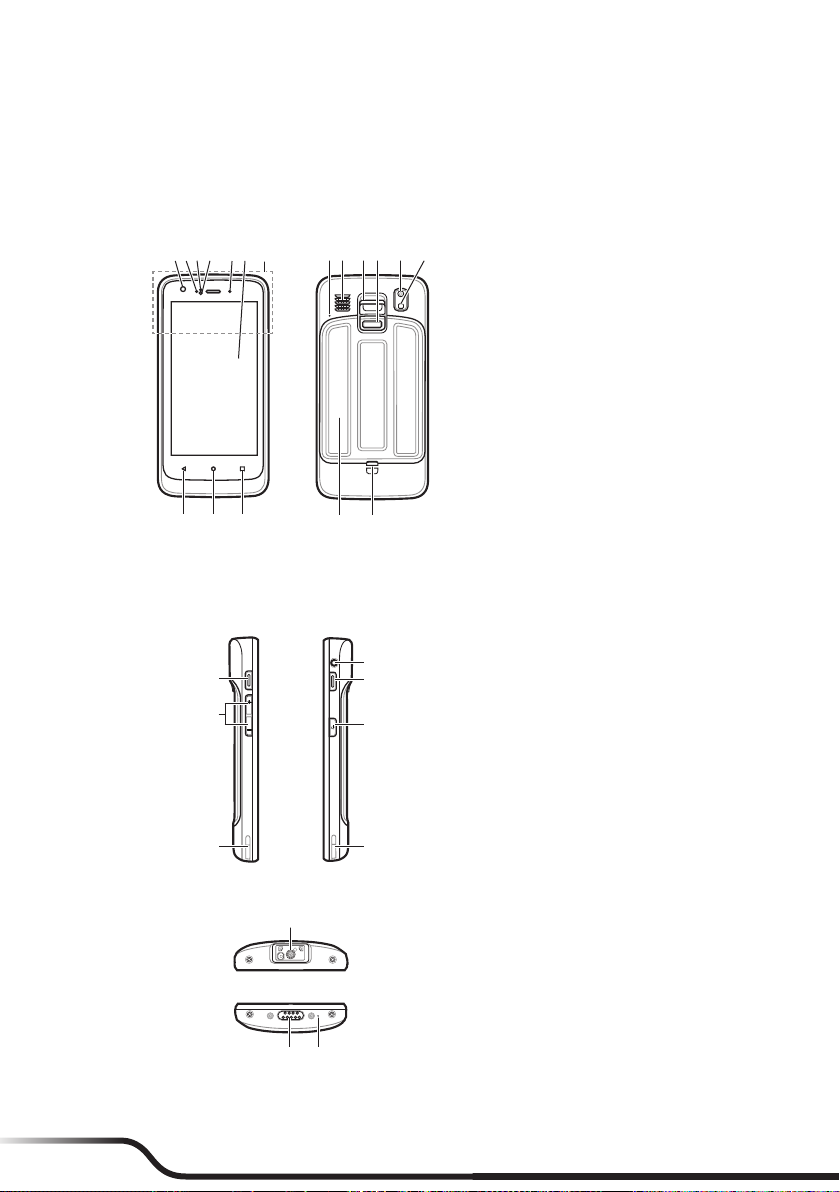
Front and Back
❽❾ ❿⓫ ⓬ ⓭
❿⓮
❶❷❸❹ ❺❻ ❼
⓯⓰⓱
❶Front camera lens*
❷Charge indicator
❸Light sensor
❹Proximity sensor
❺Notication indicator
❻Touch screen
❼NFC sensor*
❽Microphone
❾Speaker
❿Lanyard holder
⓫Battery cover latch
⓬Rear camera lens*
⓭Flash*
⓮Battery cover
⓯Recent Apps
⓰Home
⓱Back
*For selected models only
Left and Right
❶
❷
❸
❹
❷
❹
❺
❶Headphone jack
❷Barcode reader button*
❸Power button
❹Socket for device charger
❺Volume buttons
Top and Bottom
❶
❷❸
❶Barcode reader*
❷Microphone
❸Dock connector
*For selected models only

6 7
Installing the Micro-SIM Card, Memory Card and Battery
1. Slide the battery cover latch downward to unlock the battery cover (❶).
2. Using the small opening (beside the power button) as the release point (❷), pry the cover open along the
side, and then remove the cover.
❶❷
❷
3. Depending on your model, your device may come with a Micro-SIM card slot that allows you to install a
Micro-SIM card and use cellular services.
Locate the Micro-SIM card slot inside the battery compartment. Noting the card orientation, hold the card
by the edges and gently insert it into the slot (❸).
❸
4. Locate the memory card slot inside the battery compartment. Noting the card orientation, hold the card
(MicroSD) by the edges and gently insert it into the slot (❹).
❹
To remove a card, rst unmount it from the device by tapping on the desktop Settings Storage &
USB . Then gently push the top edge of the card inwards to release it, and pull it out of the slot.
LDo not apply pressure to the center of the memory card.
LInserting the card in the reverse direction may cause damage.
LThe manufacturer does not guarantee the product's compatibilities with the storage cards from all manufacturers.
LIf you encounter access problems with your memory card, please visit the website https://www.sdcard.org/downloads/formatter_4/
and use the "SD Memory Card Formatter 5.0 for SD/SDHC/SDXC" tool to format your memory card.

8 9
5. With the label side facing up, match the battery's contact points, insert the battery at an angle, and then t it
into the compartment (❺).
❺
To remove the battery, pull the plastic tab at an angle downward and lift the battery out of the compartment.
6. Place the battery cover back on (❻), lightly press the edges of the cover (❼), and then slide the battery
cover latch upward (❽) to lock the battery cover.
❻
❻
❼
❼❽
Charging the Battery
LUse only the charger supplied with your device. Use of another type of charger will result in malfunction and/or danger.
When charging the battery for the very rst time, you should charge it for at least 8 hours (using the AC charger)
with your device turned off.
CAUTION: For optimal performance of the lithium battery:
• Do not charge the battery where the temperature is high (for example, in direct sunlight).
• There is no need to fully discharge the battery.
• When storing the device for a long period of time, be sure to charge the device at least once every two weeks. Over discharge of the
device can affect the performance.
• Failure to follow the battery usage instructions could cause damage to your device, battery and even bodily injury or property
damage, and will void any warranty.
1. Push the clip outwards (❶), insert the plug to the AC charger and then push the clip inwards to lock the
plug in place (❷).

8 9
LThe look of the charger plug varies depending on your region.
2. Attach the charging cable to the device by lining up the connector on the holder to the dock connector on
the bottom of the device (❸). Make sure that the holder slides into the sockets on the device properly.
3. Plug the USB end of the power cord to the AC charger (❹), and plug the AC charger to a wall outlet (❺).
❶ ❷
❸
❹
❺
4. To detach the device from the charging cable, gently pry away one side of the holder.
LWhen handling the holder of the charging cable, do not use force.
The charge indicator glows red when charging is in progress. When the battery is fully charged, the indicator
turns green.
Extending the Battery Life
There are various ways to improve the device's battery life.
• Always fully charge the battery.
• Turn on Battery saver.
• Turn off unnecessary sounds, such as touch sounds.
• Close an app when you are not using it.
• Use a shorter timeout setting of the screen.
• Lower the brightness level of the screen.
• Turn off Bluetooth when you are not using it.
• Prevent the device from constantly scanning for available wireless networks.
• Enable Airplane mode to turn off all wireless transmission functions.
To change settings, tap on the desktop Settings.
Turning the Device On and Off
Turning On
1. Press and hold the Power button for about 2 seconds to turn on your device. Wait for the boot screen to
display.

10 11
2 SEC
LThe battery may not be fully charged when you use the device for the rst time. Charge the battery rst.
2. The Home screen will display and the device is in Lock mode by default. Drag the Lock icon ( ) upwards
to unlock. The device is ready for use.
Sleep Mode
Your device will automatically switch off the screen after 1 minute (by default) of inactivity. You can manually
switch off the screen by pressing the power button briey.
To resume the screen, press the Power button briey and then unlock the device by dragging the Lock icon ( )
upwards.
Airplane Mode
When you are in an airplane or in the area where data transferring is not allowed, enable Airplane mode. You
will be able to use many of your device's applications, but all wireless radios, including wireless networks and
Bluetooth, on the device are turned off – it cannot send or receive data.
To enable Airplane mode: press and hold the Power button to display the options menu and tap Airplane mode.
The icon in the status bar indicates that Airplane mode is on.
LYou can enable WIFI and Bluetooth in Airplane mode.
To disable Airplane mode: tap on the desktop Settings More in Wireless & networks, and tap the
Airplane mode switch to turn it off.
Using the Hot-Swap Function
The device supports the hot-swap function, allowing you to change the battery without having to turn off the
device.
1. Press and hold the power button for 2 seconds to display the options menu, and then select Hot swap
battery.
Este manual sirve para los siguientes modelos
2
Tabla de contenidos


