
Logitec G400 Manual de usuario

Getting started with
Logitech® Optical
Gaming Mouse G400


Contents
English Setup, 4Features, tips and troubleshooting, 6
Deutsch Einrichtung, 4Funktionen, Tipps und Fehlerbehebung, 8
Français Configuration, 4Fonctionnalités, conseils et dépannage, 10
По-русски Настройка, 4Возможности, советы и устранение неполадок, 12
Po polsku Konfiguracja, 4Funkcje, wskazówki i rozwiązywanie problemów, 14
Українська Настроювання, 4Функції, поради та усунення несправностей, 16
Magyar Telepítés, 4Jellemzők, tanácsok és hibaelhárítás, 18
Slovenčina Nastavenie, 4Funkcie, tipy a riešenie problémov, 20
Български Настройка, 4Функции, съвети и отстраняване на неизправности, 22
Română Configurare, 4Caracteristici, sfaturi şi depanare, 24
Hrvatski Instalacija, 4Značajke, savjeti i otklanjanje poteškoća, 26
Srpski Podešavanje, 4Funkcije, saveti i rešavanje problema, 28
Slovenščina Nastavitev, 4Funkcije, namigi in odpravljanje težav, 30
Eesti Seadistamine, 4Funktsioonid, näpunäited ja tõrkeotsing, 32
Latviski Uzstādīšana, 4Funkcijas, padomi un problēmu novēršana, 34
Lietuvių Sąranka, 4Funkcijos, patarimai ir trikčių šalinimas, 36
Italiano Installazione, 4Caratteristiche, suggerimenti e risoluzione dei problemi, 38
Česká verze Nastavení, 4Funkce, tipy a řešení potíží, 40
www.logitech.com/support 43
3
Logitech® Optical Gaming Mouse G400

Getting started with
Première utilisation
Logitech
®
Wireless Mouse M185
Getting started with
Logitech® Optical
Gaming Mouse G400
4
Logitech® Optical Gaming Mouse G400

1
2
USB
5
Logitech® Optical Gaming Mouse G400

3www.logitech.com/downloads
1
2
3
4
56
Features
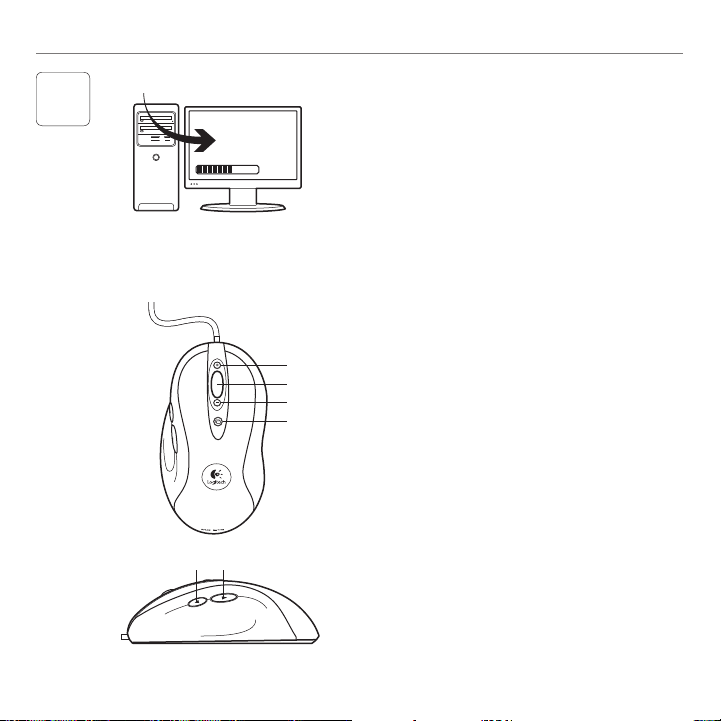
1. In-game dpi increase. Press button to increase dpi
of tracking sensitivity.
2. In-game dpi decrease. Press button to decrease dpi
of tracking sensitivity.
3. Generic Button 3. The function of this button
varies depending upon the application being used,
and it can be reprogrammed using the Logitech
Gaming Software to perform a variety of functions.
4. Default dpi button: Immediately switches
the mouse back to a default tracking sensitivity
of 800 dpi.
5. Forward Button.
6. Back Button. Use both buttons with your web
browser or with other applications.
In-play sensitivity switching
The G400 mouse has an out-of-box access to
four levels of tracking sensitivity: 3600 dpi, 1800 dpi,
800 dpi, and 400 dpi. 800 dpi is the default setting.
Download (www.logitech.com/downloads) and use
the Logitech® Gaming Software to choose up to
four personalized sensitivity levels between 400 dpi
and 3600 dpi.
6English
Getting started with

Tips for in-play sensitivity switching
• Try the default settings in practice games
before changing these settings.
• Practice using the in-game dpi increase/decrease
mouse buttons before engaging in serious combat.
• In first-person games, you may want to program
the G400 mouse to use only two tracking
sensitivities instead of three or more. Use a smaller
dpi tracking sensitivity (for example, 400 dpi) for
slower movements, like sniping, and a higher setting
(for example, 3600 dpi) for quicker movements.
• Customize each game according to your specific
sensitivity switching needs. The Logitech Gaming
Software stores this information and applies it
automatically when the game is detected.
Gaming-grade specifications
• Maximum tracking resolution: 3600 dpi
(default: 800 dpi)
• Image processing: 5.8 megapixels/second
• Maximum acceleration: 25 G1
• Maximum speed: up to 70–140 inches/second1
• USB report rate: up to 1000/second
(default setting)2
• Data format: 16 bits/axis
• Total weight: 133 grams
• 15-gram ultra-light, flexible cord
• Static coefficient of friction: 0.143
• Dynamic coefficient of friction: 0.093
1 The listed specification was measured on popular cloth
and plastic gaming mousepads. This specification may vary
depending on surface.
2 Faster report rates may cause greater CPU usage on
some machines. Use the Logitech Gaming Software to
specify a lower report rate, such as 500 reports per second,
if you experience unacceptable CPU usage at 1000 reports
per second.
3 The listed specification was measured on a wood-
veneer desktop. This specification may vary depending on
surface.
Help with setup
• Check the mouse USB cable connection.
Try the mouse USB cable in another USB port
on the computer. Make sure to use a powered
USB port.
• Try rebooting the computer.
• If possible, test the mouse on another computer.
• Visit www.logitech.com/support for more
information.
Note: To get the most out of your product, download and install
the Logitech Gaming Software. The G400 mouse (3600 DPI version)
does not work with the Logitech SetPoint® software.
English 7
Logitech® Optical Gaming Mouse G400

3www.logitech.com/downloads
1
2
3
4
56
Funktionen
1. dpi-Wert im Spiel erhöhen. Drücke diese Taste,
um den dpi-Wert der Abtastempfindlichkeit
zu erhöhen.
2. dpi-Wert im Spiel verringern. Drücke diese Taste,
um den dpi-Wert der Abtastempfindlichkeit
zu verringern.
3. Standardtaste 3. Die Funktion dieser Taste hängt
von der aktiven Anwendung ab. Du kannst
sie innerhalb der Logitech Gaming Software mit
verschiedenen Funktionen belegen.
4. Taste für Standard-dpi: Setzt die Maus sofort
auf die Standard-Abtastempfindlichkeit von
800 dpi zurück.
5. Vor-Taste.
6. Zurück-Taste. Verwende beide Tasten in Deinem Web-
browser oder anderen Anwendungen.
Empfindlichkeitsumschaltung im Spiel
Bei der G400-Maus sind vier verschiedene
Abtastempfindlichkeiten einstellbar: 3600 dpi,
1800 dpi, 800 dpi und 400 dpi. 800 dpi ist
die Standardeinstellung. Lade die Logitech®
Gaming Software herunter (www.logitech.com/
downloads) und wähle aus bis zu vier individuellen
Empfindlichkeitseinstellungen zwischen 400 dpi
und 3600 dpi.
8Deutsch
Erste Schritte

Tipps für die
Empfindlichkeitsumschaltung im Spiel
• Teste die Standardeinstellungen in Übungsspielen,
bevor Du sie änderst.
• Übe die Verwendung der Maustasten zum
Erhöhen/Verringern des dpi-Werts, bevor Du sie
in ernsthaften Kampfszenen nutzt.
• Bei First-Person-Spielen ist es sinnvoll, für die G400-
Maus zwei Abtastempfindlichkeiten anstatt
drei oder mehr zu programmieren. Verwende bei
langsameren Bewegungen wie Schüssen aus
dem Hinterhalt einen geringeren dpi-Wert für
die Abtastempfindlichkeit (z. B. 400 dpi) und
bei schnelleren Bewegungen einen höheren Wert
(z. B. 3600 dpi).
• Stelle für jedes Spiel eine individuelle
Empfindlichkeitsumschaltung ein. Die Logitech
Gaming Software speichert diese Informationen
und wendet sie automatisch an, wenn das Spiel
erkannt wird.
Technische Daten für Spiele
• Maximale Abtastempfindlichkeit: 3600 dpi
(Standard: 800 dpi)
• Bildverarbeitung: 5,8 Megapixel/Sekunde
• Maximale Beschleunigung: 25 G1
• Maximale Geschwindigkeit: bis zu 1,8 – 3,6 m/s1
• USB-Signalrate: bis zu 1000/s (Standardeinstellung)2
• Datenformat: 16 Bit/Achse
• Gesamtgewicht: 133 Gramm
• Extrem leichtes Spiralkabel (15 g)
• Statischer Reibungskoeffizient: 0,143
• Dynamischer Reibungskoeffizient: 0,093
1 Der angegebene Wert wurde auf häufig verwendetem
Material und Gaming-Mauspads aus Plastik gemessen.
Tatsächliche Werte sind von der Oberfläche abhängig.
2 Höhere Signalraten verursachen auf manchen Computern
eine höhere CPU-Auslastung. Stelle über die Logitech
Gaming Software eine niedrigere Signalrate wie
500 Signale pro Sekunde ein, wenn die CPU-Auslastung
bei 1000 Signalen pro Sekunde zu hoch ist.
3 Der angegebene Wert wurde auf einer Oberfläche
aus Holzfurnier gemessen. Tatsächliche Werte sind von
der Oberfläche abhängig.
Probleme bei der Einrichtung?
• Überprüfe die Verbindung des USB-Kabels.
Schließe die Maus versuchsweise an einen anderen
USB-Anschluss an. Verwende einen USB-Anschluss
mit eigener Stromversorgung.
• Starte den Computer neu.
• Teste die Maus, falls möglich, an einem anderen
Computer.
• Weitere Informationen findest Du unter
www.logitech.com/support.
Hinweis: Lade die Logitech Gaming Software herunter und installiere
sie, um das Beste aus Deiner Maus herauszuholen. Die G400-Maus
(3600-dpi-Version) ist nicht mit der Logitech SetPoint®-Software
kompatibel.
Deutsch 9
Logitech® Optical Gaming Mouse G400
3www.logitech.com/downloads
1
2
3
4
56
Fonctionnalités
1. Augmentation de la résolution en cours de partie.
Appuyez sur le bouton pour augmenter
la résolution en ppp de la sensibilité du suivi.
2. Réduction de la résolution en cours de partie.
Appuyez sur le bouton pour réduire la résolution
en ppp de la sensibilité du suivi.
3. Bouton générique 3. La fonction de ce bouton
varie selon l'application utilisée et peut être
reprogrammée à l'aide du logiciel Logitech Gaming
Software pour différents usages.
4. Bouton ppp par défaut : bascule immédiatement
la souris sur une sensibilité du suivi par défaut
de 800 ppp.
5. Bouton Suivant.
6. Bouton Précédent. Utilisez les deux boutons avec
votre navigateur Web ou avec d'autres applications.
Changement de la sensibilité
en cours de partie
La souris G400 est fournie avec quatre niveaux
de sensibilité du suivi immédiatement utilisables:
3 600 ppp, 1 800 ppp, 800 ppp et 400 ppp.
Le paramètre par défaut est 800 ppp.
Téléchargez (www.logitech.com/downloads)
et utilisez le logiciel Logitech® Gaming Software
pour choisir jusqu'à quatre niveaux de sensibilité
personnalisés entre 400 ppp et 3 600 ppp.
10 Français
Première utilisation
Tabla de contenidos
Idiomas:


