
Lippert Battery Monitor Manual de usuario

Battery Monitor
OWNER'S MANUAL

Rev: 10.27.22 Page 2 CCD-0006453
Introduction
The Lippert Battery Monitor works with 12 V, lead-acid batteries and allows the user to monitor battery
status and condition via the Lippert OneControl app.
Additional information about this product can be obtained from lci1.com/support or by downloading the
free LippertNOW app. The app is available on Apple App Store® for iPhone® and iPad® and also on Google
Play™ for Android™ users.
Apple App Store®, iPhone®, and iPad® are registered trademarks of Apple Inc.
Google Play™ and Android™ are trademarks of Google Inc.
For information on the assembly or individual components of this product, please visit:
https://support.lci1.com/electronics/
NOTE: Images used in this document are for reference only when assembling, installing and/or operating
this product. Actual appearance of provided and/or purchased parts and assemblies may differ.
TABLE OF CONTENTS
Introduction 2
Safety 3
Preparation 4
Battery Monitor Location 4
Download OneControl 4
Installation 4
Operation 7
Information Icons 7
Setting the Battery Name 8
Setting the Battery Capacity 8
Setting the battery install date 8
Setting a Low Battery Alert 9
Setting an Idle Alert 10
Setting Battery Condition 10
Statistics 11
Maintenance 11
Battery Storage 11
Replacing a Battery 11
Troubleshooting 12
Notications 12
Troubleshooting Table 12
Notes 13

Rev: 10.27.22 Page 3 CCD-0006453
The "WARNING" symbol above is a sign that a procedure has a safety risk involved and may cause
death or serious personal injury if not performed safely and within the parameters set forth in this
manual.
Failure to follow instructions provided in this manual may result in death, serious personal injury
and/or severe product and property damage, including voiding of the component warranty.
Safety
Read and understand all instructions before installing or operating this product. Adhere to all safety labels.
This manual provides general instructions. Many variables can change the circumstances of the instructions,
i.e., the degree of difficulty, operation and ability of the individual performing the instructions. This
manual cannot begin to plot out instructions for every possibility, but provides the general instructions,
as necessary, for effectively interfacing with the device, product or system. Failure to correctly follow the
provided instructions may result in death, serious personal injury, severe product and/or property damage,
including voiding of the Lippert limited warranty.
Battery Monitor

Rev: 10.27.22 Page 4 CCD-0006453
Preparation
Battery Monitor Location
The Battery Monitor should be installed on a wall inside of the unit, in the basement, the pass-through, or
another dry area with easy access to the battery cables.
Download OneControl
To use Battery Monitor, download the OneControl app.
1. Search for "OneControl" in the appropriate app store.
A. For iOS users (Apple, iPhone, iPad): search for "OneControl" in the Apple App Store.
B. For Droid users (Android): search for "OneControl" in GooglePlay.
NOTE: The QR codes below can be scanned to go directly to the app within the appropriate app store.
OneControl in
GooglePlay
OneControl in
the AppStore
Installation
1. Download the OneControl app.
2. Open OneControl app and follow the prompts for initial set up of the app.
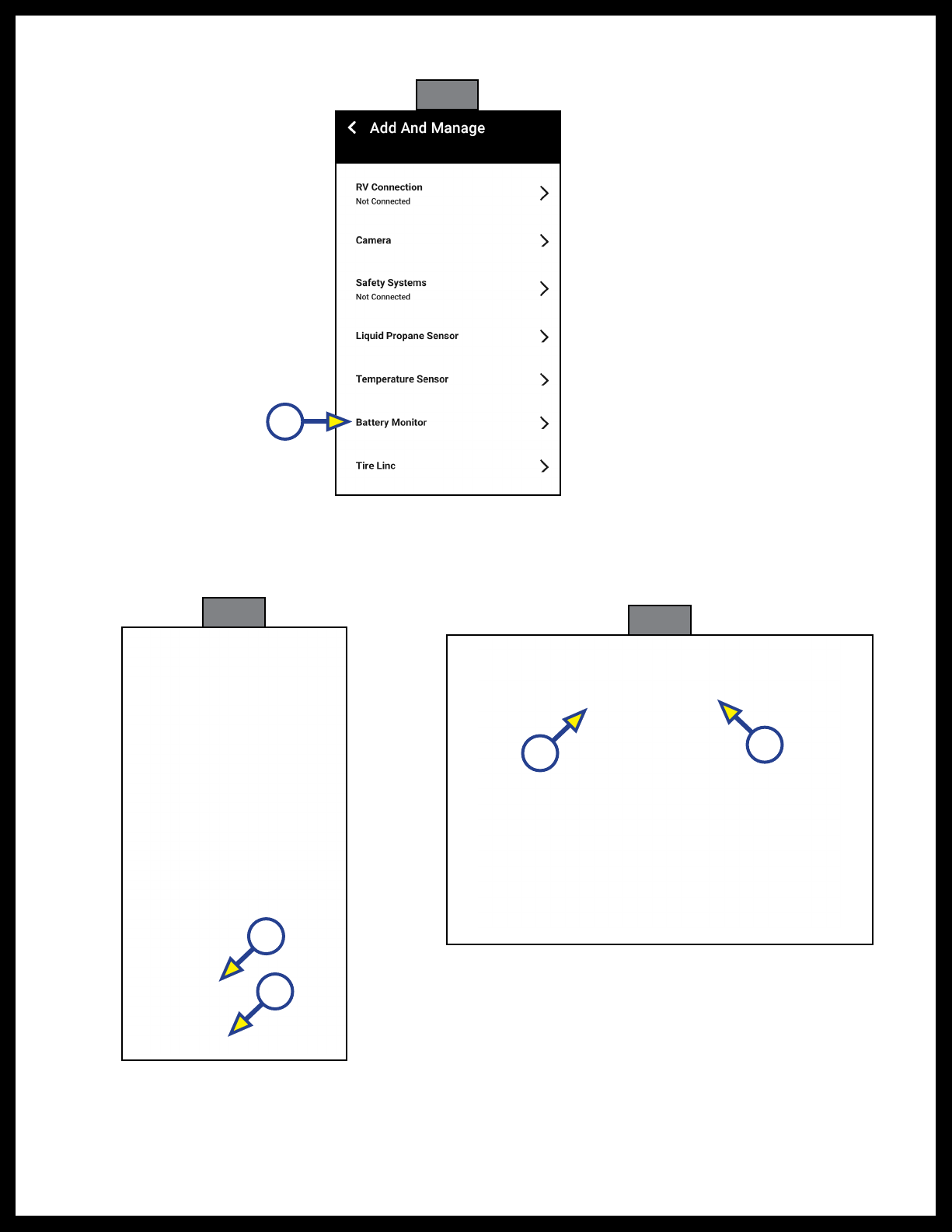
3. Tap the '+' icon (Fig. 1A) on the OneControl app home screen.
Fig. 1
A
Rev: 10.27.22 Page 5 CCD-0006453
4. Tap "Battery Monitor" from the list of devices to add or manage (Fig. 2A).
Fig. 2
A
5. Tap "Scan with Camera" (Fig. 3A) and scan the QR code on the Battery Monitor (Fig. 4A).
Fig. 3 Fig. 4
B
A
B
A

Rev: 10.27.22 Page 6 CCD-0006453
6. Once connected, the Battery Monitor will be shown on the home screen (Fig. 6A).
Fig. 5
A
Fig. 6
NOTE: The Battery Monitor can be connected to the OneControl app manually. Tap "Connect Manually"
(Fig. 3B) and enter the MAC Address (Fig. 4B) for manual entry (Fig. 5).

Rev: 10.27.22 Page 7 CCD-0006453
Fig. 7
A
Information Icons
For more information on features in the Battery Monitor section of the OneControl App, tap the information
icons (Fig. 7A).
Operation
Lead acid batteries last the longest when cycled. Regularly discharge the battery below 70% state-of-
charge and charge above 90%. Fully discharging a battery can damage it and lead to a shorter expected
life. Keeping a battery fully charged can also decrease the useful life of the battery. When the unit is idle for
longer than a day or two, physically disconnect the battery from the unit. This will prevent small electrical
loads from discharging the battery while the unit is not being used or is in storage.
State of charge is the relative remaining capacity of the battery. It is determined by referencing voltage and
by adding or subtracting the amount of charge entering or leaving the battery. For lead acid batteries, the
monitor associates 12.9 V to 100% when the battery is not loaded and 12.1 V to 0%.
Once the OneControl app is installed and linked to the Battery Monitor, the two can work together to
provide essential information about the unit's battery to the user via the app.

Rev: 10.27.22 Page 8 CCD-0006453
Setting the Battery Name
Tap the name of the battery that the battery monitor is monitoring.
1. Tap the "SETTINGS" tab on the home screen (Fig. 8A) and tap "Battery Name."
2. Tap name from the list of available battery names and tap "APPLY" (Fig. 9A).
NOTE: Names and naming do not affect any calculations.
Once set, the name will appear on the OneControl home screen.
Setting the Battery Capacity
Fig. 8 Fig. 9
A
A
In order for the battery monitor to properly calculate state of charge and time remaining, the battery's
capacity must be entered in ampere hours.
NOTE: Ampere hours can often be found on the battery as a number followed by Ah.
1. Tap the "SETTINGS" tab on the home screen (Fig. 10A).
2. Tap "Amp Hour Capacity" (Fig. 10B).
3. Tap the "Ah" input box (Fig. 11A).
4. Enter the Amp Hour Capacity and tap "APPLY" (Fig. 12).
Fig. 10 Fig. 11 Fig. 12
A
B
A

Rev: 10.27.22 Page 9 CCD-0006453
Setting the Battery Install Date
The battery monitor will store the date the battery was installed.
1. From the settings screen, tap "Battery Install Date" (Fig. 13A).
2. Use the date picker to tap the new install date (Fig. 14A) (highlighted in purple, date shown as
example.)
Fig. 13 Fig. 14
A
A
Setting a Low Battery Alert
1. From the settings screen, tap "Low Battery Notification" (Fig. 15A).
2. Move the slider (Fig. 16A) to tap a state of charge at which you will receive an alert.
NOTE: Alerts will be received when device is communicating with the unit.
Fig. 15 Fig. 16
A
A
Rev: 10.27.22 Page 10 CCD-0006453
Setting an Idle Alert
An idle alert reminds users to disconnect the unit when not in use, to avoid slowly losing battery power.
NOTE: An idle alert will only be received when the device is communicating with the unit.
1. On the setting screen, tap "Idle Alert" (Fig. 17A).
2. Move the slider (Fig. 18A) to adjust the alert time.
Fig. 17 Fig. 18
A
A
Setting Battery Condition
The battery condition is used in the state of charge calculation.
1. To set it, tap "Battery Condition" from the settings menu (Fig. 19A).
2. Tap the condition that best matches the battery (Fig. 20).
Fig. 19 Fig. 20
A
Tabla de contenidos
Otros manuales de Monitor de Lippert


