
Linsar LS58UHDGTV Manual de usuario

User Manual
MODEL: LS58UHDGTV
58”
ULTRA HD
ANDROID TV
™

2
Welcome
Welcome to Linsar!
This user manual tells you all you need to know about setting up your newTV.
Please take special note of any important safety and usage information presented with the symbol.
All products brought to you by Linsar are manufactured to the highest standards of performance and safety
and, as part of our philosophy of customer service and satisfaction, are backed by a comprehensive
1Year Warranty.

3
Contents
Welcome 2
Contents 3
Unpack and Prepare 4
What's in the box 4
ImportantTips 5
Attaching the stand 6
Wall-mounting theTV 7
Connect to power 8
Connect your antenna 8
Controls and Connections 9
Get to know yourTV 9
Control joystick on theTV 9
Ports on theTV 10
Remote Control 12
Setup 12
Using the Remote Control 13
Remote Pairing 13
Remote Overview 14
On-Screen Set Up 16
How to access other devices
connected to theTV 17
How to turn on/off subtitles in
liveTV mode 17
How to play personal videos,
photos and music 17
SmartTV 18
Download or Delete Apps 19
Stream using Chromecast-
enabled Apps 20
Using Voice Interaction 21
ConnectTo Google Home 21
TV Setting Menus 22
Picture 24
Sound 26
Channel 27
Network & Internet 28
Accounts and Sign-in 30
Google Assistant 30
Apps 31
Retail Mode 31
About 32
Date &Time 33
Inputs 34
Power 35
Screen Saver 36
Location 36
Accessibility 37
Reset 37
Remotes & accessories 38
High Dynamic Range (HDR) 39
TV Guide 40
Recording 41
Recording LiveTV 42
Scheduled Recording 42
Playback 42
Pause LiveTV (Time-shift) 43
Troubleshooting 44
Specifications 47
Compliance and
Responsible Disposal 48

4 | UNPACK AND PREPARE
Unpack and Prepare
What's in the box
In the box you will find:
A. 58" Ultra HD AndroidTV
B. Remote Control
C. AAA Batteries
D. Mini AV Cable
E. Screws forTV Stands
F. TV Stands
G. Warning Sheet
H. TVToppling Safety Message
I. Quick Start Guide
J. Warranty Certificate
K. General Safety Warnings
L. User Manual
You will need:
• Phillips-head screwdriver (for stand installation)
• Someone to help you lift and install yourTV
• Antenna cable (to watch liveTV)
• Broadband internet connection (to use smart apps)
Before installing your newTV, check you have everything needed.
D
E
F
G
HIJKL

UNPACK AND PREPARE | 5
Important Tips
• Place theTV on a level surface.
• Place theTV away from any source that may generate heat or vibrations.
• Make sure there is enough space around vents for airflow.
• The remote control works up to 5 metres away from theTV.
• Unplug theTV before cleaning it.
• Clean using a dry cloth only - do not use water or chemicals.
• Use only the power supply provided.
• It is highly recommended to use safety straps for securing theTV in place.
• Keep liquid, children and pets away from theTV at all times.

6 | UNPACK AND PREPARE
Attaching the stand
• ThisTV is heavy! We recommend asking
someone to help you lift it.
• Unplug theTV from the power outlet before
installing or removing the stand.
• DO NOT place theTV standing upright without
its stand attached; it could damage the remote
sensor at the bottom of theTV.
• Only touch the frame, not the screen.
• It is highly recommended to use safety straps
for securing theTV.
CAUTION!
Do not apply
excessive force as
you might damage
the screw holes.
2
Unless you are wall-mounting theTV, you will need to
attach its stand/legs.
1. Lay theTV face-down on a soft, flat surface (like
the sofa, or a towel on a table) larger than theTV
itself.
2. Match stands to the installation points on the
underside of theTV.
3. Attach the stands to theTV at the installation
points using the screws provided. (Grab a
screwdriver for this bit).
1
2
3
UNPACK AND PREPARE | 7
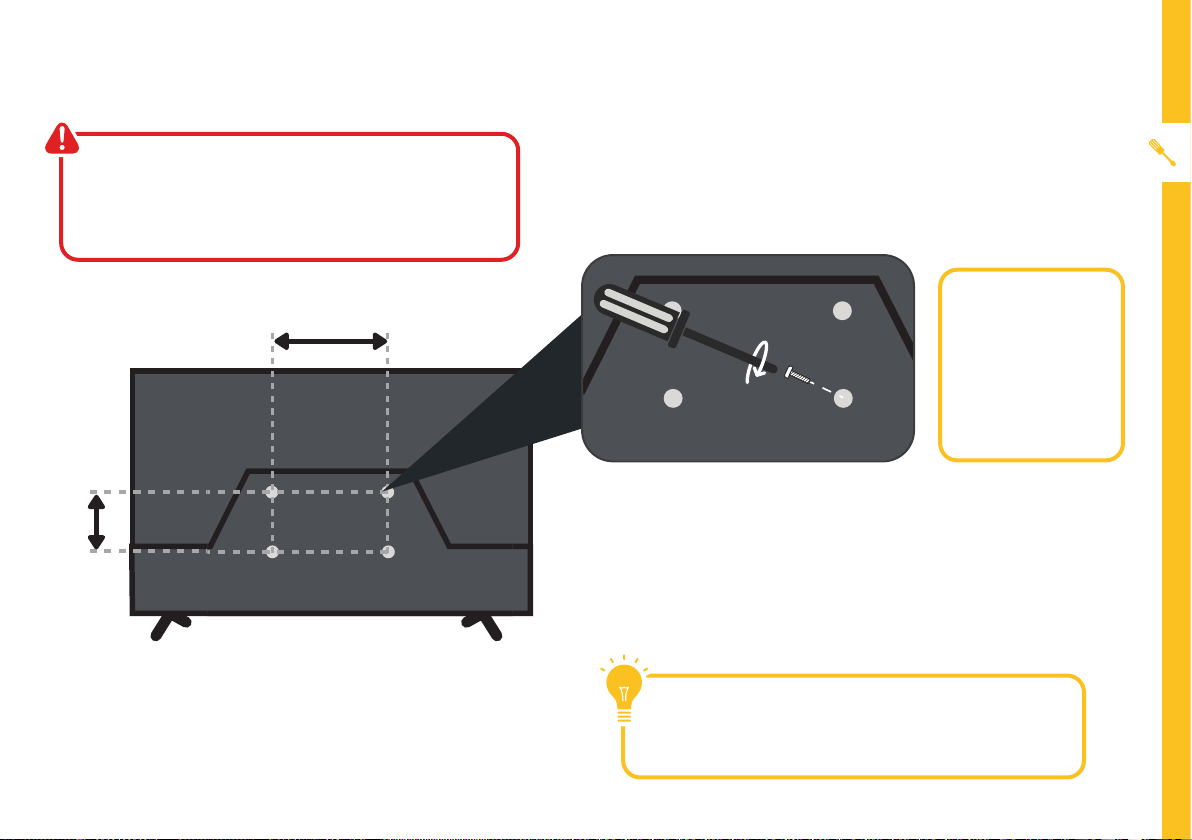
400mm
Back of theTV
200mm
Wall-mounting the TV
TheTV comes with holes on the back panel for use
with wall-mounting brackets (bracket not included).
Use four standard M6*16mm screws (or longer,
depending on the mounting bracket) to wall-mount
thisTV (screws are not included).
• Unplug theTV from the power outlet
before wall-mounting.
• Contact a professional for assistance with
wall-mounting theTV.
Required
• VESA Mounting
Bracket
• 4 x M6*16mm
screws (or
longer as
required)
The screws in the package are for securing the TV
stand only. If you are wall-mounting theTV, consult a
qualified installer for advice on bracket support and
wall support.

8 | UNPACK AND PREPARE
Free-to-air TV in HD (High Denition)
High Definition (HD) channels
provide the best viewing quality
and are available with a digital
antenna connection.
TV channels in Ultra HD resolution are
not currently available in Australia.
Therefore when you watch HD
broadcast signals on an Ultra HDTV,
the picture can appear 'soft' and lacks
the detail you see when watching the
same content on an HDTV.
Connect to power
Make sure theTV is switched off at the power outlet
until you have finished connecting your cables.
Connect your antenna
Antenna cable not included.
ABC HD
SBS ONE HD
7HD
9HD
10 HD
PRIME7 HD
WIN HD
Example
HD Channels
Don't forget to plug in theTV to
the power outlet. Leave the power
switched off until installation is
finished.

CONTROLS AND CONNECTIONS | 9
See next page for more info on the connections.
Controls and Connections
Buttons on the TV
Get to know your TV
Front view
On/Standby light and
Remote sensor
1. : Select the next channel or move up.
2. + : Increase the volume level or move right.
3. - : Decrease the volume level or move left.
4. : • WhenTV is on standby, press to turn on.
5. : Select the previous channel or move down.
1
2
3
4
5
Bottom View
• WhenTV is on, press to enter the menu.
Use the joystick to navigate around the
interface and press to enter the highlighted
item.
• WhenTV is on, press and hold to putTV on
standby.

10 | CONTROLS AND CONNECTIONS
Ports on the TV
1 2 3
1USB
STORAGE
• Plug in a USB stick to PVR record and pause live TV.
• Play media files stored on your USB storage device (supported file
codecs and extensions may vary).
• Update theTV software via USB.
2
HDMI IN
Use a high-speed
HDMI cable for
best picture and
sound quality.
SOUND
PICTURE
COMPUTER
All-digital connection between theTV and any HDMI device. Supports Ultra
HD resolution. Requires a high-speed HDMI cable (not included).
3Headphone
Jack
SOUND
Connect to your headphones, amplifier, soundbar or audio device, using an
AUX cable (not included).
Tabla de contenidos
Otros manuales de Televisión de alta definición de Linsar


