Linka LEO Manual de usuario

GPS Smart Bike Lock - LK-B111/LK-B112
OWNER’S MANUAL

Welcome to LINKA
Please read this Owner’s Manual carefully. The instructions in this guide will help you get
the most out of your LINKA LEO GPS Smart Bike Lock.
Setup and Get Started 3
LINKA lock Overview 3
Installing LINKA 5
Connecting Your LINKA lock 6
Getting to know your LINKA LEO LED lights 7
LINKA LEO Basics 9
Locking Your Lock 9
Unlocking Your Lock 10
LINKA App Features and Settings 11
Panic 11
Sleep 11
Lock Settings - For lock owners only 11
Phoneless Access Code (PAC) 12
Edit Lock Name 12
Tones 12
Tamper Siren 12
Auto-Unlocking 12
Quick Lock 13
Battery 13
Firmware Version 13
Remove Lock 13
Reset to Factory Settings 13
Add or Delete Lock 13
Notifications 14
Out of Range Alert 14
Back in Range Alert 14
Battery Low Alert 14
Battery Critically Low Alert 15
Sleep Notification 15
Charge your LINKA 15
LINKA Bike Sharing 16
Sharing your LINKA lock 16
Revoking permissions 17
Transferring ownership 17
Rev, 12/29/18
1

LINKA LOOP 17
Troubleshooting and Support 19
Factory Reset 19
Updating Software 19
Limited Warranty 19
Additional Support 20
Important Safety & Product Information 20
Device Information 20
Software License Agreement 21
Battery Warnings 21
Declaration of Conformity 22
FCC Compliance 22
Industry Canada Compliance 22
Rev, 12/29/18
2

1. Setup and Get Started
Our innovative technology allows you to secure your bike without a physical key and
provides greater peace of mind.
Thank you for purchasing LINKA LEO. Before using your smart bike lock, read the
following instructions to set up your lock and familiarize yourself with its basic features.
1.1. LINKA lock Overview
LINKA LEO Features
01. POGO Charging Port
02. Power Button
03. LED Indicator Light
Rev, 12/29/18
3

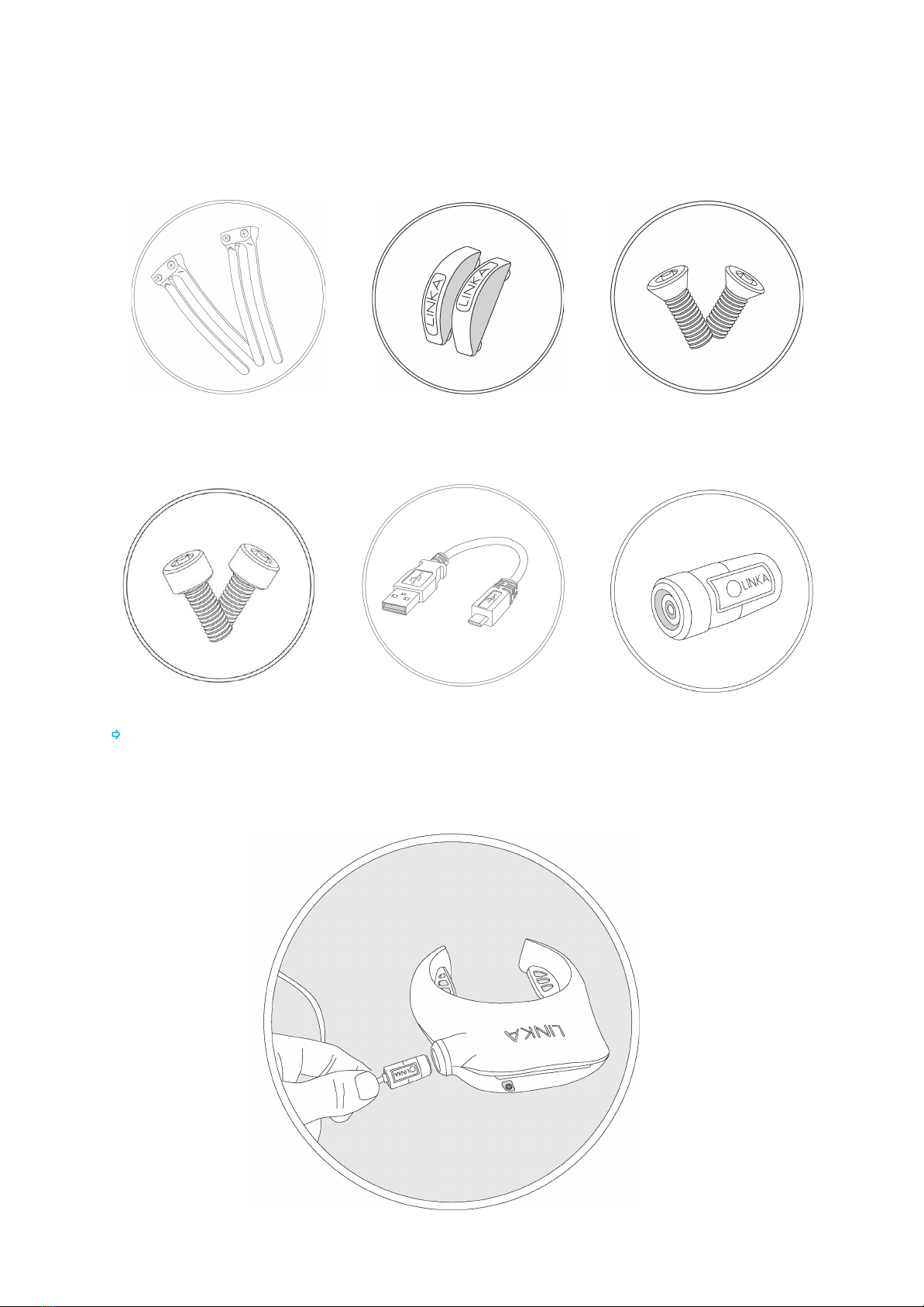
Accessories Included:
2 x Universal Mount Straps 2 x Caps 2 x Flat Head Screws
2 x Socket Head Screws 1 x Micro-USB Cable 1 x POGO Adapter
⇨ TIP: Before switching on your LINKA LEO for the first time, we recommend
charging it overnight using the POGO charger connected to the micro-USB cable.
The LED Indicator will turn solid green when the lock is fully charged.
Rev, 12/29/18
4

1.2. Installing LINKA
LINKA can be mounted on the inside or outside of the seat stay, as well as the
front fork. For the highest level of security, position your LINKA LEO on the inside
seat stay of your bicycle. There are two ways to mount your LINKA lock onto your
bike.
Method 1: Install using mounting screws (if your bike has mounting
holes)
i. Align the slots on the inner ring of your LINKA lock with the
mounting studs on the seat stays of your bike.
ii. Attach your LINKA LEO to your bike using the two socket head
screws provided.
Rev, 12/29/18
5

Method 2: Install using the included universal mounts
1. Mount the 2x universal mount straps on the back of the lock using
the flat head screws and the caps
2. Align the lock and straps with the seat stays of your bike where you
would like to secure your lock
3. Push the tie-down strap of the mount through the desired slot and
around one of the seat stays.
4. Bring the open end of the tie-down strap back through the worm
screw opening.
5. Tighten the worm screw to reduce wiggle room.
6. Repeat steps 2-5 on the other seat stay.
7. Trim the excess strap using a pair of scissors
1.3. Connecting Your LINKA lock
⇨ TIP: Most of the time, your LINKA LEO will be asleep, so to ensure the fastest
connection, always press the power button to wake up LEO before you attempt to
connect your lock to the LINKA app.
1. Download the LINKA Smart Lock app from the App Store® or Google Play
2. Once it is downloaded, tap the LINKA app icon to launch it
3. Sign Up / Log in
a. Sign up with email
i. Enter your first name, last name, email and create a password
ii. Read the Terms & Conditions and tap Submit if you agree
iii. Check your email for an account verification link
b. Continue with Facebook
i. Make sure you’re currently logged onto Facebook and tap the
Continue with Facebook button
ii. If prompted, enter your Facebook login details
NOTE: If you sign up using Facebook, you will need to use Facebook
to login.
c. Log in with Email
Rev, 12/29/18
6

If you already have a LINKA account, tap LOG IN and enter your
email and password to sign in.
4. Enable bluetooth on your phone
i. If bluetooth is not yet enabled on your phone, the LINKA app will
introduce a prompt to enable the function
ii. Once bluetooth is enabled, select LINKA LEO as the type of lock
you’d like to pair
NOTE: All bluetooth-connected settings and actions such as alerts,
unlocking, etc. will function and appear only when bluetooth is enabled on
your smartphone.
5. Pair your LINKA LEO
i. In the LINKA app, select LINKA LEO as the lock you’d like to pair
ii. Press the button on your LINKA LEO to make it discoverable by
your smartphone
iii. The LED indicator will begin blinking blue to signify that your lock is
now in Discoverable mode. You will also hear an audible start-up
tone. The LED indicator will blink blue and remain in Discoverable
mode for 60 seconds before switching off to conserve battery power.
iv. Swipe left on the app until you see “Scanning for LINKA” appear
v. Once LINKA LEO is successfully paired, you will see a screen with an
image of the lock on the app’s home screen, along with panic and
sleep buttons.
NOTE: If this is a new lock, the LINKA app will prompt you to enter and
store a four-digit Phoneless Access Code (PAC) before continuing further.
Your PAC provides access to your LINKA LEO even when you do not have
your smartphone. Treat your PAC as a PIN and do not share it with anyone
with whom you do not wish provide bike access. For added security, codes
in identical sequences such as ‘1111’ up to ‘9999’, as well as ‘1234’, are not
allowed
1.4. Getting to know your LINKA LEO LED lights
LED Light Legend:
COLOR
PATTERN
MODE
DESCRIPTION
ACTIONABLE STEPS
No Color
LED off
Sleep
When disconnected from
your smartphone, your LINKA
LEO will go to sleep based on
Press button once to wake
lock
Rev, 12/29/18
7

your designated battery
setting times
Blue
Blinking
Discoverable
When your LINKA LEO is
switched on, the LED dome
will blink blue for 60 seconds
in search of a smartphone to
connect with
A. Connect a new smart
Lock
B. Be within range of a
previously connected
Lock to connect
Amber
Solid
Connecting
LINKA lock is connecting with
your smartphone
A. Wait until connection is
complete
Green
Blinking
Connected
LINKA LEO is connected to a
smartphone
A. Lock or unlock your
LINKA Smart Bike Lock
B. Modify your lock settings
C. View your LINKA’s status
and activity
Amber
Blinking
Locking
Your LINKA LEO is locking
Allow your Lock to lock
Red
Blinking Fast
Locking stalled
If there is any interference
with the steel shackle, LINKA
will retract the shackle for
safety reasons. The LED will
blink red and you will receive
an alert through the LINKA
app on your smartphone
Ensure that there is no
interference to the locking
shackle and attempt to re-lock
Red
Blinking
Slow
Locked
When LINKA LEO is locked,
the LED will blink red every 6
seconds
Your LINKA lock is locked and
secure
Red
Blinking
Slow
Unlocked/Locked
When your LINKA battery is
below 30%, the led will blink
every 5 seconds
Your LINKA LEO needs to be
recharged
Blue
Blinking
Unlocking
Your LINKA lock is unlocking
Allow your Lock to unlock
Purple
Blinking
Accessible via
Phoneless
Access Code
(PAC)
When your smartphone is
not present, you may enter
your personalized Phoneless
Access Code to manually
unlock your LINKA lock
Hold the button for six
seconds and listen for a beep.
Then, enter your four-digit PAC
by pressing the Power button
the same number of times as
each number of the PAC..
Rev, 12/29/18
8

Red
Solid
Charging
Your low-battery LINKA LEO
is charging
Charge your LINKA LEO using
the POGO adapter with the
micro-USB charging cable
Green
Solid
Fully charged
Your LINKA LEO is fully
charged and ready for
months of use
Unplug the POGO charger
from your lock
Green
Solid
Firmware
updating
Over the air free updates are
available for download to
ensure you always have an
optimal experience with
LINKA
Allow your lock to be updated.
The LED will blink blue once
the update is successful
2. LINKA LEO Basics
2.1. Locking Your Lock
Once your LINKA LEO is connected with your smartphone and unlocked, you will
be able to lock it using the two options below. The LINKA app will show you the
status of your lock and whether or not it is locked.
⇨ TIP: Make sure the lock is not moving when you attempt to lock it. As a safety
precaution, LINKA locks will not lock if they detect movement.
1. Connect and Lock
a. Open the LINKA app on your phone. If the center lock icon is gray,
LEO has not connected. Press the button on your lock to wake it
up and begin automatic connection.
b. Once LINKA LEO is connected, the center lock image will turn green.
Press the center lock image and hold under the circle fills with red
and slide down to initiate locking.
2. Quick Lock
a. After you enable Quick Lock in your app’s lock settings, you can lock
LINKA LEO by simply pressing the button twice quickly.
⇨ TIP: LINKA LEO sounds three beeps once the lock is successfully locked.
NOTE: If something obstructs the locking, the lock’s shackle will automatically
retract and LINKA LEO will remain unlocked. If this happens, you will receive an
alert on your smartphone with the instruction to try locking your LINKA LEO
Rev, 12/29/18
9
Tabla de contenidos
Otros manuales de Cerrar de Linka