
LG UltraFine 38GL950G Manual de usuario

* Disclaimer : LG LED Monitor applies LCD screen with LED backlights.
This product is a computer monitor and not for television purpose.
Please read this manual carefully before operating your set and retain it
for future reference.
38GL950G
www.lg.com
Copyright © 2019 LG Electronics Inc. All Rights Reserved.
OWNER’S MANUAL
(LED Computer Monitor*)
Gaming Computer Monitor

ENGLISH
2
TABLE OF CONTENTS
LICENSE.......................................3
OPEN SOURCE SOFTWARE
NOTICE INFORMATION ..............4
ASSEMBLING AND PREPARING 4
- Supported Drivers and Software .........................5
Monitor Driver
OnScreen Control
LG UltraGear™ Control Center
- Product and Button Description........................... 5
How to Use the Joystick Button
How to Use the Lighting Button
- Moving and Lifting the Monitor............................7
Installing on a Table
Adjusting the Stand Height
Adjusting the Angle
Tidying up Cables
Using the Kensington Lock
Installing the Wall Mount Plate
Installing on the Wall
USING THE MONITOR.............. 15
- Connecting to a PC...................................................15
HDMI Connection
DisplayPort Connection
- Connecting Peripherals...........................................16
USB Device connection
Connecting Headphones
- Service only port........................................................17
USER SETTINGS ....................... 18
- Activating the Main Menu....................................18
Main Menu Features
Menu Settings
Game Mode (for SDR only)
Game Adjust
Picture Adjust
Input
General
TROUBLESHOOTING................ 27
PRODUCT SPECIFICATION ...... 29
- Factory Support Mode............................................31
- HDMI Timing (Video)................................................32
- Power LED.....................................................................32
- HDR Monitor................................................................33
- G-SYNC Monitor........................................................33

3
ENGLISH
LICENSE
Each model has different licenses. Visit www.lg.com for more information on the license.
The terms HDMI and HDMI High-Definition Multimedia Interface, and the HDMI Logo are trademarks or registered trademarks
of HDMI Licensing Administrator, Inc.
The SuperSpeed USB Trident logo is a registered trademark of USB Implementers Forum, Inc.
© 2019 NVIDIA, the NVIDIA logo, and NVIDIA G-SYNC are trademarks and/or registered trademarks of NVIDIA Corporation in
the U.S and other countries.

4
ENGLISH
OPEN SOURCE SOFTWARE
NOTICE INFORMATION
To obtain the source code under GPL, LGPL, MPL, and other open source licenses,
that is contained in this product, please visit http://opensource.lge.com.
In addition to the source code, all referred license terms, warranty disclaimers
and copyright notices are available for download.
LG Electronics will also provide open source code to you on CD-ROM for a
charge covering the cost of performing such distribution (such as the cost of
This offer is valid for a period of three years after our last shipment of this
product. This offer is valid to anyone in receipt of this information.
ASSEMBLING AND PREPARING
CAUTION
•Always use genuine LG components to ensure safety and product
performance.
•The product warranty will not cover damage or injury caused by the use of
unauthorized components.
•It is recommended that use the supplied components.
•If you use generic cables not certified by LG, the screen may not display or
there may be image noises.
•Illustrations in this document represent typical procedures, so they may look
different from the actual product.
•Do not apply foreign substances (oils, lubricants, etc.) to the screw parts when
assembling the product. (Doing so may damage the product.)
•Applying excessive force when tightening screws may cause damage to
the monitor. Damage caused in this way will not be covered by the product
warranty.
•Do not carry the monitor upside down by just holding the base. This may cause
the monitor to fall off the stand and could result in personal injury.
•When lifting or moving the monitor, do not touch the monitor screen. The
force applied to the monitor screen may cause damage to it.
•For wave pattern on appearance, unlike the general method of coating,
it’s applied to added glittering material in raw material.With no peeled-off
appearance, it has good durability. Please use it with confidence because there
is no problem in using the product at all.
NOTE
•The components may look different from those illustrated here.
•Without prior notice, all product information and specifications contained in
this manual are subject to change to improve the performance of the product.
•To purchase optional accessories, visit an electronics store or an online
shopping site, or contact the retailer from which you purchased the product.
•The power cord provided may differ depending upon the region.

5
ENGLISH
Supported Drivers and Software
You can download and install the latest monitor driver and application version
from the LGE website (
www.lg.com
).
Drivers and Software Installation Priority
Monitor Driver Recommended
OnScreen Control Recommended
LG UltraGearTM Control Center Recommended
Monitor Driver
•Usage : The monitor driver file provided by LG Monitor is used to ensure the
compatibility of the LG monitor and the VGA card.
OnScreen Control
•Usage : Software provided so that the key features of your monitor can be
operated in the PC environment, including split screen and the setting of
picture modes for each software program.
LG UltraGear™ Control Center
•Usage : LG UltraGear™ Control Center is an application software that will help
you easily control the Sphere Lighting(LED Lighting) of LG UltraGear™ monitor.
You can easily apply various LED Lighting effects which will work with PC
content by using the supported mode of the this software.
Product and Button Description
Lighting Button
Joystick Button / Power LED
•On: Power on
•Off: Power off
Lighting
6
ENGLISH
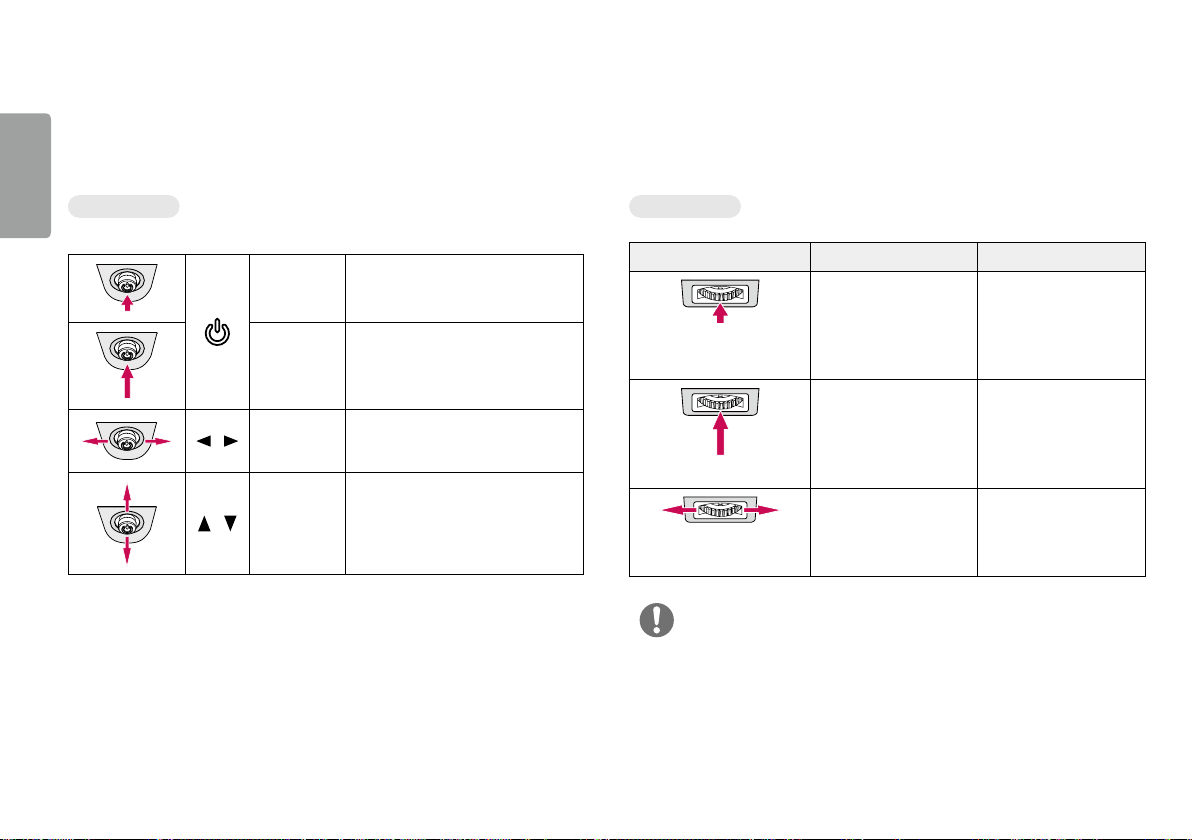
How to Use the Joystick Button
You can easily control the functions of the monitor by pressing the joystick
button or moving it left/right/up/down with your finger.
Basic Functions
Power on Press the joystick button once with
your finger to turn on the monitor.
Power off
Press and hold the joystick button
once more than 10 seconds with
your finger to turn off the monitor.
/ Volume
control
You can control the volume by
moving the joystick button left/
right.
/
Controls
screen
brightness
You can control the screen’s
brightness by moving the joystick
button up/down. (for SDR only)
How to Use the Lighting Button
You can easily control the functions of the monitor by pressing the lighting
button or moving it left/right with your finger.
Basic Functions
When Lighting is Off When Lighting is On
Press the lighting
button once with your
finger to turn on the
lighting on the back of
the monitor.
You can adjust the
color by press the light
button.
Press and hold the
lighting button once
with your finger to turn
on the lighting on the
back of the monitor.
Press and hold the
lighting button once
with your finger to turn
off the lighting on the
back of the monitor.
Not functional You can control the
lighting brightness by
moving the lighting
button left/right.
NOTE
•The joystick and lighting button are located at the bottom of the monitor.
•The Lighting function for the back of the monitor is available even when the
monitor is in power saving mode or when its screen is off. (Settings > General
> Lighting Option > Keep Lighting Status)

7
ENGLISH
•When holding the monitor, the screen should face away from you to prevent it
from being scratched.
•When transporting the monitor, do not expose the monitor to shock or
excessive vibration.
•When moving the monitor, keep it upright and never turn the monitor on its
side or tilt it sideways.
CAUTION
•Avoid touching the monitor screen as much as possible.
- This may result in damage to the screen or some of the pixels used to create
images.
Moving and Lifting the Monitor
When moving or lifting the monitor, follow these instructions to prevent the
monitor from being scratched or damaged and to ensure safe transportation,
regardless of its shape or size.
•Place the monitor in the original box or packing material before attempting to
move it.
•Before moving or lifting the monitor, disconnect the power cord and all other
cables.
•Hold the bottom and side of the monitor frame firmly. Do not hold the panel
itself.

8
ENGLISH
•If you use the monitor panel without the stand base, its joystick button may
cause the monitor to become unstable and fall, resulting in damage to the
monitor or human injury. In addition, this may cause the joystick button to
malfunction.
Installing on a Table
•Lift the monitor and place it on the table in an upright position. Place the
monitor at least 100mm away from the wall to ensure sufficient ventilation.
100 mm
100 mm
100 mm
100 mm

9
ENGLISH
CAUTION
•Unplug the power cord before moving or installing the monitor. There is risk of
electric shock.
•Make sure to use the power cord that is provided in the product package and
connect it to a grounded power outlet.
•If you need another power cord, please contact your local dealer or the nearest
retail store.
Adjusting the Stand Height
1 Place the monitor mounted on the stand base in an upright position.
2 Handle the monitor with both hands for safety.
Max. 110.0 mm
WARNING
•When adjusting the screen height, do not place your hand
on the stand body to avoid injury to your fingers.

10
ENGLISH
Adjusting the Angle
1 Place the monitor mounted on the stand base in an upright position.
2 Adjust the angle of the screen.
The angle of the screen can be adjusted forward or backward from -5° to 15°
for a comfortable viewing experience.
Front
Rear
15 -5
WARNING
•To avoid injury to the fingers when adjusting the screen, do not hold the lower
part of the monitor’s frame as illustrated below.
15 -5
•Be careful not to touch or press the screen area when adjusting the angle of
the monitor.
15 -5
Este manual sirve para los siguientes modelos
1
Tabla de contenidos
Otros manuales de Monitor de LG

LG
LG 24BL550J Manual de usuario

LG
LG 65VS10-BAA Manual de usuario

LG
LG L1930SQ Manual de usuario

LG
LG M4712C-BA Manual de usuario

LG
LG W1946T Manual de usuario

LG
LG W2261V Manual de usuario

LG
LG Flatron W1942S Manual de usuario

LG
LG 34GK950G Manual de usuario

LG
LG MW 71PY10 Manual de usuario

LG
LG 27BR550Y Manual de usuario

LG
LG Flatron L2010P Manual de usuario

LG
LG 32UD99-W.AUS Manual de usuario

LG
LG 27UP600-W.AEU Manual de usuario

LG
LG W1941ST Manual de usuario

LG
LG 24BN650U Manual de usuario

LG
LG 49WQ95C Manual de usuario

LG
LG E1941T Manual de usuario

LG
LG MU-42PZ40 Manual de usuario

LG
LG T1710B Manual de usuario

LG
LG FLATRON L1719S Manual de usuario


