LG Optimus Zone 2 VS415PP Manual de usuario

User Guide MFL68321201 (1.0)
MW
This booklet is made from 98% post-consumer recycled paper.
This booklet is printed with soy ink. Printed in Mexico
User Guide
Guía del
Usuario

&RS\ULJKW/*(OHFWURQLFV,QF$OOULJKWVUHVHUYHG
/*DQGWKH/*ORJRDUHUHJLVWHUHGWUDGHPDUNVRI/*&RUS
$OORWKHUWUDGHPDUNVDUHWKHSURSHUW\RIWKHLUUHVSHFWLYH
RZQHUV

1
Before you begin
Before reading this user guide and getting started, please review the
separate Product Safety and Warranty Information guide for important
product safety and warranty information about your device.
Important Customer Information

2Table of Contents
Important Customer Information...........................................................1
Table of Contents ...................................................................................2
The Basics............................................................................................... 4
Phone overview..................................................................................................... 4
Installing the battery.............................................................................................7
Charging the phone ............................................................................................. 8
The memory card................................................................................................10
Locking and unlocking the screen......................................................................11
Touchscreen tips..................................................................................................15
Home screen........................................................................................................16
Google Account Setup.........................................................................27
Creating your Google Account ......................................................................... 27
Signing in to your Google Account .................................................................. 27
Connecting to Networks and Devices ............................................... 28
Wi-Fi....................................................................................................................28
Bluetooth.............................................................................................................29
Connecting to Virtual Private Networks............................................................31
PC connections with a USB Cable ....................................................................31
Calls .......................................................................................................33
Making a call.......................................................................................................33
Calling your contacts .........................................................................................33
Call settings ........................................................................................................36
Communication ....................................................................................37
Contacts.............................................................................................................. 37
Messaging............................................................................................................41
Email....................................................................................................................43
Entertainment ...................................................................................... 46
Camera................................................................................................................46
Video Camera.....................................................................................................50
Gallery .................................................................................................................53
Videos..................................................................................................................56
Music ................................................................................................................... 57
QuickMemo ........................................................................................................59

3
Table of Contents
Tools.......................................................................................................59
Alarm/Clock.........................................................................................................61
Calculator............................................................................................................62
Calendar..............................................................................................................62
Tasks....................................................................................................................63
Voice Recorder ...................................................................................................64
POLARIS Viewer 5.............................................................................................64
Google+...............................................................................................................64
Voice Search .......................................................................................................65
Voice Command.................................................................................................65
Downloads...........................................................................................................65
Web........................................................................................................66
Chrome................................................................................................................66
Settings .................................................................................................69
Phone Software Update...................................................................... 88
FAQ ........................................................................................................89
Safety.....................................................................................................96
Consumer Information About Radio Frequency Emissions...........................98
Consumer Information on SAR ..................................................................... 102
FCC Hearing-Aid Compatibility (HAC) Regulations
for Wireless Devices......................................................................................... 104
Caution:
Avoid potential hearing loss............................................................................ 106
TIA Safety Information.....................................................................................107
Safety Information ............................................................................................ 110
FDA Consumer Update .................................................................................... 115
LIMITED WARRANTY STATEMENT ................................................ 126
Index ....................................................................................................130

4The Basics
Phone overview
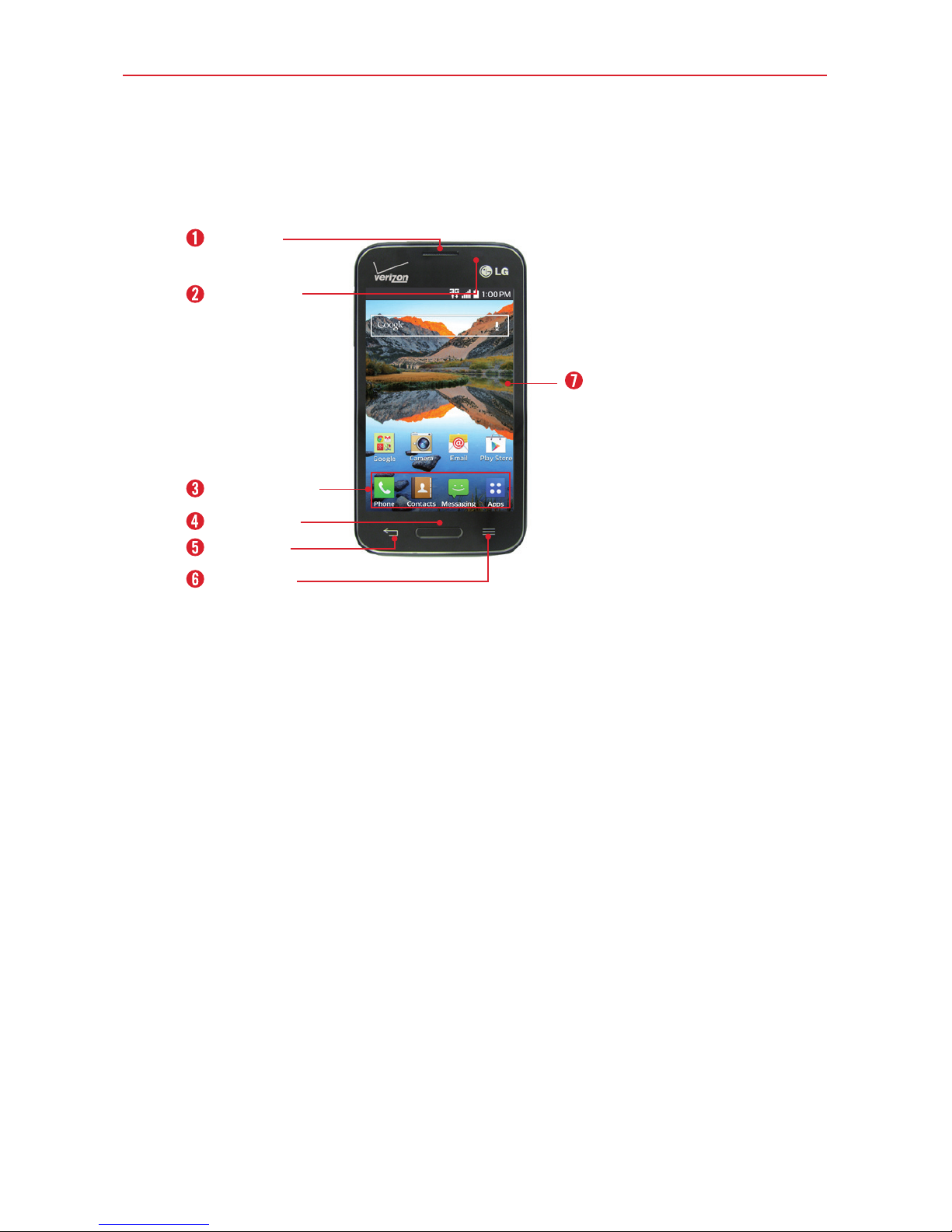
Front View
Proximity
sensor
Earpiece
Home key
QuickTap bar
Back key
Menu key
Home screen
1. Earpiece Lets you hear callers and automated prompts.
2. Proximity sensor Senses proximity toward other objects (such as your
head) so that tap commands are not accidentally activated during a call.
It also employs an ambient sensor which measures the surrounding light
and adjusts the LCD brightness to provide a vivid screen.
NOTES •Do not block the sensor or near the sensor to avoid problems with the touchscreen.
•When receiving and making calls, the proximity sensor automatically turns the
backlight off and locks the touchscreen by sensing when the phone is near your ear.
This extends battery life and prevents you from unintentionally activating the
touchscreen during calls.
3. QuickTap bar Provides icons for quick, one-touch access to the apps
you use most often.
NOTE You can change the icons in the QuickTap Bar to suit your needs. To reposition, add, or
remove an icon, see page 16.
4. Home key Press to return to the Home screen (or your default Home
screen panel from any of the Home screen extension panels). You can
also press it to wake your phone from screen timeout. Press and hold it
to display recently used apps with access to the
Task Manager
app.
NOTE The
Home key
LED will illuminate when you have pending notification(s).

5
The Basics
5. Back key Tap to return to the previous screen. It also closes pop-up
items such as menus, dialog boxes, and the on-screen keyboard.
6. Menu key Tap to open an Options menu with options that affect the
current screen or app. This only applies when available, depending on
the screen or app.
7. Home screen Displays all of the items needed to operate your phone
including icons for app access, widgets, and the Status Bar (with status
icons) allowing simple touch access to all of its functions and features.
WARNING! Placing a heavy object on the phone or sitting on it can damage the LCD and
touchscreen functions. Covering the proximity sensor with a protective film could
cause the sensor to malfunction.
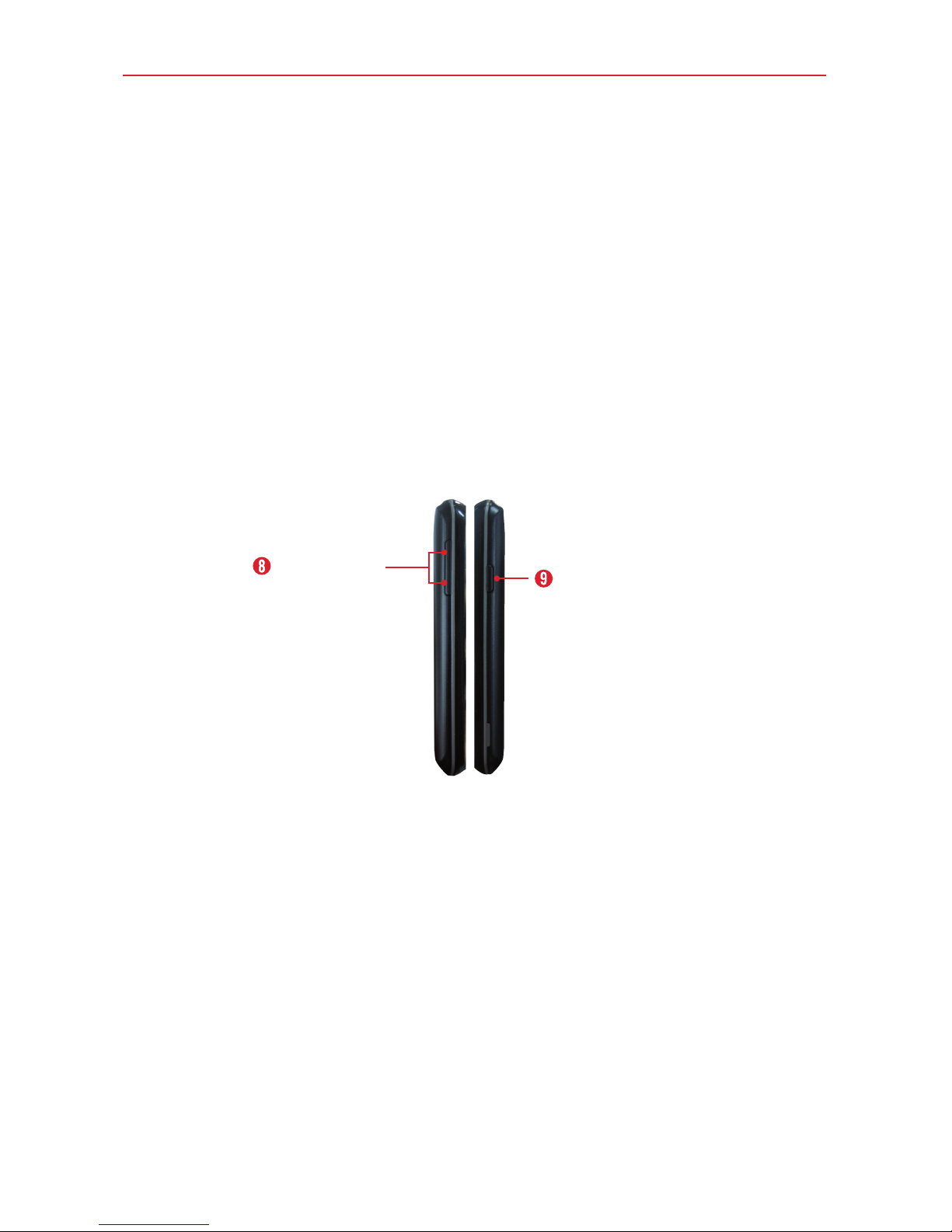
Side Views
Power/Lock key
Volume keys
8.
Volume keys
Press to adjust the ringer, the media volumes, or the in-call
volume during a call.
9.
Power/Lock key
Press to turn off the screen backlight and lock the
screen, or turn the screen backlight back on. Press and hold to turn the
phone on/off, restart it, activate/deactivate Airplane mode, and change
the sound settings.

6The Basics
Top and Bottom View
USB/Charging port
Microphone
3.5mm Headset jack
10. 3.5mm Headset jack Allows you to plug in an optional headset for
convenient, hands-free conversations. You can also plug in headphones
to listen to music.
11. Microphone Transmits your voice to the other caller. It's also used for
voice-activated functions and voice recorder functions.
NOTE Please be careful not to block the microphone with your hand during calls.
12. USB/Charging port Allows you to connect the phone and the USB
Cable for use with the Charger Adapter, or other compatible
accessories.
NOTE You may purchase a separate fast data cable from LG for higher data transfer speed with
compatible devices (e.g. laptop).
Rear View
Back cover
Battery
microSD Card
slot
Camera lens
Speaker

7
The Basics
13. Speaker Use to listen to the audio from the selected function (e.g.,
music, videos, sound clips, etc.).
14. Camera lens Use to take photos and record videos. Keep it clean for
optimal performance.
15. MicroSD Card slot Use for additional storage space of items such as
pictures, videos, music, etc.
16. Battery Fully charge the battery before initial use to optimize your
battery life.
17. Back cover Protects the battery and internal antenna. Keep it from
getting scratched or damaged.
Installing the battery
Before you can start using your new phone, you'll need to do a little set up
such as installing and charging the battery.
1. To remove the back cover, hold the phone firmly in one hand. With your
other hand, place your thumbnail in the cutout on the side of the phone
as shown in the illustration below.
NOTE Make sure to turn the phone off before removing the battery.

8The Basics
2. Insert the battery into the opening on the back on the phone, making
sure the connectors align and press down until it clicks into place .
3. Align the back cover over the battery compartment and press down
along the outer edge of phone .
Charging the phone
Your phone comes with a USB Cable and a Charger Adapter which connect
together to charge your phone. Fully charge the battery before using your
phone for the first time to improve your battery lifetime.
The USB/Charging port is at the bottom of the phone. Insert one end of the
USB Cable into the port and plug the Charger Adapter into an electrical
outlet.
Otros manuales para Optimus Zone 2 VS415PP
1
Tabla de contenidos
Otros manuales de Teléfono móvil de LG
Manuales populares de Teléfono móvil de otras marcas

Blackbe;rry
Blackbe;rry Q10 Manual de usuario

Blackbe;rry
Blackbe;rry Bold 9900 Manual de usuario

Blackbe;rry
Blackbe;rry STORM 9500 - VERSION 5.0 Manual de usuario

ISAFE MOBILE
ISAFE MOBILE IS655.2 Manual de usuario

Blackbe;rry
Blackbe;rry CURVE 8300 - SMARTPHONE Manual de usuario

Blackbe;rry
Blackbe;rry 8707 - VERSION 4.1 Manual de usuario