LEGRAND CM7120 Manual de usuario

4 Channel Power over Ethernet
Network Video Recorder
USER MANUAL
1308247 Rev. A

301 Fulling Mill Road, Suite G
Middletown, PA 17057
(800) 223-4162
©Copyright 2016 by Legrand,
Inc All Rights Reserved.
www.legrand.us
Page 2
INSTRUCTION MANUAL
To obtain the best performance and ensure device function correctly, please read this instruction manual
carefully and completely.
FCC Compliance
USER-INSTALLER CAUTION:
YOUR AUTHORITY TO OPERATE THIS FCC VERIFIED EQUIPMENT COULD BE VOIDED IF YOU MAKE
CHANGES OR MODIFICATIONS NOT EXPRESSLY APPROVED BY THE PARTY RESPONSIBLE FOR
COMPLIANCE TO PART 15 OF THE FCC RULES.
NOTE:
THIS EQUIPMENT HAS BEEN TESTED AND FOUND TO COMPLY WITH THE LIMITS FOR A CLASS B
DIGITAL DEVICE, PURSUANT TO PART 15 OF THE FCC RULES. THESE LIMITS ARE DESIGNED TO
PROVIDE REASONABLE PROTECTION AGAINST HARMFUL INTERFERENCE WHEN THE EQUIPMENT
IS OPERATED IN A COMMERCIAL ENVIRONMENT. THIS EQUIPMENT GENERATES, USES, AND CAN
RADIATE RADIO FREQUENCY ENERGY AND IF NOT INSTALLED AND USED IN ACCORDANCE WITH
THE INSTRUCTION MANUAL, MAY CAUSE HARMFUL INTERFERENCE TO RADIO COMMUNICATIONS.
OPERATION OF THIS EQUIPMENT IN A RESIDENTIAL AREA IS LIKELY TO CAUSE HARMFUL
INTERFERENCE IN WHICH CASE THE USER WILL BE REQUIRED TO CORRECT THE INTERFERENCE
AT HIS OWN EXPENSE.
THIS CLASS B DIGITAL APPARATUS MEETS ALL REQUIREMENTS OF THE
CANADIAN INTERFERENCE-CAUSING EQUIPMENT REGULATIONS.

301 Fulling Mill Road, Suite G
Middletown, PA 17057
(800) 223-4162
©Copyright 2016 by Legrand,
Inc All Rights Reserved.
www.legrand.us
Page 3
WARNINGS, CAUTIONS & COPYRIGHT
WARNING
TO REDUCE THE RISK OF FIRE OR ELECTRIC SHOCK, DO NOT EXPOSE THIS PRODUCT TO RAIN OR MISTURE.
DO NOT INSERT ANY METALLIC OBJECT THROUGH VENTILATION GRILLS.
CAUTION
Explanation of Graphical Symbols
The lightning flash with arrowhead symbol, within an equilateral triangle, is intended to alert the user
to the presence of insinuated "dangerous voltage" within the products enclosure that may be of
sufficient magnitude to constitute a risk of electric shock to persons.
The exclamation point within an equilateral rhombus is intended to alert the user to the presence of
important operating and maintenance (servicing) instruction in the literature accompanying the
product.
USERS OF THE SYSTEM ARE RESPONSIBLE FOR CHECKING AND COMPLYING WITH ALL FEDERAL, STATE,
AND LOCAL LAWS AND STATUTES COIPCERNING THE MONITORING AND RECORDING OF VIDEO AND AUDIO
SIGNALS. ULTRAK SHALL NOT BE HELD RESPONSIBLE FOR THE USE OF THIS SYSTEM IN VIOLATION OF
CURRENT LAWS AND STATUTES.
COPYRIGHT
THE TRADEMARKS MENTIONED IN THE MANUAL ARE LEGALLY REGISTERED TO THEIR RESPECTIVE
COMPANIES.
CAUTION: TO REDUCE THE RISK OF ELECTRIC SHOCK.
DO NOT REMOVE COVER (OR BACK).
NO USER-SERVICEABLE PARTS INSIDE.
REFER SERVICING TO QUALIFIED SERVICE
PERSONNEL.
RISK OF ELECTRIC SHOCK
DO NOT OPEN
CAUTION

301 Fulling Mill Road, Suite G
Middletown, PA 17057
(800) 223-4162
©Copyright 2016 by Legrand,
Inc All Rights Reserved.
www.legrand.us
Page 4
TABLE OF CONTENTS
1. Installation.....................................................................................................................5
2. Live View........................................................................................................................8
3. Camera.........................................................................................................................13
2. Record..........................................................................................................................20
3. Alarm.............................................................................................................................23
4. Network........................................................................................................................25
5. Authority......................................................................................................................32
6. Storage.........................................................................................................................34
7. System..........................................................................................................................36
8. Player............................................................................................................................40
9. Plugin............................................................................................................................47
10. Log List........................................................................................................................47

301 Fulling Mill Road, Suite G
Middletown, PA 17057
(800) 223-4162
©Copyright 2016 by Legrand,
Inc All Rights Reserved.
www.legrand.us
Page 5
1. Installation
The CM7120 Network Video Recorder will mount into the On-Q structured wiring enclosure.
Once installed, a local network connection will be required to access the CM7120. The
Network Video Recorder features a LAN port specifically for connection to an existing router
or switch. The CM7120 also features four camera ports that support the 802.3af PoE standard
to power any cameras connected to the device.
NOTE: An internet connection is required for remote access of this product
ACCOUNT & PASSWORD LOGIN

301 Fulling Mill Road, Suite G
Middletown, PA 17057
(800) 223-4162
©Copyright 2016 by Legrand,
Inc All Rights Reserved.
www.legrand.us
Page 6
The NVR will automatically pull an IP address from the router it is connected to. The device
will appear in the DHCP client list of the router and can be accessed at the IP address. The
NVR can be identified in the list by its MAC address which will always begin with a 00:26:ec
address.
The NVR will automatically appear under the network list in Windows as well. Open up the
“My Computer” window and on the navigation pane on the left side of the window select
“Network”. A prompt may appear asking to enable network and sharing in Windows. If it has
not already been enabled, it will need to be turned on to properly discover any network
devices. The NVR will appear in this list with its part number. Simply double click the icon to
open the device in the default browser.

301 Fulling Mill Road, Suite G
Middletown, PA 17057
(800) 223-4162
©Copyright 2016 by Legrand,
Inc All Rights Reserved.
www.legrand.us
Page 7
Alternately, type the IP address of the NVR directly into the address bar of the browser. The
following User name & Password Login window will pop up.
Enter Default user name & password: admin/admin

301 Fulling Mill Road, Suite G
Middletown, PA 17057
(800) 223-4162
©Copyright 2016 by Legrand,
Inc All Rights Reserved.
www.legrand.us
Page 8
2. Live View
A. Configuration:Get into the NVR setup menu.
B. Live:Click on the icon to return to the Live mode interface from other modes.
C. Screen Pattern:Click on each icon to enter a 1 screen pattern or 1/4 screen
pattern mode. Click on a channel screen twice to view its full image.
D. Full Screen:Click to enter full screen mode. You can still adjust the screen pattern
by clicking on the icons below.
NVR Configuration
Screen Pattern
PTZ Control
System Time

301 Fulling Mill Road, Suite G
Middletown, PA 17057
(800) 223-4162
©Copyright 2016 by Legrand,
Inc All Rights Reserved.
www.legrand.us
Page 9
When clicking 4:
When clicking 1:
Press esc button on the PC keyboard to quit this mode.
E. Search:Click to enable Search menu. 3 icons will pop up.
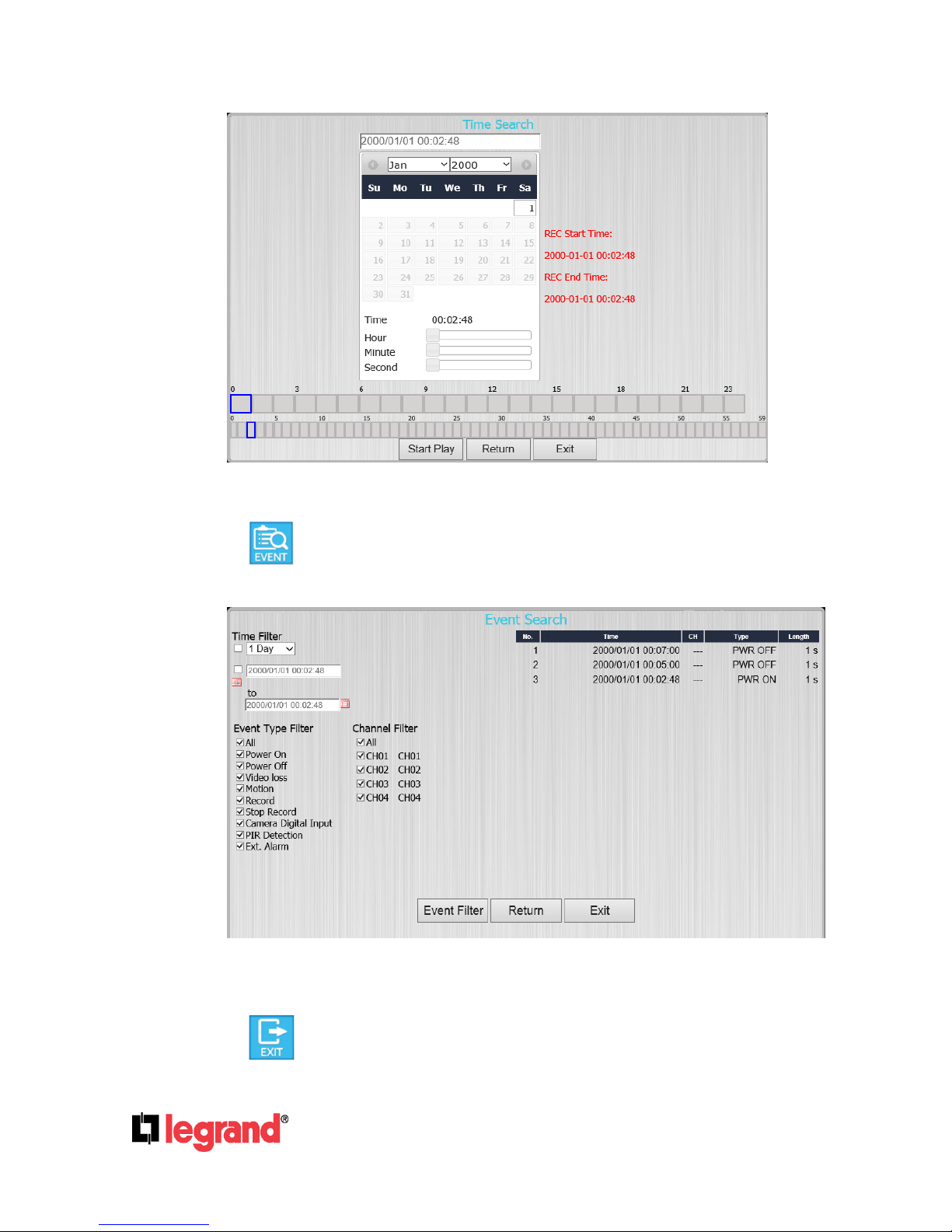
E1. Time Search
Click on the icon to enter Time Search page where you can see the time frame of your
recorded video.

301 Fulling Mill Road, Suite G
Middletown, PA 17057
(800) 223-4162
©Copyright 2016 by Legrand,
Inc All Rights Reserved.
www.legrand.us
Page 10
Place the mouse cursor on the time frame of the video that is desired for playback.
Click on Start Play button to continue.
f2. Event Search
After entering the events search page, the user can click on the event log item which
is displayed in a list on the top right to start watching its playback video.
The user can click the Event Type Filter button to enter a list of events and select
specific types to be included for being recorded on the video. Set the time range in
Time Filter and tick any channels for the system to examine in Channel Filter.
f3. Exit: Click to return to live mode.
Tabla de contenidos
Otros manuales de DVR de LEGRAND