
Kodak 24HDX900s Manual de usuario

I M P O R TA N T
Please read this manual carefully before installing and operating the TV.
Please keep this manual with you for further reference
User Manual
24HDX900s
32HDX900s
40FHDX900s
LED TV
HIGH DEFINITION

CONTENTS
INTRODUCTION
WARNING AND SAFETY PRECAUTIONS
TV BRACKET ASSEMBLY
DESKTOP TV BRACKET INSTALLATION & ASSEMBLY
ANTENNA AND EXTERNAL CONNECTION EQUIPMENT
NAME AND FUNCTIONS OF CONTROL ON SET
BATTERY INSTALLATION
NAME AND FUNCTION OF CONTROLS ON REMOTE
PICTURE MENU
SOUND MENU
TIMER MENU
OPTION MENU
CHANNEL MENU
HOTEL MODE
MEDIA
MEDIA PHOTO
MEDIA MUSIC
MEDIA MOVIE
MEDIA TEXT
USB TO USB Copy
USB FORMAT
TECHNICAL SPECIFICATIONS
TROUBLE SHOOTING
1.
2.
3.
4.
5.
6.
7.
8.
9.
10.
11.
12.
13.
14.
15.
16.
17.
18.
19.
20.
21.
22.
23.
2
2
3-4
4-5
5-6
7
8
9-10
10
11
11
12
12
13
13
14
15
16
17
18
19-20
21
22
1

2. WARNINGS AND SAFETY PRECAUTIONS
Thank you for choosing our product. You can use it as a color television or as a PC
monitor. To be able to make use of all application options, we recommend that you
should read this operation manual carefully and keep it somewhere you have quick
access to, if required.
Do not touch any parts in the set and do not make changes to any settings not described
in this operating manual.
The LED Screen is a high-tech product consisting of more than 9,00,000 control elements.
Any Non-active red, blue or green spots that might appear on the screen occasionally,
have no effect on the performance of the screen or television.
To prevent damage to the TV which may result in a fire or electrical shock hazard, do not
expose the TV set to rain or excessive moisture.
Do not rub or strike the Active matrix LED with any thing hard as this may scratch, mark
or damage the active matrix LED permanently.
For safety, do not place vessels or any container which contain fluid including water, on
or near the TV.
Do not insert any objects in the ventilation slots.
Do not remove the back cover of the set as this can expose you to very high voltage and
other hazards. If the set does not operate properly, unplug it and call service person.
Warning:
Service:
Connect the antenna cable to the socket marked ANT IN on the back cover. For
best reception an outdoor antenna should be used.
Antenna:
Position the set so that no bright light or sunlight falls directly on the screen.Reflections
on the screen affects the picture quality.
Soft and indirect lighting is recommended for comfortable viewing.
Care should be taken not to expose the set to any unnecessary vibration, moisture, dust
or heat.
Adequate ventilation is essential to prevent set failure.Ensure that the set is placed in a
position to allow a free flow of air. Do not cover ventilation opening on the back cover.
Do not place the set in an enclosure or very close to walls.
Avoid excessively warm locations to prevent possible damages to the set.
Place the television on a solid and flat surface.
Location:
1. INTRODUCTION
2
No warranty claims are accepted for damage caused due to incorrect handling.
This LED TV Set is designed to receive display video and audio signals and for use as
a PC monitor. Any other use is prohibited.
Despite the high quality of the television, random disturbances or interference may
cause occasional malfunctioning. In this case the correct function of the apparatus can
be restored by switching off the TV through the main On/Off button or removing the
main plug, then switch ON as soon as the LED light disappears.
Cautions.
Note:
For safety, remove the AC plug from the wall outlet before cleaning the set.
Clean the dust on set by wiping the screen and the cabinet with a soft, clean cloth. If the
screen requires additional cleaning, use a clean damp cloth. Do not use liquid cleaners
or aerosol cleaners or liquid containing benzol, petroleum or chemicals.
3
Cleaning:
Do not allow anything to rest upon or roll over the power cord, and do not place the set
where the power cord is subject to damage.
Remove the AC plug from the wall outlet when the TV set is not used for a prolonged
period of time.
In the event of thunder storms or power cuts please remove the main power plug and
aerial plug.
Unplug the set in case of abnormal operation e.g. smoke, odd sound or smells.
Use the main power cord provided for connecting the TV.
Power:
3. TV BRACKET ASSEMBLY
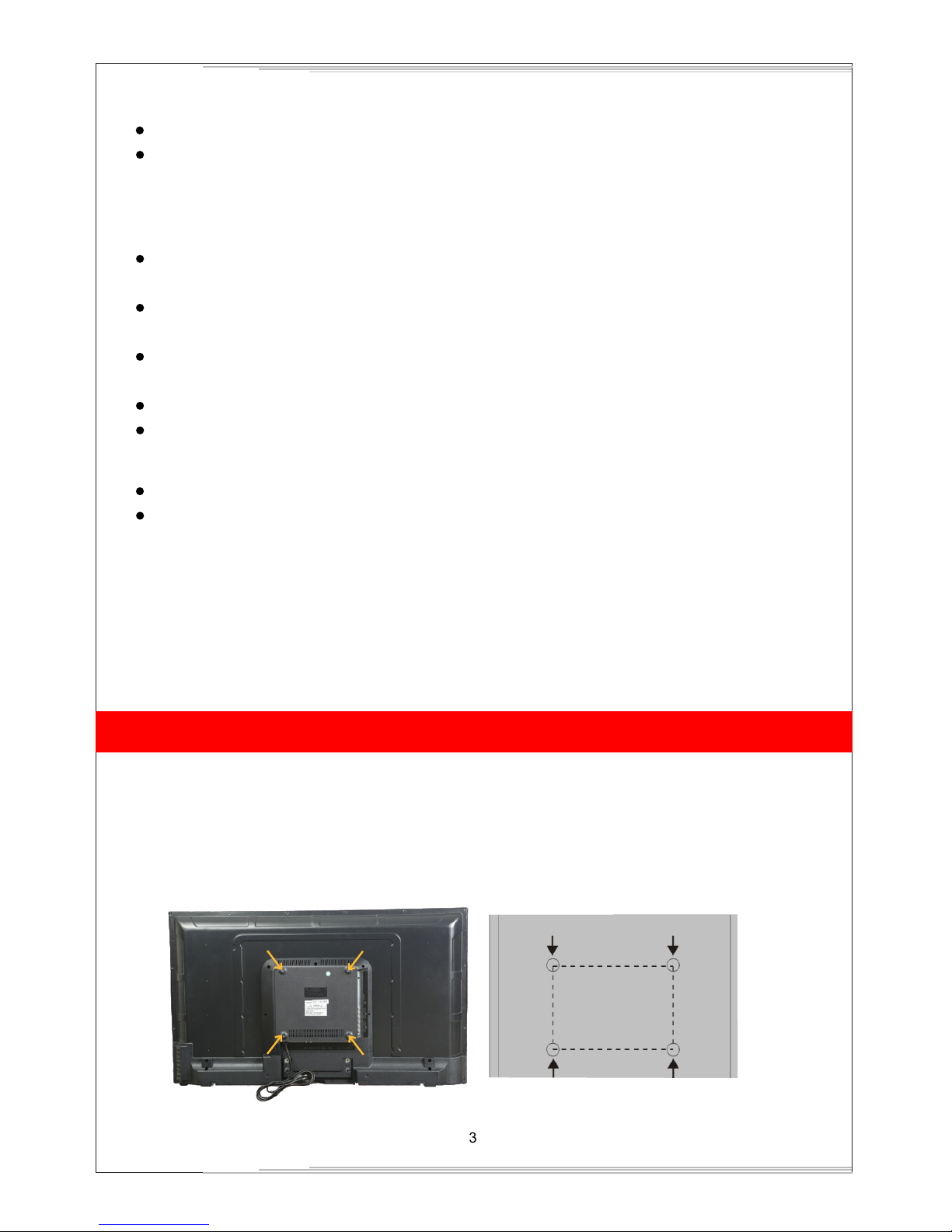
Fixing the LED TV on a wall
1. First, place the LED TV on a table smoothly and place a soft cloth on the table to avoid
scratching the screen.
2. Use a screw driver to take off the screws which are fixed on the bottom stand (Refer to Fig. 1,
direction of the arrows) and take out the bottom stand (please keep the screws and bottom
stand carefully)
Fig1
Fig1a wall

4
3. Make one bracket which can be fixed on the wall according to the size of arrow direction of fig. 2 and fig. 3.
4. Drill four holes on the wall (the size is given only for reference) and fix the TV Wall Mount
bracket on the wall. (This is optional,you may place the tv using a table stand only)
5. Use a screwdriver to lock the screws in the wall mount bracket on the back of the TV,
then hang the TV on the wall.
NOTE:
The bracket fixed on the wall is an optional part.
When you fix wall mount on the TV, there should be no other articles on, around and front
of the TV and please keep a distance from any product hampering articles.
The fixing picture is only for reference.
Please follow the user manual about bracket assembly to fix the TV.
Attach the mounting bracket from the VESA compatible wall mounting kit, provided with the TV.
1.
2.
3.
4.
5.
Fig2
Bracket
Cement bolt
Fig3
wall
3. TV BRACKET ASSEMBLY
(NOTE : For 20" Model the stand screws will be in bottom side.)
4. DESKTOP TV BRACKET INSTALLATION & ASSEMBLY
Note: Instruction manual for the TV stand assembly.
Step 1: Place the TV carefully on a table covered with a soft pad, this can prevent the LED
panel from being damaged.
Step 2: The Stand-base assembly (fig. 2) has to fit into female hole of the Stand-post properly.
TV
SOFT PAD
TABLE
Fig.1
Fig.2

Step 3: Put the "Rotary-CVR plate " to the "Stand-base" in its way properly, and make sure
that the holes of "Stand-post" and "Rotary CVR plate " are aligned rightly. and then
use the screwdriver to fix them together with provided screws.
Step 4: assemble finished.
5
Fig.3
ROTARY-CVR PLATE
SCREW
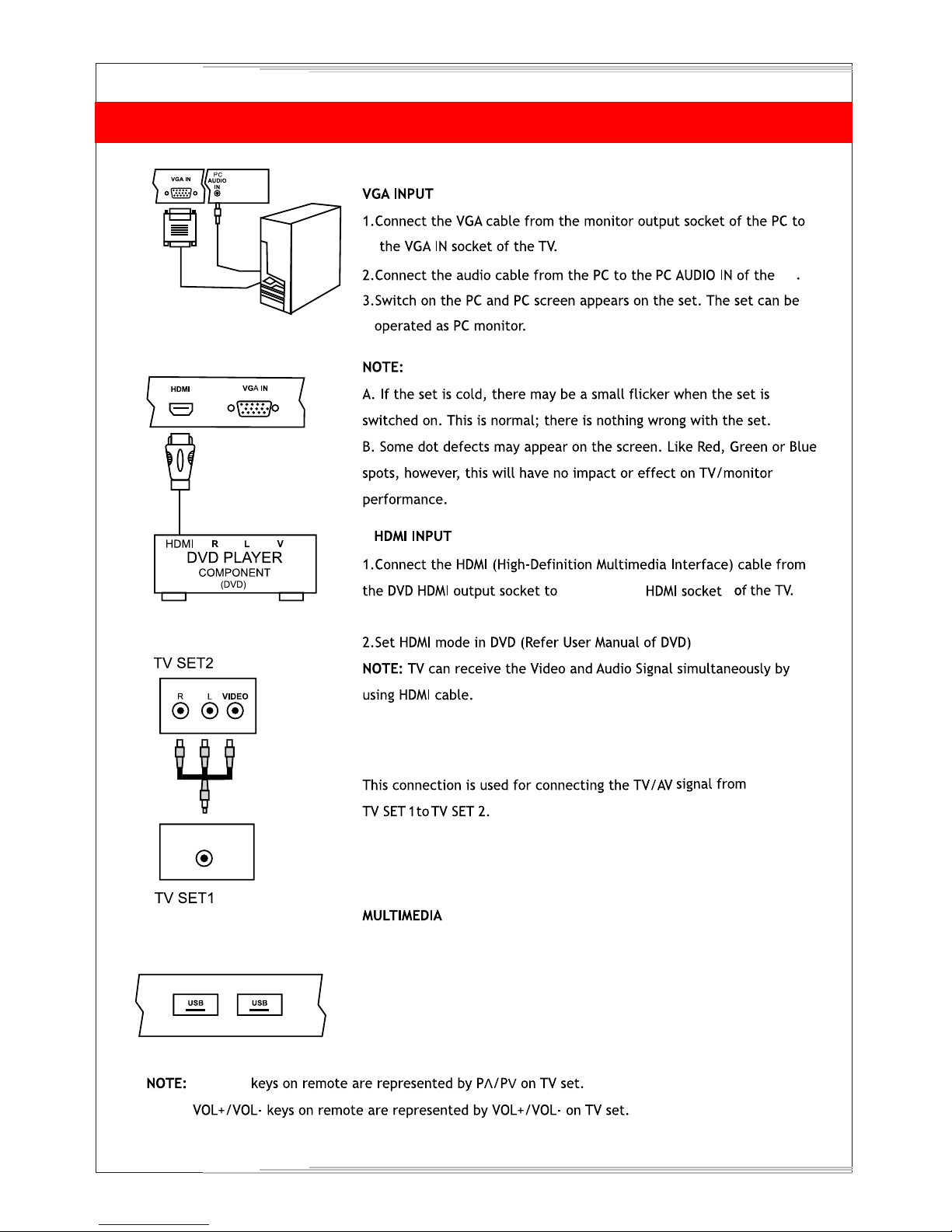
AV INPUT1 / INPUT2
1.Connect the composite outputs (Video, L & R) of VCR/DVD Player to AV INPUT 1 / INPUT2.
2.1 Press the Input button on the remote to select AV1/AV2.
AV Input-1
VL R
AV Input-2
VLR
5. ANTENNA AND EXTERNAL CONNECTION EQUIPMENT
AV
AV
NOTE : Selecting a Source
Remote Control :
Press Input button on the remote control to display' Input source OSD'. Then choose any source by
pressing Up/Down button and Press Enter to select it.
TV Control Panel :
Press Source button and choose any source by pressing Prog+ / - button and Press source
button again to select it.
4. DESKTOP TV BRACKET INSTALLATION & ASSEMBLY
5. ANTENNA AND EXTERNAL CONNECTION EQUIPMENT
6
IN
AV output
AV OUTPUT
TV
UP/Down
Connect/Insert standard USB pendrive. Select on source OSD by
pressing Input key, Press Left/ Right key on remote to choose
photo / Music / Movie /text. Similarly TV panel keys Prog +/-
can be used as Up/Down and Vol+/- for selecting media content
and Press Prog+ to select.
2
either of the 2
s

9 7 6 5 4 3
6. NAME AND FUNCTION OF CONTROLS ON SET
A) TV Control Panel Buttons
1.
2.
3.
4.
5.
6.
7.
8.
9.
10.
IR SENSOR
LED INDICATOR
STANDBY
CH+
CH-
VOL+
VOL-
MENU
SOURCE (TV/AV)
AC POWER CORD.
11.
12.
13.
14.
15.
16.
17.
18.
19.
20.
21.
22.
AUDIO-L
AUDIO-R
EARPHONE
HDMI
VGA
PC AUDIO
YPbPr
RF
AV OUTPUT
AV INPUT 1
AV INPUT 2
USB
B) CONNECTING YOUR UNIT:-
8
SOURCE MENU VOL PROG
Note:
Above sketches are just representation. Actual TV set may look differ than these sketches.
7
2
AC Power
IN Earphone HDMI VGA PC AUDIO YPbPr RF AV
OUTPUT
10 13 14 15 16 17 18 19
AV INPUT-1
VIDEO L-AUDIO-R
AV INPUT-2
VIDEO L-AUDIO-R USB
20 21 22
AUDIO-L AUDIO-R
11 12
1

7. BATTERY INSTALLATION
1. Remove the battery compartment door.
2. Insert two pieces of 1.5V size UM-4 "AAA" batteries or equivalent with the correct polarity as indicated
by (+) and (-) symbols.
3. Close battery compartment door.
NOTE: Replace batteries when they are exhausted or if the remote control is not to be used for a long
time.
BATTERY PRECAUTIONS:
Incorrect use of batteries can cause electrolyte leakage which will corrode the remote control or cause
the batteries to burst.
Replace both batteries at same time.
Don't Mix batteries type (alkaline with carbon ,zinc etc.)
8

9
POWER
FREEZE
S.MODE
P.MODE
FAV
FAV.
FAV+
Turns TV into STANDBY ON/OFF
Select to freeze the scene still on the screen.
Recalls / changes presetted sound settings.
Recalls / changes presetted picture settings.
Press to add or remove your favorite channels under TV menu.
Press to switch your favorite channels under TV menu.
Press to switch your favorite channels under TV menu.
P
P
-Navigates Vertically up/down through the Menu/Sub Menus
-To enter character/numbers in program name parameter
-To navigate channel up/down through valid channels.
-Navigates horizontally right/left through the Menu/sub Menus.
-To enter in Menu/Sub Menus and to adjust Vol +/-
-To navigate the letter in program name parameter
-To select the time
-Increase/decrease the value of selected items and set the parameter On/Off
<>
ENTER
-To enter in sub menu.
-Enter to edit program name parameter.
Press to exit the OSD menu.
To select menu OSD window and return to upper menu.
Input source selection.
Select to increase or decrease volume.
Select to increase or decrease volume for power audio.
EXIT
MENU
INPUT
VOL +/-
PA +/-
This key provides different power saving modes. The current mode is displayed with
ecovision symbol on the screen. In audio only mode display is off and only audio is on. Press
any key to exit audio only mode. Note : VOL+/-, PA +/- and Mute can function even as
panel is off.
Turns sound OFF or ON
ECO
MUTE
Figures 0-9 are used to directly input channel number.
Press this key to enter the program number for different digit eg. -/--/---
1 2 345
67 8 90
-/--
Q.VIEW
Press this key to toggle between the current and the previous program you were watching.
-Press this key to save channels when manual tuning or to delete channel when editing TV
program in Program edit function.
-To set sleep timer except when in Program Edit Menu or USB mode
-To delete item selected in USB mode.
-Press this key to display sub title list
-Press this key to rename channels in program edit function
-In USB Mode, Info copy from USB 1 to USB 2 and Vicen versa
(only for 80cm &102cm LED TV Model)
NAMES AND FUNCTION OF CONTROLS ON REMOTE
Sub Title
Sleep
Delete
Copy
Este manual sirve para los siguientes modelos
2
Tabla de contenidos
Otros manuales de Televisor LED de Kodak


