
Kinivo BTX350 Manual de usuario

BTX350 Wireless Bluetooth Speaker
User Manual
© 2012 Kinivo LLC. All rights reserved.
Kinivo is a trademark of Kinivo LLC. Bluetooth name/symbol/ logo are registered trademarks of Bluetooth SIG. All other trade names
are registered trademarks of respective manufacturers. This manual may not be copied in any media or form without the written
consent of Kinivo LLC.
Kinivo Product Support
Online : http://support.kinivo.com
Email : support@kinivo.com

Kinivo BTX-350 Digital Wireless Speaker
Table of Contents
Important Safety Instructions...........................................................................................................................................4
Speaker Overview..............................................................................................................................................................5
Package Contents...............................................................................................................................................................6
Features ..............................................................................................................................................................................6
Getting Started ..................................................................................................................................................................7
Operation ...........................................................................................................................................................................7
1. Turn Unit On/O.................................................................................................................................................................................................7
2. Adjust Volume.....................................................................................................................................................................................................8
3. Bluetooth Pairing ..............................................................................................................................................................................................8
4. Auxiliary Input.....................................................................................................................................................................................................9
5. Charging BTX350 speaker...............................................................................................................................................................................9
6. LED Indication ................................................................................................................................................................................................. 10
7. Button Functions ............................................................................................................................................................................................ 11
Troubleshooting...............................................................................................................................................................12
1. Unable to hear audio when playing music........................................................................................................................................... 12
2. Unable to pair to smartphone or tablet.................................................................................................................................................. 12
3. Speaker no longer connects to my device ............................................................................................................................................ 12
4. Speaker works with my smartphone but not my computer........................................................................................................... 12

Kinivo BTX-350 Digital Wireless Speaker
5. Lost or damaged USB cable ........................................................................................................................................................................ 13
6. Error while pairing to Windows computers: Driver missing when trying to pair to computer .......................................... 13
7. Error messages when connecting on Mac OS X .................................................................................................................................. 13
Frequently Asked Questions...........................................................................................................................................14
Warranty ...........................................................................................................................................................................16
Online Support / Contact Us............................................................................................................................................17

4Kinivo BTX-350 Digital Wireless Speaker
Read all safety and operation instructions before using your speakers.
Important Safety Instructions
1 Do not expose the speaker to liquid, moisture or areas of high humidity.
2 Do not use abrasive cleaners to clean the speaker’s case as they may damage the unit. Always unplug and power o the unit
before cleaning.
3 Do not expose the speaker to extremely high or low temperatures.
4 Keep the unit away from direct sunlight.
5 Use only accessories and attachments as supplied and designated in the instruction manual.
6 Do not attempt to open or modify the speaker in any way.
7 Store the speaker in a cool dry place.
8 The BTX350 contains a lithium ion battery. Lithium ion batteries are ammable and can cause re if misused or defective.
9 Always dispose of the packaging and unit in accordance with the local regulations and in a responsible manner.
5
Kinivo BTX-350 Digital Wireless Speaker
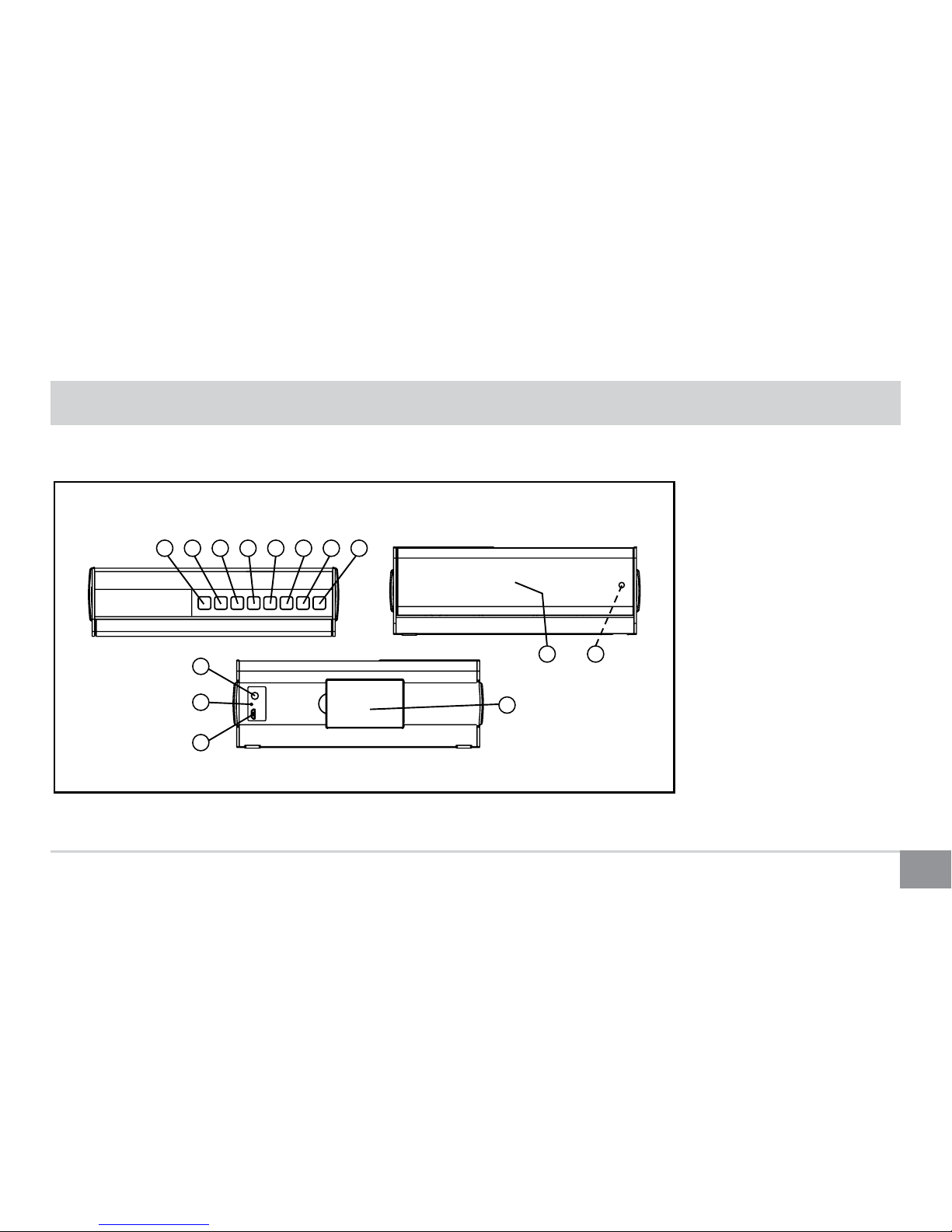
LOCATION OF CONTROLS
TOP VIEW: FRONT VIEW:
BACK VIEW:
12345678
9
14
11
12
13
10
1. Volume Down
2. Volume Up
3. Bass Enhancer
4. Next Song
5. Previous Song
6. Input Source
7. Play / Pause (Pair)
8. Power
9. Speaker
10. LED Indicator (Power)
11. Aux Input
12. LED Indicator (Charging)
13. Micro-USB Charging Port
14. Battery Compartment
Speaker Overview

6Kinivo BTX-350 Digital Wireless Speaker
Package Contents
BTX350 Speaker
User Manual
3.5mm Audio Cable
USB Charging Cable
Features
Seamlessly stream music from any Bluetooth (A2DP) capable device
Supporting Bluetooth protocol v2.1+EDR and A2DP 1.2 audio streaming prole
Connect an iPod or other non-Bluetooth devices via 3.5mm port

7
Kinivo BTX-350 Digital Wireless Speaker
Getting Started
Please remove the transparent sticker on the
back of the unit before using the speaker.
Please remove thetransparentsticker on th
e
back of the unit beforeusing the speaker.
BACK OF UNIT
Operation
1. Turn Unit On/O
Press and hold the power button for 3 to 5 seconds to turn the speaker on. Press and hold the power button to turn
the speaker o.
NOTE: The Bluetooth functionality takes 2 to 3 seconds to switch on after the speaker is powered on.

8Kinivo BTX-350 Digital Wireless Speaker
2. Adjust Volume
Press the volume button to increase or decrease volume. Press and hold the volume button to continuously increase or decrease
the volume.
3. Bluetooth Pairing
The speaker needs to be paired to a Bluetooth device before using. The Bluetooth name for the speaker is “Digital SPKR”. Follow
these steps to put the speaker in pairing mode:
a. Power on the speaker
b. If the front LED is blinking quickly, the speaker is in pairing mode.
c. If the front LED is blinking slowly, press the Pair button once. The speaker will enter pairing mode.
d. If the front LED is completely lit, the speaker is paired and connected to a device. See the Alternate pairing process below to
force the speaker to enter pairing mode.
Activate the Bluetooth function on your device that you wish to connect to and search for and pair to the BTX350. The speaker
will automatically connect with your device once the pairing is complete.
For iPad, iPhone, iPod Touch
Navigate to Settings > Bluetooth (On), then select the Digital SPKR to pair the speaker (The sequence might be Settings > General
> Bluetooth (On) for older iOS versions)

9
Kinivo BTX-350 Digital Wireless Speaker
For Android smartphones and tablets
Navigate to Settings > Wireless & networks > Bluetooth settings while Bluetooth is enabled, then select Scan for devices. Select
the Digital SPKR to pair the speaker.
For all other devices
Please follow your devices’ instructions on how to perform Bluetooth pairing.
Process to pair a currently paired speaker to new device
If the speaker is already paired to a device then it will get connected to that device when powered on. In this case, you have to use
a slightly dierent process to put the speaker in pairing mode.
Ensure that the speaker is powered o. Press and hold the Pair and Power button together for 6 to 8 seconds.
4. Auxiliary Input
Use a 3.5mm audio cable to connect the speaker to another audio source. Press the Source button to toggle between
the Bluetooth audio source and auxiliary input source.
5. Charging BTX350 speaker
To charge the BTX350 speaker, connect the micro USB cable to the BTX350 and plug the speaker into a USB power source. USB
power sources include computers, laptops, USB hubs, USB AC adapters, and USB car chargers.

10 Kinivo BTX-350 Digital Wireless Speaker
When the BTX350 is charging, the charging LED on the back of the speaker will be lit. When the battery is fully charged, the red
light will turn o. The charging process can take 2 to 3 hours to charge the battery completely.
Note: The speaker can be used during charging.
6. LED Indication
Status LED Indicator
Powered o O
Bluetooth Pairing mode Fast blinking blue
Powered on / Not connected Slow blinking blue
Powered on / Connected Steady blue
Status LED Indicator
Fully charged (plugged in) O
Charging Steady red
Front LED Indicator Charging LED Indicator
Tabla de contenidos
Otros manuales de Oradores de Kinivo


