Kett VZ-330 Manual de usuario

Printer VZ-330
Operating Manual

Precautions in the Printer
• DO NOT insert any foreign objects such as a piece of metal or any liquid in the internal parts or slot of the printer.
Doing so may cause re or electric shock.
• DO NOT put the printer into water in a place where it could get wet.
Doing so may cause re, a failure or other accidents.
• DO NOT put the printer into ne particles in a place where it could get ne particles.
Doing so may cause accidents.

1. Printer and Accessories ................................................ 4
2. Part Names ................................................................... 5
3. Operation Panel ............................................................ 6
4. Connecting AC Adapter ................................................ 7
5. Loading the Paper ......................................................... 8
6. Connecting the Printer .................................................. 9
7. DIP SW Settings ........................................................... 1 0
8. Test Print ....................................................................... 1 3
9. Handling the Battery Pack ............................................ 1 4
10. Maintenance ................................................................. 1 6
11. Trouble shooting ........................................................... 1 8
12. Specications ................................................................ 2 0
Contents

4
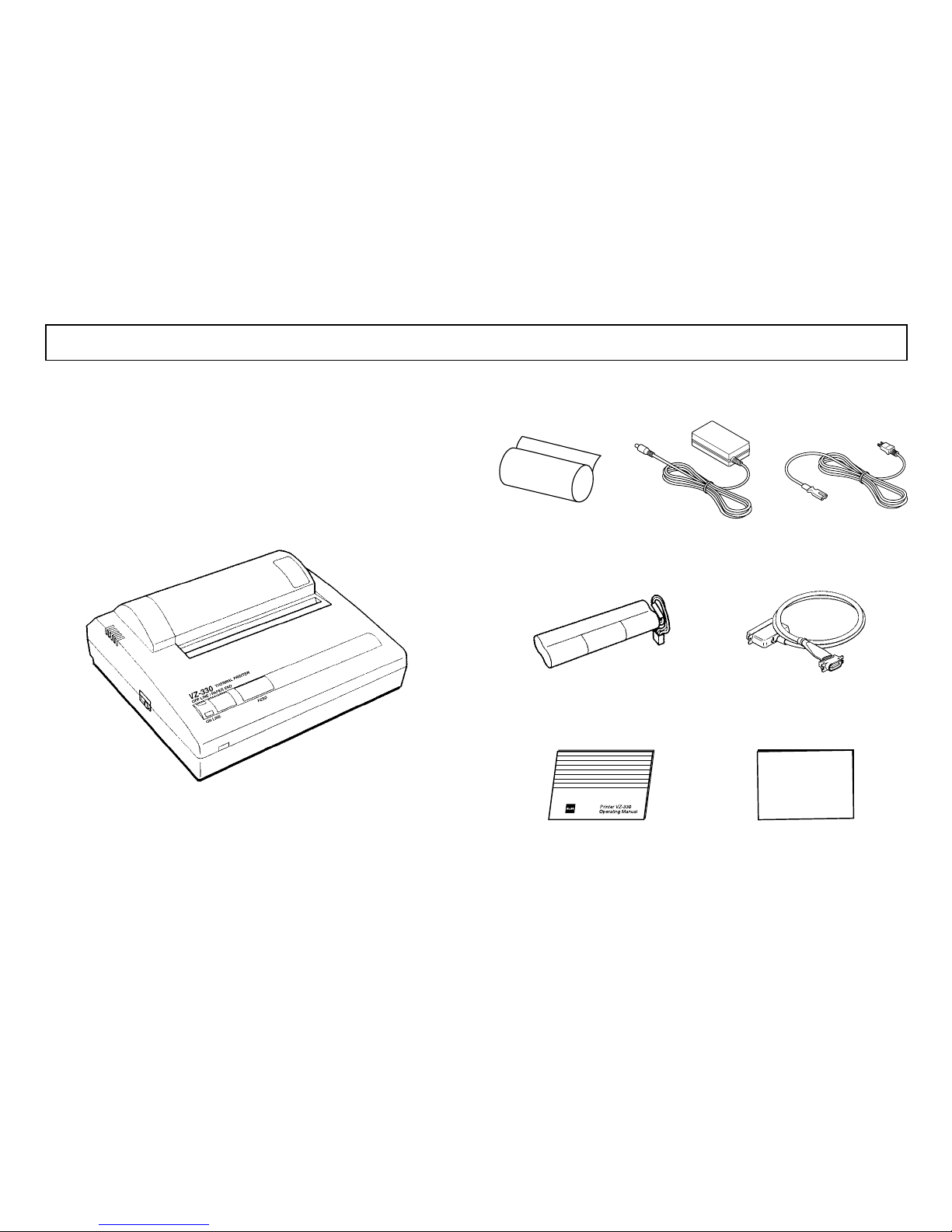
2. Accessories
Once you have opened the car ton, make sure it
contains the printer and all accessories.
1. Printer
Thermal paper AC adapter AC cable
*The shape of the printer cable in different according to the measuring instrument used.
Battery pack Printer cable
Manual Function setting guide
1. Printer and Accessories
(The battery pack is set in the printer)

5
Power lamp
Power Switch
Paper cover window
Paper cover
1. Front 2. Back
3. Bottom
Battery pack cover
Power supply jack
Parallel inputconnector
Serial input connector
Ground screw
2. Part Names

6
4 Power LED
Indicates the power is on. Blinks once every second
to indicate the battery is being charged. Blinks once
every 1/2 second to indicate the battery is low.
5 ONLINE LED
Indicates the printer is ONLINE. Blinks to indicate
there is data in the buffer memory when the printer is
OFFLINE.
6 OFFLINE LED
Indicates the printer is OFFLINE. If the paper is not
set or has run out, the LED flashes. When an error
occurs, both the ONLINE and off-line LEDS light.
*<ONLINE>
Set the printer ONLINE to print by receiving the data.
*<OFFLINE>
Set the printer OFFLINE to feed paper with the FEED
button or to stop printing. (Print data and commands
cannot be input in OFFLINE mode.)
*Be sure the thermal head is in the home position (at
the far left) before turning off the power switch. If left
away from the home position for a long period, the
print quality might deteriorate.
2. Operation Panel
1 Power Switch
Slide the power switch to turn the power on (ONLINE)
or off.
2 FEED button
Feeds thermal paper when pressed in OFFLINE mode.
3 ONLINE button
Press to toggle between OFFLINE and ONLINE.
4Power LED
5ONLINE LED
1Power Switch
6OFFLINE LED
3ONLINE button
2FEED button
1. Names
3. Operation Panel

7
*Always use an specified adapter.
*Connect the ground terminal to ground screw with
ground wire.
*DO NOT touch the pins of the DC plug.
*To remove the AC adapter, turn off the power switch
first, then unplug the AC adapter and the DC plug.
Ground wire
Ground screw
DC plug
Power supply jack
1 Turn off the power.
2 Plug the DC plug on the AC adapter into the power
supply jack on the printer.
3 Plug the AC adapter into an outlet.
4 Turn on the power.
4. Connecting AC Adapter

8
Insertion Slot
The printing surface
is the outside of the
thermal paper roll.
5 Keep pressing the FEED button until the thermal
paper feeds straight and smoothly.
6Close the paper cover and push down on it to lock it
into place.
*Load the paper in an area protected from direct
sunlight.
*When the thermal paper is set correctly, the
OFFLINE LED stops blinking and stays on to indicate
the printer is still in OFFLINE mode.
*When the paper is about to run out, red lines appear
on both sides of the paper.
1 Lightly push up on the front of the paper cover with
your thumb and rotate it toward the back of the printer.
2 Turn on the power.
3 Cut the tip of the thermal paper straight across. New
Paper can be inserted as is. (See gure on right)
4 Push the tip of the thermal paper into the inlet at
the bottom of the paper holder, until the auto-loader
catches it and feeds about 10cm of it through the
paper cutter.
5. Loading the Paper

9
1 Turn off the printer and measuring instrument.
2 Connect the printer to the measuring instrument with
an printer cable.
<Parallel> Secure with veil lock.
<Serial> Secure with screws.
3 Set the software DIP switches (DIP SW) to match the
input method. (See P10 [DIP SW Settings] )
4 Turn on the printer and the measuring instrument.
The connection in completed it printed data is sent
from the measuring instrument, and it is printed
correctly.
<Parallel>
<Serial>
Measuring
instrument
Measuring
instrument
*The driver wight not be used according to
the connector shape of the printer cable.
6. Connecting the Printer

10
1. DIP SW1
Switch No. Function ON OFF
1 Input Method Parallel Serial
2Printing speed High Low
3 Auto loading ON OFF
4 CR function
Carriage return
and line feed
Carriage
return
5DIP SW Setting
Command Enable Disable
6 to 8 Print density See the table below
Switch No. Print Density (%)
72 79 86 93 100 107 114 121
6ON ON ON ON OFF OFF OFF OFF
7ON ON OFF OFF ON ON OFF OFF
8ON OFF ON OFF ON OFF ON OFF
*DO NOT set switches 5 to 8 a setting other than that
shown in the table.
The startup settings and input method can be set by
the software DIP switches (DIP SW).
*It is necessary to change the setting with the
measuring instrument used. Please see attached
paper "VZ-330 function setting guide" in detail.
*The setting cannot be discontinued until ending it the
setting is started on the way. Please never turn off
power while setting it.
*in dicates factory default setting.
7. DIP SW Settings
Tabla de contenidos
Otros manuales de Impresora de Kett