
KENT SP500 Manual de usuario

INTERNATIONAL
130, Shields Court
Markham, Ontario, Canada L3R 9T5
Tel: 905 - 940 8539 Fax : 905 - 940 8543
Web: www.kentpp.com eMAIL: kentpp@interlog.com
SP500 Screen Printer
Machine Operation Manual
Serial No.:

01/28/02
Page 1
Contents
Kent Pad Printer Canada Inc.
TABLE OF CONTENTS
TOPIC PAGE
Introduction 2
Main Features 3
Installation 4
Control Features 6.1
Control Sequence
-Turning Your Printer On 6.2
- Manual Mode 6.3
- Machine Settings and Special Features 6.4
- Activating Printing Mode 6.5
- Stopping 6.6
Flat print mechanism 7.1
Round printing mechanism 7.2
Machine setup
- Adjusting height of work table 8.1
- Mounting & adjusting screen 8.2
- Mounting & adjusting squeegee 8.5
- Mounting & adjusting flooder 8.6
- Adjusting travel distance of flooder/squeegee carriage 8.7
- Adding ink 8.8
Speed Adjustment 9.1
Work Table Adjustment 9.2
Changing printing setup (flat to round) 10.1
Appendix A: Circuits & Diagrams
Appendix B: Spare Parts List

01/28/02
Page 2
Introduction
Kent Pad Printer Canada Inc.
Dear valued customer:
Thank you for choosing the SP-500 pad printer. We hope that you will get the most out of
your machine.
The following manual will familiarize you with the setup and use of your printer. Please
read throu
g
h the manual thorou
g
hl
y
before usin
g
y
our printer for the first time. Please note
that the diagrams shown within this manual are not to scale, and some aesthetic details
may be omitted for the sake of clarity.
We would like to draw your special attention to the following notes:
APPLICATION TIPS
Always use the MANUAL keys for machine setup, simulate each machine movement
gently and make corrections before turning the machine to “one-cycle” or “automatic
cycle”. This is a safeguard against any serious damage to your machine.
IT IS THE OPERATOR’S RESPONSABILITY TO COMPLY WITH THE FOLLOWING
SAFETY INSTRUCTIONS TO PREVENT ANY PERSONAL INJURY.
• Please disconnect the main power supply before attempting any machine
maintenance.
• Air pressure must be released before attending to any service inside the
machine or on any moving accessories.
• Always use the panic switch to stop the machine in an emergency. The foot
switch is used for normal operations only.
PROPER USAGE OF MACHINE
• The present machine is provided as a standalone machine. Do not link it up
with any other automation/system using other control. Warranty of machine
will be void if equipment is modified or not operated under intended usage
and maintenance.
!WARNING

01/28/02
Page 3
Main Features
Main Features
2
1. Squeegee Tension Knob 7. Control Panel
2. Flooder/Squeegee
Carriage 8. Flooder (Spatula) Assembly
3. Squeegee Assembly 9. Printer Stand
4. Screen holder 10. Foot Switch
5. Work table 11. Leveling screw
6. Work table up/down
hand wheel
1
3
6
7
8
9
10
4
11
5

01/28/02
Page 4
Install
Kent Pad Printer Canada Inc.
Leveling the machine.
Since floor surface levels vary to a great
de
g
ree, it is important to level the machine
before starting any adjustments.
A
d
j
ust the 4 levelin
g
screws located at the
base of machine stand.
Mechanical
WARNING
Please disconnect the main power supply
before attempting any machine maintenance.
For the maintenance procedure, refer to the
Maintenance Section.
Installation
Pneumatic
Connecting main air and related pneumatic equipment.
1. Connect main air supply to the pressure regulator of machine.
2. Set operational pressure to 6 bar.
Pressure regulator
Valve to
increase/decrease
pressure
Connect air
supply here
Read
pressure
here

01/28/02
Page 5
Install
Kent Pad Printer Canada Inc.
Electrical
Connecting the cables.
1. Connect the Main Power Cable (AC supply).
On the side of printer
Printer suitable for (depends on model):
–120V 50/60Hz (+/- 5%)
–220V 50/60Hz (+/- 5%)
2. Ground machine externally.
At the back of printer
Power cable

01/28/02
Page 6.1
Kent Pad Printer Canada Inc.
Control
Control Features
No. Components Main Functions
1. Control Display Display printer’s control information
2. Squeegee Left/Right key** Manual mode key: squeegee moves left or right
**Round Print: screen moves left or right
3. Screen Up/Down key Manual mode key: screen moves up or down
4. Squeegee Up/Down key Manual mode key: squeegee/flooder moves up or down
5. Left (-) and Right (+) keys To select printer setting parameters
6. Setting key To enter and select printer settings and special features
7. Start key To activate compressed air, accept new settings
8. Panic Switch To stop in emergency
9. Foot Switch To stop in any modes
3
4
Front Control Panel
1
7
2
5
6
9
8

01/28/02
Page 6.2
Kent Pad Printer Canada Inc.
Control
Turning your Printer On
1. Turn power switch ON (at the back of machine body).
2. Release panic switch by turning it clockwise.
Display
Then
3. Press setting key to select which printing setup (round or flat) machine is using.
Display
4. Press start key to accept selection and activate compressed air inside machine.
Display
Machine is now ready to operate
Choose one of the following options to continue.
- For Manual Mode (adjustments & simulations) go to page 4.3
- For Machine Settings & special features go to page 4.4
- For Activating Printing Mode go to page 4.6
- For Stopping go to page 4.6
Control Sequence
KENT ENG. LTD.
SCREEN PRINTER
FLAT PRINT
PRESS “ “ SW
ROUND PRIN
T
:START :SETUP
FLAT
PRESS “ “ TO ROUND

01/28/02
Page 6.3
Kent Pad Printer Canada Inc.
Control
Manual Mode
For machine adjustments and simulations.
1. To select manual mode, press a manual mode key.
2. Press start key to enter manual mode.
Movement of selected manual key is activated.
Display:
3. Now that machine is in manual mode, you can press any manual key to activate the movement
of your choice.
MANUAL mode keys are:
Squeegee left/right key
Flat Print: squeegee left or right movement
Round Print: screen left or right movement
Screen up/down key
For screen up or down movement
Squeegee up/down key
For squeegee/flooder up or down movement
Note: Only one manual mode key must be selected at a time.
4. When ready to leave manual mode:
Make sure LED of all manual mode keys are turned off.
To turn off, press key.
Press start key to leave manual mode.
LED
MANUAL ACTION
00000000
01/28/02
Page 6.4
Kent Pad Printer Canada Inc.
Control
Machine settings & special features
Press the setting key to enter machine settings and special features.
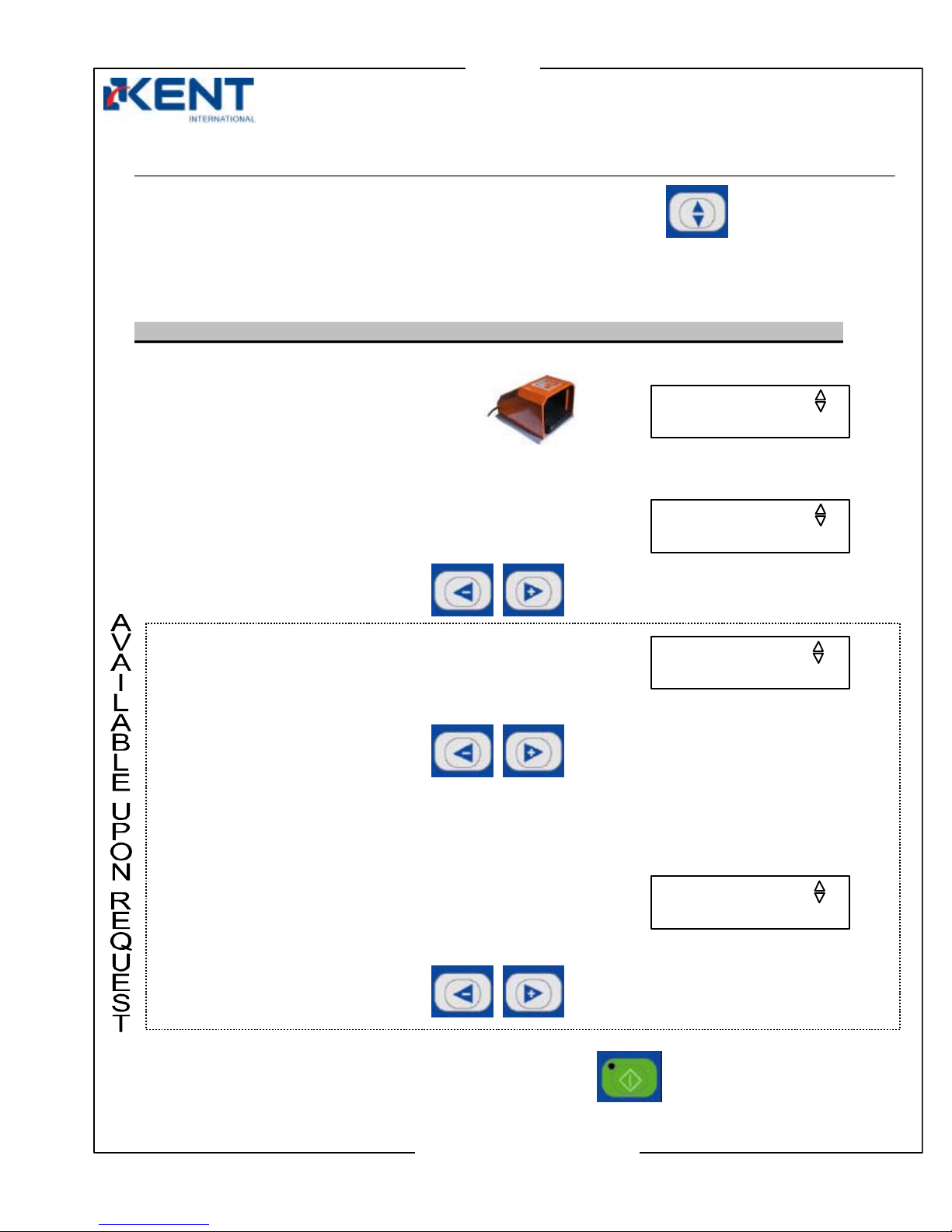
Depending on what type of printing mode, one-cycle or auto mode is enabled on your machine, two
different sets of displays will appear:
- Set of displays if machine operates in one cycle mode (standard printing mode)
1. Clean screen
Press foot switch to clean the screen.
2. Reset counter
Press left (–) or right (+) keys to reset counter to 0.
3. Motor speed
(appears only if round print setup is in use)
Press left (–) or right (+) keys to increase or decrease motor speed of auto centering unit.
Note: Higher number means lower speed
4. Motor time
(appears only if round print setup is in use)
Press left (–) or right (+) keys to increase or decrease motor’s rotating time of auto centering
unit.
When ready to leave setting screens, press the start key.
MOTOR SPEED 3
SPEED: 1-25 (04)
RESET COUNTER 2
00000000
CLEAN SCREEN 1
PRESS ON FOOT SW
MOTOR TIME 4
TIME:1-10S (02)
Tabla de contenidos


