JVC KD-G351 Manual de usuario

ENGLISH
CD RECEIVER
KD-G441/KD-G351
For installation and connections, refer to the separate manual.
INSTRUCTIONS
GET0500-003A
[EX/EU]
For canceling the display demonstration, see page 5.

2
ENGLISH
Information for Users on Disposal of Old
Equipment
This symbol indicates that the product with
this symbol should not be disposed as general
household waste at its end-of-life. If you wish to
dispose of this product, please do so in accordance
with applicable national legislation or other rules in
your country and municipality. By disposing of this
product correctly, you will help to conserve natural
resources and will help prevent potential negative
effects on the environment and human health.
Warning:
If you need to operate the unit while driving, be
sure to look around carefully or you may be involved
in a traffic accident.
Thank you for purchasing a JV product.
Please read all instructions carefully before operation, to ensure your complete understanding and to obtain the best
possible performance from the unit.
IMPORTANT FOR ASER PRODUCTS
1. LASS 1 LASER PRODU T
2. CAUTION: Do not open the top cover. There are no user serviceable parts inside the unit; leave all servicing to
qualified service personnel.
3. CAUTION: Visible and/or invisible class 1M laser radiation when open. Do not view directly with optical
instruments.
4. REPRODU TION OF LABEL: AUTION LABEL, PLA ED OUTSIDE THE UNIT.
This symbol is only valid in
the European Union.
Note: Only for [EX] model users in UK and
European countries
For security reasons, a numbered ID card is provided
with this unit, and the same ID number is imprinted on
the unit’s chassis. Keep the card in a safe place, as it will
help the authorities to identify your unit if stolen.
For safety...
• Do not raise the volume level too much, as this will
block outside sounds, making driving dangerous.
• Stop the car before performing any complicated
operations.
Temperature inside the car...
If you have parked the car for a long time in hot or cold
weather, wait until the temperature in the car becomes
normal before operating the unit.
The control panel illustrations used for explanation
in this manual is of KD-G441.
EN02-07_KD-G441_003A_4.indd 2EN02-07_KD-G441_003A_4.indd 2 10/24/07 10:05:08 AM10/24/07 10:05:08 AM

ENGLISH
3
How to reset your unit
• Your preset adjustments will also be erased.
How to forcibly eject a disc
• Be careful not to drop the disc when it ejects.
• If this does not work, reset your unit.
How to use the M MODE button
If you press M MODE, the unit goes into functions mode,
then the number buttons and 5/∞ buttons will work
as different function buttons.
Ex.: When number button 2 works as
MO (monaural) button.
To use these buttons for their original functions,
press M MODE again.
• Waiting for about 5 seconds without pressing any of
these buttons will automatically cancels the functions
mode.
KD-G441 is equipped with the steering wheel
remote control function.
• See the Installation/ onnection Manual (separate
volume) for connection.
CONTENTS
Control panel — KD-G441/KD-G351 ........ 4
Getting started ................................. 5
Basic operations .................................................... 5
Radio operations .............................. 6
FM RDS operations ............................ 7
Searching for your favorite FM RDS programme ... 7
Disc/USB device operations ............... 10
Playing a disc in the unit ...................................... 10
Playing from a USB device ..................................... 10
Sound adjustments ........................... 13
General settings — PSM ................... 14
Other external component
operations .................................... 16
Remote controller — RM-RK50 ......... 17
More about this unit ......................... 18
Maintenance .................................... 21
Troubleshooting ............................... 22
Specifications ................................... 24
Detaching the control panel
Attaching the control panel
EN02-07_KD-G441_003A_4.indd 3EN02-07_KD-G441_003A_4.indd 3 10/24/07 10:05:10 AM10/24/07 10:05:10 AM

4
ENGLISH
Parts identification
Display window
Control panel — KD-G441/KD-G351
1 5 (up) / ∞ (down) buttons
2 0 (eject) button
3 (standby/on attenuator) button
4 ontrol dial
5 Remote sensor
• For KD-G441: You can control this unit with an
optionally purchased remote controller. For
details, see page 17.
• DO NOT expose the remote sensor to strong light
(direct sunlight or artificial lighting).
6 BAND button
7 Loading slot
8 Display window
9 T/P (traffic programme/programme type) button
p DISP (display) button
q (control panel release) button
w SR (source) button
e 4 /¢ buttons
r AUX (auxiliary) button
t SEL (select) button
y M MODE button
u EQ (equalizer) button
i MO (monaural) button
o SSM (Strong-station Sequential Memory) button
; Number buttons
a RPT (repeat) button
s RND (random) button
d AUX (auxiliary) input jack
f USB (Universal Serial Bus) input jack
g Source display / Track number / Folder number /
Time countdown indicator
h Tr (track) indicator
j RDS indicators—AF, REG, TP, PTY
k Playback mode / item indicators—RND (random),
(disc), (folder), RPT (repeat)
l Tuner reception indicators—ST (stereo),
MO (monaural)
/ Sound mode (iEQ: intelligent equalizer) indicators
— LASSI , HIP HOP, JAZZ, RO K, POPS, USER
z LOUD (loudness) indicator
EQ (equalizer) indicator
c Disc information indicators—
TAG (Tag information), (folder), (track/file)
v DIS indicator
b Main display
EN02-07_KD-G441_003A_4.indd 4EN02-07_KD-G441_003A_4.indd 4 10/24/07 10:05:10 AM10/24/07 10:05:10 AM

ENGLISH
5
To drop the volume in a
moment (ATT)
To restore the sound, press the
button again.
To turn off the power
Basic settings
• See also “General settings — PSM” on pages
14 – 16.
1
2
1 Canceling the display demonstrations
Select “DEMO,” then “DEMO OFF.”
2 Setting the clock
Select “ LO K HOUR”, then adjust the hour.
Select “ LO K MIN” (minute), then adjust the
minute.
Select “24H/12H,” then “24 HOUR” or
“12 HOUR”.
3 Finish the procedure.
To check the current clock time while the
power is turned off
lock time is shown on the display for
about 5 seconds. See also page 14.
Getting started
Basic operations
~ Turn on the power.
Ÿ
* You cannot select these sources if they are not
ready or not connected.
! For FM/AM tuner
⁄ Adjust the volume.
@ Adjust the sound as you want. (See
page 13.)
Caution on volume setting:
Digital devices ( D/USB) produce very little noise
compared with other sources. Lower the volume
before playing these digital sources to avoid
damaging the speakers by sudden increase of the
output level.
Volume level appears.
EN02-07_KD-G441_003A_4.indd 5EN02-07_KD-G441_003A_4.indd 5 10/24/07 10:05:11 AM10/24/07 10:05:11 AM

6
ENGLISH
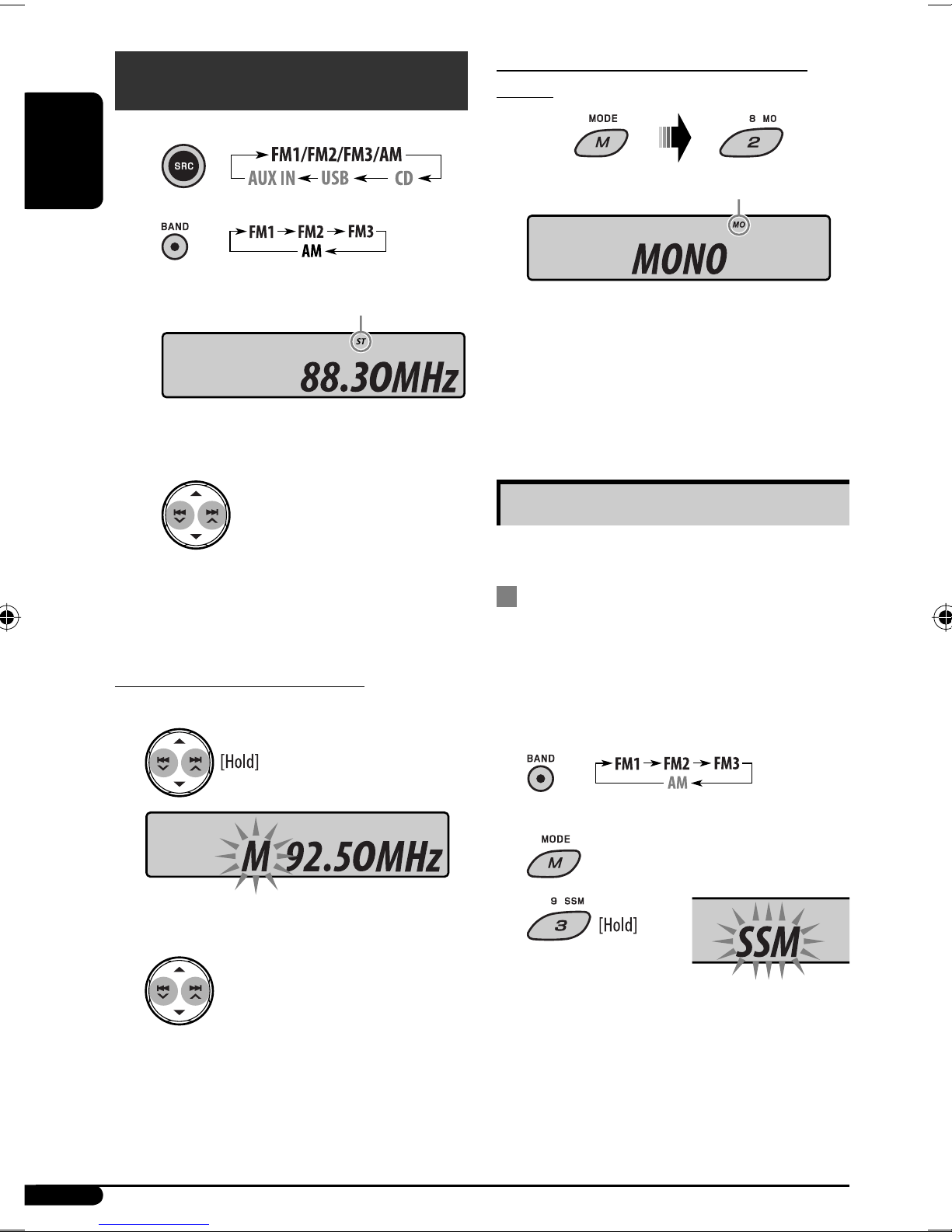
When an FM stereo broadcast is hard to
receive
Reception improves, but the stereo effect will be lost.
To restore the stereo effect, repeat the same
procedure. “MONO OFF” appears and the MO indicator
goes off.
Storing stations in memory
You can preset six stations for each band.
FM station automatic presetting —
SSM (Strong-station Sequential
Memory)
1 Select the FM band (FM1 – FM3) you want to
store into.
2
3
“SSM” flashes, then disappears when automatic
presetting is over.
Local FM stations with the strongest signals are
searched and stored automatically in the FM band.
Radio operations
~
Ÿ
! Start searching for a station.
When a station is received, searching stops.
To stop searching, press the same button
again.
To tune in to a station manually
In step ! above...
1
2 Select a desired station frequency.
Lights up when receiving an FM stereo
broadcast with sufficient signal strength.
Lights up when monaural mode is activated.
EN02-07_KD-G441_003A_4.indd 6EN02-07_KD-G441_003A_4.indd 6 10/24/07 10:05:12 AM10/24/07 10:05:12 AM

ENGLISH
7
F RDS operations
What you can do with RDS
RDS (Radio Data System) allows FM stations to send an
additional signal along with their regular programme
signals.
By receiving the RDS data, this unit can do the
following:
• Programme Type (PTY) Search (see the following)
• TA (Traffic Announcement) and PTY Standby
Receptions (see pages 8, 9, and 15)
• Tracing the same programme automatically
—Network-Tracking Reception (see page 9)
• Programme Search (see pages 9 and 15)
Searching for your favorite
FM RDS programme
You can tune in to a station broadcasting your favorite
programme by searching for a PTY code.
• To store your favorite programme types, see page 8.
~ The last selected PTY code
appears.
Ÿ Select one of your favorite programme
types.
or
Select one of the PTY codes (see
page 9).
Manual presetting
Ex.: Storing the FM station of 92.50MHz into preset
number 4 of the FM1 band.
1
2
3
istening to a preset station
1
2 Select the preset station (1 – 6) you want.
or
To check the other information while
listening to an FM (non-RDS) or AM station
• For FM RDS stations, see page 9.
Preset number flashes for a while.
Continued on the next page
Frequency Ô Clock
EN02-07_KD-G441_003A_4.indd 7EN02-07_KD-G441_003A_4.indd 7 10/24/07 10:05:13 AM10/24/07 10:05:13 AM

8
ENGLISH
Using the standby receptions
TA Standby Reception
TA Standby Reception allows the unit to switch
temporarily to Traffic Announcement (TA) from any
source other than AM.
The volume changes to the preset TA volume level if the
current level is lower than the preset level (see
page 1 ).
To activate TA Standby Reception
The TP (Traffic Programme) indicator
either lights up or flashes.
• If the TP indicator lights up, TA Standby Reception is
activated.
• If the TP indicator flashes, TA Standby Reception is
not yet activated. (This occurs when you are listening
to an FM station without the RDS signals required for
TA Standby Reception.)
To activate TA Standby Reception, tune in to another
station providing these signals. The TP indicator will
stop flashing and remain lit.
To deactivate the TA Standby Reception
The TP indicator goes off.
PTY Standby Reception
PTY Standby Reception allows the unit to switch
temporarily to your favorite PTY programme from any
source other than AM.
To activate and select your favorite PTY code for
PTY Standby Reception, see page 1 .
The PTY indicator either lights up or flashes.
• If the PTY indicator lights up, PTY Standby Reception
is activated.
• If the PTY indicator flashes, PTY Standby Reception is
not yet activated.
To activate PTY Standby Reception, tune in to another
station providing these signals. The PTY indicator will
stop flashing and remain lit.
! Start searching for your favorite
programme.
If there is a station broadcasting a programme
of the same PTY code as you have selected, that
station is tuned in.
Storing your favorite programme
types
You can store six favorite programme types.
Preset programme types in the number buttons
( to 6):
1 Select a PTY code (see pages 7 and 8).
2 Select the preset number ( – 6) you want to
store into.
3 Repeat steps and 2 to store other PTY codes
into other preset numbers.
4 Finish the procedure.
Ex.: When “ROCK M” is selected
EN08-17_KD-G441_003A_4.indd 8EN08-17_KD-G441_003A_4.indd 8 10/24/07 10:04:07 AM10/24/07 10:04:07 AM

9
ENGLISH
To deactivate the PTY Standby Reception, select
“OFF” for the PTY code (see page 1 ). The PTY indicator
goes off.
Tracing the same programme—
Network-Tracking Reception
When driving in an area where FM reception is not
sufficient enough, this unit automatically tunes in to
another FM RDS station of the same network, possibly
broadcasting the same programme with stronger
signals (see the illustration below).
When shipped from the factory, Network-Tracking
Reception is activated.
To change the Network-Tracking Reception
setting, see “AF-REG” on page 1 .
Programme A broadcasting on different frequency areas
(01 – 0 )
Automatic station selection—
Programme Search
Usually when you press the number buttons, the preset
station is tuned in.
If the signals from the FM RDS preset station are not
sufficient for good reception, this unit, using the AF
data, tunes in to another frequency broadcasting the
same programme as the original preset station is
broadcasting.
• The unit takes some time to tune in to another
station using programme search.
• See also page 1 .
To check the current clock time while
listening to an FM RDS station
PTY codes
NEWS, AFFAIRS, INFO, SPORT, EDUCATE, DRAMA, CULTURE,
SCIENCE, VARIED, POP M (music), ROCK M (music), EASY
M (music), LIGHT M (music), CLASSICS, OTHER M (music),
WEATHER, FINANCE, CHILDREN, SOCIAL, RELIGION, PHONE
IN, TRAVEL, LEISURE, JAZZ, COUNTRY, NATION M (music),
OLDIES, FOLK M (music), DOCUMENT
Station name (PS) = Station
Frequency = Programme type
(PTY) = Clock = (back to the
beginning)
EN08-17_KD-G441_003A_4.indd 9EN08-17_KD-G441_003A_4.indd 9 10/24/07 10:04:10 AM10/24/07 10:04:10 AM

10
ENGLISH
Disc / USB device
operations
: For built-in CD player operations.
: For external USB device operations.
Playing a disc in the unit
All tracks will be played repeatedly until you chan e the
source or eject the disc.
To stop play and eject the disc
• Press SRC to listen to another
playback source.
Playing from a USB device
This unit can play MP3/WMA tracks stored in a USB
device (except HDD).
All tracks in the USB device will be played repeatedly
until you chan e the source.
~
Ÿ
If a USB device has been attached...
Playback starts from where it has been stopped
previously.
• If a different USB device is currently attached,
playback starts from the be innin .
To detach the USB device, strai htly pull it out from
the unit.
• Removin the USB device will also stop playback.
Then, press SRC to listen to another playback source.
Cautions
• Avoid usin the USB device if it mi ht hinder your
safety drivin .
• Do not pull out or attach the USB device
repeatedly while “READING” appears on the
display.
• Do not start a car en ine if a USB device is
connected.
• This unit may not be able to play the files
dependin on the type of the USB device.
• Operation and power supply may not work as
intended for some USB devices.
• You cannot connect a computer to the USB input
jack of the unit.
• Make sure all important data has been backed up
to avoid losin the data.
• Do not leave a USB device in the car, expose to
direct sunli ht, or hi h temperature to avoid
deformation or cause dama e to the USB device.
• Some USB devices may not work immediately
after you turn on the power.
• For more details about USB operations, see pa es
19 and 20.
USB input jack
USB memory
EN08-17_KD-G441_003A_4.indd 10EN08-17_KD-G441_003A_4.indd 10 10/24/07 5:55:25 PM10/24/07 5:55:25 PM
Otros manuales para KD-G351
2
Este manual sirve para los siguientes modelos
1
Tabla de contenidos
Otros manuales de Receptor de coche de JVC

JVC
JVC KD-LHX505 Manual de usuario

JVC
JVC KD-S640 Manual de usuario

JVC
JVC KD-T716BT Manual de usuario

JVC
JVC GET0125-001A Manual de usuario

JVC
JVC KD-SX870/KD-SX770 Manual de usuario

JVC
JVC KD-LX555R Manual de usuario

JVC
JVC KD-SV2800 Guía

JVC
JVC KD-S34 Manual de usuario

JVC
JVC KD-AHD79 Guía

JVC
JVC KD-R412 Manual de usuario