Jay-tech PID7901 Manual de usuario


Table of Contents
1Notes of PID7901 ·······································································1
1.1 Safety Precautions ······························································1
1.2 Transportation Precautions ···················································1
1.3 Battery Recharging······························································2
1.4 Airplane Precautions····························································2
2PID7901 Introduction··································································2
2.1 Features············································································2
2.2 Hardware Overview ·····························································2
2.3 Appearance and Buttons ······················································3
2.4 PID79017901 Status and Notification ······································4
3Quick Start ················································································4
3.1 Boot and Shutdown ·····························································4
3.2 Power-Saving Mode ····························································4
3.3 To Use the Touch Screen······················································5
3.4 Home Screen ·····································································6
3.5 Enter text···········································································7
3.6 Access Application ······························································8
3.7 USB connection··································································8
4Wi-Fi Setting··············································································8
5Communication ·········································································9
5.1 E-mail Setting·····································································9
6Multimedia ·············································································· 11
6.1 My Music········································································· 11
6.2 My Video ········································································· 11
6.3 Gallery Application····························································· 11
7Internet Browsing ···································································· 12
7.1 Browser···········································································12

8Other Applications ··································································· 14
8.1 Alarm Clock ·····································································14
8.2 Calendar ·········································································14
8.3 File Browser·····································································14
8.4 Voice Recorder································································· 15
9Basic Settings ········································································· 15
9.1 Sound and Display ····························································15
9.2 Security and Location························································· 16
9.3 MicroSD card and Storage ·················································· 17
9.4 Set Date and Time·····························································18
9.5 Set Language···································································18
10 Application Installation····························································· 18
10.1 Installation ·······································································18
10.2 Uninstall··········································································19
11 Troubleshooting······································································· 19
11.1 PID7901 can not connect to Wi-Fi ········································19
11.2 PID7901 Heat Issue···························································20
11.3 System doesn’t work correctly ·············································20
11.4 Can not set e-mail or register application ·······························20

1 Notes of PID7901
The purpose of this document serves mainly as a quick guide for the users to know
how to use the device directly. This document is only for reference; please see the real
product for detailed information. The following safety precautions will increase your
PID7901 lifetime.
1.1 Safety Precautions
zDisconnect the AC power before cleaning. Wipe the PID7901 using a clean
cellulose sponge or chamois cloth dampened with a solution of nonabrasive
detergent and a few drops of warm water and remove any extra moisture with
a dry cloth.
zDO NOT leave the PID7901 on your lap or any part of the body to prevent
discomfort or injury from heat exposure.
zDO NOT press or touch the display panel. Do not place together with small
items that may scratch or enter the PID7901.
zDO NOT expose to strong magnetic or electrical fields.
zDO NOT expose to or use near liquids, rain, or moisture.
zDO NOT carry or cover a PID7901 that is powered on with any materials that
will reduce air circulation such as a carrying bag.
zSAFE TEMP: This PID7901 should only be used in environments with
ambient temperatures between 5°C and 40°C.
zINPUT RATING: Refer to the rating label on the rear side of the PID7901 and
be sure that your power adapter complies with the rating.
1.2 Transportation Precautions
To prepare the PID7901 for transport, you should turn it OFF and disconnect all
external peripherals to prevent damage to the connectors. The surface of
PID7901 easily gets dirty if not properly cared for. Be careful not to rub or scrape
surfaces when transporting your PID7901. You can purchase an optional carrying
case for protection from dirt, water, shock, and scratches.
1

1.3 Battery Recharging
If you intend to use battery power, be sure to fully charge your battery pack before
going on long trips. Remember that the battery pack is recharged once it is
plugged into an AC power source. Be aware that it takes longer to charge the
battery pack when the PID7901 is in use.
1.4 Airplane Precautions
Contact your airline if you want to use the PID7901 on the airplane. Most airlines
have restrictions for using electronic devices. And allow it only on the way, not at
take-off or landings.
2 PID7901 Introduction
2.1 Features
z17.8 cm (7 inch) touch panel
zTrue color image display
zInternet surfing
zInstant online communication: email, chatting
zMusic, video and photo downloading and playback
zMusic player supports audio format: MP3/WAV
zMedia player supports video format: MP4/3gp/FLV
zPhoto browser supports image format: PNG/JPEG/BMP/GIF
zRotate the screen horizontally or vertically by Gravity Sensor
2.2 Hardware Overview
zCPU: VIA WM8505
zOS: Android
zMain Frequency: 300MHz
zMemory: 128MB RAM
zBuilt-in NAND Flash: 2 GB (1GB available for users only)
zScreen Size: 17.8 cm (7 inch) TFT LCD
zResolution: Pixel 800x480
zBuilt-in Wi-Fi: Support 802.11b/g
zUSB Port: 1*MINI 5PIN USB PORT
zTouch Screen: Full mirror face, high sensitive touch screen
2

zStorage: standard MicroSD slot supports up to 16 GB.
zSound: built-in stereo speakers ,support audio frequency, built-in microphone
zProduct Size: 203 x 137 x 13 mm
2.3 Appearance and Buttons
Touch Screen
Back Button/Unlock
Speaker Reset
Power (DC) input USB Port
MicroSD Slot Earphone Port
Volume Control Keys Power Button
Microphone
3

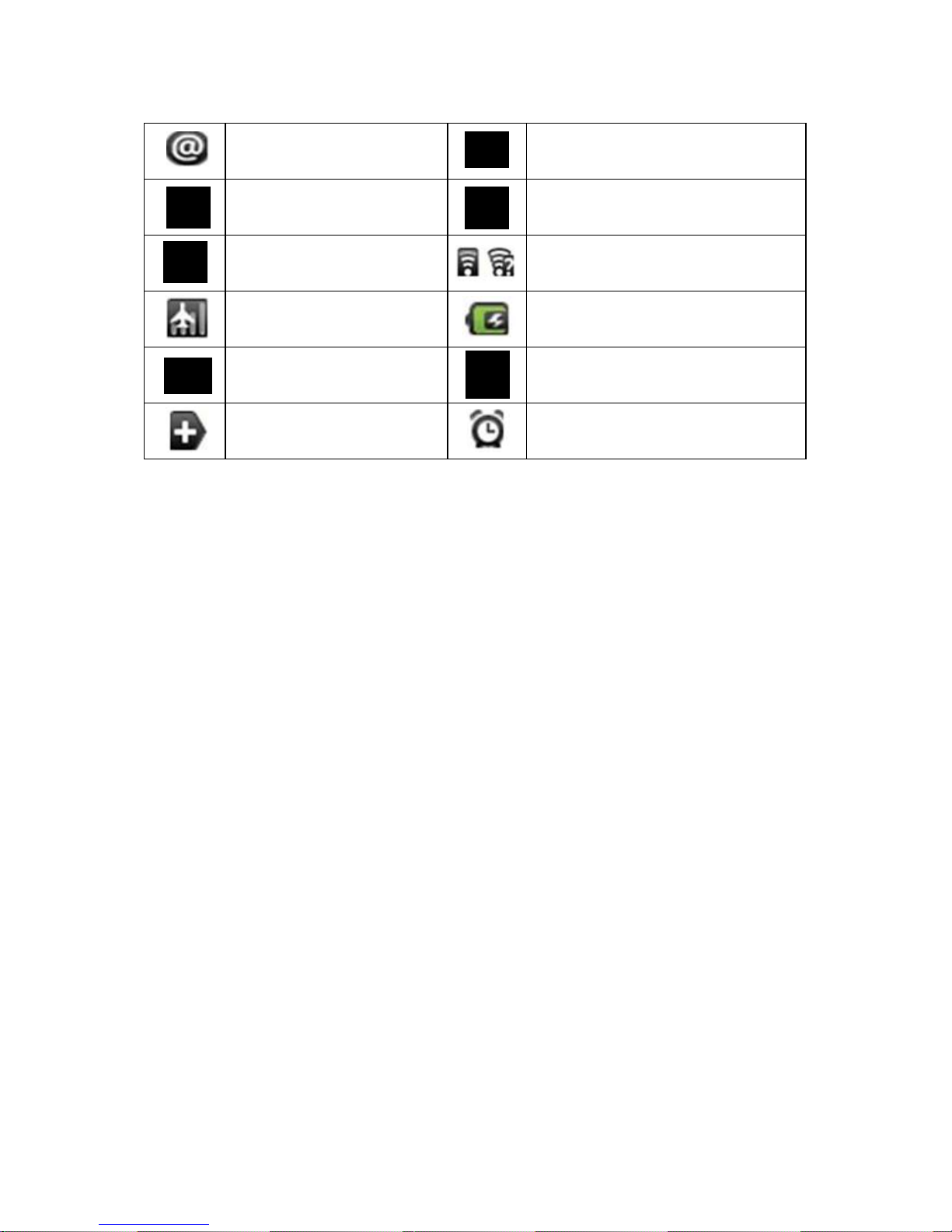
2.4 PID79017901 Status and Notification
New Message Upload / download
New Instant Message Download Complete
Playing music Connected to Wi-Fi network
Flight mode Charging battery
General notice Silent mode
More Alarm is on
3 Quick Start
3.1 Boot and Shutdown
A. Boot
zPress the [Power Button], wait 3 seconds to see the lock boot screen
zThen press the [Back Button] to unlock the screen
B. Shutdown
zLong press the [Power Button], will pop up the shutdown window
zWindows have four options: Silent Mode / Airplane Mode / Hibernate /
Power off
zClick [Power off]
zClick [OK] to shut down
3.2 Power-Saving Mode
Power-Saving mode saves battery power by putting PID7901 into a low
power state. It also locks the screen.
zThe screen will automatically goes into Power-Saving mode when it’s idle for
a while.
zPress the [Back Button] to unlock.
4

3.3 To Use the Touch Screen
There are several ways to browse the home screen, menu and application in
you PID7901.
A. Click
When you want to use the keyboard to type, select application or press
on-screen buttons, just click the icon by your finger.
B. Press and hold
When you press the blank area in the Home Screen and it will show many
applications and functions. You can add them to Home screen.
C. Drag
Press and hold your finger with some pressure before you start to drag. While
dragging, don’t release your finger until you have reached the target position.
5

3.4 Home Screen
You can place application icons on Home Screen to open it quickly. You can
also add shortcuts and customize your Home Screen.
Home Switch screen Status bar Pic Capture Menu
Hide/Show
Applications List
A. Extended Home Screen
Home Screen is extendable beyond the width of the screen to provide more
space for adding icons, new shortcut and widgets. Slide your finger leftward or
rightward, you can get more pages.
B. Customize your Home Screen
Add widgets to Home Screen
zFrom the Home Screen, click [Menu].
zThen click [Add], select the item to add to the Home Screen.
zWhen you click [Widgets] and then click [Search], you can use this
function to search any file in your PID7901 or a webpage.
6

Tip1: To make an application in Applications List added to the Home
Screen, long press it until it gets enlarged and it will be put on
Home Screen.
Tip2: In the Home Screen, long press a blank area, pop-up a window,
choose what you want to add to home screen, such as: music,
photo frame, clock, search, etc..
C. Remove Icon from Home Screen
zTap and hold the icon until the icon is enlarged up.
zHold continuously and drag the icon into theApplications list and then
release your finger.
D. Change desktop Wallpaper
zFrom the Home Screen, press [Menu], and then tap wallpaper.
zSelect image from pictures or wallpaper gallery to set.
3.5 Enter text
Use the virtual keyboard
When you start a program or select a field that requires text or numbers entering,
the virtual keyboard will appear automatically.
Input Method
zIn the text input interface, press and hold the text edit box area, until the
pop-up menu to edit text. And tap input method.
zSelect the input you need.
Tip: For German input, please long press a, o, u, s to type ä, ö, ü, ß.
7
Tabla de contenidos
Otros manuales de Tableta de Jay-tech