Iomega StorCenter Pro NAS 150d Manual de usuario

Iomega®StorCenter™Pro NAS 150d Server
Iomega, the stylized "i" logo, StorCenter, and all Iomega brand blocks are either registered trademarks or trademarks of
Iomega Corporation in the United States and/or other countries. Microsoft and Windows are either registered
trademarks or trademarks of Microsoft Corporation in the United States and/or other countries. Mac, Macintosh, and
AppleTalk are registered trademarks or trademarks of Apple Computer Inc. in the United States and/or other countries.
Certain other product names, brand names, and company names may be trademarks or designations of their respective
owners.

Safety Information
Observe the following guidelines when performing any work on your Iomega®StorCenter™
Pro:
1. Follow all instructions marked on the Iomega StorCenter Pro and in the
documentation.
2. Use only the power supply cable provided with the Iomega StorCenter Pro. Always use
the appropriate power supply cable for your country.
3. Unplug the Iomega StorCenter Pro from the Uninterruptible Power Supply (UPS) before
cleaning. Do not use liquid or aerosol cleaners. Use a damp cloth for cleaning.
4. Do not use the Iomega StorCenter Pro near water. Do not spill liquid on or into the
Iomega StorCenter Pro.
5. Do not place the Iomega StorCenter Pro on an unstable surface.
6. Openings in the Iomega StorCenter Pro cabinet are provided for ventilation and should
not be blocked or covered.
7. Make sure the Iomega StorCenter Pro has ample ventilation (at least 6" or 127 mm) in
front and behind the Iomega StorCenter Pro. Do not place the Iomega StorCenter Pro
near or on a radiator or heat register.
8. Do not walk on the power cord or allow anything to rest on it.
9. Do not open the Iomega StorCenter Pro. Opening the Iomega StorCenter Pro will void
your warranty.
10. This product is equipped with a three-wire grounding plug (a plug with a grounding
pin). This plug will only fit into a grounded power outlet. This is a safety feature. If
you are unable to insert the plug into an outlet, contact an electrician to install the
appropriate outlet.
11. There is a danger of explosion if the battery is incorrectly replaced. Replace only with
the same or equivalent type recommended by the equipment manufacturer. Dispose
of used batteries according to local, state, regional, and federal regulations.
12. This system contains hazardous energy levels. To prevent injury, care must be taken
not to come in contact with any of the electrical circuitry contained inside this system.
Under any of the following conditions, unplug the Iomega StorCenter Pro from the wall
outlet and contact Iomega technical support:
The power cord or plug is damaged.
Liquid has been spilled into the Iomega StorCenter Pro.
The Iomega StorCenter Pro does not function properly when the operating instructions
are followed.
The Iomega StorCenter Pro was dropped or the cabinet is damaged.
| top of page |


About the Iomega®StorCenter™Pro NAS 150d
Server
Key Features
Key Benefits
Ports and Indicators
Default Settings
Key Features
Network sharing
Ethernet connectivity (10/100/1000Base-TX)
Built-in USB printer sharing
No server or host required
Active Directory Services (ADS) Support
Array support: JBOD, RAID 0, RAID 0+1, RAID 5
Supports mixed networks (Windows, Mac OS, and Linux/UNIX systems)
Supports SMB/CIFS (Windows), AFP (AppleTalk), NFS (UNIX/Linux), and FTP protocols.
Up to 25 concurrent connections
Single cable install, no drivers required
Large capacity
| top of page |
Ports and Indicators
Front Panel

1. Drive Access Door—The door can be locked to protect the disks from accidental
removal.
2. Status Indicator—Displays the current operational status of the StorCenter Pro Server.
Off: StorCenter Pro is not running.
Solid red: StorCenter Pro not ready (powering up or firmware flashing)
Flashing red: StorCenter Pro not ready, busy (formatting drive, resetting
to default settings, repairing drive, or powering down)
Solid green: Iomega StorCenter Pro Server is running. This LED is green
when the StorCenter Pro Server is running normally.
Alternating red/green:The drive ID feature has been activated on the
StorCenter Pro Server.
Alternating red (3x)/green (3x):Drive failure.
3. Disk Usage—This indicator flashes whenever the internal hard drive(s) are in use.
Solid blue: Drive present/healthy.
Flashing blue: Hard drive activity.
4. High Speed USB 2.0 Connectors—Supports devices such as USB storage devices and
printers. The StorCenter Pro Server is capable of sharing a single USB printer and four
USB storage devices with other systems on your network.
5. Power Button/Factory Reset Button—Use the power button to start or shut down the
Iomega StorCenter Pro server. Hold the Power Button down for 12 seconds to reset
the StorCenter Pro to factory defaults.

6. Drive Bays—The StorCenter Pro Server has four user-serviceable drive bays. See
Using the Iomega StorCenter Pro 150d RAID for more information on replacing hard
drives.
Rear Panel
1. High Speed USB 2.0 Connectors—Supports devices such as USB storage devices and
printers. The StorCenter Pro Server is capable of sharing a single USB printer and four

USB storage devices with other systems on your network.
2. Ethernet Connector—(10/100/1000Base-TX). Automatically detects your network
speed.
3. AC Power—Plug the correct power cable into this connector and a UPS to power your
StorCenter Pro.
4. AC Selector Switch—Make sure the voltage on the AC selector swtich on the back of
the StorCenter Pro Server matches the power requirements for your country.
5. Power Supply Switch—Your StorCenter Pro Server has a power supply switch on the
rear panel. The power supply switch should always be in the ON position.
CAUTION! The main power supply switch on the back of the drive should always be in
the ON position. Using the power switch will cause the StorCenter Pro Server to lose
power without properly shutting down the operating system which may result in data
loss.
| top of page |
Default Settings
IP address: If no DHCP server is found on your network the StorCenter Pro will
get a self-assigned IP address in the 169.254.x.x range.
Device Name:The default name for your StorCenter Pro is Iom-xxxxxx (where
xxxxxx represents the last 6 digits of the StorCenter Pro MAC address).
Administrative Password
Use this password when logging into the Device Settings utility to
manage the server.
Password: <leave blank>
Default Share
Use this information when connecting to shared folders.
Share Name: public
| top of page |

Connecting the Iomega®StorCenter™Pro
Check Package Contents
Initial Setup
Check Package Contents
Verify that the box contains the following items:
Iomega®StorCenter™Pro NAS 150d Server
(Models may vary) Power cables
Solutions CD and Quick Start Guide Ethernet Cable
NOTE: Package contents may vary. The illustrations may not match your package contents.
| top of page |

Connecting the Iomega®StorCenter™Pro
Check Package Contents
Initial Setup
Initial Setup
1. Remove the packing foam from inside the drive access door.
2. Use the included network cable to connect the StorCenter Pro Server to a network hub or
switch.
— or —
Use the included network cable to connect the StorCenter Pro Server directly to a computer.
3. Connect the included power cord to the back of the Iomega StorCenter Pro and an
Uninterruptible Power Supply (UPS).
CAUTION! Make sure the voltage on the AC selector switch on the back of the StorCenter
Pro Server matches the power requirements for your country. Make sure power supply
switch on the back of the StorCenter Pro Server is ON.
NOTE: Never plug your Iomega StorCenter Pro directly into a wall socket or power strip.
Unexpected loss of power may corrupt data or damage the Iomega StorCenter Pro operating
system.
NOTE: The power supply switch on the back of the StorCenter Pro should always be in the
ON position. Using the power supply switch will cause the StorCenter Pro to lose power
without properly shutting down the operating system which may damage the StorCenter Pro

operating system or result in data loss.
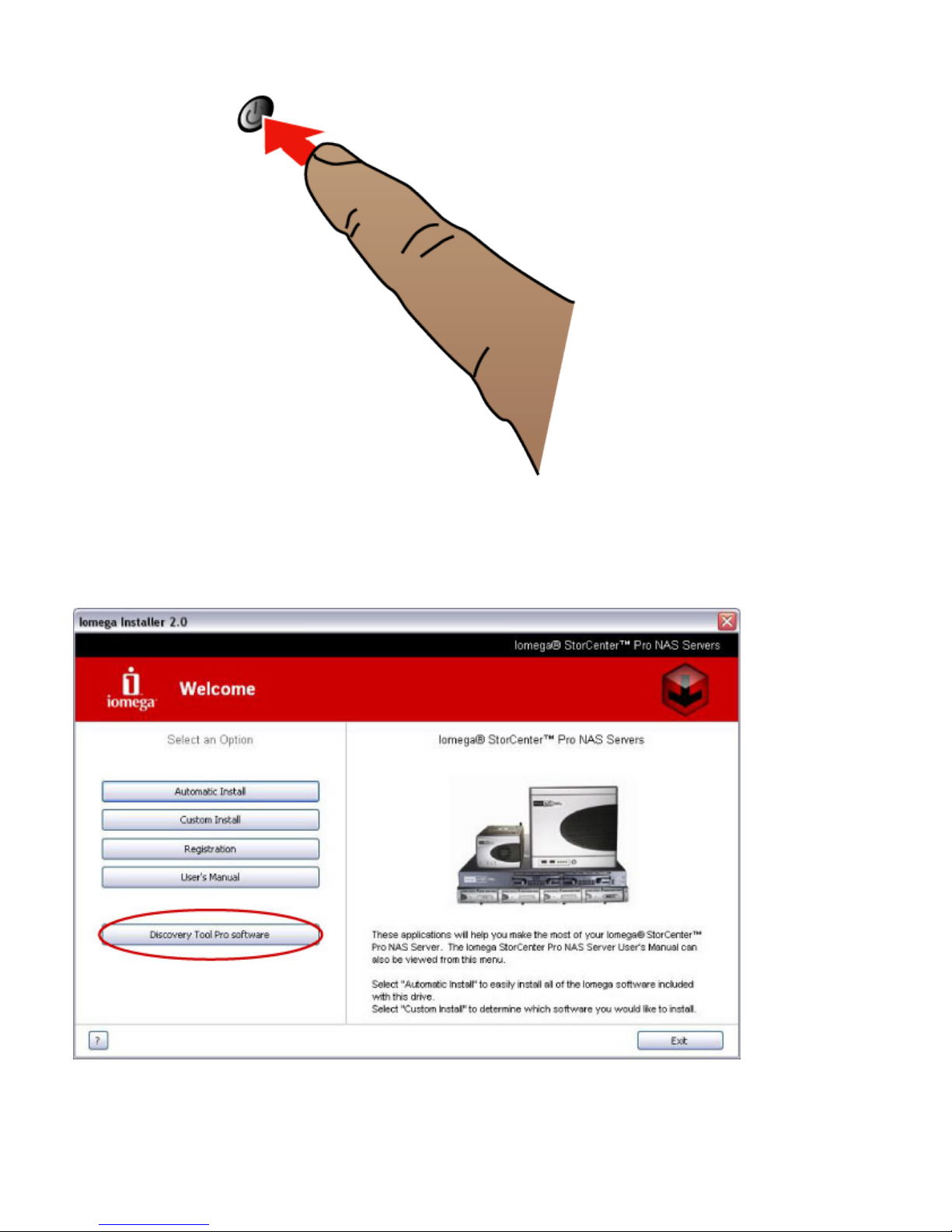
4. Power on the StorCenter Pro using the power button on the front panel.
5. Start your computer, wait for the operating system to load, then insert the Solutions CD.
NOTE: If the software doesn't run automatically, double click on the Solutions CD icon, then
double click the Start icon.
6. Click on the Discovery Tool Pro Software button to run the software.
NOTE: Iomega Discovery Tool Pro will automatically scan your network when launched. If
you receive a message from Windows FireWall alerting you of network activity, click the
unblock button.
NOTE: The client computer must be on the same subnet or network segment as the Iomega
Tabla de contenidos
Otros manuales de Servidor de Iomega