
Intercoax IXTS-160D Manual de usuario

www.intercoax.com
Intelligent Thermal Camera
For Body Temp Monitoring
IXTS-160D / IXTS-384D
User Guide / 사용자 설명서 / ユーザーガイド
Rev.5.0

1
ENG
Contents
1. Package ........................................................................................................... 3
2. Features........................................................................................................... 3
3. Installation and Layout .................................................................................... 4
3.1. Installation Guide ..........................................................................................................................4
3.2. Site Layout Scheme .....................................................................................................................5
3.3. Precautions for Site Installation ...............................................................................................5
4. Software Installation ....................................................................................... 6
4.1. Product and Document Formats Supported .........................................................................6
4.2. Installation Requirements ..........................................................................................................6
4.3. Temperature Detection Installation .........................................................................................7
4.4. Program Update ...........................................................................................................................7
5. Network Connection ....................................................................................... 8
5.1. Configure Computer IP ...............................................................................................................8
5.2. Configure device IP ......................................................................................................................9
6. Software Use ................................................................................................. 10
6.1. System Configuration .............................................................................................................. 10
6.2. Descriptions of ICONS .............................................................................................................. 12
6.3. Configure the device ................................................................................................................ 14
6.4. Algorithm Configuration .......................................................................................................... 15
7. Search Data ................................................................................................... 17
8. Search File ....................................................................................................17
9. FAQ (frequently asked questions) .................................................................18

2
Legal Notices
█Copyright © 2020 INTERCOAX Co., Ltd. .All rights reserved.
This software, in part or in its entirety belongs to INTERCOAX Co., Ltd. No unit or individual shall
copy, transmit, transcribe or translate it (into any language or computer language) in any form,
including but not limited to paper, CD or electronic documents, without written permission.
█About the Manual
This manual is used as a guide. The photographs, graphics, diagrams and illustrations provided
in the manual are for explanatory and illustrative purposes only. In case of any discrepancy
between the actual operation mode and function settings caused by the software upgrade and
this manual, the software shall prevail.
The contents of this manual, in whole or in part, shall not be shared through any other media
without the written permission of INTERCOAX.
█Trademark Statement
INTERCOAX is our registered trademark. All other trademarks, trade names or company
names referenced in this manual are for marking purposes only and are not intended for other
purposes.
█Legal Disclaimer
Infrared products manufactured by INTERCOAX are provided with two-year warranty service
from the date of delivery. If there are any defects in the production process or quality of the
products, INTERCOAX is obliged to solve the problems of the products purchased by the
customers. INTERCOAX shall not be jointly and severally liable for any other losses caused by the
quality problems of the products.
This warranty does not apply to any product damaged by misuse, negligence, disassembly,
accident or improper operation. This warranty is exclusive to the original purchaser and is not
transferrable.
After testing and confirming that the products are under warranty, INTERCOAX can repair or
replace any such defective products free of charge at its discretion.
INTERCOAX has no obligation to undertake any other responsibilities other than the above.
We are committed to continuous development to provide our customers with superior infrared
products. Therefore, we reserve the right to modify or improve this manual or the products
involved in this manual without prior notice. This manual is arranged for the convenience of users
to use and understand our products. We will try our best to ensure the accuracy of this manual,
but we cannot guarantee the completeness of this manual.

Features — 3
ENG
1. Package
Dual Thermal Camera 12V DC Power Adaptor
with AC cord
Ball Head Set User Manual
2. Features
• AI Human Body Detection (Only Face)
• Rapid & Smooth Detection (Frame Rate 30 / 50Hz)
• Best Accuracy in the market with ± 0.3 ℃.
• Clear Infrared & Optical Images (384x288 & 5MP Real-time 30fps)
• Smart Multi-Target Detection and Tracking
• 24 Hours Real-Time Monitoring
• Self Accurate Temperature Check up

4
3. Installation and Layout
3.1. Installation Guide
1. Fix the plate or ball head on the bottom of the camera.
Tripod
Ball Head
Camera holder
or
TV stand
2. Connect 12V DC power adapter to camera.
3. Connect camera Ethernet cable to computer or network switch.
4. Connect 2-wires accordingly when an alarm light is used.
5. Turn on the computer and run the provided software setting right temperature condition.
PC
Power adapter
Alarm light
Dual
Thermal
Camera

Installation and Layout — 5
ENG
3.2. Site Layout Scheme
█Site Layout of Thermal Camera
• Installation Direction and Height
The equipment should be directed toward places where people will pass, so that the thermal
camera can monitor people's faces.
Ideal height is within 1.5~2.5m, and distance is recommended at 5~6m (* 2~3m for IXTS-160D)
• Installation Environment
Whenever possible, the thermal camera should be installed in an environment with constant
temperature and no direct sunlight, as it can affect the temperature of the surface of the skin,
to avoid errors in temperature readings.
3.3. Precautions for Site Installation
• Choose an appropriate site
Avoid directing the dual-light equipment towards places with high temperature objects or
surfaces, like Plexiglas walls (affected by sunlight), advertising light boxes, etc. This equipment
monitors the temperature of the human body and high temperature objects will lead to false
alarms or missing screenings.
• Avoid setting the thermal camera near an Inlet with Airflow Disturbance
Avoid temperature rise and fall caused by air flow disturbance on the skin surface of the
detected people, which may lead to false alarm or missing screen of the equipment.
• Reserve Enough Channels
Avoid people being screened at the entrance from an outside hot or cold environment. Since
the body surface temperature will be low or high when the detected person just enters the
room with constant temperature from the cold or hot outdoor environment, it is necessary
to reserve a channel long enough to make the detected person’s body surface temperature
gradually stabilize for detection, so as to avoid causing false alarm or screen leakage by the
thermal camera.

6
4. Software Installation
Temperature Detection software is the supporting software of INTERCOAX Thermal Camera For
Body Temp monitoring. It is a professional human body temperature monitoring software with
the functions of temperature data collection, display, record and analysis.
4.1. Product and Document Formats Supported
█Products Supported
Temperature Detection software supports software of Thermal Camera For Body Temp Monitoring.
█Document Formats Supported
Temperature Detection software supports JPG, stream and MP4 file formats, among which JPG
is a single frame temperature data, compatible with general picture software; Stream is multi-
frame continuous temperature data (stream playback is not supported in the software); MP4
multi-frame continuous video data, compatible with general video software.
4.2. Installation Requirements
█Operating System
Temperature Detection supports Ethernet communication for the following PC operating
systems:
• Windows 7, 64-bit
• Windows 8, 64-bit
• Windows 10, 64-bit
█Hardware Configuration
For better use of the software, the following hardware configurations are recommended:
• CPU: i5 or Ryzen 5
• Memory: 4GB (Vista/Win7 / Win8/Win10)
• Video card: video card with more than 512MB of memory
• Hard disk: more than 50 gigabytes of hard disk space
(1TB HDD can record up to 20 days continuously)
• Sound card: DirectX-compatible sound card
• Network card: supports 10/100/1000Mbps Ethernet communication
• Display: 1920*1080 or higher resolution display
• Peripherals: support for keyboard and mouse operation

Software Installation — 7
ENG
4.3. Temperature Detection Installation
Running the Temperature Detection software requires support from the Microsoft .NET
Framework 4.0. If the Temperature Detection software cannot run normally, for 64-bit operating
system, some operating systems need to install a patch pack:
█For Win8/Win10,64-bit
The Windows 8 and Windows 10 operating systems come with their own patch packs, so you
don’t need to install them.
█For Win7,64-bit
You may need to install .NET Framework 4.0 or above.
The above patches are only needed for the first time you use Temperature Detection and can be
skipped if you have already installed them.
After the installation of Microsoft. NET Framework 4.0 patch package, copy the Temperature
Detection folder on the USB disk to the computer, run the Temperature Detection .exe executable
file in the folder, and send Temperature Detection.exe to the desktop shortcut for easy use in the
future.
[ Running the software ]
4.4. Program Update
INTERCOAX is committed to providing customers with quality products and services. We will
update and release new version of Temperature Detection software from time to time. If you
need it, please contact us or our agents directly.
8
5. Network Connection
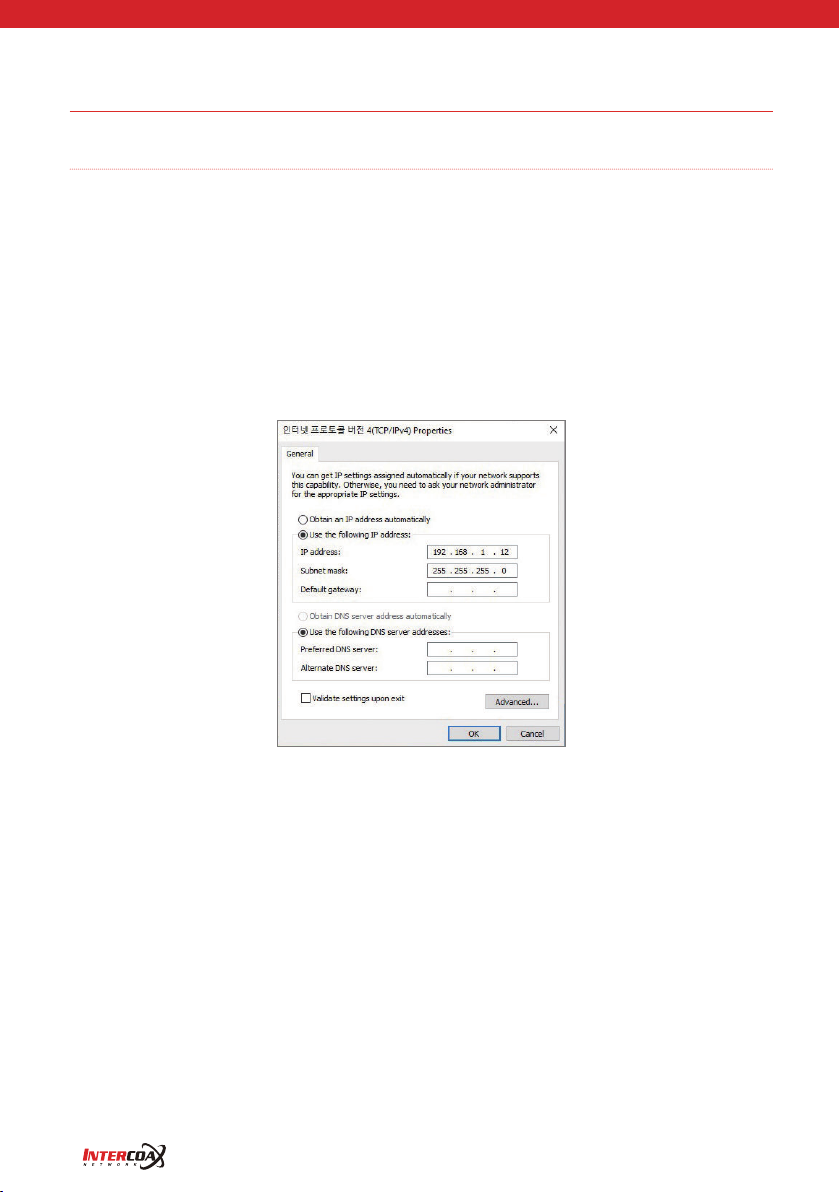
5.1. Configure Computer IP
█Direct connection between equipment and computer:
• Computer: use IP 192.168.1.x (0 ~ 255, different from the value of the device IP), manual
configuration;
• Device: use IP 192.168.1.19, default use.
█The device is connected to the computer via a router:
• Device using IP: router assigned IP, or pre-configured static IP;
• Computers use IP: an IP assigned by a router, or a pre-configured static IP.
[ Computer IP configuration ]

Network Connection — 9
ENG
5.2. Configure device IP
If the device IP needs to be changed, the infrared IP can be changed through Temperature
Detection software, and the visible IP can be changed through the visible supplier software (or IE
browser).
[ Infrared IP configuration ]
[ Infrared IP configuration ]
Este manual sirve para los siguientes modelos
1
Tabla de contenidos
Idiomas:
Otros manuales de Cámara térmica de Intercoax


