
Initsys Vid1VideoServer Manual de usuario

Installation
Manual
Version 1.5
October 2007
ENGLISH
www.initsys.co.uk
How much clearer
does it need to be?
Vid1Videoserver

Safety Instructions.
The Initsys Vid1videoserver is a low voltage blackbox” that
converts a standard 1vpp CCTV video output to a format that
is compatible with the VerifiedAlarms network. It also has a
digital input and output that enable the device to signal
alarms and switch.
Detailed Safety Instructions
1. Read these instructions carefully.
2. Keep these instructions.
3. Heed all warnings.

VerifiedAlarmsNetwor
How it works......
Modern network enabled cameras (see http://www.verifiedalarms.com/ camerassupported.html) can be used
as a standalone form of surveillance for a home or a small business or it could be linked to a professionally
installed intruder or fire alarm system to give a verification of the nature of the alarm..... Is there really an
intruder in the property or is the alarm caused by some other action, for example the weather, lightning,
thunder etc. Or has an animal made its way into the building? Or is it a member of staff who has incorrectly
operated the alarm?
This flexibility that these cameras provide leads to issues with bandwidth and delivery.
Because of the size of the images and the potentially high numbers of images sent it is necessary to have the
remote location on a connection with a huge incoming data pipe”. This way images can be streamed easily
and quickly into receiving servers.
VerifiedAlarms operates country servers located currently in the UK, Europe and USA. Other country servers
will be added as time progresses (if you are interested in a franchise please contact us at
sales@Initsys.co.uk).
These servers are manufactured by Initsys and they, in turn, control a bank of Mass Video Storage
Devices(MVSD). Each server can control up to a Petabyte of MVSD.
New MVSD are added from time to time to keep the available space well above the expected demand from
subscribers. And we keep our bandwidth controlled so that when you need to send a vital alarm you can.
As soon as an image arrives at a MVSD its location, size and other network information is relayed to the
country server and that data is used to decide the next course of action. It could be that you wish to be
informed by SMS message or email or indeed you could subscribe to one of our partner commercial Alarm
Receiving Stations (ARC) to link the alarm images to actual data from an on-site intruder/fire or other alarm.
The ARC operators then have images to verify that the alarm is true or false.
Of course the images remain on the server until they are overwritten or are deleted by the owner.
The owner can view these at any time by simply logging into the country server and selecting the images.
This is all achieved through a standard security enabled browser.
Alarms are handled by Initsys Merlin2DotZero the 3rd dimension in alarm handling, incorporating audio and
video to alarm data.
Other systems may exist that allow remote transmission of CCTV, but you need to ask yourself....
Is it a professional service? Does it guarantee delivery of my alarm to the alarm receiving centre? And are
my cameras protected from unauthorised viewing by just anyone at any time?”

Vid1VideoServer.
Foreword.
Dear Customer,
For some time the ability to correctly verify that an alarm
activation is real, or not, has been impossible or at least very
expensive.
VerifiedAlarms gives that capability by utilising the power of
networking and smart IP cameras.
This device gives that same capability by connecting older
non-compatible equipment to our network.
Please read this manual thoroughly if you have a problem
you can use our Bulletin Board (address at the end of the
document.)
No matter how you use our servers I hope you have a good
experience, if not, send me a mail my address is
Thank you very much.
Christopher Berry
Contents
1. Description................................................................................4
2. Hardware Overview...................................................................5
3.Initial Programming....................................................................6
3.1. Image................................................................................6
3.2. Audio................................................................................
3.3. System...............................................................................
3.4. Network............................................................................8
3.5. Event.................................................................................8
5.Example Schematic...................................................................10
6.Relay Control............................................................................10
. Specifications...........................................................................10
.1. Pin Connections..............................................................10
.2. Led Indications................................................................10
.3. Power & Dimensions......................................................10
.4. Net Set Up......................................................................11
.5.ARP/Ping IP Address Set up...........................................11
.6.Telemetry Formats...........................................................11
.0 EULA and Licence................................................................12
4 16. January 2008

Vid1VideoServer.
1. Description
The VerifiedAlarms network is directly compatible with
several manufacturers of Digital Video Recorder,
Network Video Recorder and Network Cameras. Units
that are not directly supported can be interfaced using
the Vid1videoserver blackbox”. The following
document explains how to connect to the
VerifiedAlarms network and ultimately to an off-site
event monitoring by a control room.
2. Hardware Overview
Two models exist, a standard wired unit and by special
order a wireless version.
5
Vid1VideoServer.
3. Initial Programming
The Vid1Videoserver default IP address is
192.168.0.200, you will need to have your computer in
the same IP range to be able to communicate with the
device. There are several options to change the IP
address, you can use NetSetup Software from our BBS,
use ARP/Ping or login to the device's default IP
address and change from the set up.
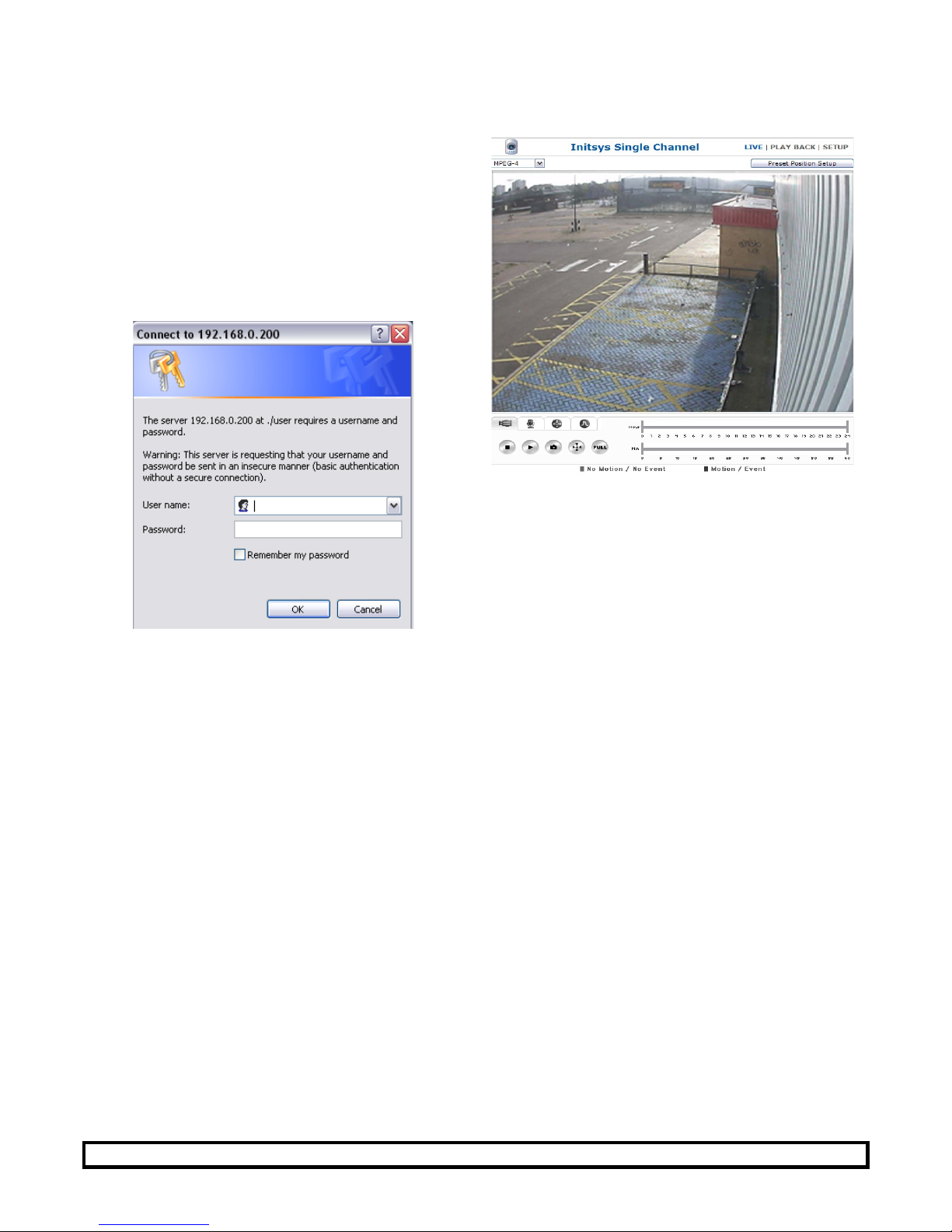
Open the device by typing the URL in the Browser. You
must use Internet Explorer with the Vid1VideoServer.
You will need to enter the Username and Password,
defaults are:-
Live User - user / user00
Admin User - admin / admin00
First time login will require the Active X
download from the unit, ensure your Pop up
Bloc er does not stop the device from
downloading the control.
6 16. January 2008

Vid1VideoServer.
3.1. Image
The video page controls the image quality,
compression format and update speed.
The unit can work simultaneously in MPEG4 and
MJPEG mode and has two compression options for
each mode.
The device is compatible with both Initsys
VerifiedAlarms, iRecord and Merlin products.
3.2. Audio
Set the audio up as follows.
You can test the audio by clicking in the microphone
option on the front page and speaking into a
connected microphone on the connected computer.

Vid1VideoServer.
3.3. System
Change the time and date Zone of the system.
The time date is used for reference time interval only
for the transmitted video images. It is not used for
evidence as the Time/Date of VerifiedAlarms is
embedded to the image.
We suggest either using your PC clock or linking to the
NTP server address shown. Make sure you have the
correct time zone entered for this purpose.
The Username and Passwords should be changed from
the default settings. These need to entered into the
VerifiedAlarms Connections and the Monitoring Station
informed.
Restart is a soft boot
Factory Default is as is said, you will loose all
information if this is selected.
IP allowed addresses can be entered here to increase
security – this will ensure that the device will only
respond to incoming transmission from the alarm
receiving centre (obtain the correct range from your
chosen ARC).
This is not normally enabled as most internal
networks use DHCP and IP addresses of the
connected devices are hidden to the ARC by the
VerifiedAlarms Network.
8 16. January 2008

Vid1VideoServer.
3.4. Networ
The Vid1Videoserver supports wired connection only,
Vid1VideoserverW is available to special order that
supports WiFi.
Change the static IP address as required. At least one
DNS should be entered, if you do not know the
network DNS then use the router address.
Change the Web Server Port to 89XX, ensure this port
in the WAN router points to the video server.
3.5. Event
Tick the event enable option.
Choose the Primary Motion JPEG option.
Adjust the frame rate, we recommend 2 to 4 fps.
For connection to a DVR/NVR or any other device
being used to trigger from a change of contact state
then tick the Digital Input option.
Digital Motion sensing can be used for internal
applications.
Do not tick Video Loss, the connection is polled from
VerifiedAlarms.
Adjust the time Period the input should be active for.
We recommend the Schedule is set to All.
9

Vid1VideoServer.
Tick the FTP option.
Network Address - Enter the Url of the VerifiedAlarms
Server you are to connect to.
Upload Path - Enter the Path of the camera you have
created on VerfiedAlarms.
Save File Name – please call this image
Username – This is the Admin Username to
VerifiedAlarms.
Password - This is the Admin Password to
VerifiedAlarms
Select the number of Pre and Post alarm images.
For example – we have fps at 4 and pre and post
images set to 8 – we will transmit 2 second before
the event and 2 seconds after the event with a total
of 16 images.
10 16. January 2008
Tabla de contenidos


