imacon Flextight 343 Manual de usuario

User's Guide
Imacon Flextight 343
English

© 2003 Imacon A/S. All rights reserved.
Imacon Flextight 343 User's Guide, Part No 70030009, revision B.
The information in this manual is furnished for informational use only, is subject to change
without notice, and should not be construed as a commitment by Imacon A/S.
Imacon A/S assumes no responsibility or liability for any errors or inaccuracies that may
appear in this manual.
Imacon A/S assumes no responsibility or liability for loss or damage incurred during or as a
result of using Imacon software or products.
Imacon, FlexColor and Flextight are trademarks of Imacon A/S. Adobe and Adobe Photoshop
are trademarks of Adobe Systems, Inc. Macintosh, Mac OS, FireWire and ColorSync are
registered trademarks of Apple Computer, Inc.
Printed in Denmark.
User's Guide - Flextight 343
2
English

Table of Contents
User's Guide - Flextight 343
Table of Contents 3
English
Hardware Reference - Flextight 343 5
Warnings and Restrictions 6
System Requirements 6
Front Panel 7
Back Panel & Connectors 8
Cut-Away View 9
Setting up the Scanner 10
Environmental Requirements 10
Electrical Requirements 10
Installation Procedure, FireWire Interface 11
Operating the Scanner 13
Resolutions 14
True Optical Resolutions 14
The Light Tube 16
Orientation of the Light Tube 16
Replacing the Light Tube 17
Cleaning the External Surface of the Scanner 19
Disposal 19
Technical Specifications 20
FCC Notice 21
CE - Declaration of Conformity 22

User's Guide - Flextight 343
4
English

Hardware Reference - Flextight
343
This manual provides important information about using your Flextight
343 scanner.
Topics include:
•Important warnings and restrictions
•System requirements
•Diagrams of the front panel, rear panel, and internal structure of the
Flextight 343 scanner
•Installation instructions
•Environmental requirements
•Electrical requirements
•Operating instructions
•Maintenance advice
•Disposal instructions
•Technical specifications
•Declarations of FCC and CE regulation conformity
User's Guide - Flextight 343
Hardware Reference - Flextight 343 5
English

Warnings and Restrictions
•Read all of the included documentation before attempting to install
and use the scanner.
•Do not touch the originals and/or the original holder while scanning.
•Do not start scanning or previewing until an original holder with an
original has been mounted.
•The original holder is only to be mounted or removed when the drum
is in the load position.
•When you turn on the scanner, the drum will roll to the load position,
if it is not there already. Do not touch the scanner while the drum is
rotating.
•Do not place your fingers or any other object into the scanner while it
is connected to power.
•Before servicing or opening the scanner, the power supply must be
disconnected from the mains (unplugged). It is not sufficient simply to
press the on/off button.
•Install the scanner in a location where children can not get to it. It
contains small openings and moving parts that can cause injury.
System Requirements
Below are the basic hardware requirements for the PC or Macintosh
system to which the scanner is to be connected.
For information about the processor, operating system, RAM and
harddisk requirements please refer to the “Software Reference” manual,
that comes with the FlexColor software.
•Screen resolution of 800 x 600 pixels with true colors (24-bits).
•Mouse or other pointing device.
•FireWire interface
User's Guide - Flextight 343
Hardware Reference - Flextight 343
6Warnings and Restrictions
English
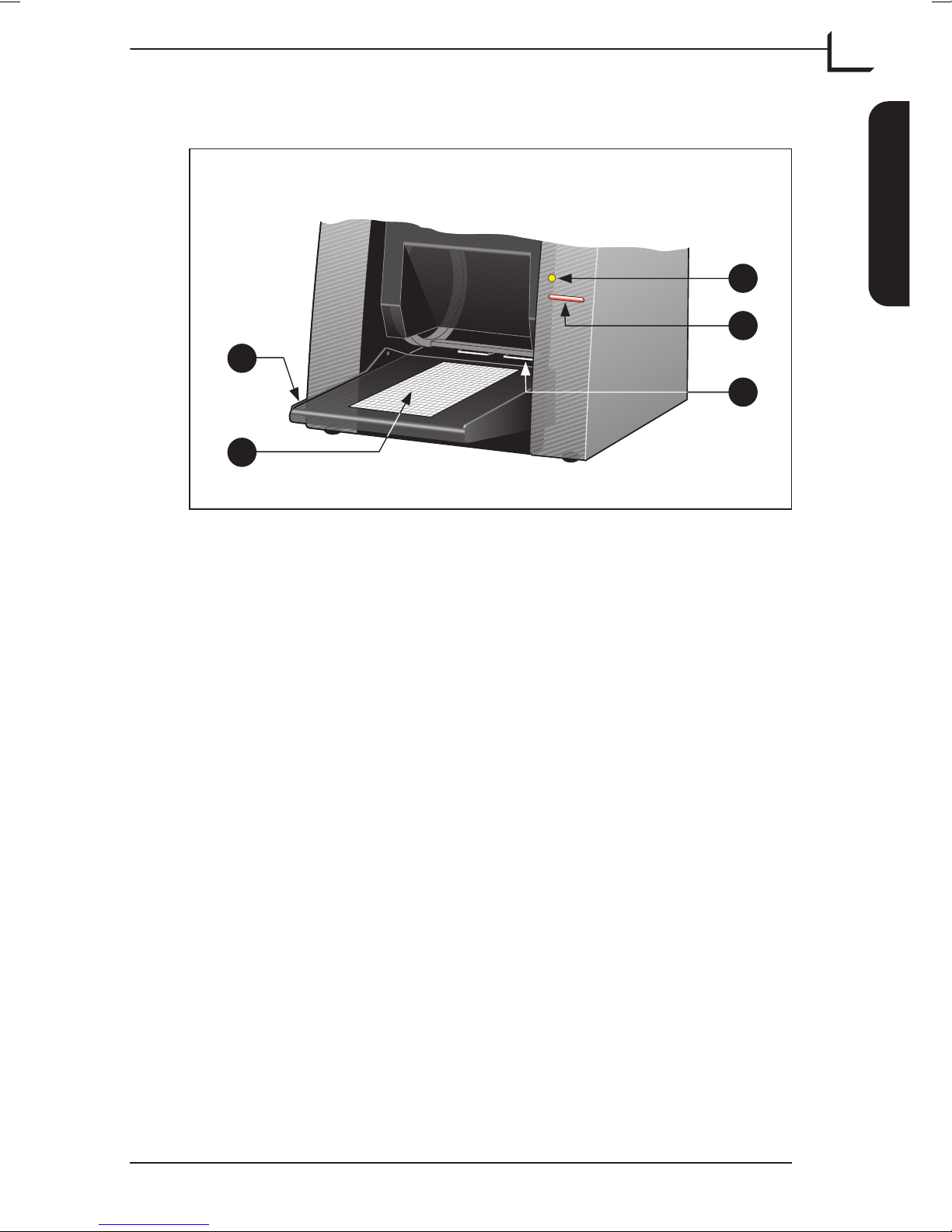
Front Panel
A Feed Table: place original holders here for scanning. The table can
be folded up to keep dust from entering the scanner and to keep it
out of the way.
B Light Area: for viewing originals. The grid helps you to align the
originals.
C Indicator light: The indicator can light up in 3 different colors
indicating the following:
Green (Power/Ready) - remains lit when ready to scan. Flashes
when first installed to indicate that firmware must be loaded (it will
be loaded automatically when you run FlexColor).
Yellow (Motor Drive) - when drum is repositioning.
Red (Scanning) - when scanning. Do not touch the scanner while
the indicator is red. If the light is flashing when not scanning, then
an error has occurred - please contact your Flextight dealer for
assistance.
D Power Switch: press to turn the unit on/off.
E Original Holder Clasp: all original holders slide into a slot here and
are held in place by magnets.
User's Guide - Flextight 343
Hardware Reference - Flextight 343 7
Front Panel
English
B
A
C
D
E
Figure 1: Front panel features of Flextight 343

Back Panel & Connectors
A Power Cable Socket: plug the power cable into this socket.
B FireWire Interface Sockets: plug a FireWire cable (max. 6 m) here
and connect it to your computer. You can use the second plug to
connect another device (hard disk, printer etc.) to the FireWire chain.
User's Guide - Flextight 343
Hardware Reference - Flextight 343
8Back Panel & Connectors
English
FireWire
A B
346
Figure 2: Back panel features of Flextight 343

Cut-Away View
A CCD Plate: this platform contains the light sensor.
B Optics: focuses the image of the original on the CCD.
C Drum: rotates the original into the scanner and steps it past the CCD
line of focus.
D Light Tube: illuminates the transparent originals. The tube also
provides the light for the feed table.
E Original Holder: an original holder is shown mounted and with the
magnetic top layer held open.
User's Guide - Flextight 343
Hardware Reference - Flextight 343 9
Cut-Away View
English
FLEXTIGHT ORIGINAL HOLDER PATENT PENDING
A
B
C
D
E
Figure 3: Cut-away view of Flextight 343

Setting up the Scanner
Environmental Requirements
Set up the scanner in a location that fulfils the following requirements:
•Keep the scanner away from sources of heat, such as direct sunlight or
a radiator. Warm temperatures will degrade the quality of your scans -
for best results, work in a cool environment.
•The scanner must be operated away from sources of strong
electromagnetic interference. Although the scanner complies with all
regulations governing electromagnetic immunity and Imacon has
taken every reasonable step to make the unit immune to
electromagnetic interference, it is still a precision electronic device so
strong radio waves can interfere with your scans.
•The surface on which the scanner is placed must be stable and free
from vibrations. If the scanner is shaken or moved while scanning,
your results may be affected.
•If the scanner has been in a colder environment (e.g. outside or in
storage) just before you set it up in a warmer room, then wait about
two hours before using it - otherwise, condensation may form, which
will prevent the scanner from operating correctly.
•Avoid using the scanner in areas where there is a high level of dust.
•To prevent dust from getting into the scanner, always close the feed
table when the scanner is not in use.
Electrical Requirements
The Flextight 343 power supply requires a mains voltage of between 100
and 240 V AC at a frequency of 50 to 60 Hz. This is within the normal
wall-socket power standards of most countries. Do not attempt to use
Flextight 343 with any power source outside the specified range.
The scanner and all devices attached to the scanner (computer, monitor,
and FireWire devices, etc.) must be grounded (i.e. use a three-point
electrical connection).
Note that the power supply may emit a low hissing sound when
plugged in but not connected to the scanner. This is normal and will not
damage the power supply or scanner.
User's Guide - Flextight 343
Hardware Reference - Flextight 343
10 Setting up the Scanner
English
Tabla de contenidos
Otros manuales de Escáner de imacon