
ikeGPS Spike Manual de usuario

1Mounting Your Spike
2Installing the Spike App
3Starting Up
4Measuring With Your Spike
5Exporting & Sharing
6Mobile App Icon Guide
User Manual
This User Manual will guide you through the steps to set up
your Spike and take measurements.
Spike User Manual v1.0
Spike User Manual 2
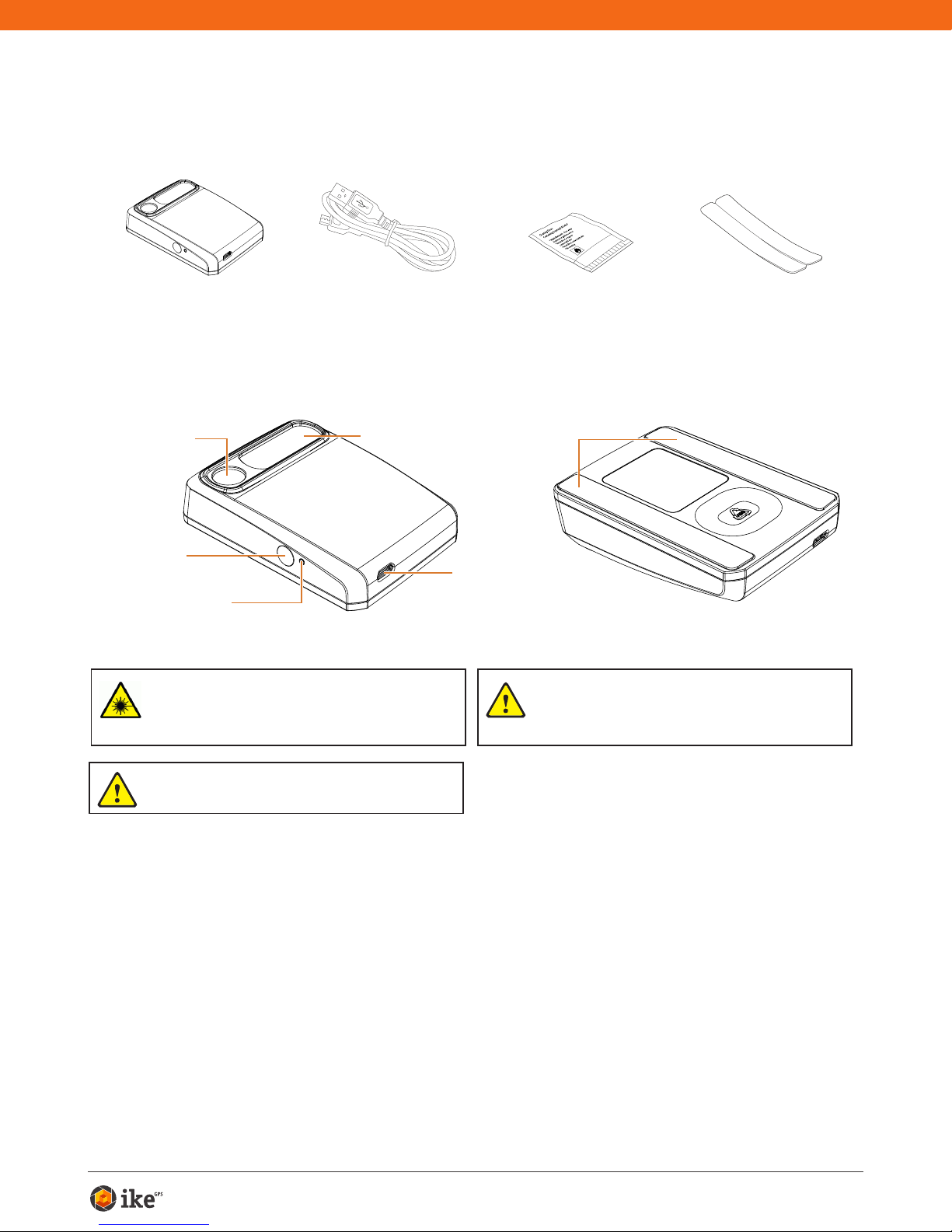
Receive Lens
Micro USB
Charging Port
Adhesive Strips
Power Button
LED Indicator
Laser Transmit
Lens
What’s in the Box
For Technical Support
WARNING This device contains an eye safe class 1 laser product.
Invisible laser radiation is emitted from (and received into) the front
apertures. Avoid staring into the laser beam. This product complies
with IEC60825-1 Ed 2.0 and 21CFR1040.10 except for deviations
pursuant to Laser Notice No.50, dated July 26 2001.
CAUTION Use of controls or adjustments, or performance of
procedures other than those specied herein may result in
hazardous radiation exposure.
Cleaning Tissue to
clean the mounting
surface (contains
Isopropyl alcohol)
Spike Unit Extra double sided
adhesive tape for
mounting to another
Smartphone case
USB Cable for
charging
Packaged and Distributed by:
Health Pak Ltd
Auckland, NZ
WARNING This equipment complies with FCC radiation exposure
limits set forth for an uncontrolled environment. In order to avoid the
possibility of exceeding the FCC radio frequency exposure limits,
human proximity to the antenna shall not be less than 20cm during
normal operation.
Visit the Spike Support Center for FAQs, video tutorials, resources, and to
contact technical support: www.ikegps.com/support
Contact Technical Support:
toll-free: +1 844 445 3477 ext 3

Spike User Manual 3
1Mounting Your Spike
IMPORTANT TO NOTE...
•Mount your Spike to a Smartphone or Tablet case. You may wish to use two
cases - one with Spike attached to it and the other for general day-to-day use.
• We recommend attaching your Spike to a hard case with a at back. It will not
attach securely to a soft or curved back design.
•Optimal surfaces to attach Spike to are metal and hard plastic surfaces.
1 Find the best location for your Spike on the
back of your Smartphone or Tablet case.
• Place Spike close to the camera, but ensure that Spike
does not obstruct the view from your camera or ash.
• For Tablets, Spike may be orientated in a position that is
most comfortable when holding your Tablet in landscape.
• To verify, start your camera app and hold your Spike
against the back of your Smartphone or Tablet to validate
correct placement.
2 Use the Cleaning Tissue provided to thoroughly
clean the area on the back of your case where
Spike will be attached.
Important: Do not use the Cleaning Tissue to clean
lenses as it may cause damage.
3 On the back of your Spike, peel off the protective
backing to expose the adhesive tape.
• Use a sharp knife to lift the edge of the backing strip.
• The adhesive tape adheres best at room temperature.
4 Make sure the cleaned area on your case is
completely dry, then position Spike onto your
case, and press down rmly for approximately
60 seconds.
• Allow approximately 1 hour for useable bond strength.
• Ultimate bond strength is dependent upon the amount
of adhesive-to-surface contact developed. Be sure to
press rmly to develop this bond strength.
Smartphone case
Smartphone
case
Smartphone
case

Spike User Manual 4
2Installing the Spike App
The Spike app is available for download from the App Store or Google Play.
1 On your Smartphone or tablet,
launch the App Store or Google
Play.
2 Within the search box, search for
ikeGPS. Select Spike by ikeGPS.
3 Follow the instructions to
download and install the app on
your Smartphone.
4 Once installed, the Spike app icon
will appear.
You can launch the Spike app and test
it out in Demo mode. Demo mode can
be used to explore Spike functionality,
but does not provide accurate
measurements or location data without
the Spike device.

Spike User Manual 5
3Starting Up
1 Turn on Bluetooth on your Smartphone or Tablet.
2 On your Spike, press the Power button.
• The LED indicator ashes blue indicating that the
Spike is discoverable over Bluetooth.
• If the LED indicator remains off, Spike may need
charging.
3 On your Smartphone, tap on the Spike app to
launch it.
The app will display “Searching for Spike Devices” and then
displays the Spike unit name available for pairing.
If no unit name appears, ensure that the Spike unit’s
LED indicator is ashing blue (see Step 2).
4 When your Spike unit name appears, tap on
it to pair it with your Smartphone (no need to
wait for the spinning circle to stop).
This step is necessary the rst time you use Spike. For
subsequent uses, your Spike will automatically be paired
with your Smartphone.
TIP: After connecting your Spike, go into the Spike app settings
, and select your preferred units of measurements: feet,
inches, meters, or centimeters.
Blue flashing: Spike discoverable over Bluetooth
Blue on: Spike connected to Smartphone
Green flashing: Spike charging
Green on: Spike fully charged
Off: Power off
IMPORTANT TO NOTE...
The LED indicator shows the status of your Spike:

Spike User Manual 6
Aligning the Spike Laser
Before using your Spike, you need to ensure that the laser is aligned with
the camera of your Smartphone or Tablet.
1 In the Spike app, tap on , then tap Align Laser.
2 Rest your Smartphone on top of a at, hard
surface, such as a table top. Then hold your
Smartphone vertically and aim it towards two
objects that are at different distances, for
example the edge of a door. Ensure that the
closest object has a vertical edge.
• The distance between the two objects should be
at least 15 feet (5 meters).
• You can use the vertical edge of an open door
and the wall of the room behind it.
3 Slowly move your Smartphone sideways ➊
and check that the distance measurement ➋
changes when the crosshair in the center of
the screen moves on and off the vertical edge.
4 If the measurement changes at the point where
the crosshair moves on and off the vertical
edge, your laser is correctly aligned. If this
does not happen at the correct point, tap on
the left and right blue arrows ➌to adjust to the
correct point.
5 Turn your Smartphone horizontally
and aiming at the same two objects,
repeat steps 3 and 4 to align the
laser horizontally.
TIP: Video tutorials can be found in the Spike Support Center.
Visit www.ikegps.com
EDGE OF DOOR
9'1"
X: 0 Y: -15
Settings Laser Calibration
➋
Done
X: 5
6'9"
Y: 0
➌➌
➊
EDGE OF DOOR
9'1"
X:
0
Y:
-15
Settings Laser Calibration

Spike User Manual 7
Calibrating Your Compass
Calibrating your compass is only required if you intend to capture the
location of your target (latitude, longitude, altitude), and export KMZ les.
You need to ensure that your Smartphone or Tablet’s compass is calibrated
so your target’s location can be accurately captured.
1 In the Spike app, tap on , then tap Calibrate Compass.
2 Follow the calibration steps as they appear on your screen. You
will be prompted to rotate your Smartphone or Tablet as indicated.
Make sure to face north, that your movements are smooth and
steady, and that each separate rotation is approximately 10
seconds.
We recommend calibrating your compass before capturing target location(s) in a
new area.
TIP: Video tutorials can be found in the Spike Support Center. Visit www.ikegps.com
Charging Your Spike
Your Spike has an internal battery that requires charging. After setting up your Spike,
we recommend charging your Spike for approximately 3 hours.
1 Connect the USB cable provided to the micro USB charging port on the bottom
of your Spike.
2 Connect the other end of the USB cable to any device that can charge USB
devices (e.g. computer, wall charger, etc). The LED indicator will ash while
charging.
3 The LED indicator will turn green when Spike is fully charged. Disconnect the
USB cable and store in a safe place.
Turning Your Spike Off
Your Spike will automatically turn off after 1 minute of inactivity. Alternatively, you can
turn it off manually by holding down the Power button for 5 seconds until the blue
LED indicator turns off.

Spike User Manual 8
4Measuring With Your Spike
To measure accurately with your Spike, you need to ensure that:
1) Your target is a at surface and is all on the same plane.
2) Your target is or has a rectangular shape on it (to align the object).
3) Your laser (cross-hair on the screen) is pointed at your target. The cross-
hair should be on a solid surface and not a window.
4) You are perpendicular
to the target. Photo
measurements taken
from the optimal position
typically see an accuracy
of ± 3%. Please reference
the following target
distance and positioning
guide when taking a Spike
photo.
You cannot measure an object or objects that are on different planes.
Below are some examples.
The side of the
house and the roof
are on different
planes, so
measurements will
be incorrect.
The side of the
house is all
on the same
plane, so
measurements will
be correct.
The side of the
house is on
different planes,
so measurements
will be incorrect.
The side of the
house that is all
on one plane is
being measured,
so measurements
will be correct.

Spike User Manual 9
Taking a Photo of the Object to Measure
To measure an object, you need to take a photo of it rst. Be sure to aim the
laser (crosshair on the screen) directly at the object you wish to measure.
1 On your Smartphone, ensure
that the Spike app is open and
connected to your Spike.
Refer to Section 2 “Starting Up” for
details.
2 Point your Smartphone at the
object you wish to measure,
ensuring that the crosshair is on
the target.
• The object you wish to measure must
be on the same surface or plane that
you are aiming the crosshairs (laser) at.
• Ensure the crosshair is on a solid
surface and not on a window or hole.
• Use the zoom slider so you can better
view the crosshair location on your
target, or when you are positioned at
a distance from your target.
3 Tap on the screen to take a
picture.
4 Tap on the small preview image
to display the photo you have just
taken.

Spike User Manual 10
Aligning to the Object
Before you can measure an object, you need to set the surface’s perspective
by outlining a large rectangle on it. This identies and corrects the horizontal
and vertical angle from which the photo was taken. Your target must be or
must contain a rectangular shape so that the object can be aligned.
1 In the Edit screen, will be
selected by default.
A rectangular shape will appear over
your target.
2 Drag the green circles of the
rectangular shape to align them
to the extreme corners of the
rectangle on your object.
• Use the zoom window to help you
align the green circles precisely to
the corners of your object.
• You may also use your ngers to
Pinch & Zoom on the photo to better
view the object. To enter Pinch
& Zoom mode, the should be
unselected.
Otros manuales para Spike
2
Tabla de contenidos


