Ider RM2501 Manual de usuario

Page 1of 25
1.1 Important Statements
a). Users should be responsible for any substantial damages caused by improper
operation or misuse of non-original components.
b). All logos and registered trademarks used in this manual belong to the relevant
companies.
c). We own the right to modify the product function or standard without notification to
users.
d). We are not responsible for the data missing while using. Please back up a copy
for all your important data.
1.2 Warning
a) To prevent fire and electric shock, don’t expose the unit to the moist or rainy
places.
b) Don’t expose the unit to the places with high temperature, dust and vibration.
c) It is imperative that using the original accessories to power the unit. Other
accessories may cause damages.
d) Hard Disk is a delicate device and may be damaged by slight impact, so be
careful not to crash the unit.
e) Keep the unit away from magnetic devices, which may cause damage of the data
stored in the unit.
f) Do not use strong detergent while cleaning.
g) When the unit is not working properly, please contact professionals for repair.
1.3 Product Features
a) RMVB/RM play: support RM/RMVB movies playback on TV/Monitor.
b) movie play: support MPEG1(.MPG、.DAT),MPEG2(.VOB、AVI),MPEG4(.AVI、
DIVX、XVID、.MP4)
c) Music play: support MP3、WMA
d) Digital photo frame: support JPG/JPEG、BMP、TIFF, GIF. Support picture
slide-showing, rotation, zoom out/in; remove, background music playing.
e) Card reader: support SD/MMC/MS cards plug-and-play on the TV/Monitor.
Through USB2.0, it supports card reader by PC.
f) Portable HDD function: support 2.5” SATA hard drive and USB2.0 high speed.
g) Multiple choice of hard drive capacity: support 20 to 500G hdd capacity and
FAT32/NTFS HDD partition format.
h) Output interface: AV/VGA/YPbPr and OTG/HOST. Can be connected to TV,
Monitor, projector and stereo audio devices.
i) One key play: can one key play picture, music, movie and file.
j) File edit function: without PC, it is able to do file copy, delete, remove, rename,
etc.

Page 2of 25
k) Firmware update: support firmware update. Please check our relative website
for the new firmware.
l) PlayingTime slection: By pressing the number keys on the remote control, to select
the starting time where you watch the movie.
m) Break point function: When power off accidently, you can continue to watch from
where you left last time after power on again.
n) OTG/HOST: Can connect to U-Disk, MP3/4, Card reader, Mobile HDD, etc.
o) One key copy function.
1.4 Product layout
1. Voice up (+)
2. Stop/ return
3. Previous item
4. IR receiver
5. Next item
6. Play (long press to turn off power)
7. Voice down (-)
8、AV OUT:to connect TV/ Stereo audio devices/ earphone.
9、VGA:to connect monitor or projector
10. USB interface
11. OTG/host: to connect U-Disk, MP3/4, Card reader, Mobile HDD, etc.
12、DC+5V:

Page 3of 25
13. SD/MMC card slot.
1.5 Product installation:
(1) Screw off the case.
(2) Open the bottom cover
(3) Plug in the HDD to the connector
(4) Put on the bottom cover
(5) Screw on and installation finish.
(1) (2) (3)
(4) (5)

Page 4of 25
1.6 Remote controler
1.6.1 Layout image

Page 5of 25
1.6.2 Layout image
Playing key area
Return Back to previous menu
HOME Back to homepage menu
confirm stop
Move cursor rightward More cursor upward
Move cursor leftward Move cursor downward
Fast Backward
Previous item
Fast forward Next item
Function key area
Power on/off Mute on/off
setup To enter setup menu
OSD Display playing status and enter “file copy/delete” menu
16:9/4:3 4:3 or 16:9 screen display mode.
TV MODE TV mode setup, VGA、AV 、HDMI mode switchover
L/R Left/Right audio channel and stereo audio switchover.
Subtitle To turn on/off the subtitle. Press continuous two times to select the subtitle
size
Angle To rotate the picture by 90-degree angle
Zoom To zoom in & out the picture and movie.
STEP To play background music while photo slide showing. Press “ ” to
select different background music
Play/Pause To play/pause the movie, photo and music
Volume+ To volume up.
Volume-- To volume down.
VGA to setup the TV mode at VGA mode,Default 1024x768
YPbPr To setup the TV mode at YPbPr display mode. The default resolution is
1080i.
Preview To enter photo slide showing
Photo To enter 3 X 5 picture preview homepage
Music To enter music playlist menu
Movie To enter movie playlist menu
copy To copy memory card’s contents into the hard disk FAT32 partition.

Page 6of 25
1.6.3 Remote control Operation
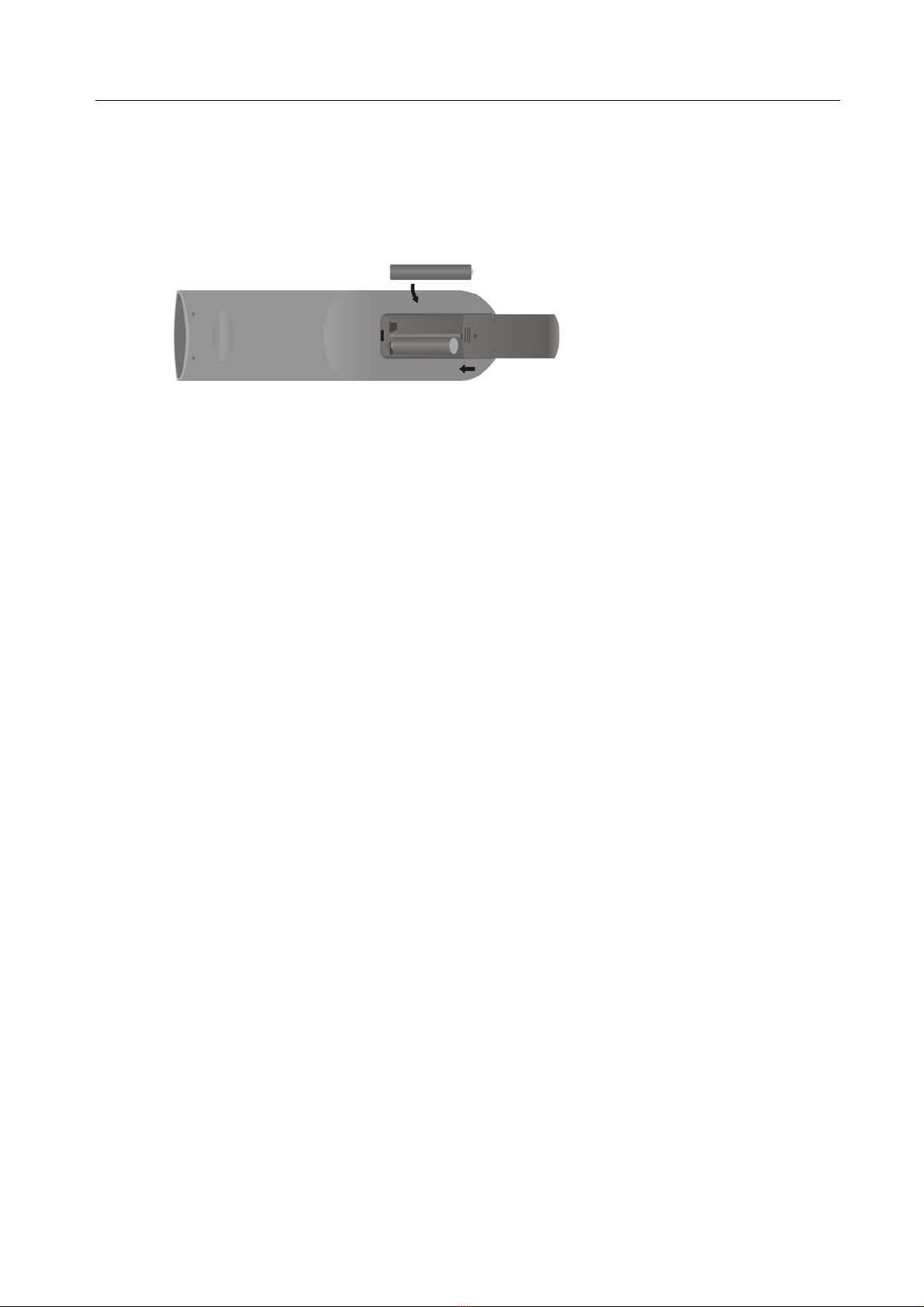
a) Remove the battery cover in the back panel; install two of 1.5V dry battery into the
slot. If long time no use, please remove the battery.
b) Please operate the remote control within 7 meters and 60degrees’angle away
from the unit. The environment lightness can affect the remote control’s
working range.
c) The battery normally can be used for one year. Please change battery when
the remote control doesn’t work.
1.7 Start to use
1.7.1 To install the hard drive
Screw off the case and install 2.5inch SATA hard drive into SATA connector.After
then screw on the case. If you don’t need to install hard disk, pls use card slot to
plug-and-play a certain memory card.
1.7.2 To connect power
a). Please use DC5.6V power supply and make sure enough power Don’t use different
voltage, which may damage the unit.
b). Don’t put object on the product while it is working.
c). Don’t cut off the power while the unit is still working. Otherwise it may cause serious
damagement to the hard drive. Please make sure the unit is on standby mode
before cutting off the power.
d). It still consumes a little power when the unit stays in standby mode.
1.7.3 To connect to PC USB
Connect the HDD player to the computer by USB2.0 cable. Now the hdd player
works as external hard disk and can be managed by computer Window software,
capable of downloading files from internet or from your computer. Under Windows

Page 7of 25
2000/XP,there is an icon to identify the product ‘s hard drive on the
right bottom of the desktop
Note :When the product is connected to PC, it is no need to connect 5.6V DC
power supply.
1.7.4 To plug in SD/MMC/MS cards
The product supports memory card plug-and-play on TV and can also be used as a
card reader to edit the contents on PC. Pls plug the card into the slot in right way
carefully. Don’t force to plug in, otherwise it will cause damages to the card or card
slot。Under Windows 2000/XP,there is an icon to identify the memory
card on the right bottom of the desktop
1.7.5 To format Hard drive
If the hard disk is the first time to be connected to computer, the hard disk has to be
formated first. In windows 2000/xp system, use the disk manage of my computer to
format HDD.
Please follow the below operation steps as below:
a). On the start menu or desktop, click ” my computer” with right button and select
“manage”.

Page 8of 25
b) There appears a Computer Management dialogue window, click Disk
Management, the on NEW-VOL(X:) click right button to select “format”
c). There prompts a new dialogue window ,Select “execute quick format”, click OK to
confirm.
d) Then appears a Warning dialogue window , select OK to confirm. Now you can see
NEW-VOL(X:) formatting.

Page 9of 25
e) After finishing formatting, you can see NES-VOL(X:) Healthy.
Note: The hard disk that we used in unit can be formated by both FAT32/NTFS.
1.7.6 To disconnect from PC
Under Windows 2000/XP, pls click the disk icon on the right bottom of
the desktop to saftely disconnect from PC. When it prompts out a safely delete remark
window, then you can plug off the product from the PC.
1.7.7 To connect to power
Connect the unit to DC+5.6V power supply by the power adaptor. When the red
led turns on, it starts working.
1.7.8 To connect to TV.
Plug the red, yellow and white composite video line into the TV back panel sockets.
Then plug the other end of AV line into the unit’s AV socket. Please set the unit as
AV mode by pressing <AV/VGA>key of the remote control and TV should be set as
“Video” mode.

Page 10 of 25
1.7.9 to connect to Monitor
Plug the computer VGA cable into the unit’s VGA socket. You can connect the
earphone or audio line to the unit AV output to enjoy music. Please set the unit in
VGA mode by pressing <AV/VGA>key of the remote control.
1.7.10 AV(TV)&VGA(Monitor) mode switchover
Press <AV/VGA>key of the remote control to switchover between AV and VGA
mode. When it is connected to TV, pls choose AV mode, otherwise VGA mode
whehn connected to Monitor.
Este manual sirve para los siguientes modelos
1
Tabla de contenidos