
icon 7 S200 Manual de usuario

English
Table of Contents
Welcome ...................................................................1
Features ............................................................ 1
Specifications ...................................................... 1
Functions & Indicators ..................................................2
Indicators ........................................................... 3
Setting Up..................................................................3
Downloading & Installing the iConfig™ Software ...................4
Customizing Settings ....................................................5
Launching the iConfig™ Software ............................... 5
Assigning Button Functions....................................... 6
Adjusting the Scroll Speed ....................................... 8
Adjusting the Mouse Speed ...................................... 8
Configuring Advanced Settings .................................. 9
Uninstalling the iConfig™ Software ............................. 9
Troubleshooting ........................................................ 10

User's Manual
English

1
English
Welcome
Congratulations on your purchase of this mouse. This product features a
revolutionary design and customizable function buttons that allow you to navigate
your favorite programs with ease and comfort. Read the following sections for
information and instructions on how to set up and use your mouse. Should you
experience any problems while using the mouse, refer to “Troubleshooting” on
page 10 for assistance.
Features
• Advanced wireless technology
• 1000 dpi precision tracking
• Storable USB receiver for automatic power on / off
• Smart battery power indicator
• iConfig™ software for configuring and managing mouse settings
Specifications
Model No. MS02
Sensor Resolution Optical 1000 dpi
Connectivity Wireless 27MHz RF
Number of Buttons 3
Receiver USB ultra mini receiver
Batteries AA x 2
Compatibility Windows 2000, XP, Vista

User's Manual
2
English
Functions & Indicators
See the following for descriptions of the mouse’s main features and default button
functions. To change these functions to better suit your preferences and needs,
see “Customizing Settings” on page 5 for details.
No Name Function
1 Left Button Press to activate the left button
function.
2USBReceiver
Comparment
Houses the USB receiver: insert in
a free USB port on your PC to
create a connection between the
mouse and PC.
3 Right Button Press to activate the right button
function.
4 Middle Button /
Scroll Wheel/
Battery Level
LED
Move forward, and backward to
scroll up and down the screen.
LED displays current battery
level.
5 Connect Button Press to establish a connection
between the mouse and USB
receiver.
6 Optical Sensor Navigation on surfaces.
7BatteryDoor
Latch
Press to open the battery door.
1
3
2
4
5
6
7
3
English
Indicators
The scroll wheel features an LED which indicates battery level:
Setting Up
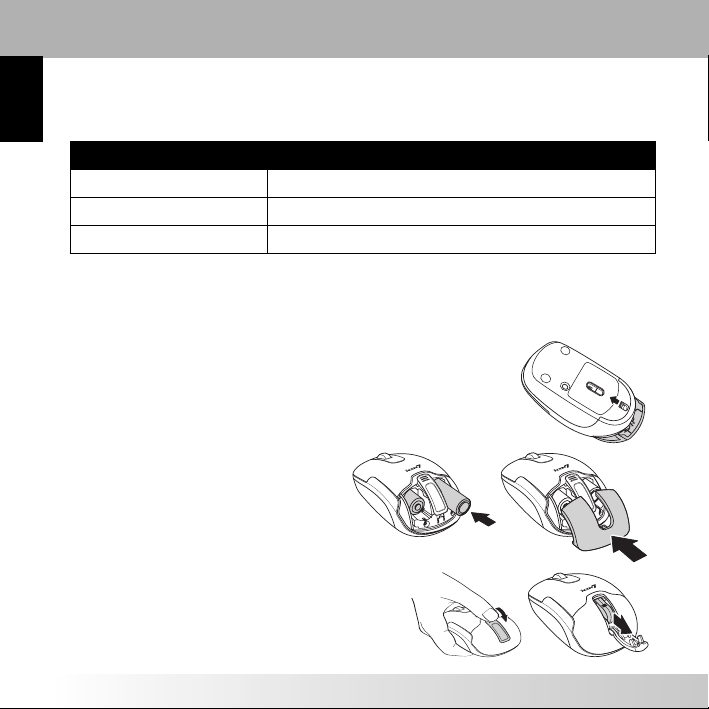
Before you can use your mouse, you must first insert two AA batteries.
1. Turn over the mouse and press the battery latch inwards
until the battery door pops open.
2. Insert two AA batteries, observing
the polarity markings, as shown.
3. Replace the battery door so it
clicks into place.
4. Use your thumb to open the USB
receiver door.
5. Push the USB receiver inwards, and it
will pop out. Remove the receiver.
LED Description
Orange, blinking steadily Battery level normal
Orange, blinking slowly Battery level running low
Orange, blinking rapidly Battery level critically low

User's Manual
4
English
6. Insert the USB receiver into a free USB
port on your PC.
7. Press dongle button first, then press the
connect button on the bottom of the
mouse to establish a connection. The
optical sensor begins to flash when a
connection has been established.
Downloading & Installing the iConfig™ Software
Go online at www.icon7inc.com/support.aspx to download and install the iConfig™
software. The software and driver should run and install automatically after
downloading. Otherwise, please follow the instructions on your screen.
If it does not, open the folder in which the download file is saved in, and browse
for the I7setup.exe file. Double-click the file to load.
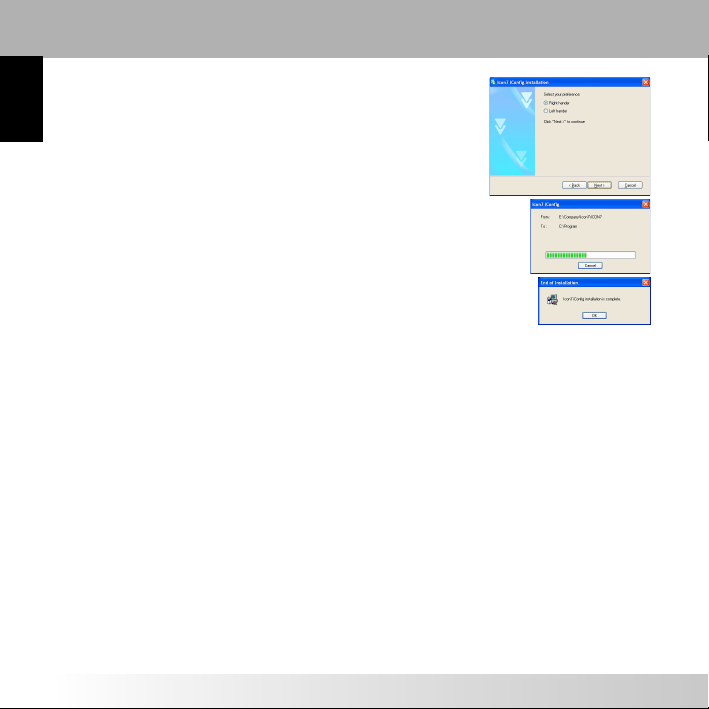
1. Click Next to continue.
1
2
5
English
2. Specify the location of your mouse; whether it is to
the right or the left of the keyboard. Click Next to
begin installation.
3. Installation begins. Click Cancel to quit at any time.
4. Click OK to complete the installation.
Customizing Settings
You can select functions for each button, set scroll speed, mouse speed and
configure other advanced settings through the iConfig™ software.
Launching the iConfig™ Software
You can open the iConfig™ software in two different ways:
• Double-click the Icon7 iConfig icon in the system taskbar.
• Click Start > Settings > Control Panel > Icon7 iConfig.
Once the main screen opens, click the Mouse tab at the top of the screen, and
click the S200 icon.

User's Manual
6
English
Assigning Button Functions
You can assign functions to each of the mouse buttons under the Select Function
section in the iConfig™ software.
Aside from traditional button functions, such as performing a left-click or right-
click action, you can also configure a specific button to act as a shortcut to a
frequently used program or application, such as Internet Explorer.
To assign a function to a button, do the following:
1. Click the drop down menu and select the function you wish to assign to the
button.
2. Click Apply to save and apply any changes.
NOTES:
• A star symbol *denotes that a function has been assigned to a button that is different from its allocated default.
Displays remaining
battery power
Click the drop down
menus to assign a
specific function to each
mouse button
Move the sliders to
adjust the mouse speed
Click to save and apply
any changes
Click to exit
without applying
any changes
Click to
confirm a
setting
change
Click to
restore all
settings to
defaults
Click to configure
advanced settings
Move the sliders
to adjust scroll
speed

7
English
See the following table for all available functions, and to which buttons they can
be assigned.
Button Description
Function Left Right Middle
None 33 3
Primary Mouse
Button
Default 33Functions as the primary mouse
button for selection and dragging
Context Menu /
Alternate
3Default 3Opens the context menu
Middle Mode Button 33 3Performs the assigned middle mode
button function
Quick / Auto Scroll 33Default Scrolls up and down the page
automatically when held and the
mouse is moved
Double-click 33 3Performs a double-click action
Drag lock 33 3Pressing the button will enable the
drag lock feature of the primary
mouse button. Pressing again will
disable drag lock
Maximize window 33 3Maximizes the active window
Minimize window 33 3Minimizes the active window
My Computer 33 3Opens the My Computer screen
Control Panel 33 3Opens the Control Panel
Start Button 33 3Opens the Windows Start menu
Save (Ctrl+S) 33 3Saves the current document or file
Copy (Ctrl+C) 33 3Copies the selected item or text to
the clipboard
Cut (Ctrl+X) 33 3Cuts the selected item or text to the
clipboard
Paste (Ctrl+V) 33 3Pastes the item or text from the
clipboard
Undo (Ctrl+Z) 33 3Undo the previous action
Application Switch
(Alt+Tab)
33 3Switches to another open application
Tabla de contenidos
Idiomas:
Otros manuales de Ratón de icon 7


