I-View 1760AIO Manual de usuario

User Manual
NOTE: For Spanish users, please go to 'Settings", then go to “Language & Input” to change from
English to Spanish Language OSD.
17.3”All in One
To assure the product to work in best status please read the user’s manual carefully before
operation and keep it well for future use

iVIEW introduces the new 1760AIO Portable PC! This All in One Portable PC has a beautiful
17.3 inch multi-cap & IPS Screen which allows you to watch movies or view your favorite photos
from any angle. The 1920x1080 High Resolution screen provides you with a crisp and bright
display, perfect for your entertainment, or work needs. The Windows 10 Operating System, Intel®
Celeron®Processor N3350 Dual Core CPU, and 4GB of RAM allow you to glide through your
experience with the iVIEW 1760AIO. Storing your favorite content is made easy with 32GB of
Internal Storage, or you can save up to 128GB more with the additional Micro SD card reader.
Video chat is made easy with the 2.0 MP front camera and built in microphone. The iVIEW
1760AIO features a built in 2600 mAh battery allowing you the freedom to take it with you
On-the-Go! If you are looking for a high performance 17.3" Portable PC, iVIEW-1760AIO is the
best All in One Portable PC you can't miss out.
Notes:
* This product is highly electric. Do not dismantle.
* Take necessary precautions to avoid dropping.
* Store in a cool environment: avoid extreme temperatures, humidity, and dust. Keep product away from
strong magnets and long-term exposure to the sun.
* Clean the device by gently wiping the product with a damp cloth; the use of chemical cleaners is
prohibited. Keep out of water.
* When using headphones for long periods of time, be advised that high volume may cause permanent
damage to hearing.
* When using headphones, be mindful of your surroundings while traveling.
* Only use permitted battery, charger and accessories. The use of any other type of product could damage
the device and may be dangerous.
* Please deal with waste machinery and accessories according to local environmental regulations.
* If you have any questions about the product, please contact the store of purchase or iVIEW’s customer
service center directly.
* Please follow the user's guide and backup your files. The company is not responsible for any data loss
that may occur due to product damage.

1
Table of Contents
1. Product Overview........................................................................................... 2
2. Keyboard & Mouse Setup............................................................................... 3
3. System Setup................................................................................................. 4
4. Desktop Functions.......................................................................................... 5
4.1 Windows Start Menu ............................................................................. 5
4.2 Basic Touch Screen Commands ........................................................... 5
4.3 Personalization...................................................................................... 7
4.4 Action center ......................................................................................... 8
4.5 Task View.............................................................................................. 9
4.6 Split-Screen........................................................................................... 9
5. Additional Functions ..................................................................................... 10
5.1 Sleep, restart and shut down............................................................... 10
5.2 Recovery............................................................................................. 10
5.3 Bluetooth............................................................................................. 12
5.4 Account Management.......................................................................... 12
6. Storage Expansion....................................................................................... 13
6.1 Micro SD Card..................................................................................... 13
6.2 Internal HDD ....................................................................................... 13
7. Product Features.......................................................................................... 14
8. Accessories.................................................................................................. 14

2
1. Product Overview
Iview PC:
1. Main Camera
2. Charging Indicator Light
3. Home Button
4. Power Button: Press and hold to power on/off. Tap it briefly to enter and wake from sleep
mode.
5. Volume- / Volume+: Lower / raise Volume.
6. Speakers
7. RJ-45 Port: For Ethernet LAN
8. USB 3.0 Port (3 in total)
9. 12V DC-in Charge Port:
10. HDMI: HDMI video output.
11. Micro SD Card Reader: Supports Micro SD and Micro SDHC format.
12. 3.5mm Headphone Jack
13. HDD Compartment: Supports 2.5” SATA or 2.5” SSD Internal Hard Drives.

3
2. Keyboard & Mouse Setup
Before powering on your device, follow the instructions below to set up your wireless
keyboard and mouse.
First, open battery cover on the mouse and remove the wireless receiver. You can find it located
next to the battery compartment, shown in the picture below:
Insert the receiver in any of the device’s USB Ports (shown in Section 1).
Insert batteries into the mouse and keyboard respectively, and re-attach battery covers. Battery
sizes are as follows:
- Keyboard = 2 AAA Batteries
- Mouse = 1 AA Battery

4
3. System Setup
Windows will automatically help you set up your internet connection and system preferences.
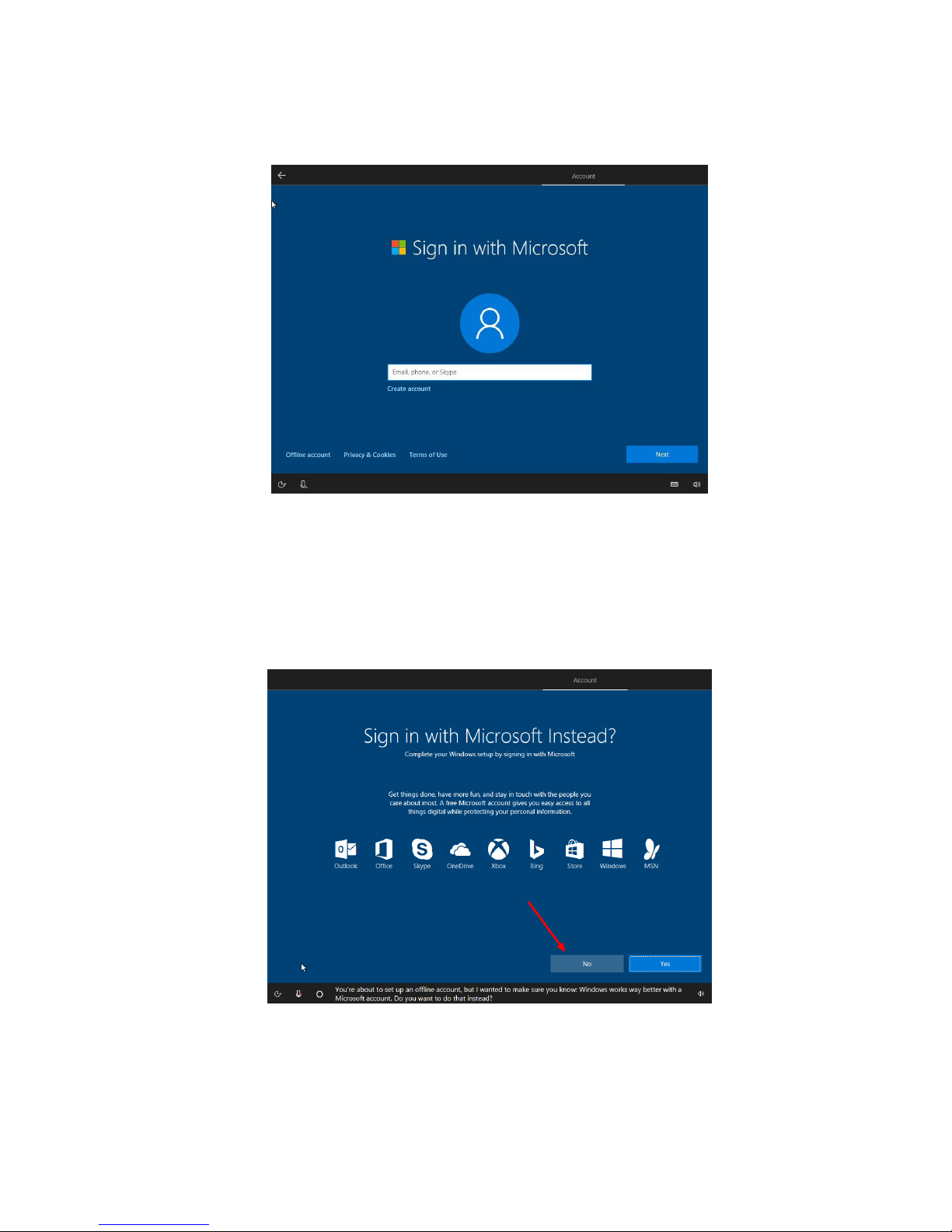
3.1 Account Setup
Once your network is set up, you’ll be asked to set up an account. You can add an existing
Microsoft account, or you can create one.
If you do not wish to create a Microsoft account at this time, you can select OFFLINE
ACCOUNT near the bottom left-hand corner.
(NOTE: Some features, like the Microsoft store, will only be available using a Microsoft
account.)
When creating an offline account, you’ll be prompted with the screen above. Just select NO,
and you’ll be able to set up an offline user name and password.

5
4. Desktop Functions
4.1 Windows Start Menu: You can access the Windows Start Menu by clicking on the Windows
Icon in the bottom-left corner of the screen, or by pressing the key on your keyboard.
Some apps and functions will only be available using a MicrosoftAccount.
4.2 Basic Touch Screen Commands
Task View
Action Center
Slide to the right from the left side of
the screen to open Task View.
Slide to the left from the right side of
the screen to open the action center.

6
Zoom Out
Zoom In
To zoom out on an image or web page,
place two fingers on the screen and
pinch inwards.
To zoom in on an image or web page,
place two fingers on the screen and pinch
outwards.
Scroll up
Drag & Drop
In any menu or page, place finger and slide
downwards to scroll to the top of the menu
orpage.
Tap on an App or File with your finger and
slide sideways to move that file. Remove
finger to place file in new location.
Scroll Down
Context Menu
.
In any menu or page, place finger and
slide upwards to scroll to the bottom the
menu or page.
Place your finger on an app or anywhere
on the screen and hold for 2 seconds,
then release. Just like a right-click on a
mouse, this will open a context menu.

7
4.3 Personalization
Your device comes with an assortment of pre-installed applications. You can view them all in the
start menu, under “All Apps”. You can also pin your favorite applications to the start menu or the
taskbar for quick access.
If you would like to pin apps to the start menu, right-click, or tap & hold on an application until a menu pops up. From
there, you can select “Pin to Start” or select the “More” option if you would like to pin the application to the taskbar.

8
You can also unpin apps that you don’t use, by right-clicking and selecting “Unpin”. If you’re
using the touch screen, tap and hold the pinned application for about one second, click to
unpin it from the Start Menu or Taskbar. You can also click for additional options.
4.4 Action center
From the right side of the screen, place and slide your finger to the left to open theAction Center.
Here, you are able to monitor your device’s status, access settings, connect to a Bluetooth
device, etc.
Tabla de contenidos