OTHERS
1. Users Operation:
Programming Step Keystroke Combination
1. Enter Program Mode
3. Exit
2. Reset to Factory Default 9 0
(All fingerprint/card information will still be
retained)
Power off, open the back cover of F6, then power on, the anti-tamper alarm will be
activated, after 30 seconds, please input “* 123456” then the LED will turn into
Blue, the next step is very IMPORTANT, please add any new Mater Fingerprint /
Card (so that the old ones will become invalid), and then press “#” to exit.
After the setting, all user information and settings are still retained.
Reset F6 to Factory Default
After one beep, it will exit automatically
Input (Master Fingerprint / Card)
Programming Step Keystroke Combination
1. Enter Program Mode
3. Exit After one beep, it will exit automatically
Input (Master Fingerprint / Card)
2. Delete All Users and Masters 9 1
DELETE ALL USERS and MASTERS
(Be careful with this step)
Programming Step Keystroke Combination
1. Enter Program Mode
3. Exit After one beep, it will exit automatically
Input (Master Fingerprint / Card)
2. To Delete Master Fingerprint / Card 9 2
DELETE MASTERS (Master Fingerprint / Card)
09 10
Remove Alarm: The Master Fingerprint/Card, and any valid users.
2. Download / Upload Users’ Information by USB
F6 can download all the users’ information (Fingerprint, Card, PIN) by USB.
Open the door:
Fingerprint User Input Fingerprint
Card User
PIN User
Read Card
PIN #
3. Sound and Light Indication
Operation Status LED Buzzer
Red light shines quickly
Red light shines
Red light bright
Blue light shine
Red light shine
Purple light bright
One beep
One beep
One beeps
One beep
Beeps
Stand by
Enter the programming mode
In the programming mode
Operation succeed
Operation error
Exit the programming mode
Open lock
Alarm
Blue light shine One long beep
Two beeps
Blue light shine
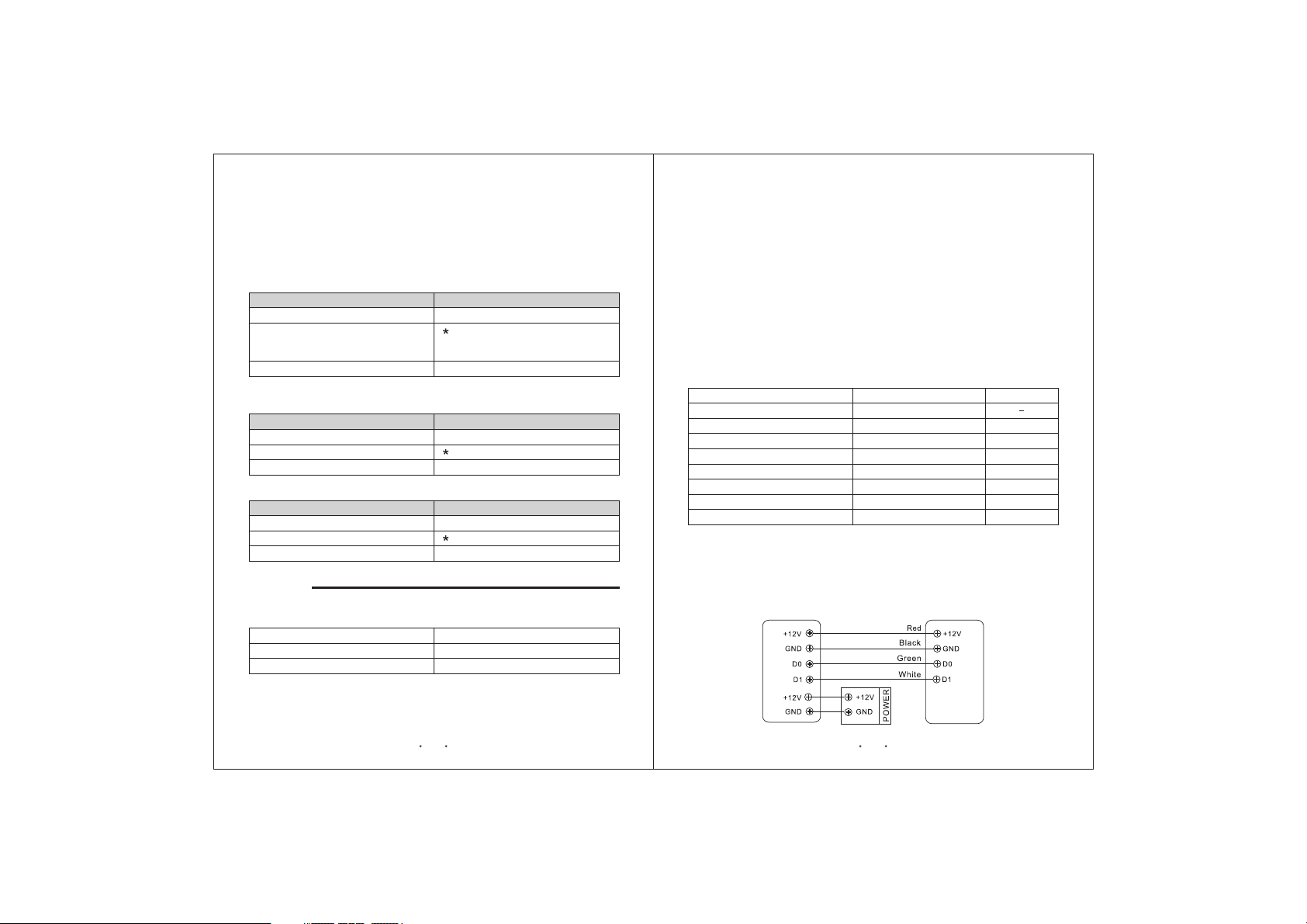
4. Pass-Through Operation
F6 can be operated as a Wiegand Output Reader to the Controller.
In this mode, the F6 supports Wiegand 26 bits output, so the Wiegand data lines
can be connected to any controller tha supports a Wiegand 26 bits input. The
connection diagram is as below:
t
F6Controller
Download:
1. Connect the F6 with the Flash Drive or some thing similar by the USB cable
provided. The LED will flash quickly in red
2. Input (Master Fingerprint / Card)
The LED will turn in blue, and there will be a long beep, LED shines in red,
means download the users’ information successfully.
Upload:
1 Connect the Flash Drive with another F6 (MUST without users’ information) by
the USB cable.
2. Input (Master Fingerprint / Card)
The LED will turn in blue, and there will be a long beep, LED shines in red, means
upload the users’ information successfully.
.