
Huawei ViewPoint 9000 Series Manual de usuario

7150033
HUAWEI 9000 HD Video Terminal Touch Panel
V100R011
User Guide
Issue 01
Date 2012-04-30
HUAWEI TECHNOLOGIES CO., LTD.

Issue 01 (2012-04-30)
Huawei Proprietary and Confidential
Copyright © Huawei Technologies Co., Ltd.
i
Copyright © Huawei Technologies Co., Ltd. 2012. All rights reserved.
No part of this document may be reproduced or transmitted in any form or by any means without prior
written consent of Huawei Technologies Co., Ltd.
Trademarks and Permissions
and other Huawei trademarks are trademarks of Huawei Technologies Co., Ltd.
All other trademarks and trade names mentioned in this document are the property of their respective
holders.
Notice
The purchased products, services and features are stipulated by the contract made between Huawei and
the customer. All or part of the products, services and features described in this document may not be
within the purchase scope or the usage scope. Unless otherwise specified in the contract, all statements,
information, and recommendations in this document are provided "AS IS" without warranties, guarantees or
representations of any kind, either express or implied.
The information in this document is subject to change without notice. Every effort has been made in the
preparation of this document to ensure accuracy of the contents, but all statements, information, and
recommendations in this document do not constitute the warranty of any kind, express or implied.
Huawei Technologies Co., Ltd.
Address:
Huawei Industrial Base
Bantian, Longgang
Shenzhen 518129
People's Republic of China
Website:
http://enterprise.huawei.com
Email:

About This Document
Related Documentation
Document Describes... Document Location
HUAWEI 9000 HD Video
Terminal User Guide
Operating the Huawei 9000
high-definition (HD) video
terminal.
lProvided along with the
HD video terminal.
lhttp://
support.huawei.com
HUAWEI 9000 HD Video
Terminal Administrator
Guide
How to configure, customize,
manage, and troubleshoot the
Huawei 9000 HD video
terminal.
lProvided along with the
HD video terminal.
lhttp://
support.huawei.com
HUAWEI 9000 HD Video
Terminal Touch Panel User
Guide (this document)
How to operate the touch
panel and use it to control the
HUAWEI 9000 HD video
terminal.
lProvided along with the
HD video terminal.
lhttp://
support.huawei.com
HUAWEI 9000 HD Video
Terminal Quick Start
The basic usage of the
HUAWEI 9000 HD video
terminal.
lProvided along with the
HD video terminal.
lhttp://
support.huawei.com
HUAWEI 9000 HD Video
Terminal Touch Panel Quick
Start
The basic usage of the
HUAWEI 9000 HD video
terminal touch panel.
lProvided along with the
HD video terminal.
lhttp://
support.huawei.com
HUAWEI 9000 HD Video Terminal Touch Panel
User Guide About This Document
Issue 01 (2012-04-30) Huawei Proprietary and Confidential
Copyright © Huawei Technologies Co., Ltd.
ii

Related Terms
Term Description
Point-to-point call Conference between two sites. These types of conferences do
not have many conference control functions. During a
conference, you cannot add or delete sites from the
conference.
Multipoint conference Conference with more than two sites. These types of
conferences have many conference control functions. During
the conference, you can view continuous presence and add or
delete sites from the conference.
Local site The site where you are currently located.
Remote site One of the participating sites in a conference. It cannot be the
local site.
User Interface
Users can control the HUAWEI 9000 video terminal from one of three user interfaces.
lUser interface controlled by the remote control
lWeb interface
lTouch panel user interface
Unless otherwise stated, the user interface described in the document is the touch panel user
interface.
HUAWEI 9000 HD Video Terminal Touch Panel
User Guide About This Document
Issue 01 (2012-04-30) Huawei Proprietary and Confidential
Copyright © Huawei Technologies Co., Ltd.
iii

Contents
About This Document.....................................................................................................................ii
1 Overview.........................................................................................................................................1
2 Using the Touch Panel..................................................................................................................2
2.1 Appearance of the Touch Panel..........................................................................................................................2
2.2 Powering On the Touch panel............................................................................................................................2
2.3 Using the Touch Panel........................................................................................................................................2
2.4 Setting Connection Parameters...........................................................................................................................3
2.5 Home Screen Buttons.........................................................................................................................................5
2.6 Setting the Language..........................................................................................................................................6
2.7 Setting Security Parameters................................................................................................................................6
2.8 Waking Up the Touch Panel...............................................................................................................................7
2.9 Using the Online Help........................................................................................................................................7
3 Experiencing a Conference..........................................................................................................9
3.1 Answering a Call................................................................................................................................................9
3.2 Setting Call and Conference Parameters............................................................................................................9
3.3 Initiating a Conference.....................................................................................................................................11
3.3.1 Initiating a Conference from the Contacts Screen...................................................................................11
3.3.2 Initiating a Conference from the Keypad Screen....................................................................................12
3.3.3 Initiating a Conference from the Conference History Screen.................................................................12
3.3.4 Joining a Conference Quickly.................................................................................................................13
3.4 Conference Control...........................................................................................................................................13
3.4.1 Controlling a Conference.........................................................................................................................13
3.4.2 Controlling a Site.....................................................................................................................................15
3.4.3 Customizing Conference Controls...........................................................................................................16
3.5 Controlling Captions.........................................................................................................................................17
3.6 Recording a Conference...................................................................................................................................17
3.7 Using Two-Stage Dialing.................................................................................................................................18
3.8 Sharing a Presentation......................................................................................................................................19
3.9 Leaving or Ending a Conference......................................................................................................................19
4 Controlling What You See.........................................................................................................21
4.1 Selecting Video Sources...................................................................................................................................21
4.2 Selecting and Controlling a Camera.................................................................................................................21
HUAWEI 9000 HD Video Terminal Touch Panel
User Guide Contents
Issue 01 (2012-04-30) Huawei Proprietary and Confidential
Copyright © Huawei Technologies Co., Ltd.
iv

4.3 Saving a Camera Preset....................................................................................................................................22
4.4 Switching Between Screen Layouts.................................................................................................................23
4.5 Viewing Continuous Presence..........................................................................................................................24
5 Controlling What You Hear.......................................................................................................26
5.1 Adjusting the Volume.......................................................................................................................................26
5.2 Muting the Microphone....................................................................................................................................26
6 Upgrading Software....................................................................................................................27
HUAWEI 9000 HD Video Terminal Touch Panel
User Guide Contents
Issue 01 (2012-04-30) Huawei Proprietary and Confidential
Copyright © Huawei Technologies Co., Ltd.
v

1 Overview
The HUAWEI 9000 HD Video Terminal Touch Panel (touch panel for short) is provided with
the HUAWEI 9000 HD Video Terminal (terminal for short). Huawei's dedicated conference
control software (Huawei Telepresence) comes pre-installed on the touch panel. After you
wirelessly connect the touch panel to the terminal, Huawei Telepresence enables you to initiate
and control conferences.
With support for various types of audio and video ports as well as user-defined settings, the
terminal delivers a professional and personalized real-time conferencing experience.
When reading this document, note that:
lDepending on the license purchased, some functions described in this document may not
be available on your touch panel. To use the functions not available on the though panel,
contact the administrator.
lBefore using the touch panel, ensure that the administrator has configured necessary
settings on it.
HUAWEI 9000 HD Video Terminal Touch Panel
User Guide 1 Overview
Issue 01 (2012-04-30) Huawei Proprietary and Confidential
Copyright © Huawei Technologies Co., Ltd.
1
2 Using the Touch Panel
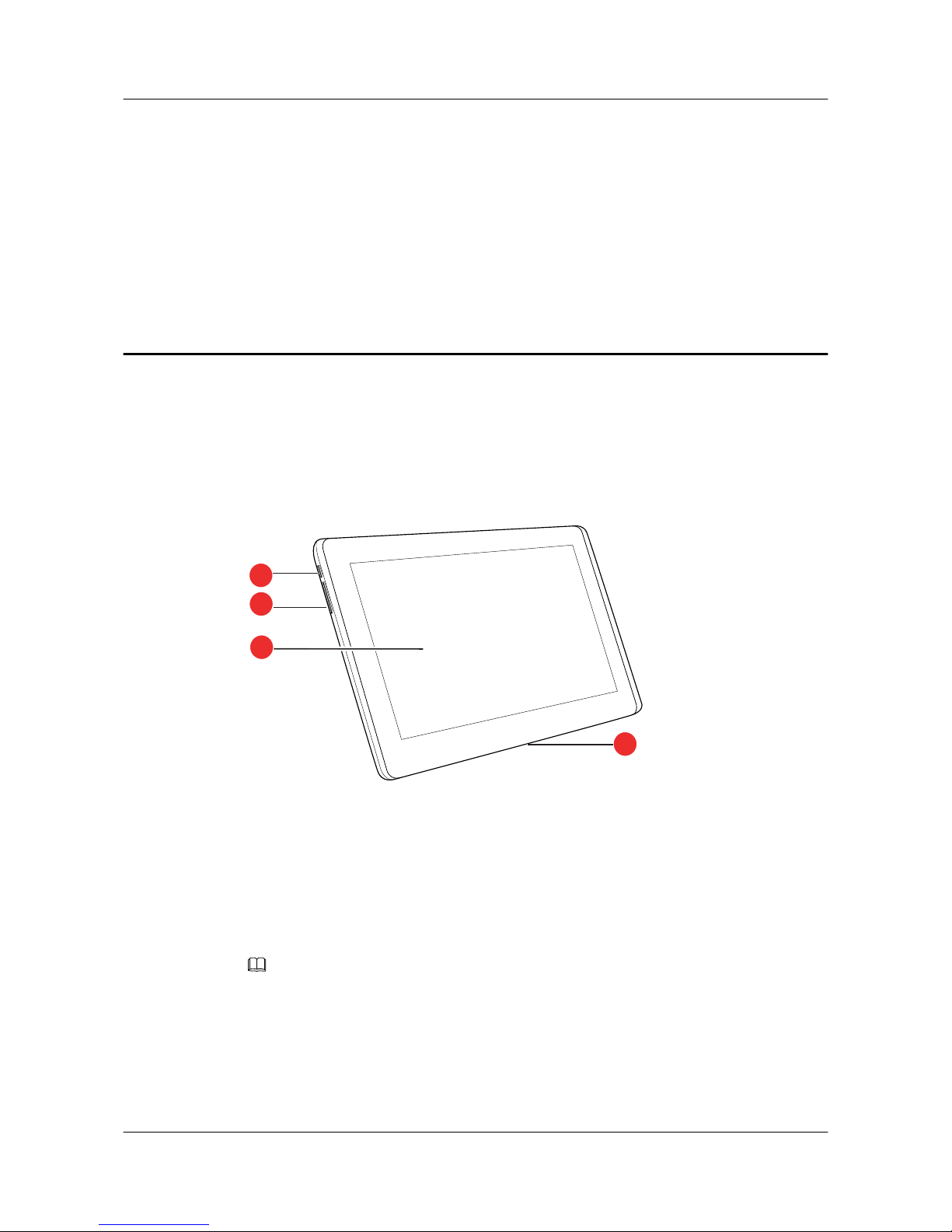
2.1 Appearance of the Touch Panel
Figure 2-1 shows the touch panel.
Figure 2-1 Touch Panel
1. Power key 2. Volume Up/Down key (not used for
conference audio)
3. Display 4. Power interface
2.2 Powering On the Touch panel
Press and hold the Power key for at least 2 seconds to power on the touch panel. If the touch
panel cannot be powered on, charge the touch panel.
NOTE
The battery life is limited. Therefore, connect the touch panel to a power supply using the power adapter
for long-duration conferences.
2.3 Using the Touch Panel
The touch panel recognizes multiple gestures.
HUAWEI 9000 HD Video Terminal Touch Panel
User Guide 2 Using the Touch Panel
Issue 01 (2012-04-30) Huawei Proprietary and Confidential
Copyright © Huawei Technologies Co., Ltd.
2

lTap: Use your finger to touch an item on the touch panel, and remove your finger quickly
from the screen.
lTap and hold: Use your finger to touch an item on the touch panel, and continue to touch
the item for at least 2 seconds.
lSlide: Touch and hold somewhere on the screen, and move your finger leftward and
rightward to toggle between the zones displayed in the center, or upwards and downwards
to view the full content of a menu.
lDrag: Tap and hold an item on the touch panel, and drag the item to a desired position.
2.4 Setting Connection Parameters
Before logging in to the touch panel for the first time, set the connection parameters.
Prerequisites
The wireless network is enabled. To enable the wireless network:
1. Tap Apps on the touch panel to display the application screen. Choose Settings > Wireless
& networksand tap WLAN to allow the touch panel to automatically search for wireless
networks.
2. Tap WLAN Settings to display the WLAN networs screen. Under WLAN networks, tap
the available wireless network dedicated to Huawei videoconferencing.
Procedure
Step 1 Tap Apps on the touch panel and then from the application screen, tap .
Step 2 From the displayed dialog box, tap Settings to display the connection screen.
Step 3 Set the parameters described in Table 2-1 to connect to the terminal.
Table 2-1 Connection parameters
Parameter Description
IP address Specifies the IP address of the terminal.
NOTE
To obtain the terminal's IP address, perform either of the following:
lFrom the web interface, choose System Settings > Network > IP and check the
value of Local IP address.
lFrom the user interface controlled by the remote control, check the lower left corner
of the home screen. Alternatively, choose Settings > Network > IP and check the
value of Local IP address.
HUAWEI 9000 HD Video Terminal Touch Panel
User Guide 2 Using the Touch Panel
Issue 01 (2012-04-30) Huawei Proprietary and Confidential
Copyright © Huawei Technologies Co., Ltd.
3

Parameter Description
Protocol Specifies the protocol used to connect the touch panel to the terminal. The
default value is HTTPS.
Hypertext Transfer Protocol Secure (HTTPS) helps to keep data transmissions
secure. Before selecting this protocol, enable SSL encryption on the terminal.
NOTE
To enable SSL encryption on the terminal, perform either of the following:
lFrom the web interface, choose System Settings > Security and Service >
Others and set SSL encryption to Enable.
lFrom the user interface controlled by the remote control, choose Settings >
Security > Web Login and select SSL encryption.
User name
Password
In these fields, enter the values of User name and User name password
predefined on the terminal's web interface. The default values are api.
NOTE
After connecting the touch panel to the terminal, change the touch panel's user name
and password as soon as possible to increase security. To change the touch panel's user
name and password, log in to the terminal's web interface and choose System
Settings > Personal > Settings of API User.
This method also applies when you forget the touch panel's user name or password.
Step 4 Tap Save to save the parameter settings.
----End
Follow-up Procedure
Once connected successfully to the terminal, the touch panel displays the Huawei telepresence
home screen, as shown in Figure 2-2. For future connections, you do not need to set connection
parameters. Drag Start to the wake button ,and the Huawei telepresence home screen will
be displayed.
HUAWEI 9000 HD Video Terminal Touch Panel
User Guide 2 Using the Touch Panel
Issue 01 (2012-04-30) Huawei Proprietary and Confidential
Copyright © Huawei Technologies Co., Ltd.
4
Otros manuales para ViewPoint 9000 Series
2
Tabla de contenidos
Otros manuales de Panel táctil de Huawei

Manuales populares de Panel táctil de otras marcas


IBASE Technology
IBASE Technology ASTUT-152-RE1S Manual de usuario

YASKAWA
YASKAWA TP 610C Manual de usuario

B&R
B&R Power Panel C Series Manual de usuario

Beijer Electronics
Beijer Electronics X2 control Manual de usuario

AXIOMTEK
AXIOMTEK GOT321W-521 Manual de usuario

TRIDONIC.ATCO
TRIDONIC.ATCO x-touchBOX Manual de usuario


