
Honeywell CK75 Manual de usuario

CK75
with Windows®Embedded Handheld 6.5
Quick Start Guide
CK75-W65-EN-QS Rev A
5/17

1
Out of Box
Make sure that your shipping box contains these items:
• CK75 mobile computer (Model CK75LAN)
• Rechargeable 3.7 V, Lithium-ion battery
• Product Documentation
If you ordered accessories for your mobile computer, verify that
they are also included with the order. Be sure to keep the original
packaging in case you need to return the mobile computer for
service.
Memory Card Specifications
Honeywell recommends the use of Single Level Cell (SLC)
industrial grade microSD™ memory cards with the computer for
maximum performance and durability. Contact a Honeywell
sales representative for additional information on qualified
memory card options.

2
Computer Features
Notification
LED
Scan Button
Power Button
Battery Status
LED
Good Read LED
Speaker
Touch Panel
Volume Buttons
Microphone

3
Note: Hand strap not shown.
Speaker Port
Battery
Camera
Imager
(LED/Laser Aperture)
Laser Safety
Label Location
Side Scan
Button
Application
Button
Battery Latch
microSD Card
Socket Cover
Stylus


6
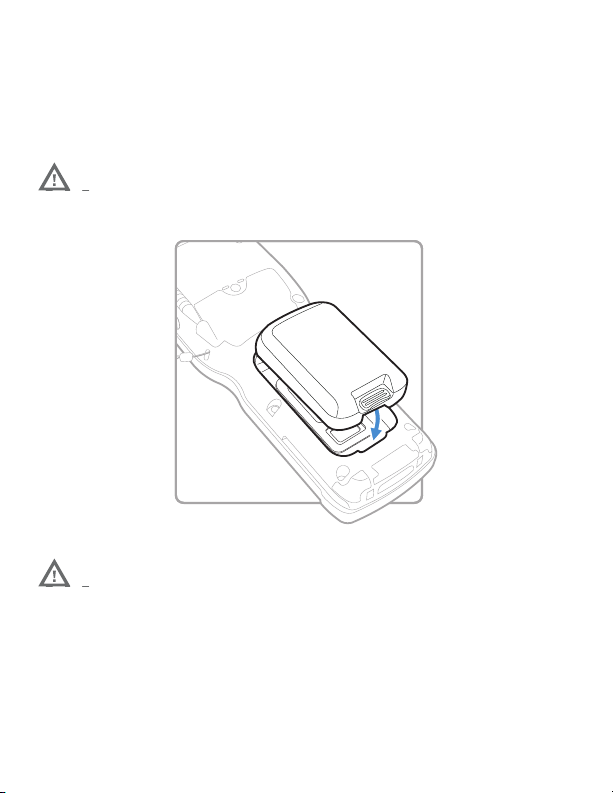
Install the Battery
The CK75 mobile computer ships with a Lithium-ion 3.7 V,5200
mAH (19.24 Wh) battery manufactured for Honeywell
International Inc.
We recommend use of Honeywell Li-ion battery packs.
Use of any non-Honeywell battery may result in
damage not covered by the warranty.
Ensure all components are dry prior to placing the
battery in the computer. Mating wet components may
cause damage not covered by the warranty.

7
Charge the Computer
The CK75 mobile computer ships with a partially charged
battery. Charge the battery with a 70 Series charging device for
a minimum of 6 hours.
Using the computer while charging the battery increases the
time required to reach a full charge. If the CK75 is drawing more
current than supplied by the charging source, charging will not
take place. For additional information, see the user guide.
CK75 mobile computers are designed for use with the following
charging accessories: DX1 Desktop Dock, DX2 Dual Dock, and
DX4 Quad Dock and a power supply.
We recommend the use of Honeywell peripherals,
power cables and power adapters. Use of any non-
Honeywell accessories or power adapters may cause
damage not covered by the warranty.
Ensure all components are dry prior to mating the
computers and batteries with peripheral devices.
Mating wet components may cause damage not
covered by the warranty.

8
Turn Power On
The computer automatically turns on when you install the
battery pack.
Suspend Mode (Sleep Mode)
Suspend mode automatically turns off all radios and internal
devices not involved in saving the system state to save battery
power when the computer is inactive for a programmed period
of time.
• Press and release the Power button to wake the computer.
To manually activate suspend mode:
1. Press and hold the Power button until the options menu
appears.
2. Touch Suspend.
Note: To adjust the time out limit, touch Settings > Power. Select
the Advanced tab.
Use Hibernate Mode for Battery Removal
You should always place the computer in hibernate mode before
removing the battery. Hibernate mode places the computer in a
low power state so that the battery can be removed for a short
period of time.
To activate hibernate mode:
1. Press and hold the Power button until the options menu
appears.
2. Touch Hibernate.
3. After replacing the battery, press and release the Power
button to wake the device.

9
About the Home Screen
Title Bar
(Notification /
Status Bar)
Touch to access the Start menu.
Tile Bar
Search Bar
Otros manuales para CK75
3
Este manual sirve para los siguientes modelos
1
Tabla de contenidos
Otros manuales de Computadora móvil de Honeywell


